Package files
Package files are a set of one or more files that relate to a single
document version, such as multiple separate sections that make up a
single manuscript. Package files are stored in the Document Version
Package
File (mvn__CM_Document_Version_Package_File__c)
custom object, each record of which looks up to a parent Document
Version (mvn__CM_Document_Version__c) record. If a
document version has package files and is replaced with a newer document
version or is used to create a new draft, all of the package files are
automatically carried over onto the new document version and/or draft.
Package Files related list
Out of the box, users can manage the package files of a given document
version with the Package Files related list on the Publication Planning
Document Record Page (PP_Document_Record_Page).
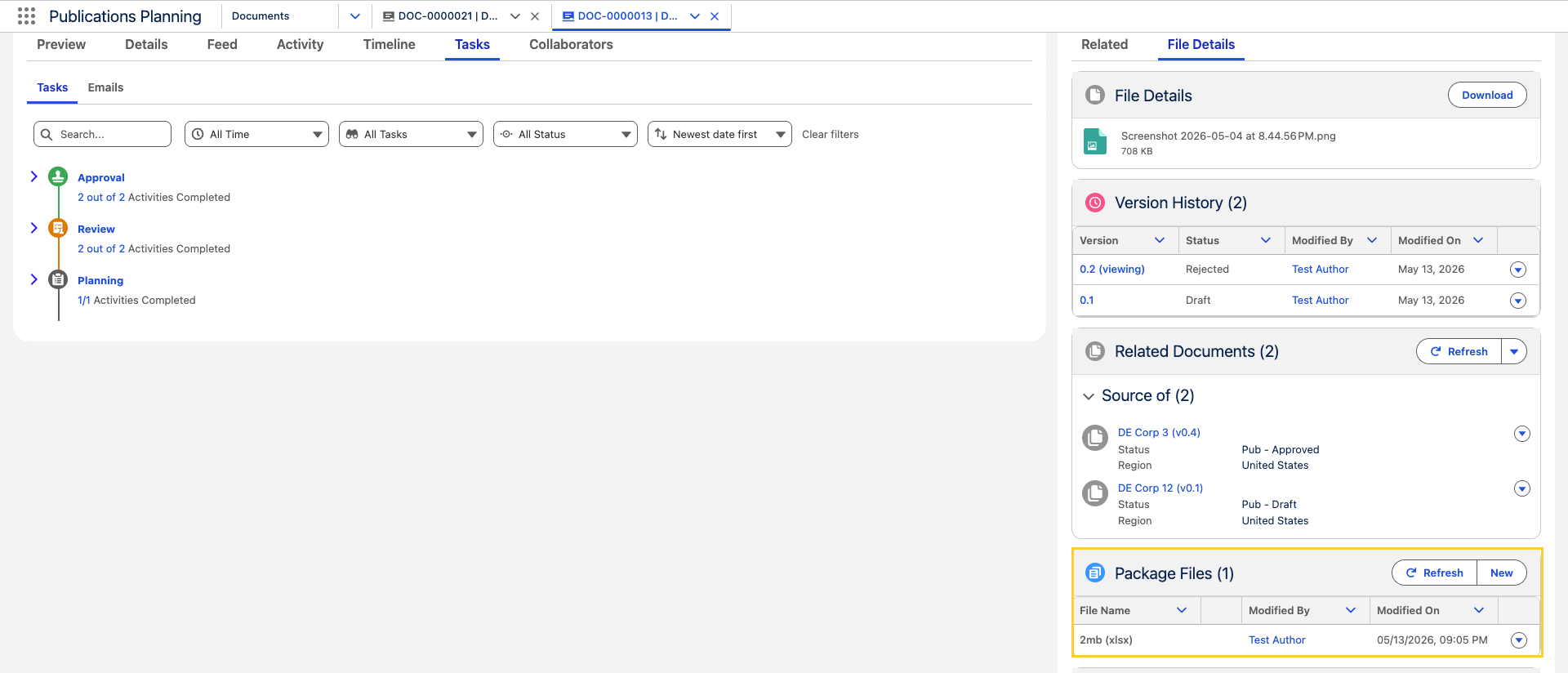
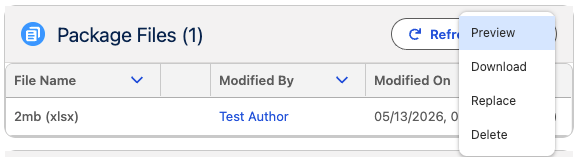
Users can upload individual package files by clicking New in the related list. They can also Preview, Download, Replace, Check Out or Delete package files by clicking the dropdown next to a specific package file and then selecting the desired action.
Users must have the Edit Document (mvn__CM_Edit_Document) document version permission to Upload, Check Out, Replace, or Delete package files and must have the Download Source (mvn__CM_Download_Source) document version permission to Download package files. Users cannot Replace or Delete package files that are checked out by other document collaborators and cannot add New package files to parent documents that are checked out by other document
collaborators.
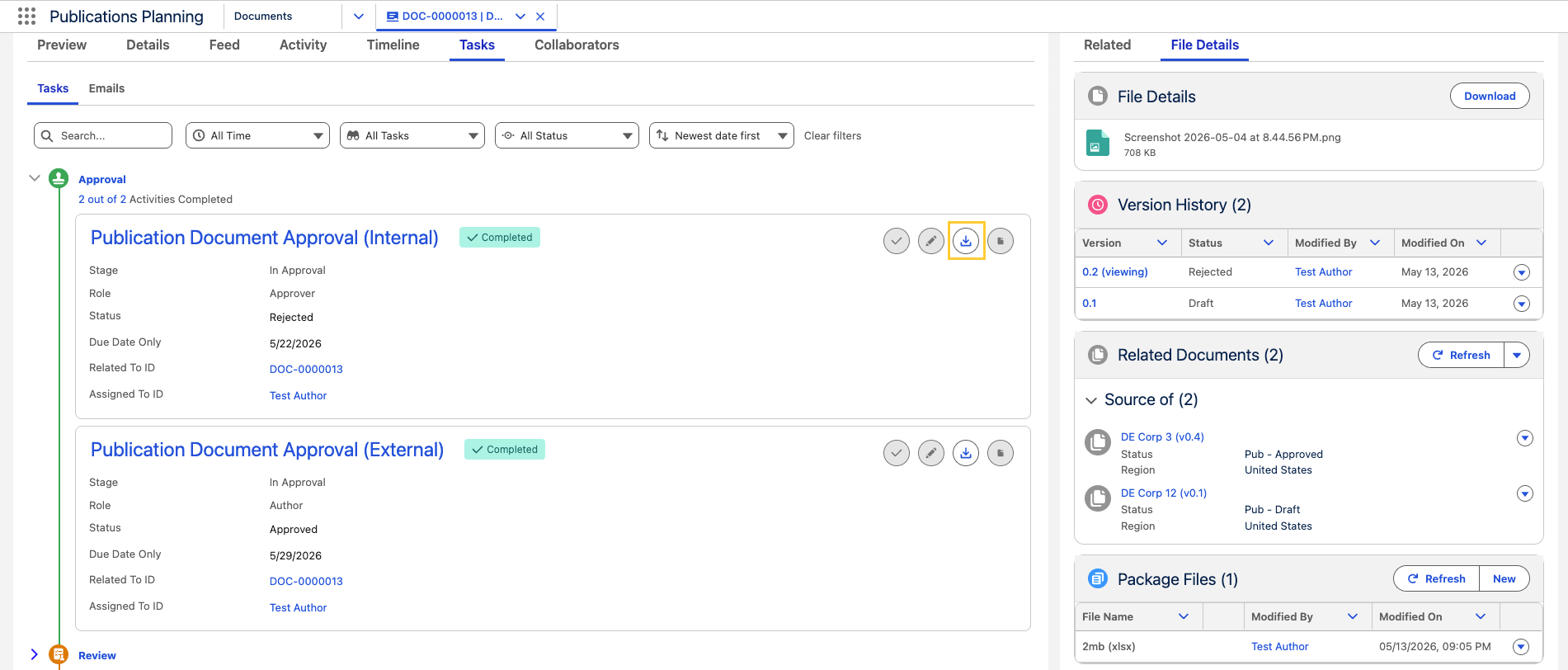
In the Tasks tab on a Publication Planning Document Record Page (PP_Document_Record_Page), a Download button is available to download all package files associated with Document Version (mvn__CM_Document_Version__c), so users don’t have to download each of them manually.
When users attempt to preview package files, a "File preview is currently being generated. Check back later." message may appear. Users should click Refresh Preview for the package file to load and the preview to render.
Add to record page
Admin users can manage the Package Files related list via the MCM -
Document Version Package Files (cmDocumentVersionPackageFiles)
Lightning component.
To add the Package Files related list to a Lightning record page:
-
Open the Lightning record page in the Lightning App Builder.
-
From the list of custom components in the left sidebar, click and drag the MCM - Document Version Package Files component into the desired location in the Lightning record page.
-
Click Save.
Check out package files to Microsoft 365
From the Package Files related list, users can check out package files to Microsoft 365 to review and edit the package files. To enable this capability, ensure the following criteria are met:
-
The Microsoft 365 integration must be set up,
-
The package files must meet the Microsoft 365 integration document requirements, and
-
The users must have the necessary license and permissions.
Additionally, users must first check out the parent document version before they can check out any package files.
Once a user checks out the parent document version, only that same user can create, replace, and delete package files. All other users can only preview and download package files locally or check out, review, and edit package files in Microsoft 365. For each package file that is checked out, a lock icon will appear locked if the package file is checked out by another user or unlocked if the package file is checked out by the current user. Additionally, a message will appear at the top of the record page to indicate that one or more package files are checked out. Package files that are checked out cannot be replaced or deleted.
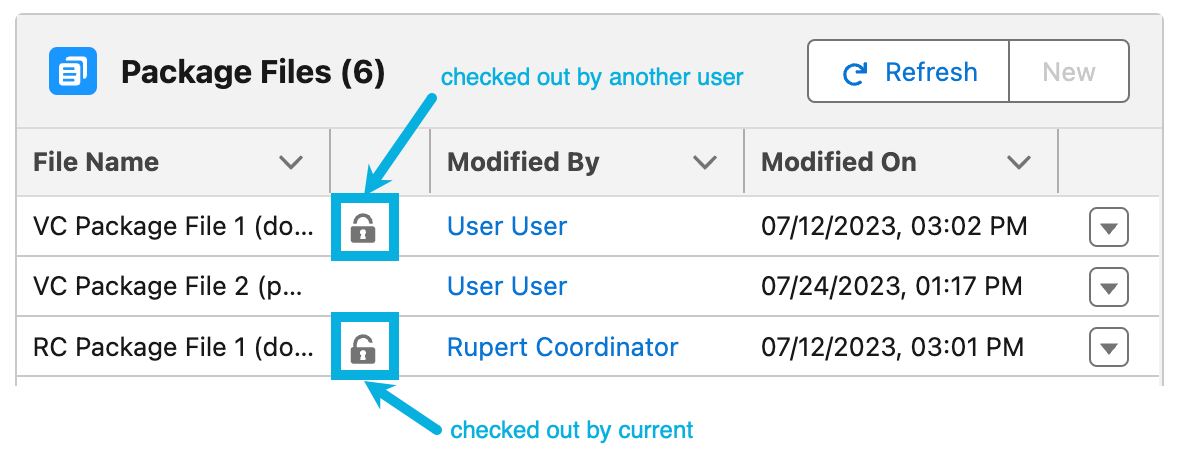

Users must first check out the package file they wish to open, review, and edit in Microsoft 365 before they can see and select the Open in Microsoft 365 option. Then, after the users make the appropriate modifications to one or more package files, the user who checked out the document version can check the parent document back in to retain the changes that everyone made in Microsoft 365. While checking in the parent document, the user can either upload a new document if the user had checked out (i.e., downloaded) the parent document locally or preview the modifications made to the current document if the user had checked out the parent document in Microsoft 365. The user will then also be able to preview the checked out package files. All package files will subsequently be carried over onto the new document version. However, if the user cancels the checkout of the parent publication document, then the checkout of all of the package files will also be canceled and any changes that were made in Microsoft 365 will be lost.
Pubs API endpoint
While the Package Files related list displays all of the package files related to
a document version, the Pubs
API retrieves all the package files related to a
publication. To retrieve the list of package files via the Pubs API,
developers can use the pubs/publication/\{id\}/Accept-version endpoint
and set the Accept-version parameter to equal V2. To use the Pubs
API, users must be assigned the PP_Content_Author
(mvn__PP_Content_Author) permission set while external collaborators
must be assigned the PP_Content_Author_External
(mvn__PP_Content_Author_External) permission set.
Collaborator Portal
For every publication document that an external collaborator is shared
with and able to see in the Collaborator
Portal, the external collaborator can also see all
of the publication document's associated package files if the
PP_Pubs_API_Version_2 Pubs API
Version (mvn__PP_Pubs_API_Version__mdt) metadata
record is active. All package files for the publication document will
appear in the Related Documents subtab in the Collaborator Portal above
other supporting documents. Users do not have to manually share each
individual package file with an external collaborator.
Download package files
External collaborators can download any and all package files that
appear in the Collaborator Portal. When external collaborators click
into a publication document in the Collaborator Portal, they can either
click the  Pub
& Package Files button at the top of the page to download the
publication document with all of its associated package files or click
the
Pub
& Package Files button at the top of the page to download the
publication document with all of its associated package files or click
the  File
button next to a specific package file to download the individual
package file. The
Pub & Package
Files button is disabled (i.e., greyed out) if there are no package
files for the publication document.
File
button next to a specific package file to download the individual
package file. The
Pub & Package
Files button is disabled (i.e., greyed out) if there are no package
files for the publication document.
Open package files in Microsoft 365
External collaborators can open package files in Microsoft 365 if:
-
the package files meet the Microsoft 365 integration document requirements and
-
the package files are checked out in the Salesforce instance.
If the above criteria are met, after external collaborators click into a
publication document in the Collaborator Portal, they can click the
 Open File
button next to a package file to open it in Microsoft 365. If the above
criteria are not met, then the button will be disabled (i.e., greyed
out). Any package files that cannot be opened with Microsoft 365 can
still be downloaded.
Open File
button next to a package file to open it in Microsoft 365. If the above
criteria are not met, then the button will be disabled (i.e., greyed
out). Any package files that cannot be opened with Microsoft 365 can
still be downloaded.
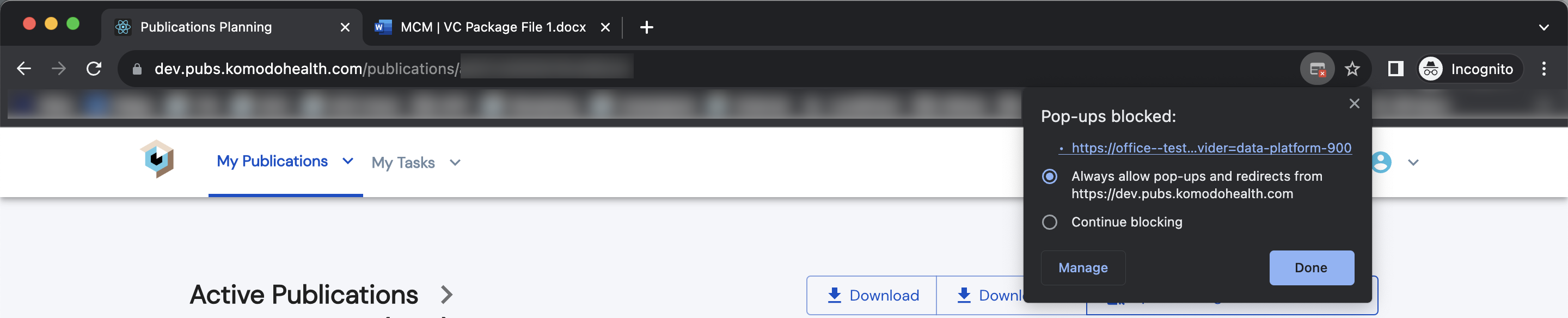
To ensure that all of the Microsoft 365 package files open in separate tabs as expected, external collaborators must allow pop-ups from the Collaborator Portal. For more information on how to allow pop-ups in Chrome, reference Block or allow pop-ups in Chrome.