Document lifecycles
Document lifecycles dictate the sequence of states that a document goes through and the workflows that are available to a document. A lifecycle is assigned to a document based on the document's classification.
Create document lifecycles
You can create any number of document lifecycles. The number of
lifecycles your organization needs depends on the statuses and workflows
each document type in your environment needs. If your document types are
homogeneous, you may decide to create a single lifecycle and apply it to
all documents. However, you may need to create multiple lifecycles to
manage more than one document type. For example, certain document types
may only require Draft and Published statuses and a single workflow
while other document types may require several statuses and workflows.
To configure document lifecycles, create and modify records for these custom metadata objects:
-
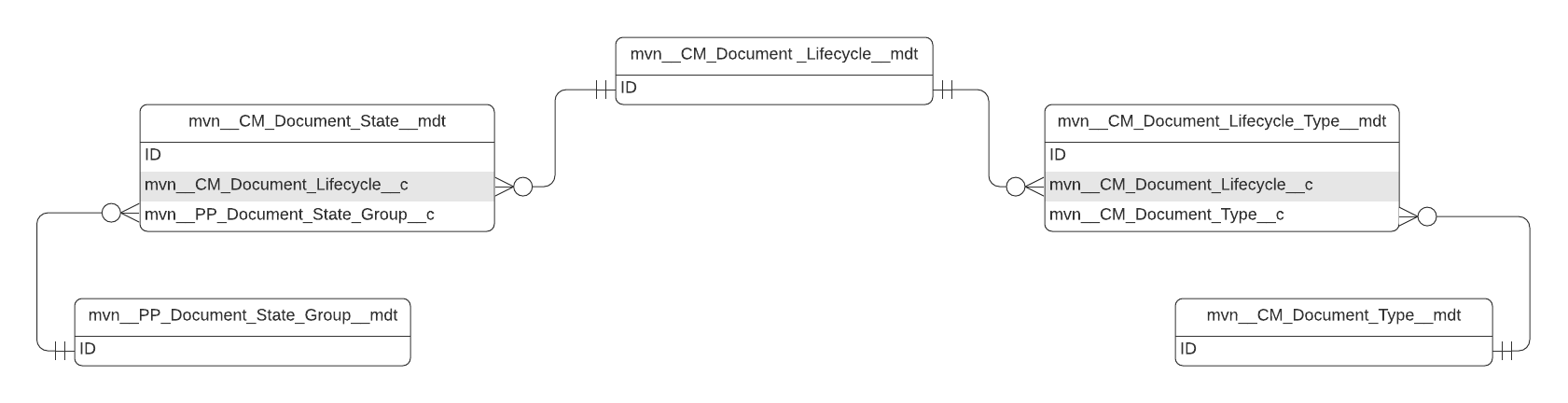
Document Lifecycle - dictates the sequence of states that a document goes through and the workflows that are available to a document.
-
Document State - defines the possible stages that a document can be assigned as the document progresses through its lifecycle.
-
Document State Grouping - groups multiple Document States. In some areas of the user interface, the label for a group displays rather than all of the individual states that are part of that group.
-
Document Lifecycle Type - connects a Document Lifecycle to a Document Type.
-
Document Type - classifies a document and dictates the lifecycle, states, metadata, and workflows that are available to the document.
Document Lifecycles and Document States are associated by a one-to-many relationship. A Document Lifecycle is comprised of many Document States. Document Lifecycles are connected to Document Types through the Document Lifecycle Type junction object. A document's Document Type determines the Document Lifecycle for that document.
Configure document lifecycle path
The SPC - Document Lifecycle Path (ppDocumentLifecyclePath) component
indicates the document's current state and displays the sequential
document state groupings and document states that make up a document's
lifecycle. When you click a document state grouping on the path, the
states that are part of that group display below the group.
To configure how the component displays each document lifecycle:
-
Set the
mvn__CM_Document_State__mdt.mvn__CM_Display_in_Path_Component__cfield totrueto display a document state in the path orfalseto not display it. -
Specify the order the states should display on the path via the
mvn__CM_Document_State__mdt.mvn__CM_Sort_Order__cfield. A state with amvn__CM_Sort_Order__cvalue of1displays before a state with a value of2. -
Group document states to prevent the path from overcrowding when a lifecycle has many states. To group document states, create
PP_Document_State_Group__mdtrecords, and associate them to the appropriateCM_Document_State__mdtrecords via themvn__CM_Document_State__mdt.mvn__PP_Document_State_Group__cfield.noteTo keep the path styling clean, Mavens recommends not associating more than five document states to the same document state group.
:::
Document lifecycle assignment
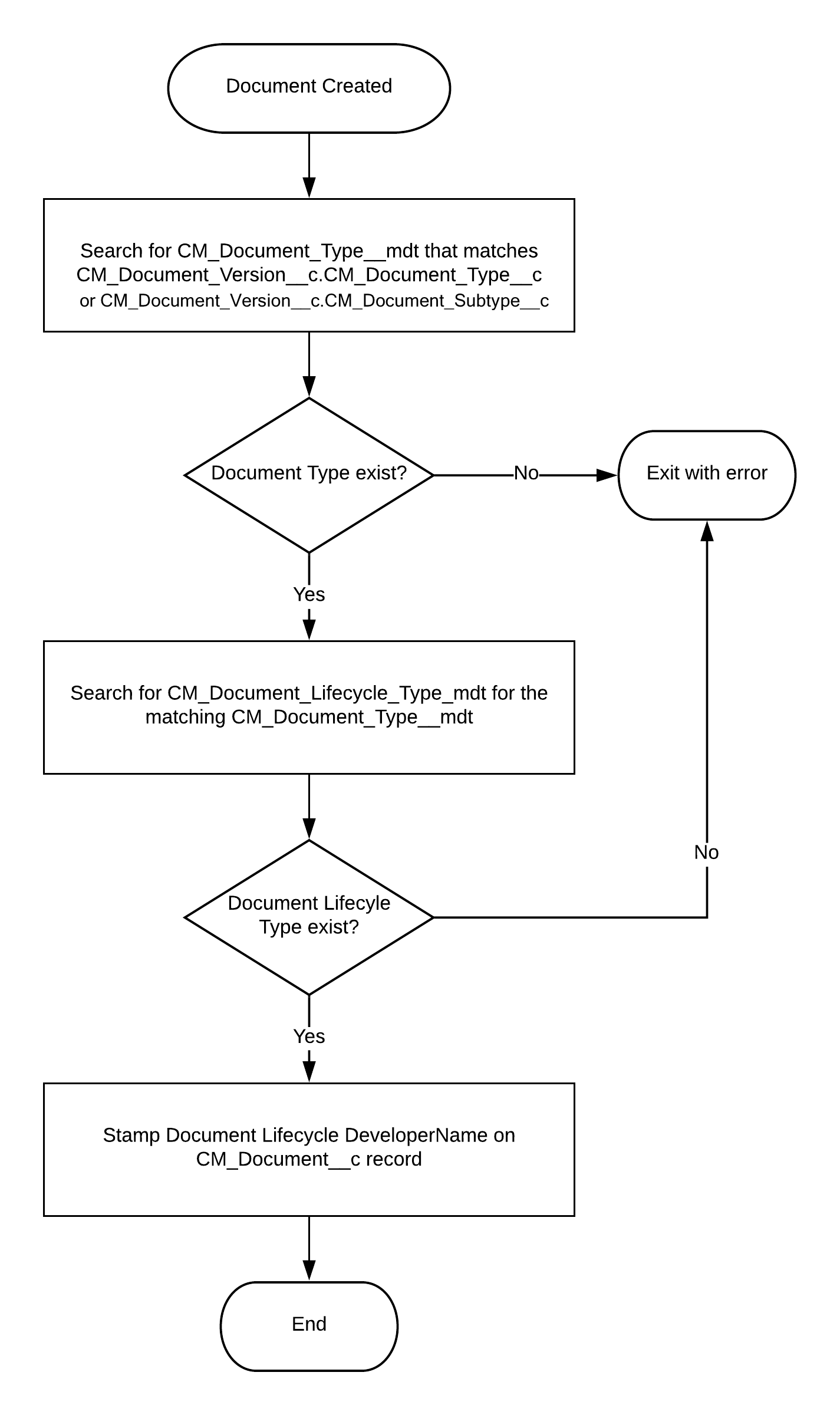
When creating a new document with the Document Wizard, you classify the
new document by CM_Document_Type__c, CM_Document_Subtype__c, and
CM_Classification__c. Scientific Publications Cloud uses the value selected for
CM_Document_Type__c or CM_Document_Subtype__c to place the new
document in a lifecycle.
note
::: title
:::
For a document to be assigned a lifecycle when it is created,
CM_Document_Version__c.CM_Document_Type__c and
CM_Document_Version__c.CM_Document_Subtype__c picklist values must
match 1:1 to the DeveloperName values for all CM_Document_Type__mdt
records.
::::
For a document with configurations matching both the type and the subtype, the document subtype takes preference.
:::
 :::
:::
Metadata
The primary custom metadata objects used to manage document lifecycles include: