Relationships
Documents can be related to products and other documents. Documents can also have multiple related documents under them and be related to other documents in multiple static relationships. There are five default document relationship types that you can use or deactivate, and you can create additional document relationship types to articulate document-to-document relationships. In the user interface, you can use the Related Documents component to display a list of the documents that are related to the current Document Version record or open the Relationship Visualizer for an interactive visualization of the current document's relationships.
Related Documents component
The Related Documents component lists the documents that are related to the current document version. With this component, users can create and relate new and existing documents to the current document.
Show previous versions of related documents
By default, the Related Documents component shows the latest relationship the current document has with other documents and hides the previous versions of related documents. For example, if Document A (v1.0) is related to Document B, which has v1.0 and v2.0, the component only shows Document B (v2.0) as a related document. To show all versions of the related documents, including the older versions (e.g., show both v1.0 and v2.0 of Document B):
-
Click the down arrow in the top right corner of the component.
-
Uncheck the Hide Relationships to Previous Versions option.
Open the Relationship Visualizer
The Relationship Visualizer is an interactive component that uses Scalable Vector Graphics (SVG) to show all of the current document's relationships. It supplements the list in the Related Documents component by providing a user-friendly visualization of how one or more documents are related to the current document.
To open the Relationship Visualizer from the Related Documents component:
-
Click the down arrow in the top right corner of the component.
-
Click Relationship Visualizer. A new tab will open.
The Relationship Visualizer consists of two primary components: the header and the canvas. The header is at the top of the visualizer and displays general details about the current document and its relationships, including the date that the document was created and last modified and the number of parent, child, and related documents it has. The canvas is below the header and provides the actual visualization of the document's relationships. The canvas uses SVG to ensure that the visualization will not become pixelated or difficult to read even as a user zooms in and out of the canvas.
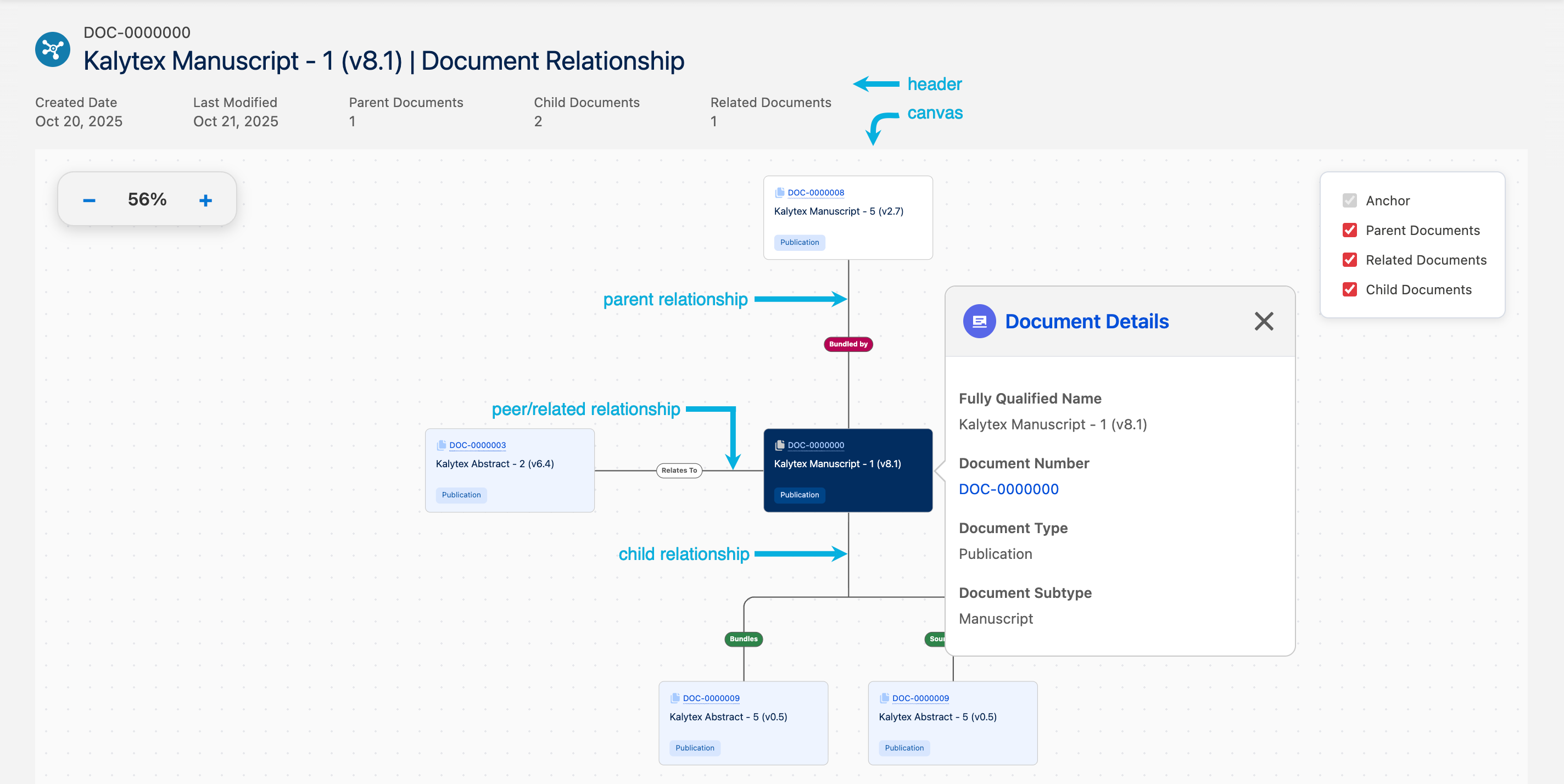
Each document in the canvas is a "node". The current document is
always the central node and is referred to as the "anchor" document.
All other documents appear either above, below, or beside the anchor
document based on the type of relationship they have with the anchor
document; parent-child relationships are always represented with
vertical lines and nodes while peer or related relationships are always
represented with horizontal lines and nodes. More specifically, parent
documents are always above the anchor document, child documents are
always below the anchor document, and peer/related documents are always
next to the anchor document. Peer documents alternate between the left
and right of the anchor document to ensure a clean and balanced
visualization, and any document relationship can be identified as a peer
relationship via the Is Peer (mvn__CM_Is_Peer__c) checkbox field on
the Document Relationship Type
(mvn__CM_Document_Relationship_Type__mdt) custom metadata type. The
actual name of the document relationship type, such as whether the
related document was sourced from or is a local version of the anchor
document, appears on the line between the two nodes. A document may
appear more than once on the canvas if it has multiple relationships
with the anchor document, and users can filter out, or hide, certain
document relationships by unchecking the node group from the legend in
the top right corner of the canvas. The anchor document must always
appear on the canvas and therefore cannot be unchecked.
Each document, or node, in the Relationship Visualizer appears as a card
on the canvas with some general details about the document, including
its name and document type. Additional details about the document can be
found in a pop-up card that opens when the node is clicked. The pop-up
card appears below the node by default but will automatically reposition
itself to above or beside the node if there is no space on the canvas.
Out of the box, the fields in the pop-up are taken from the Document
Relationship Visualizer (mvn__CM_Document_Relationship_Visualizer)
field set from the Document Version (mvn__CM_Document_Version__c)
object. Users can click the Document Number
(mvn__CM_Document_Number__c) value in the pop-up to open the
corresponding Document (mvn__CM_Document__c) record in another tab.
You can configure the interactivity and appearance of various aspects of
the Relationship Visualizer by modifying the Document Relationship
(CM_Document_Relationship) Relationship Visualizer Configuration
(mvn__RV_Relationship_Visualizer_Configuration__mdt) custom metadata
record that is provided out of the box, including updating the fields
in the pop-up
card
and the labels in the
legend.
Out-of-the-box Document
| Apex Implementation Class | CM_DocumentRelationshipVisualizerService :::: warning ::: title ::: This value should not be changed. :::: |
|---|---|
| Default Legend Configuration | [ { "value": "anchor", "label": "CM_Legend_Anchor", "checked": true }, { "value": "parent", "label": "CM_Legend_Parents", "checked": true }, { "value": "related", "label": "CM_Legend_Related", "checked": true }, { "value": "child", "label": "CM_Legend_Children", "checked": true } ] :::: note ::: title ::: The anchor document will always be checked in the legend and will always appear in the canvas, even if the "checked" property is removed or set to false. :::: |
| Enable Drop Shadow | ✓ |
| Draggable | ✓ |
| Relationship Label Max Length | 15 |
| Zoomable | ✓ |
| Popup Title | Document Details |
| Object Name | mvn__CM_Document_Version__c :::: warning ::: title ::: This value should not be changed. :::: |
| Field Set Name | mvn__CM_Document_Relationship_Visualizer |
| Relationship mvn__RV_Relationship_Visualizer_Configuration__mdt | |
| metadata record | |
| custom-style="rowheader-firstcol"} |
Update pop-up fields
To configure the fields that appear in the pop-up card that opens when a
user clicks on a node in the Relationship Visualizer, you must create a
new Document Version field set and then update the Field Set Name
(mvn__RV_Field_Set_Name__c) value on the out-of-the-box Document
Relationship metadata record. If you want to continue to enable users to
open the Document record that the node represents, make sure to include
the Document Number field in the field set; the Document Number value
will automatically appear as a hyperlink in the pop-up that takes users
directly to the corresponding document in a new tab.
Update legend labels
To configure the labels in the legend for the different document types
and relationship groups (i.e., anchor, parent, related, and child
documents), you can either create new custom labels and update the
Default Legend Configuration (mvn__RV_Default_Legend_Configuration__c)
value on the out-of-the-box Document Relationship metadata record or
modify the default values on the CM_Legend_Anchor, CM_Legend_Parents,
CM_Legend_Related, and CM_Legend_Child custom labels.
Create document relationship types
In addition to using the out-of-the-box document relationship types, you can create and use custom document relationship types. To create and enable a new document relationship type:
-
Create a
CM_Document_Relationship_Type__mdtrecord. Visit Document Relationship Type. -
(Optional) Create a Document Type Relationship Type (
CM_Document_Type_Relationship_Type__mdt) record to enable the relationship type to be used for specific document types/subtypes. Themvn__CM_Document_Type_Relationship_Type__mdt.mvn__CM_Document_Relationship_Type__cfield must be set to the name of theCM_Document_Relationship_Type__mdtrecord that you created in step one. Visit Document Type Relationship Type. -
Add a picklist value to
mvn__CM_Document_Relationship__c.mvn__CM_Type__c. This value must be theDeveloperNameof theCM_Document_Relationship_Type__mdtrecord that you created in step one. Visit Document Relationship.
Default document relationship types
A document relationship connects a document version to another document version. There are five default document relationship types:
When a document in a relationship with other documents experiences a significant change in status, owners of the related documents should be notified. For example, if a global document is updated, owners of any local versions should need to be notified. Visit System events.
Bundle
A Bundle relationship indicates that CM_Document_Version_2__c should
be bundled with CM_Document_Version_1__c when
CM_Document_Version_1__c is selected. In other words, when a document
with a Bundle relationship is selected for a medical inquiry
fulfillment, the bundled material is automatically packaged with it
(fulfillment package).
A Bundle relationship only works in one direction. For example, from the Document A record, you create a Bundle relationship with Document B, but from the Document B record, you do not create a Bundle relationship with Document A. If you select Document A for fulfillment, Document B is added to the fulfillment package. However, if you select Document B for fulfillment, Document A is not added to the fulfillment package.
Bundle relationships are created manually. To view Bundle relationships or create a Bundle relationship, navigate to the Related Documents component on a document record.
Relevant
A Relevant relationship helps with content management and indicates
CM_Document_Version_2__c is relevant to CM_Document_Version_1__c.
Reviewers and Approvers use Relevant documents for internal fact
checking. For example, if Document B provides input into a document
(Document A), add Document B as a Relevant document to Document A.
Relevant relationships are created manually from the Related Documents component on a document record.
Sourced
A Sourced relationship indicates CM_Document_Version_2__c is sourced
from CM_Document_Version_1__c. For example, if you make a copy of a
Global document, the Local copy lists the Global document as Sourced.
If you clone a document, Scientific Publications Cloud automatically creates a Sourced relationship between the source document and the cloned document. Scientific Publications Cloud also automatically creates a Sourced relationship for Translations.
Translation
A Translation relationship indicates CM_Document_Version_2__c is a
translation of CM_Document_Version_1__c. Create a Translation when you
want to add a translated version of the document that you are viewing to
Scientific Publications Cloud. The languages of both documents should be different, but the content
should be the same.
When you create a new translation, the metadata from the sourced document version automatically populates in the Document Wizard. As you progress through the Document Wizard, you can make changes to the metadata and then save the new translation.
A relationship modeling a translation of a translation is not supported.
Local Version
A Local Version relationship indicates CM_Document_Version_2__c is a
local version of CM_Document_Version_1__c. This relationship is
created when you add a version of a Global document that meets local
standards. In the Related Documents component of the document record,
the Global document lists all Local Versions.
Local Versions can be multi-leveled. For example, Document C is a local version of Document B, and Document B is a local version of Document A.
When you create a new local version, the metadata from the sourced document version automatically populates in the Document Wizard. As you progress through the Document Wizard, you can make changes to the metadata and then save the new translation.
Metadata
The primary metadata used to manage document relationships include:
-
Document Relationship (
mvn__CM_Document_Relationship__c) - a polymorphic junction object between either two document version records or a document version and a product. -
Document Relationship Type (
mvn__CM_Document_Relationship_Type__mdt) - specifies the types of document relationships. -
Document Type Relationship Type (
mvn__CM_Document_Type_Relationship_Type__mdt) - connects the Document Relationship Type (CM_Document_Relationship_Type__mdt) and Document Type (CM_Document_Type__mdt) custom metadata types.