Tasks
Overview
On the Publication Planning Document Record Page (PP_Document_Record_Page), the Tasks tab shows you a timeline-style view of workflow tasks that follow document lifecycle stages, including an Emails tab for related communications. The Tasks tab follows the same experience as the Milestones and Timeline tabs.
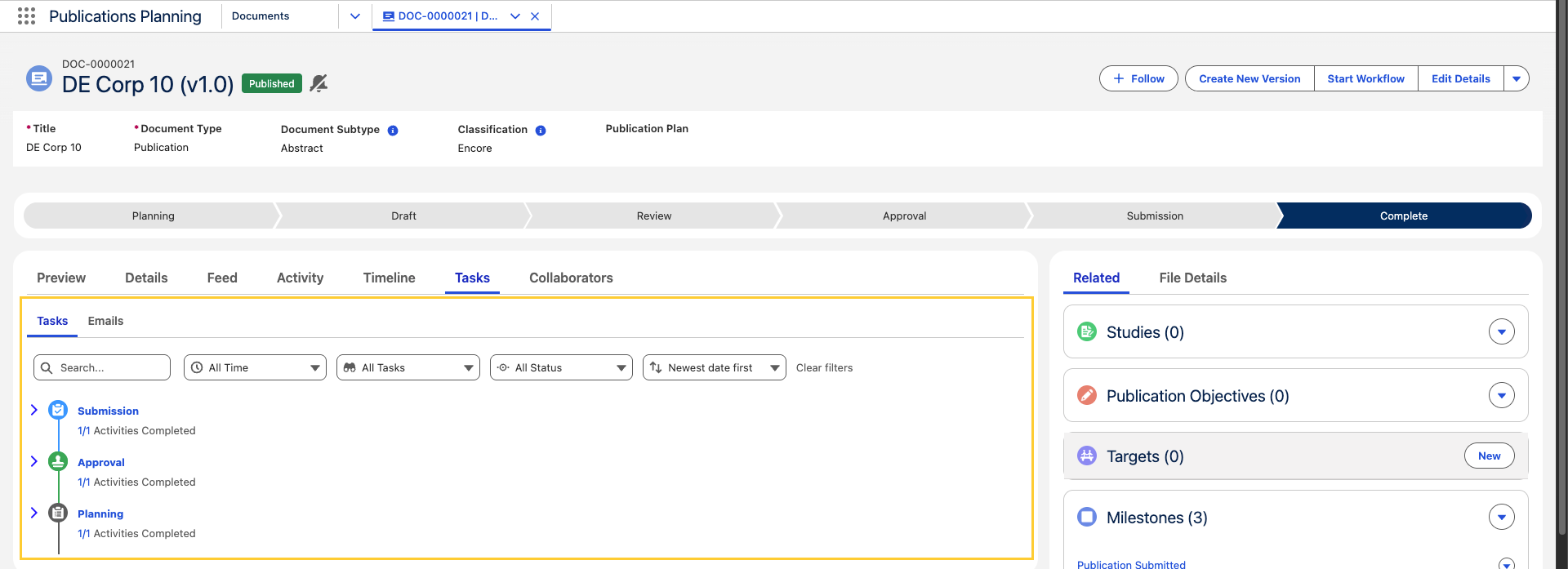
The Tasks tab further consists of Tasks and Emails subtabs.
Tasks tab
-
Open a Document (
mvn__CM_Document__c) record and select the Tasks sub-tab.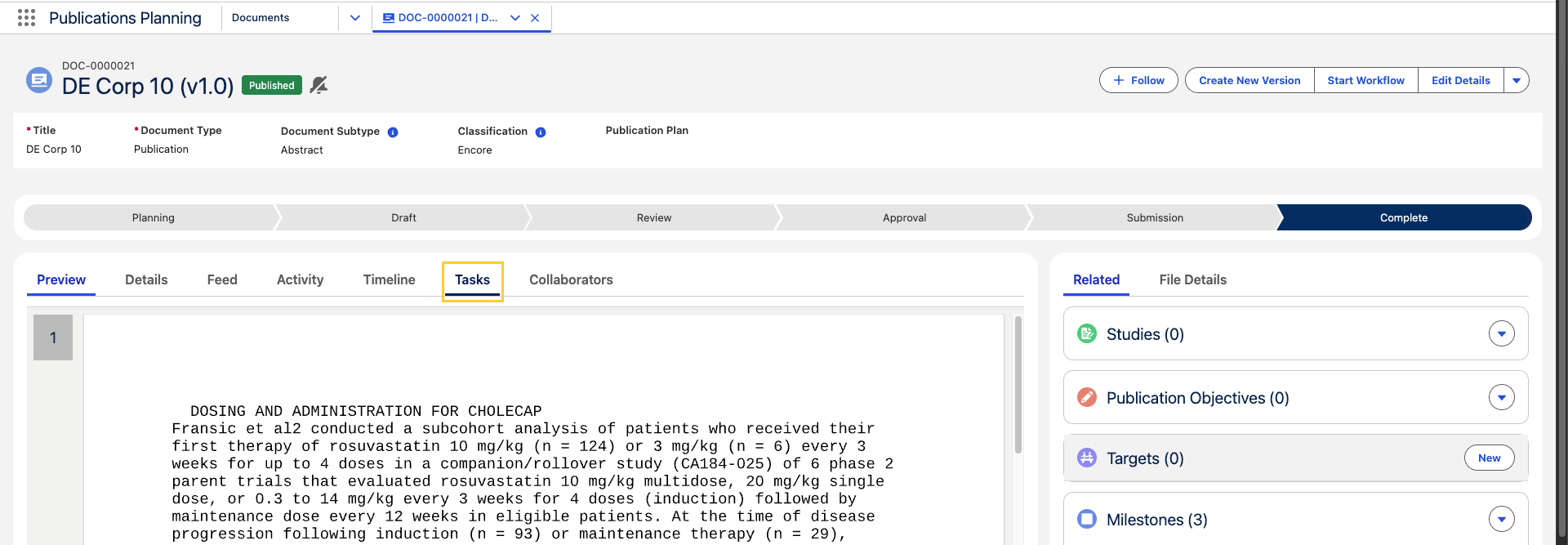
-
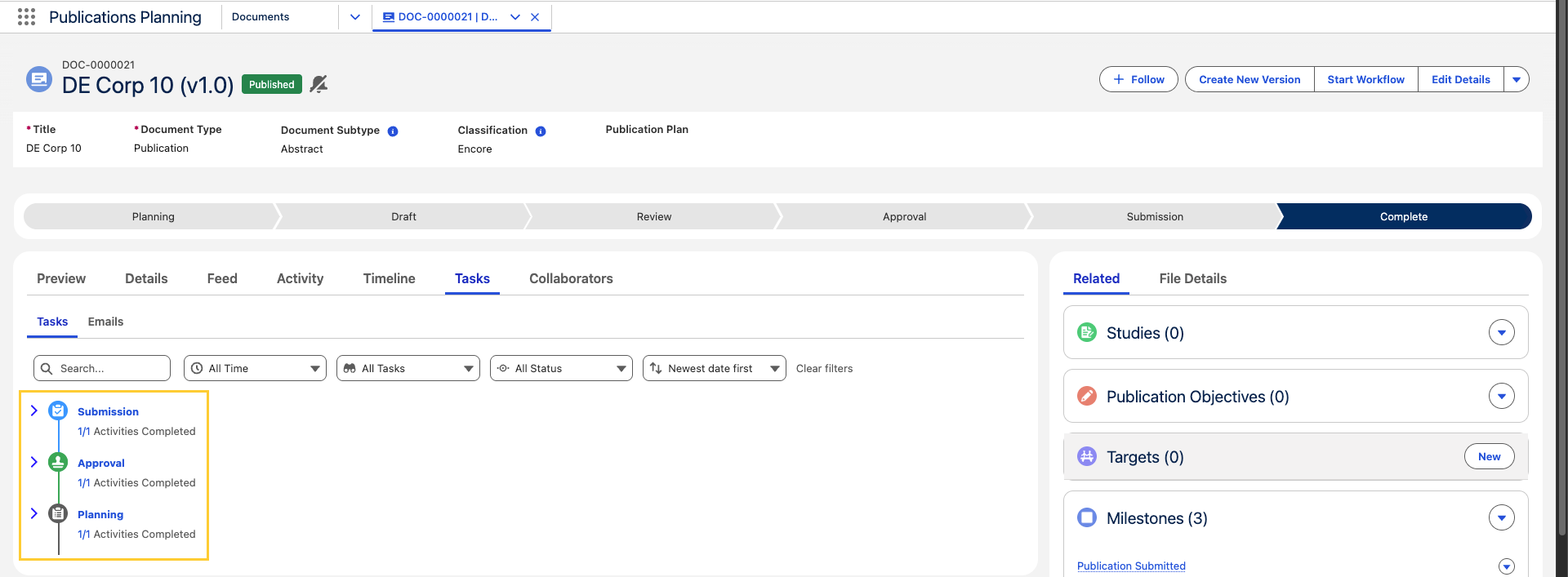
Expand or collapse sections such as Approval, Review, Planning, etc. to focus on current work.
-
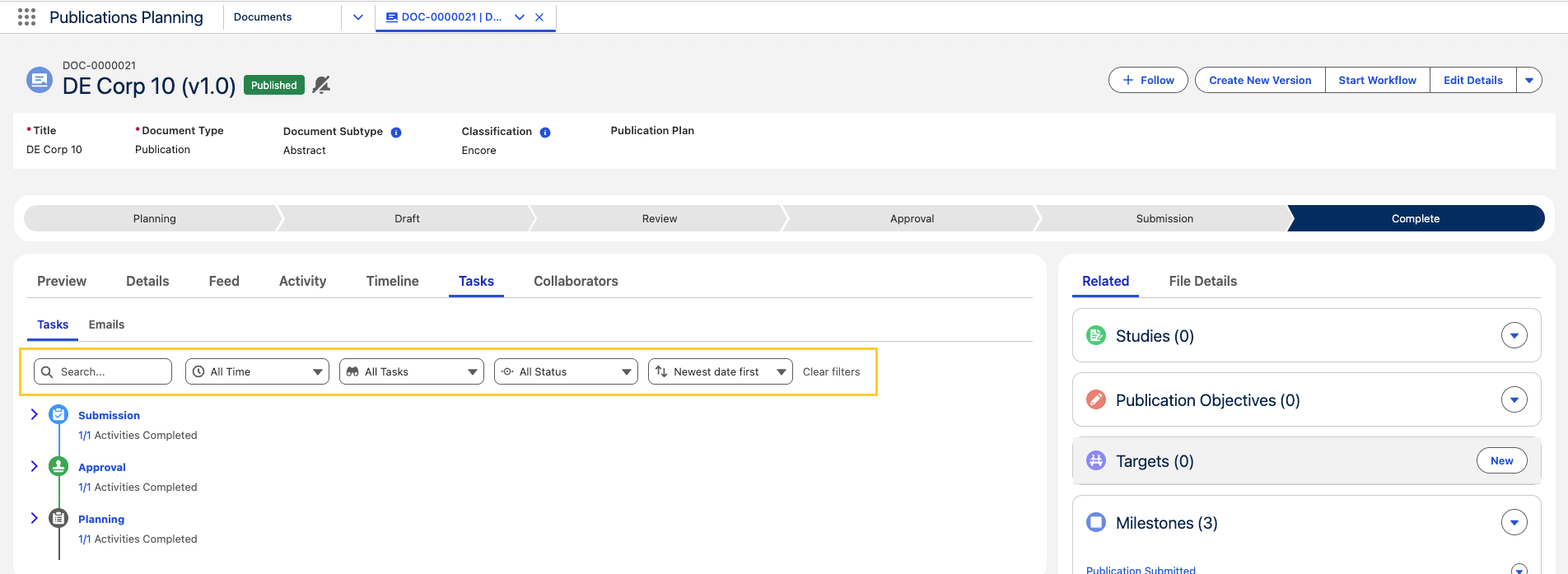
Use the filter bar to narrow tasks by Time range, Type and Status, or sort by date. Click Clear filters to reset the view.
-
Perform the following actions on a task card, as per requirements:
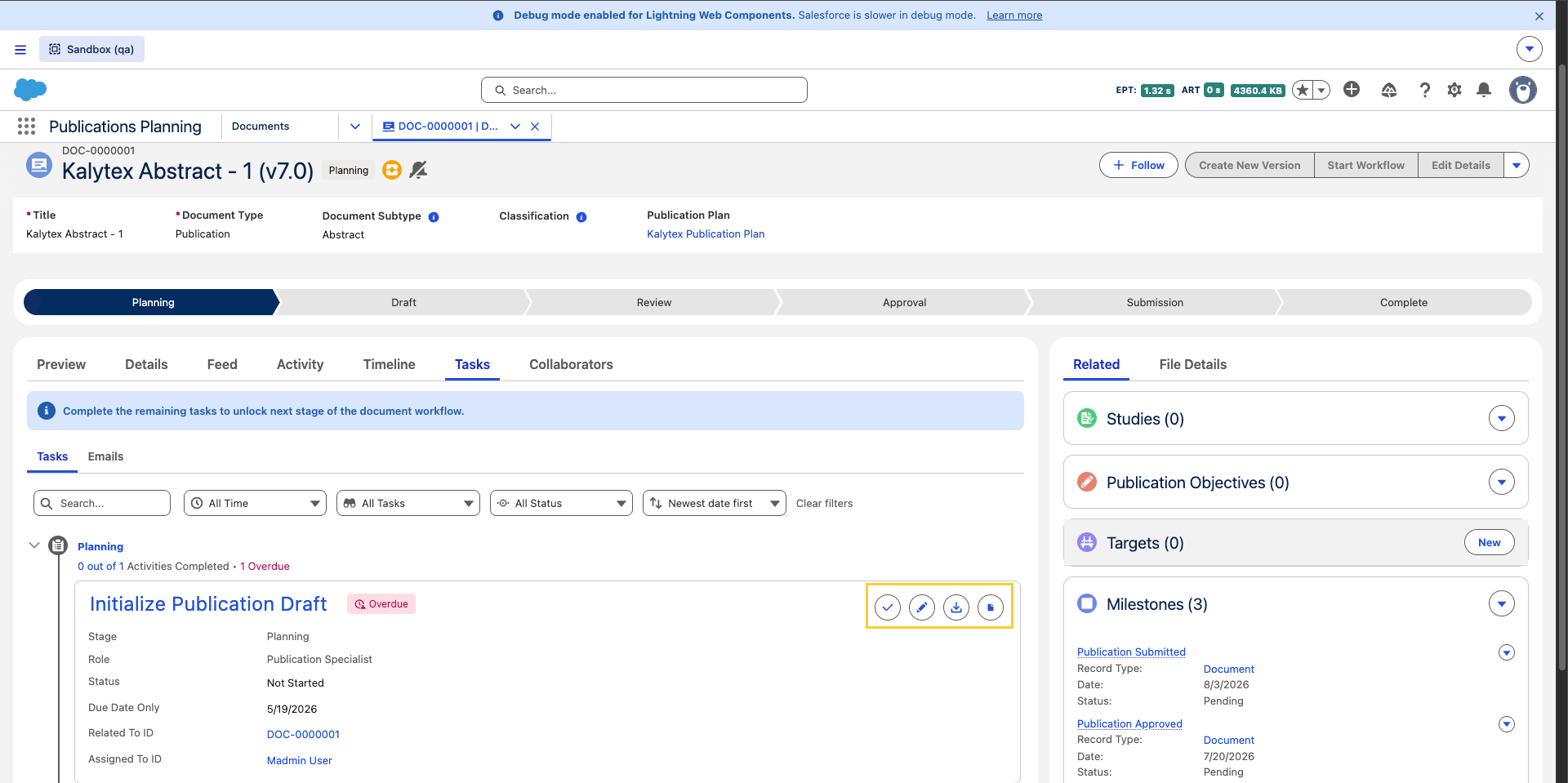
- Complete Task - To mark the task as complete
- Edit - To edit the task
- Download - To download all the associated package files
- Open in 365 - To open the document in Office 365
noteThere is an
Overduebadge that appears when a task is open (isClosed=false) and the Due Date is past today.
Reassign and similar edit actions require the Reassign Task (CM_Reassign_Task) custom permission. If you do not have that permission, those actions stay disabled.
Emails tab
-
Open a Document (
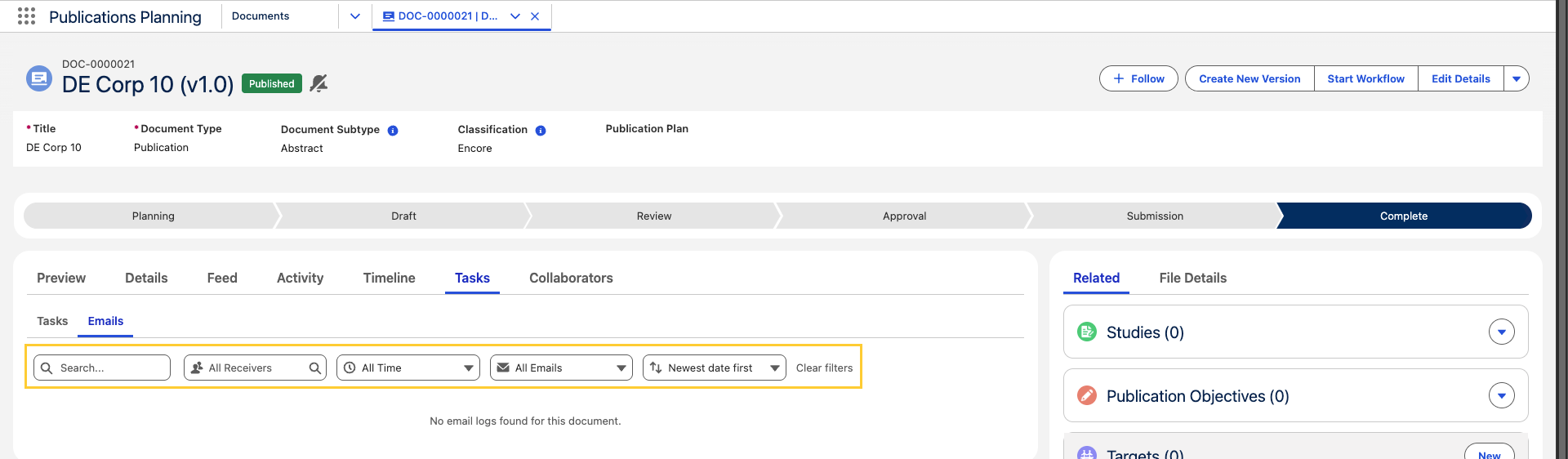
mvn__CM_Document__c) record and select the Emails sub-tab.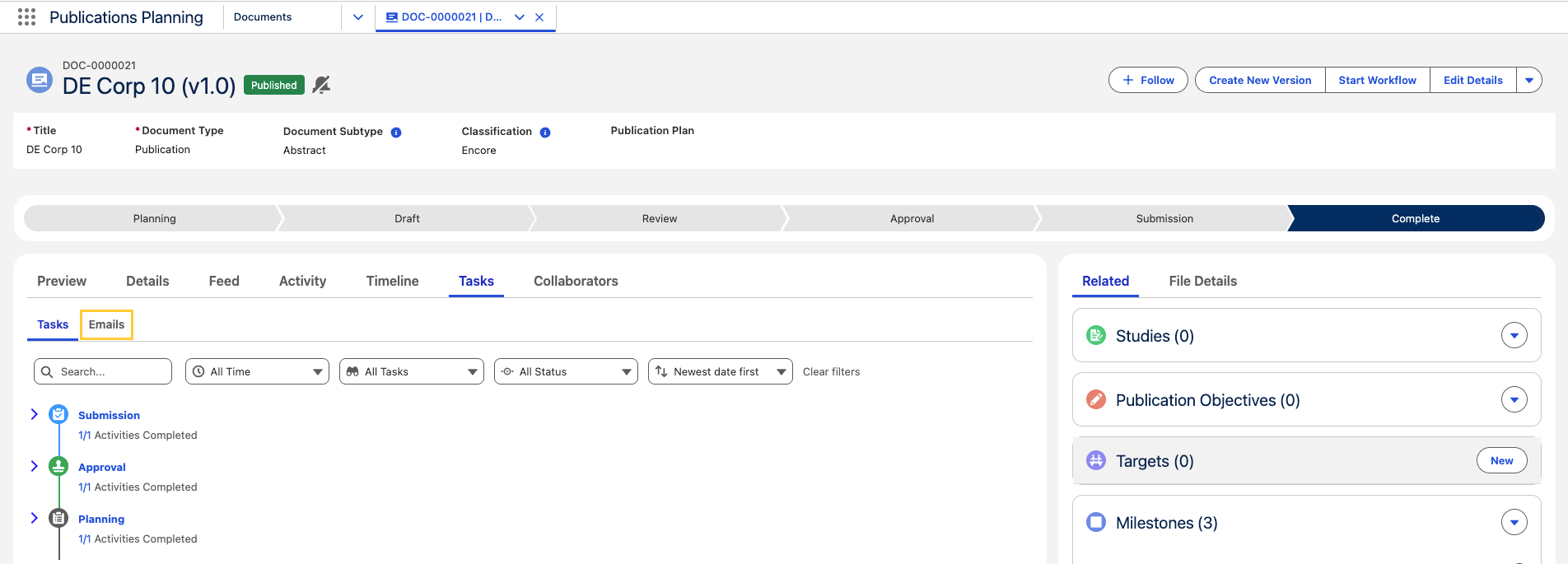
-
Review the combined timeline of email-related tasks and notification log entries for the document.
-
Use the filter bar to narrow emails by Receiver, Time range, and Email type, or sort by date.