Tasks
Overview
On the Publication Planning Document Record Page (PP_Document_Record_Page), the Tasks tab shows you a timeline-style view of workflow tasks that follow document lifecycle stages, including an Emails tab for related communications. The Tasks tab follows the same experience as the Milestones and Timeline tabs.
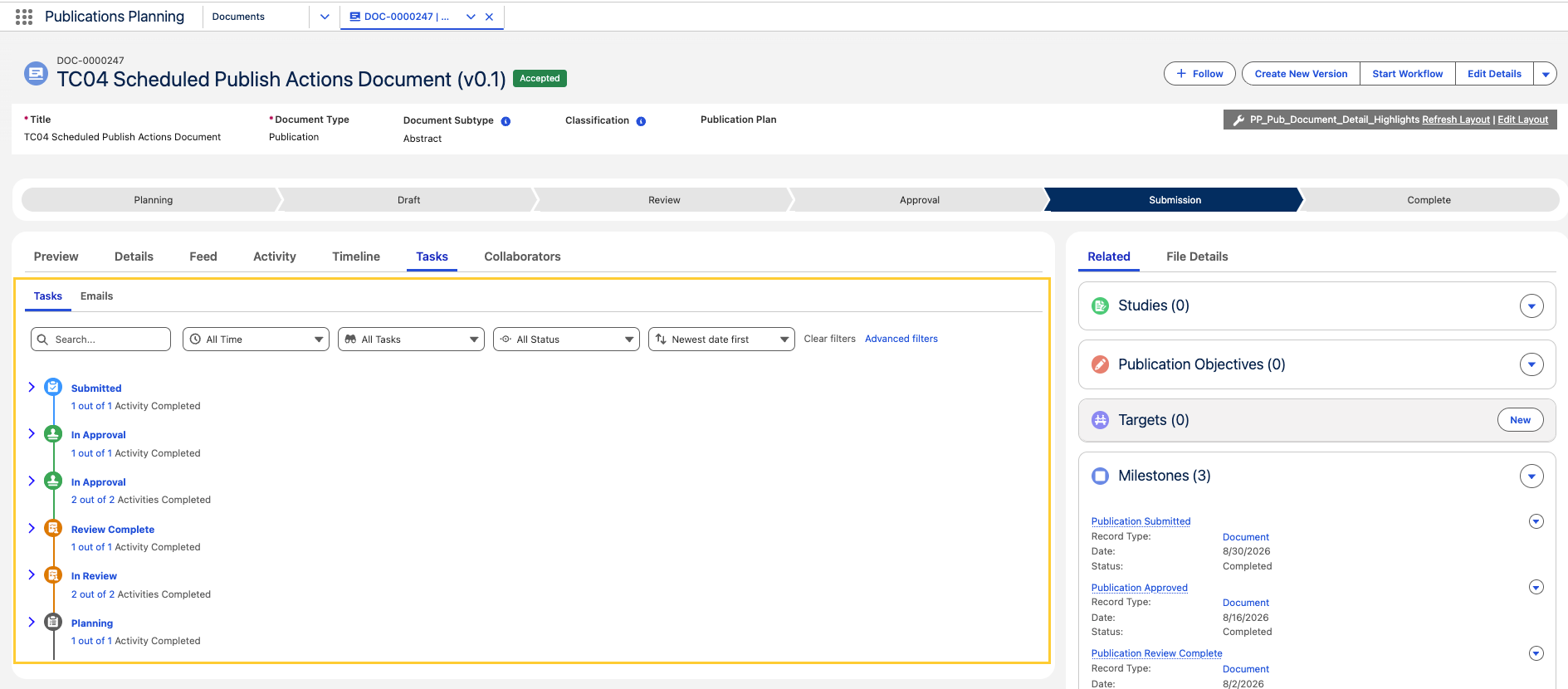
The Tasks tab further consists of Tasks and Emails subtabs.
Tasks tab
-
Open a Document (
mvn__CM_Document__c) record and select the Tasks sub-tab.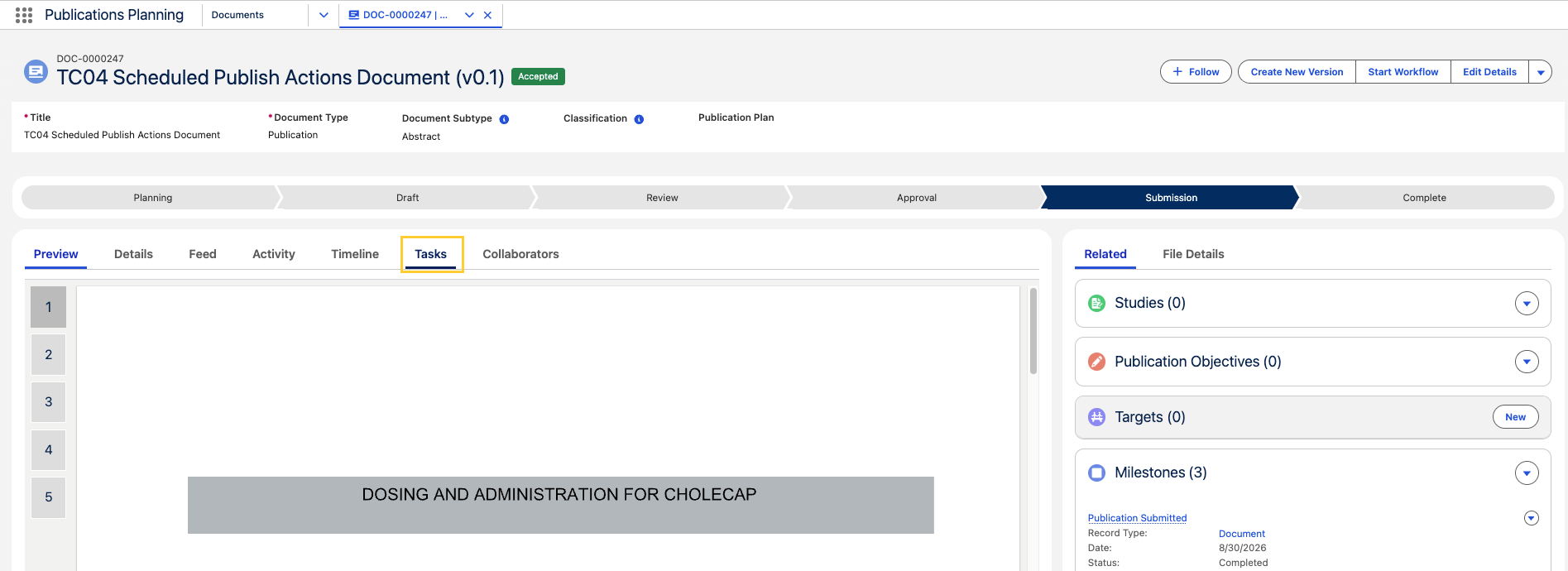
-
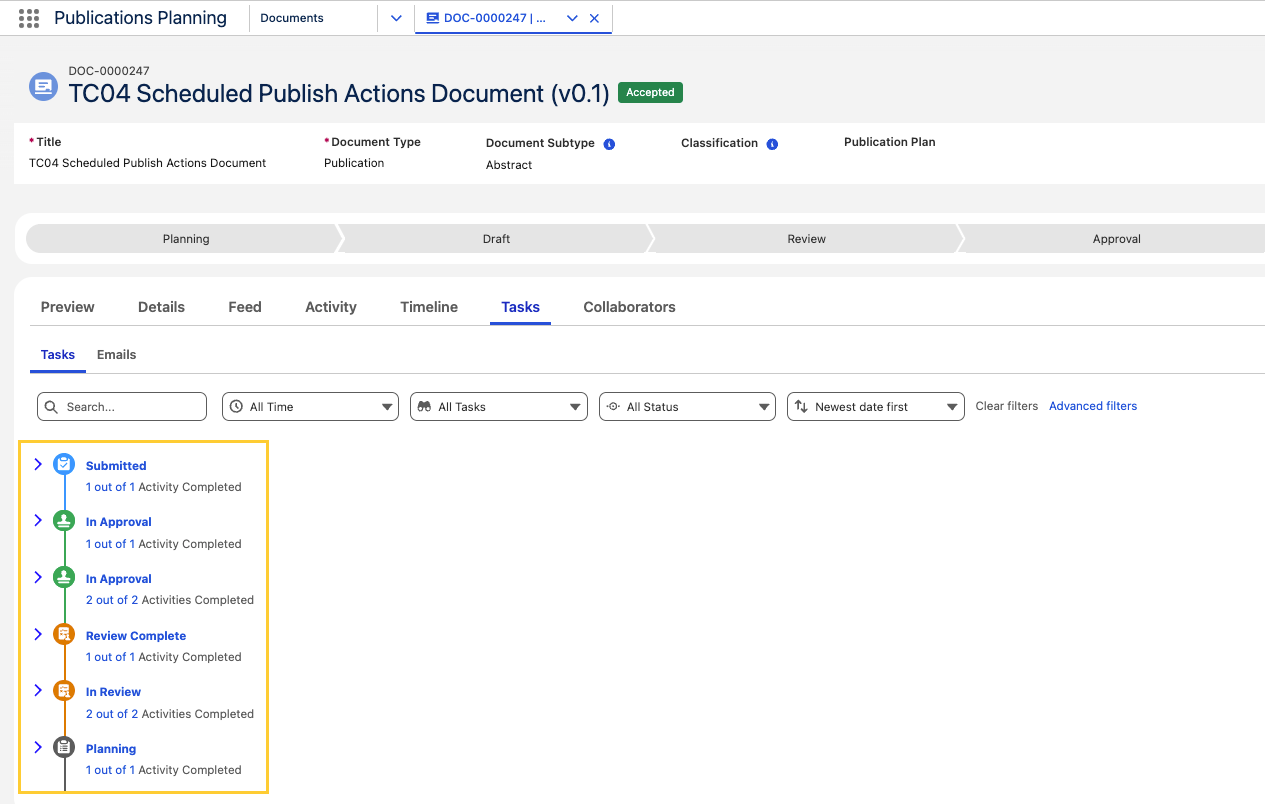
Expand or collapse sections such as In Approval, In Review, Planning, etc. to focus on current work.
-
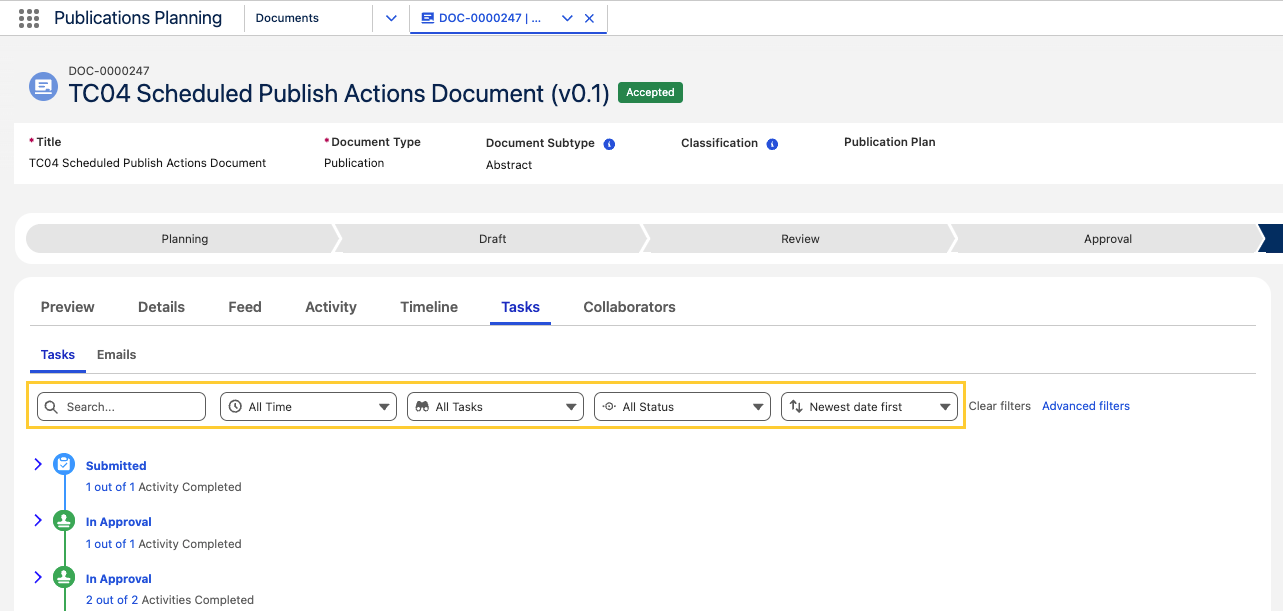
Use the filter bar to narrow tasks by Time range, Type, and Status, or sort by date.
-
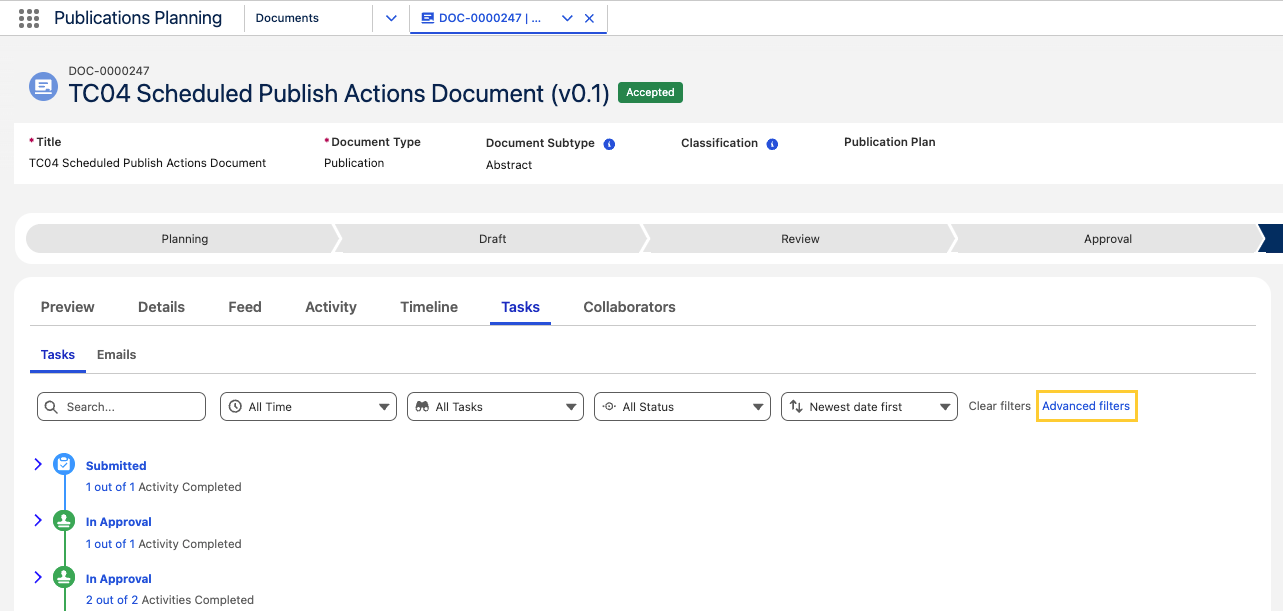
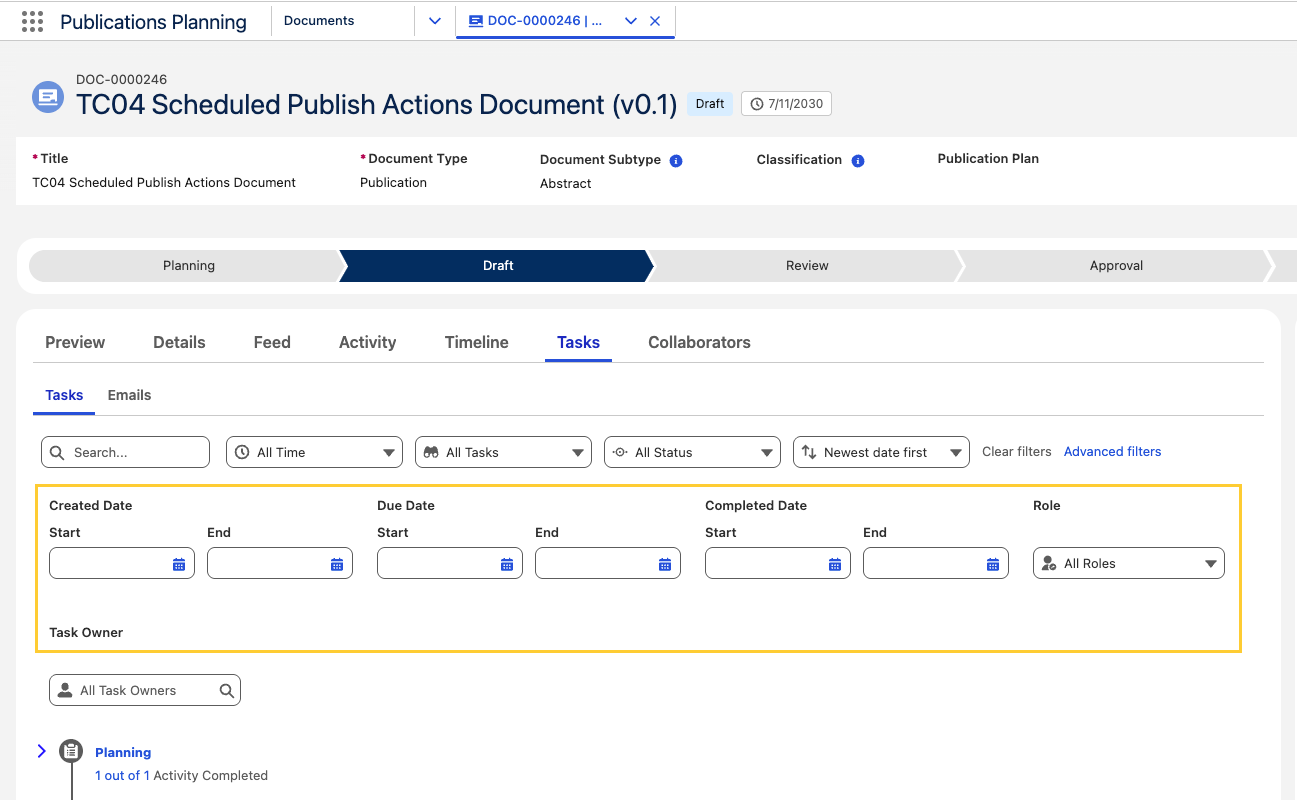
Click Advanced filters to open a second filter row with:
- Created Date — inclusive Start and End date range
- Due Date — inclusive Start and End date range
- Completed Date — inclusive Start and End date range
- Role — single-select document role assigned on the task
- Task Owner — multi-select search of task owners
 info
info- You can combine Advanced filters with the primary filter bar.
- Click Clear filters to reset the primary and Advanced filters.
noteTask Owner filters on the task's owner, not on the person who completed it. A task completed on behalf of someone else still appears under its original owner.
importantWhen filters hide every task on a document that still has tasks, the timeline shows “No tasks match the current filters.” When the document has no tasks at all, the timeline shows “No tasks found for this document.”
-
Perform the following actions on a task card, as per requirements:
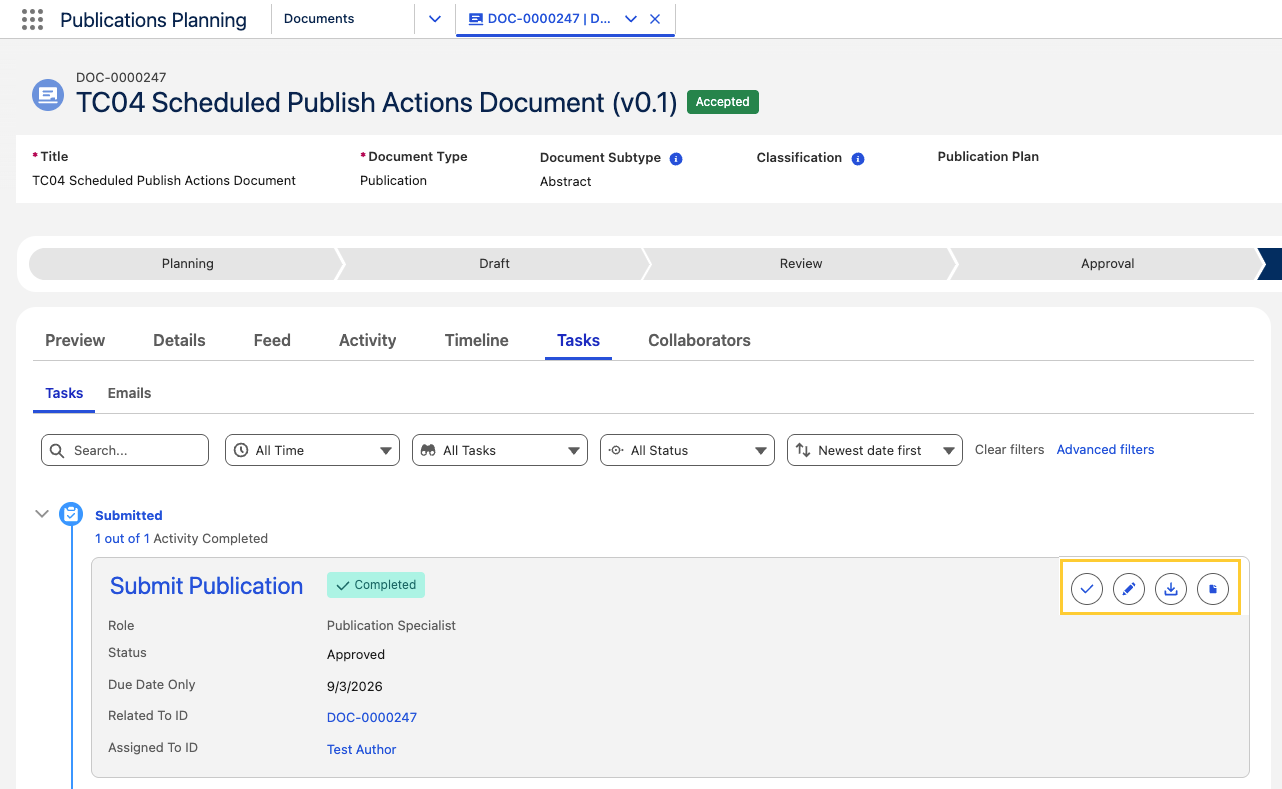
- Complete Task - To mark the task as complete
- Edit - To edit the task
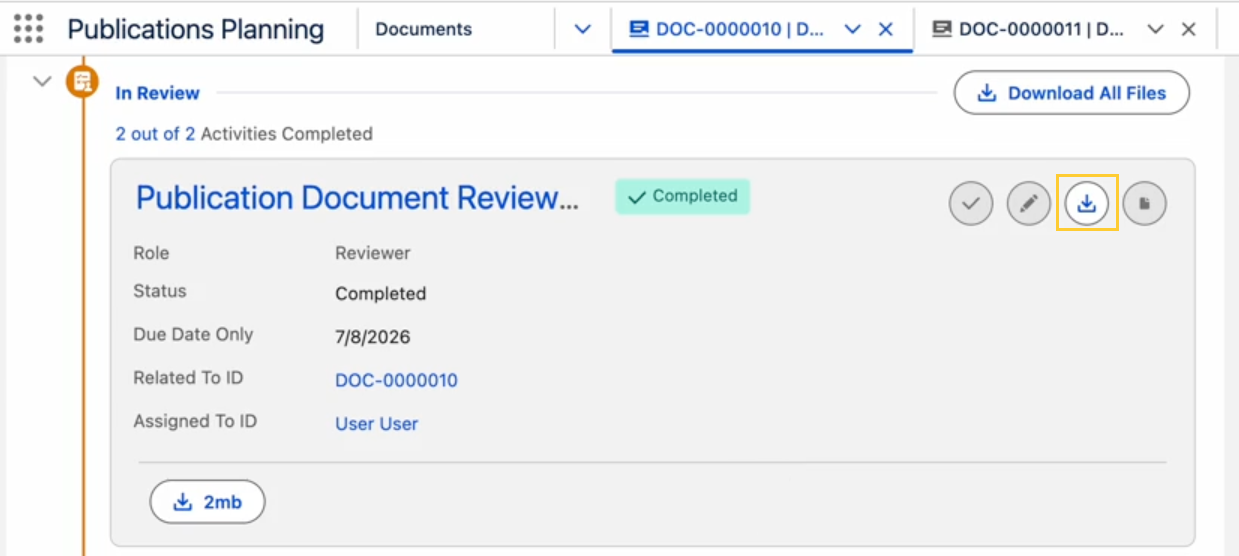
- Download - To download all the associated package files
- Open in 365 - To open the document in Office 365
noteThere is an
Overduebadge that appears when a task is open (isClosed=false) and the Due Date is past today.
Download task files from the Tasks sub-tab
In a document, on the Tasks sub-tab, timeline groups are organized by workflow instance stage. When the same stage label appears on more than one workflow instance, each instance stage is shown as its own group.
-
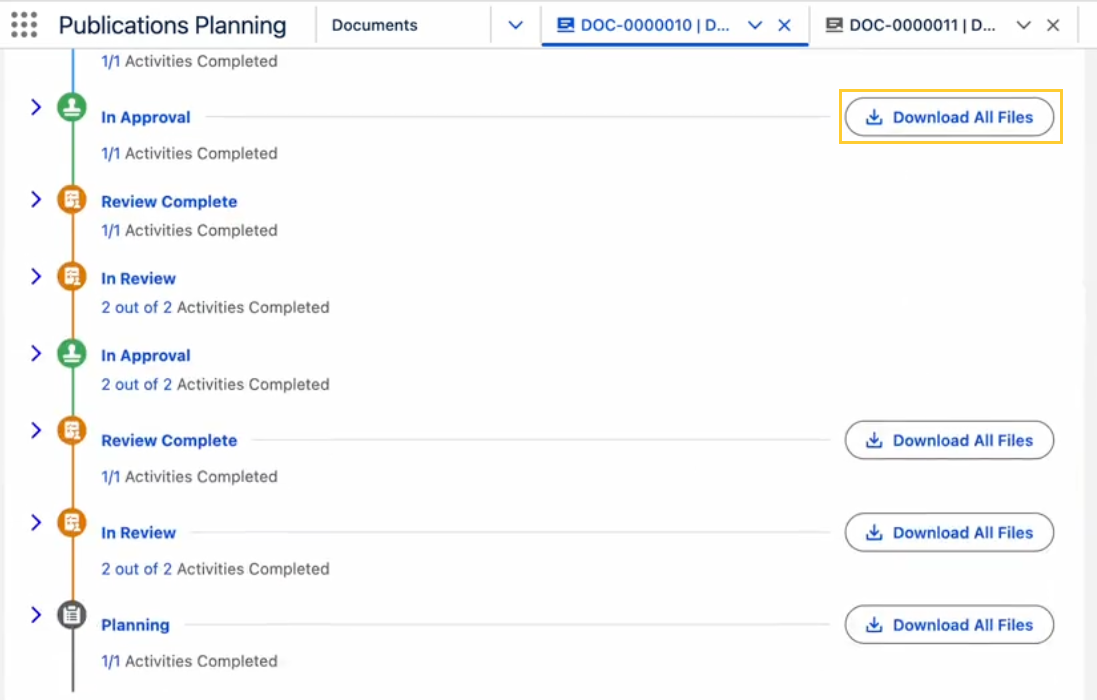
Download All Files — When any task in a timeline group has linked files, select Download All Files in that group's header to download every file linked to tasks in the group without opening each task record. Multiple files download together as a ZIP. This action applies only to the selected timeline group, not to every task on the document or across an entire workflow instance.
-
Download single file — Expand a task to view its details. When the task has files linked to it, each file appears with its own download button, labeled with the file name.
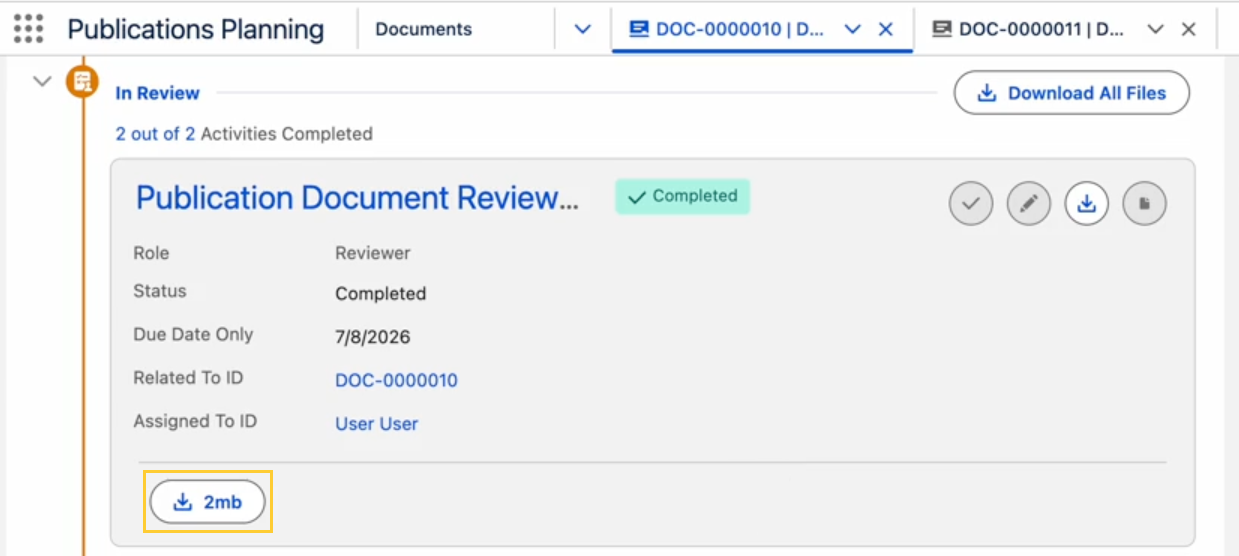
Files linked to a task are Salesforce Files attached to the Task record. The Download action on the task card is different; it downloads the package files associated with the document version, not the files linked to the task.
Reassign and similar edit actions require the Reassign Task (CM_Reassign_Task) custom permission. If you do not have that permission, those actions stay disabled.
Emails tab
-
Open a Document (
mvn__CM_Document__c) record and select the Emails sub-tab.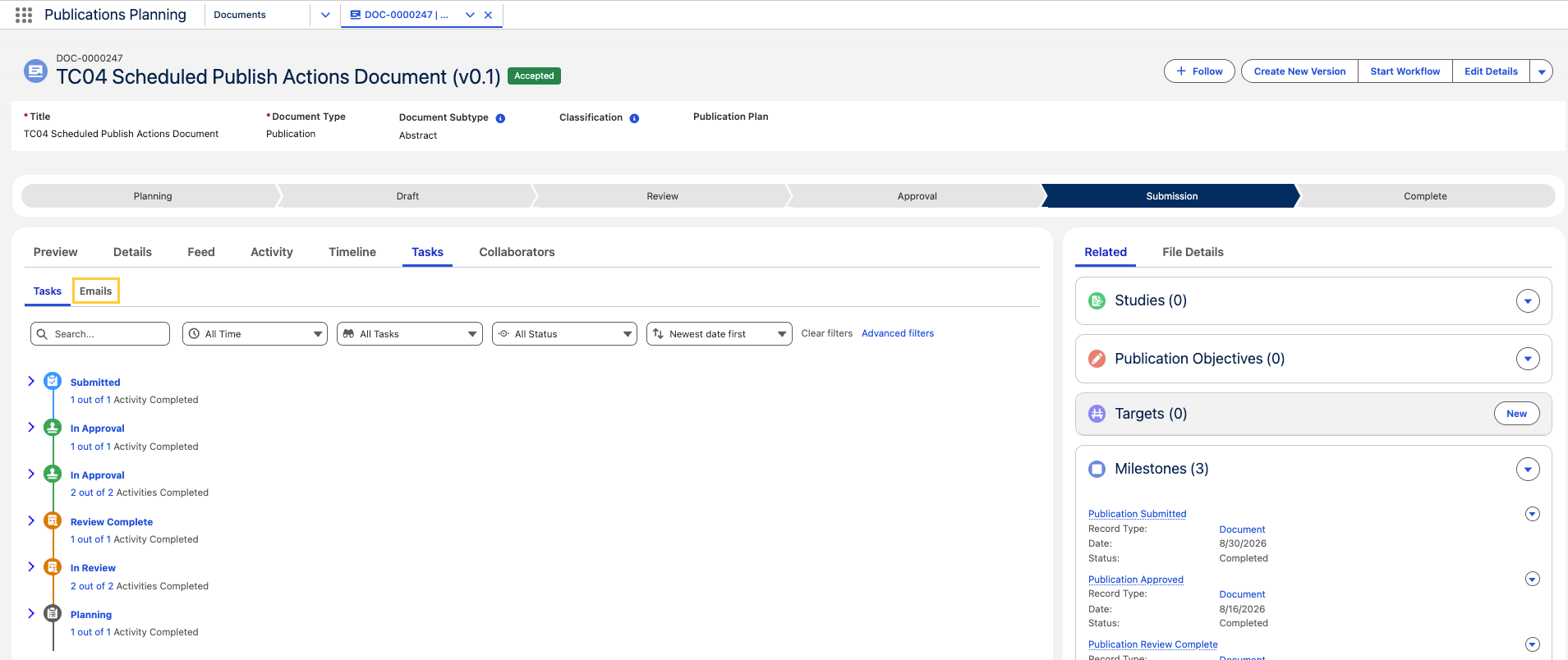
-
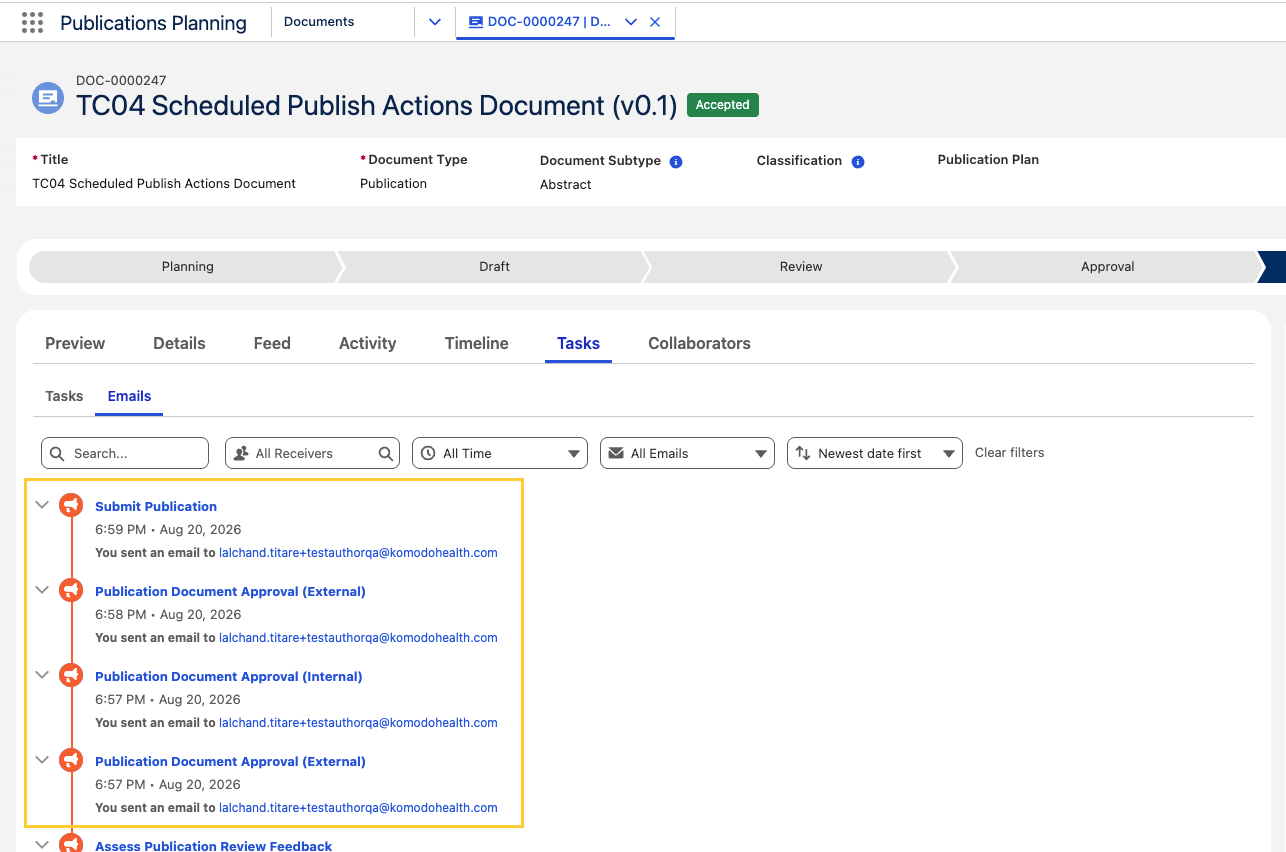
Review the combined timeline of email-related tasks and notification log entries for the document.
-
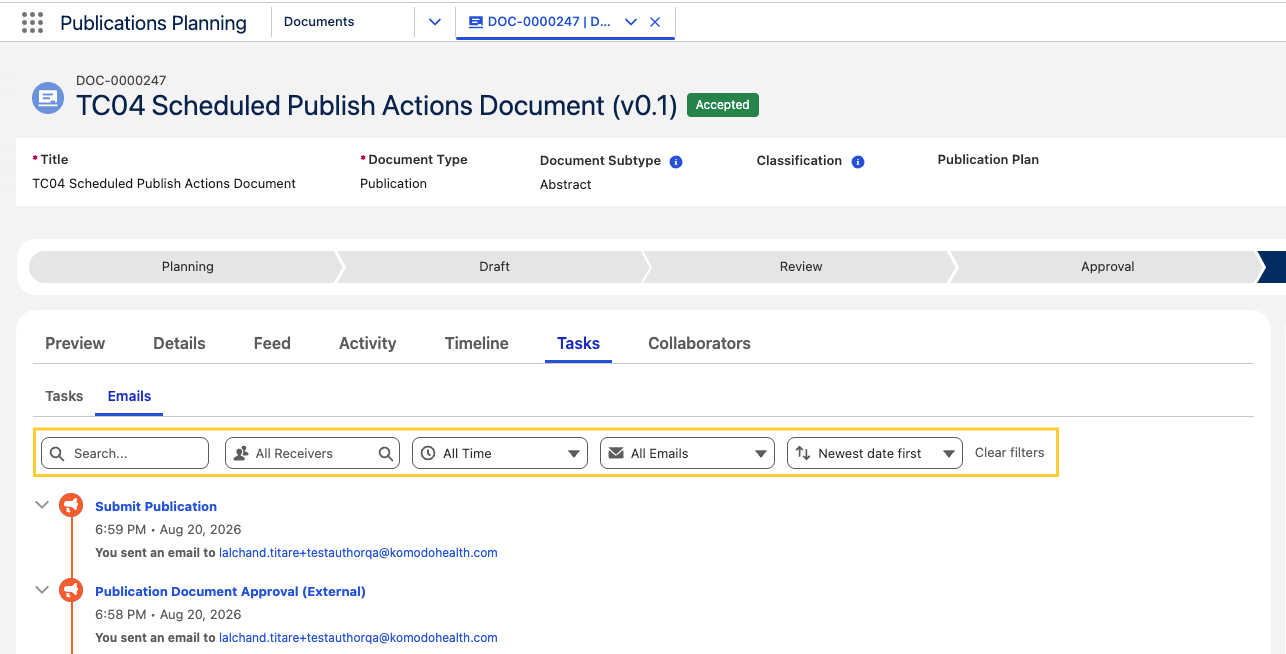
Use the filter bar to narrow emails by Receiver, Time range, and Email type, or sort by date.