
Document clone framework
Overview
Using the Clone Document feature, authors can start a clone of a document, choose which related data to bring along (Collaborators, Studies, Objectives, and Targets) in the same clone wizard through a background pipeline. They can follow live progress until the cloning finishes.
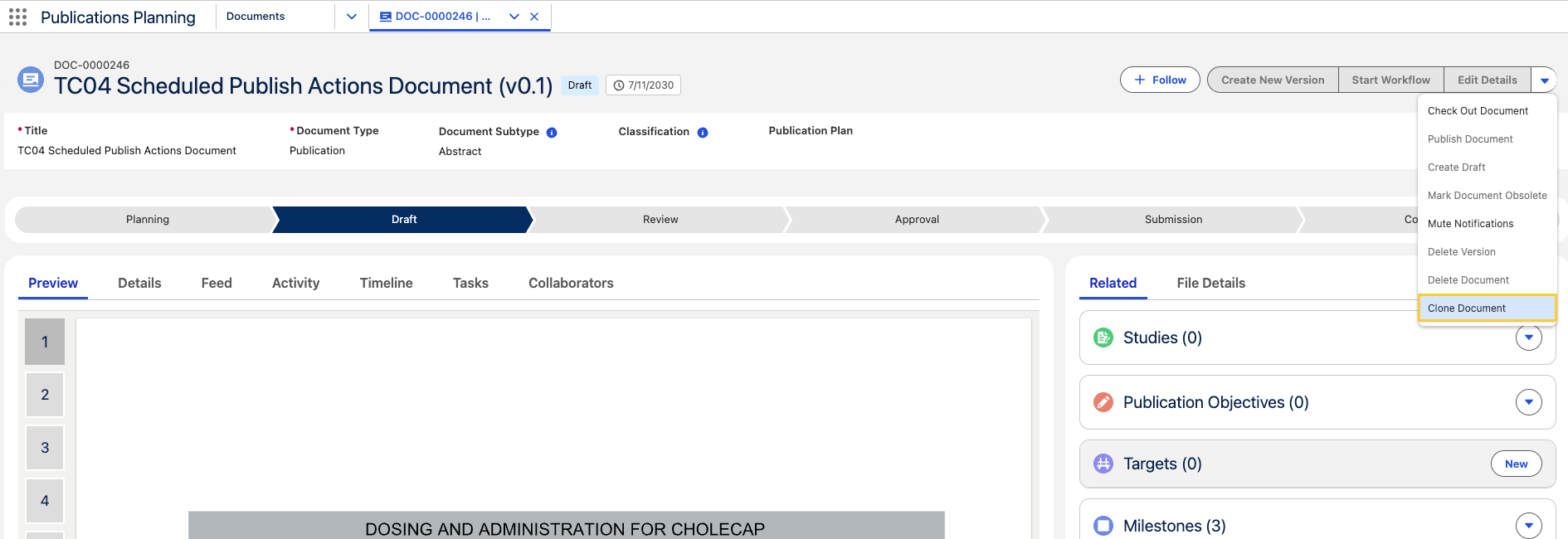
How to Clone Document with related objects
-
Open a Document record and in the drop-down menu, click Clone Document.
-
Work through the three steps by adding the relevant details and clicking Next.
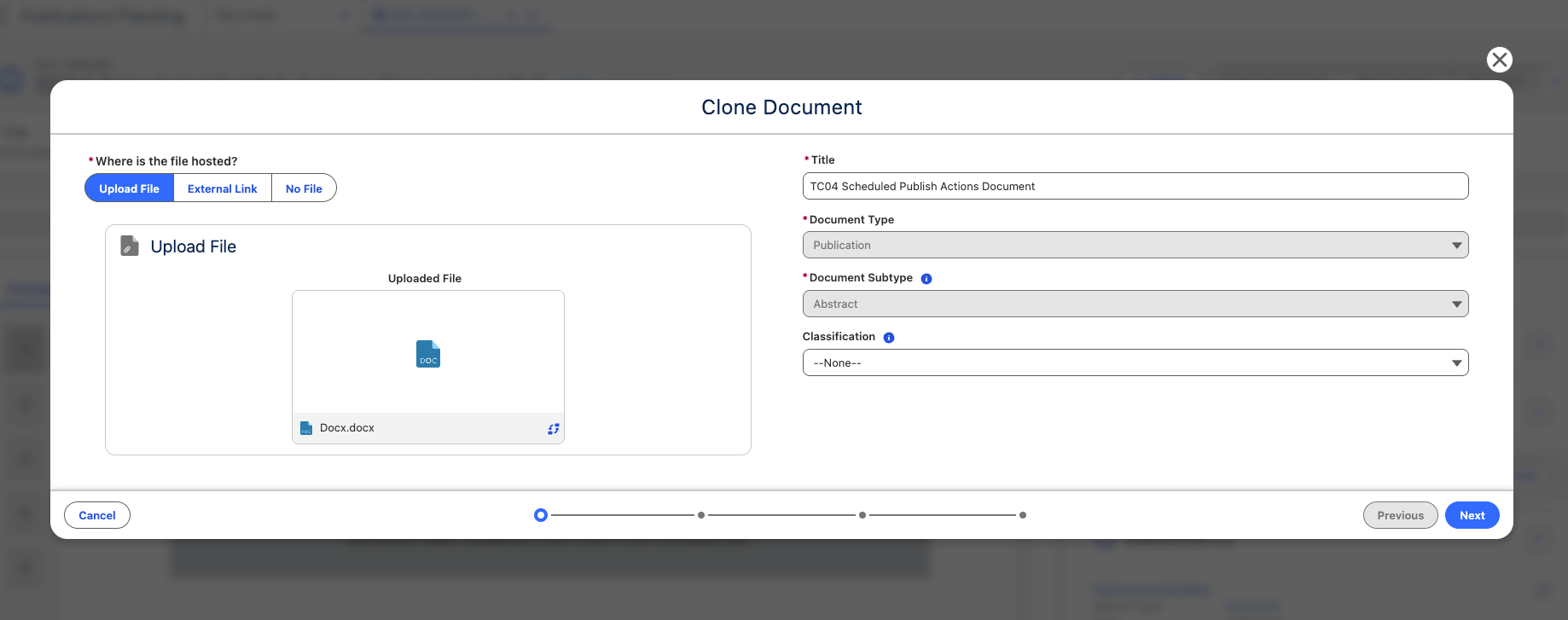
-
In the last step, choose what to copy out of the following:
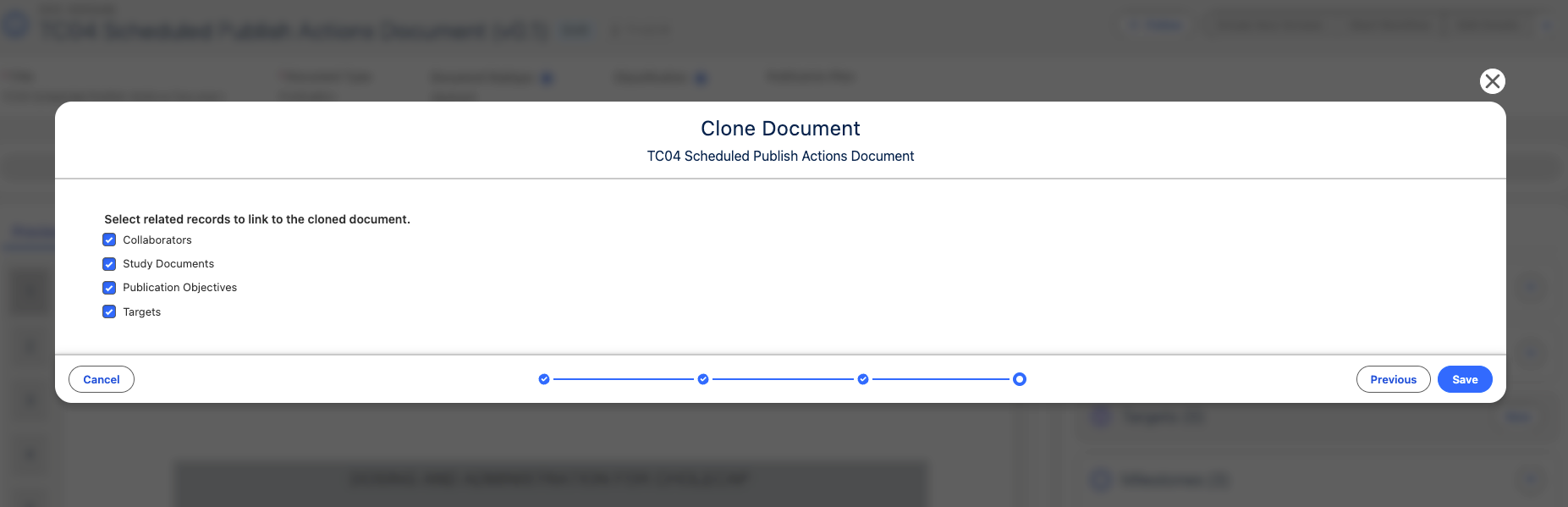
-
Collaborators: Copies each Document Collaborator (
mvn__PP_Document_Author__c) record, along with the roles and assignments defined in the clone field set. The source document's Owner (CM_Owner) role is skipped — the user who runs the clone becomes the new document's owner.infoIf the original document is cloned by the owner of the document, then all of the related Document Collaborator records on the source Document record will also appear in the Document Collaborators component on the cloned Document record. However, if the original document is cloned by a user who is not the owner, all of the document collaborators from the original document will also appear on the cloned document except for the owner, even if they have other roles in addition to the Owner role. This is because each document can only have one Owner, and the user who clones the document becomes the Owner of the newly created document.
-
Studies: Links the clone to the same studies by copying its Study Document (
mvn__PP_Study_Document__c) records. The underlying Master Study records are never duplicated. -
Objectives: Copies every Publication Objective (
mvn__PP_Publication_Objective__c) record linked to the source document. -
Targets: Copies each Target (
mvn__PP_Target__c) record and stamps Cloned From (mvn__PP_Cloned_From__c) on the new record to preserve lineage.
Clearing every checkbox produces a document-only clone with no related records copied.
importantThe checkboxes which are shown selected depend upon the administrator's configuration on the Document Clone Feature Activation record. See step 3 in Enable and Configure.
noteTwo things stay outside the framework:
- Submissions are never cloned.
- Milestones keep their existing behavior — the product creates them automatically where applicable, and the framework never copies them as related records.
-
-
Click Save. The cloning process starts.
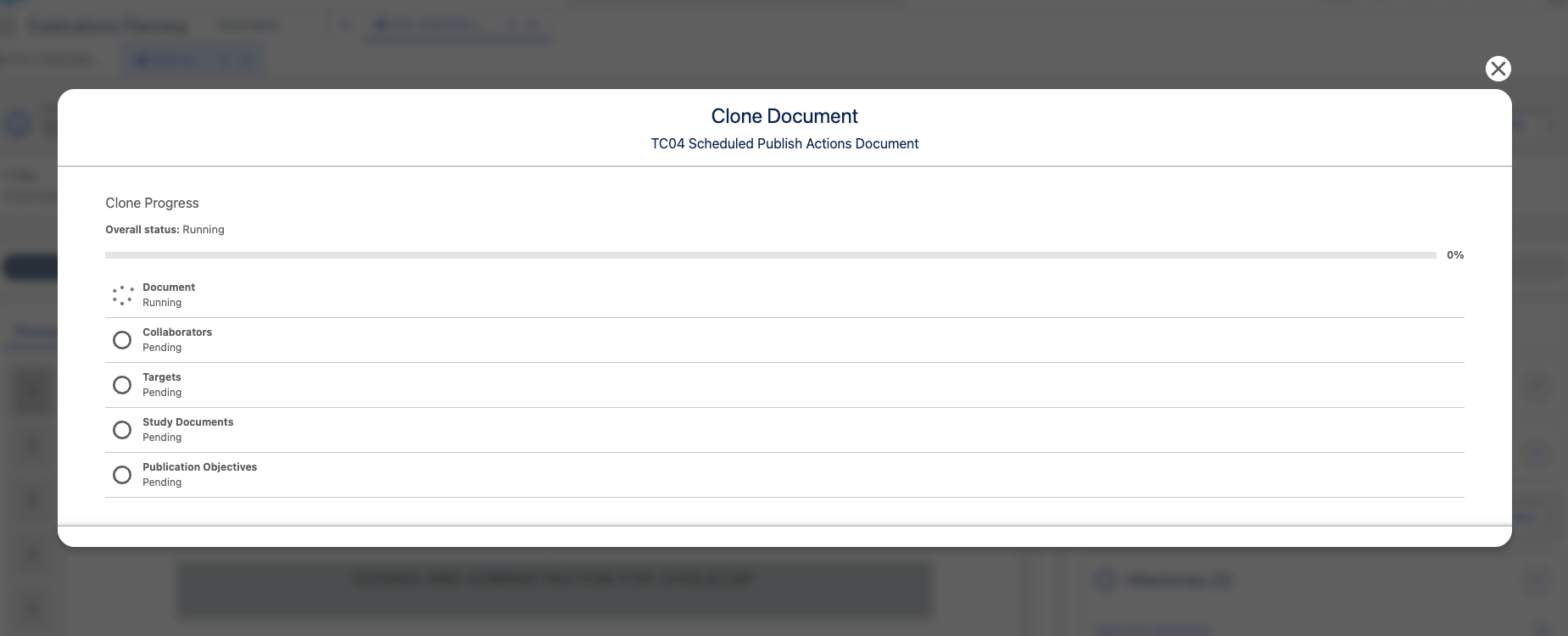
-
After Save.
-
On success: The author lands on the new cloned document.
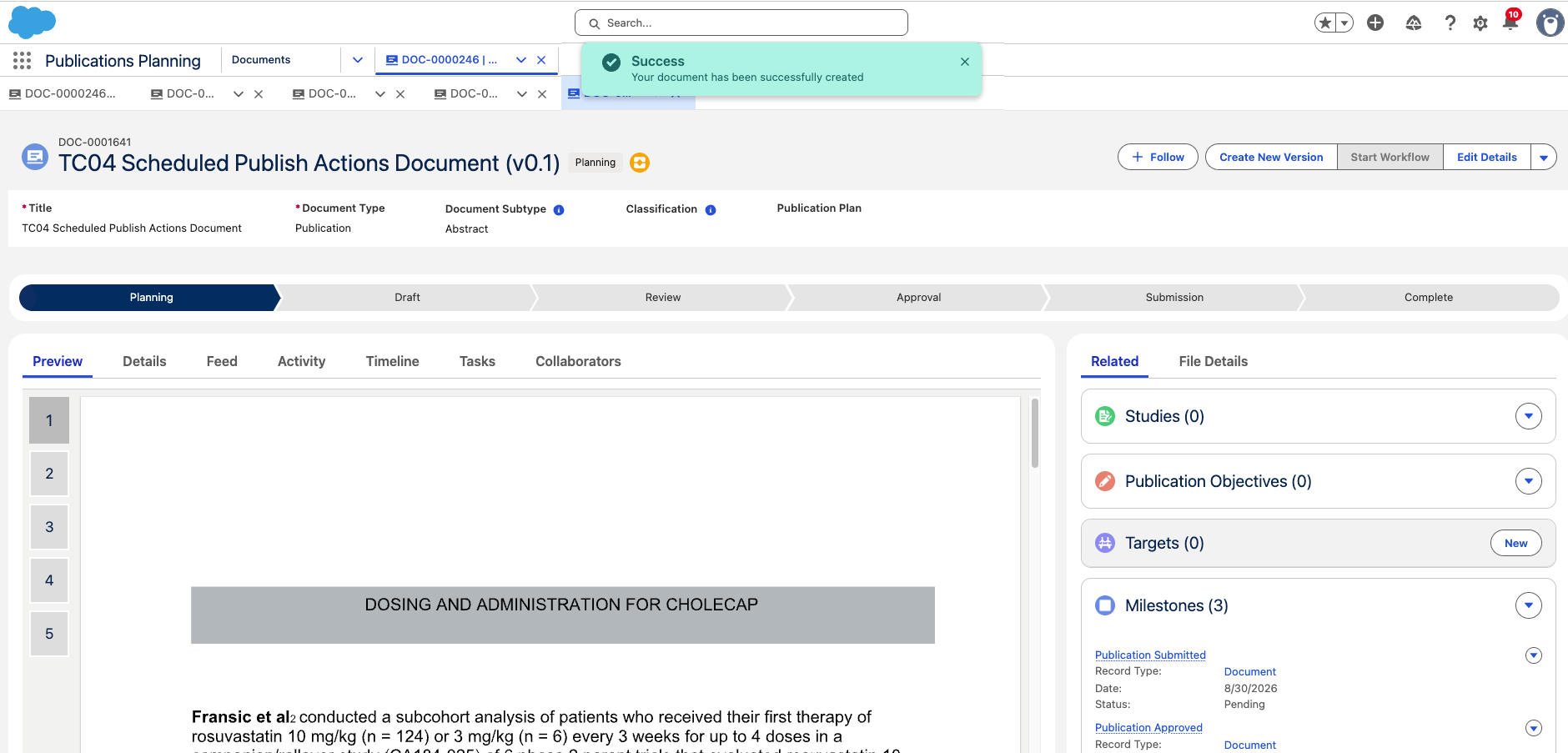
-
On failure: The incomplete clone is deleted and the author returns to the source document, ready to retry. Reference Automatic cleanup of failed clones.
-
Re-running a clone against the same source document does not duplicate related records; the pipeline skips any source row whose deduplication key already exists on the clone.
Automatic cleanup of failed clones
If a clone doesn't complete, Scientific Publications Cloud automatically removes it so no incomplete document is left behind. Hence, users no longer need permission to delete documents for the cleanup to succeed. The cloned document, its document versions, and any related records already created for the clone are deleted, and the author is returned to the source document to try again.
Authors don't need the Delete permission on the Document
(mvn__CM_Document__c) or Document Version (mvn__CM_Document_Version__c) object
for this cleanup. Scientific Publications Cloud deletes the incomplete clone with system
permissions, so authors whose profile or permission set grants Create and Edit,
but not Delete, can still clone documents and have failed clones removed
automatically.
System permissions are used only to remove a failed clone. The clone itself runs with the permissions and sharing settings of the author who starts it, and the system permissions end as soon as the cleanup finishes. Authors can't use them to delete any other records.
Enable and configure
The framework is disabled by default and to enable it, follow the below steps:
1. Activate the Document Clone Feature Activation record
-
In Setup → Custom Metadata Types navigate to Feature Activation (
mvn__Feature_Activation__mdt) and click Manage Records.
-
Open the Document Clone (
Document_Clone) record, or create it.
-
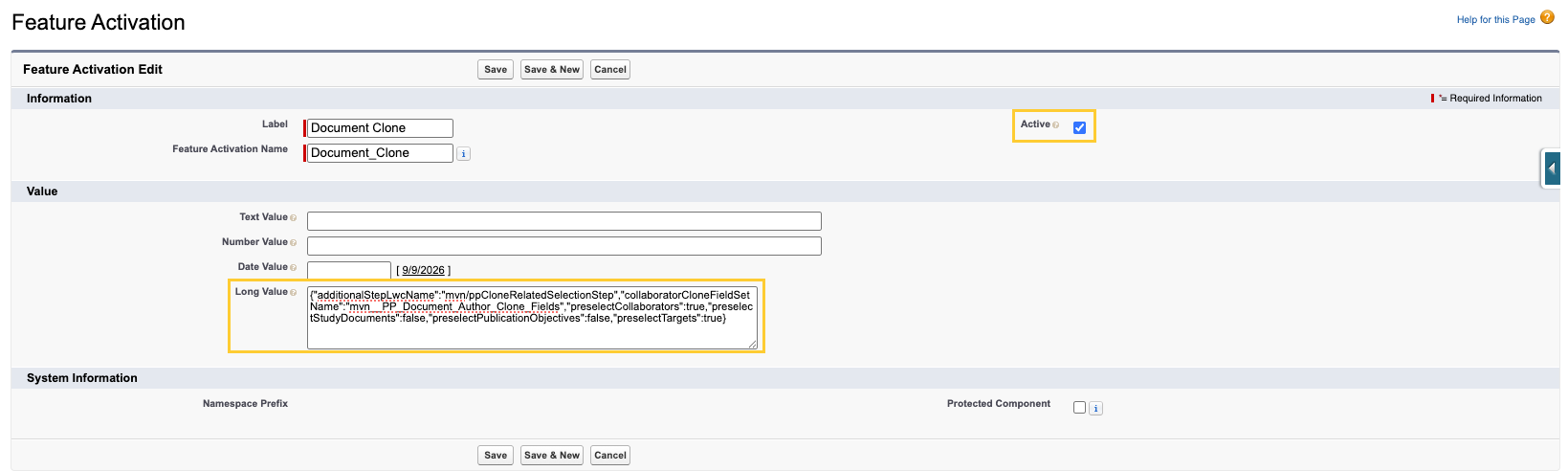
Configure the following:
-
Set Active (
mvn__Active__c) totrue. -
Populate Long Value (
mvn__FA_Long_Value__c) with JSON. The unpackaged defaults are:{
"additionalStepLwcName": "mvn/ppCloneRelatedSelectionStep",
"collaboratorCloneFieldSetName": "mvn__PP_Document_Author_Clone_Fields",
"preselectCollaborators": true,
"preselectStudyDocuments": true,
"preselectPublicationObjectives": true,
"preselectTargets": true
}JSON key Purpose additionalStepLwcNameThe Lightning Web Component that renders the Related objects step — for example, c/ppCloneRelatedSelectionStep.collaboratorCloneFieldSetNameThe collaborator field set to use when Pubs Global Setting does not override it. preselectCollaboratorsWhether Collaborators stay selected. preselectStudyDocumentsWhether Studies stay selected. preselectPublicationObjectivesWhether Objectives stay selected. preselectTargetsWhether Targets stay selected.
-
2. Confirm the field sets
Field sets determine which fields are carried onto the new child records. Each set must exist and contain only fields that users can read on the source record and create on the new one.
| Related record | Object | Default field set API name | Where to configure |
|---|---|---|---|
| Collaborators | Document Collaborator (mvn__PP_Document_Author__c) | mvn__PP_Document_Author_Clone_Fields | Feature Activation custom metadata type |
| Studies | Study Document (mvn__PP_Study_Document__c) | mvn__PP_Clone_Fields | Edit the field set in Setup |
| Objectives | Publication Objective (mvn__PP_Publication_Objective__c) | mvn__PP_Clone_Fields | Edit the field set in Setup |
| Targets | Target (mvn__PP_Target__c) | mvn__PP_Clone_Fields | Edit the field set in Setup |
Clone documents with Apex
If the standard clone wizard doesn't fit your process, you can build your own clone
functionality with the global
Document Service
(CM_DocumentService) Apex class. Its
cloneDocument
method copies a document, its document version, and its regions, and returns the new document version so your code can continue from there. The method doesn't copy any
related records, such as collaborators, studies, objectives, or targets.
cloneDocument does not copy Collaborators, Studies, Objectives, or
Targets. Those related records are produced by the clone wizard pipeline described
above. When you call the method directly, create the related records your process
needs from the record it returns.