Collaborator Portal users
Collaborator Portal users are designated using the following taxonomies:
Collaborator Portal user objects
| Object | Definition |
|---|---|
| Contact | The Contact object stores initial metadata about each Collaborator Portal user. This information allows you to create document collaborators, relate them to documents, and perform background checks prior to provisioning them access to the Collaborator Portal. Required fields include: - Account Name (AccountId) - Email (Email) - First Name (FirstName) - Last Name (LastName) - Type of Contact (to select a specific Contact record type) |
| Document Collaborator | A Contact record can be related to a Document (mvn__CM_Document__c) record via a Document Collaborator (mvn__PP_Document_Author__c) record. This relationship determines which document(s) the Collaborator Portal user has access to while the document collaborator's role determines which permissions they will have on the document when they are provisioned. Required fields include: - Author Contact (mvn__PP_Author_Contact__c) - Document (mvn__PP_Document__c) - Role (mvn__PP_Role__c) - Status (mvn__PP_Status__c) |
| User Request | A User Request (mvn__PP_User_Request__c) record is created when a user is provisioned from a Document Collaborator record. The PP_NewUserRequestSchedulable scheduled job processes User Request records that have a Pending status and creates a User record for each document collaborator. This triggers an email to be sent to the user with a link to set their Collaborator Portal password. The scheduled job will also activate all related Document Collaborator records, thereby providing document collaborators access to the publication document based on their role. For more information about the PP_NewUserRequestSchedulable scheduled job, reference Schedulable jobs. For more information on how to configure a passwordless login for new users, reference Enable passwordless login. |
| User | A User record is created for each Document Collaborator record that has been provisioned. Every document collaborator must have a User record to log into the Collaborator Portal. :::: note ::: title ::: Every document collaborator only needs to be provisioned once. Once a user is provisioned for a related contact, the document collaborator can be added to any other publication document. :::: Required fields include: - Email Encoding (EmailEncodingKey) - First Name, which is pre-populated from the Contact record - Last Name, which is pre-populated from the Contact record - Language (mvn__CM_Default_Language__c) - Locale (LocaleSidKey) - Time Zone (TimeZoneSidKey) Optional fields include: - Gender (mvn__PP_Gender__c) - ORCID ID (mvn__PP_ORCID_Id__c) - Pronoun (mvn__PP_Pronoun__c) |
Create a new user
To create a new user for the Collaborator Portal, you must complete three primary steps:
-
Create a Contact record.
-
Create a Document Collaborator record and therefore relate the Contact record to a Document record.
-
Provision the document collaborator, which runs a batch process that creates a User Request record and automatically activates the document collaborator. This means that the user will gain access to the documents to which they are added as a collaborator. For more information about provisioning users, reference the Provision a user section below. For more information about creating users and adding permissions, visit the Permissions page.
noteIf the Contact record already has a related User record, disregard this step. The Document Collaborator record can be activated manually by the user.
:::
Provision a user
To provision a user:
-
From the Document record page, click the Collaborators tab.
-
In the Document Collaborators component, click the dropdown arrow at the right end of the row for the contact or document collaborator you want to provision.
-
Select Provision User.
-
On the Provision User modal, enter and review all of the required details.
-
Click + Provision User.
After the user provisioning batch process is run, the document collaborator will be activated with a User record. They will receive an email that instructs them on how to set up their Collaborator Portal account and can then be added as an active collaborator to any future documents. note ::: title :::
Salesforce automatically generates the usernames for Collaborator Portal users. The user only needs their email address to log in and either set their password or receive and submit a verification code. For more information about passwordless login for the Collaborator Portal, reference the Enable passwordless login section below. ::::
Just-in-time provisioning
"Just-in time provisioning" is the process in which users who are added to a publication document can be provisioned by viewing and downloading related supporting documents in the Collaborator Portal. The users who can be provisioned with this process must be assigned a role that is configured for the specific supporting document type on the publication document. For more information, reference the Just-in-time provisioning section below.
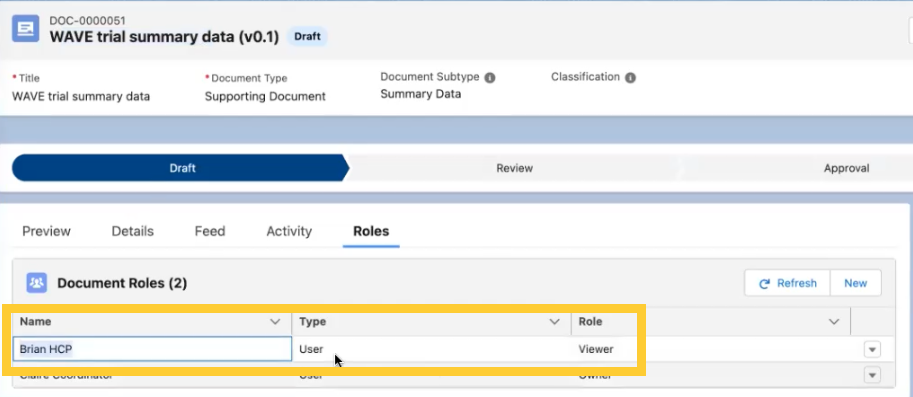
To trigger the just-in-time provisioning task, users can download a supporting document in the Collaborator Portal. After Salesforce processes the request, the user will appear in the Document Roles related list in the Salesforce environment.
Resend emails and reset passwords
When a Collaborator Portal user is provisioned, they are sent a welcome email that instructs them how to set up their Collaborator Portal account with their email address and, optionally, a password. If a user wants to log into and use the Collaborator Portal without a password, they must verify their email address so that they can receive a verification code that authenticates them in place of a password. For existing Collaborator Portal users, email addresses can be verified through a password reset. For more information, reference the Resend emails and reset passwords section below.
The welcome email, the user verification email, and the password reset email can all be (re)sent from the Document Collaborators component at any time, similar to how a user can be provisioned. For more information about the component, reference the Document Collaborators section on the Document Collaborators page.
View communication history
By default, the Contact Record Page (Contact_Record_Page) has a
Communications tab with a Communications table that lists all of the
emails and Salesforce notifications that have been sent out to the
contact or user as tracked in the
Notification Log
(mvn__SE_Notification_Log__c) object. Notification Log records are
created automatically whenever an email or notification is sent to a
document collaborator, such as when a workflow task is assigned or when
a welcome email, user verification email, or password reset email is
sent to a Collaborator Portal user. If any of the Collaborator Portal
emails are resent, for instance, each email will be tracked in a
separate Notification Log record.
To add the Communications table, or the MVN - User Communication History
(seCommunicationHistory) Lightning component, on other Contact record
pages:
-
Open the Contact record page in the Lightning App Builder.
-
Search for the MVN - User Communication History custom component.
-
Drag and drop the MVN - User Communication History component onto the desired location on the Contact record page.
-
Set the User Id Field to the field on the Contact object that relates to a User record, such as the Publication User (
mvn__PP_Publication_User__c) field. -
Click Save.
To configure the columns in the Communications table, modify the Related
Notifications List (mvn__SE_Related_Notifications_List) field set on
the Notification Log object. Updates to the field set will affect the
Communications table on both the Document Collaborators component and
the Contact Record Page.
The Communications table on both the Document Collaborator component and the Contact record pages only contains email and notification logs from the Fall '25 release and beyond. It does not retroactively retrieve and display all of the emails and notifications that have been sent out prior to this Fall '25 release. If you would like the Communications table to be populated with any older emails or notifications, please reach out to the Customer Support team.
Permissions
Access to the Collaborator Portal, including the ability to view
documents, complete tasks, and receive notifications, is governed by the
PP_Publication_Collaborator_Externals permission set group, which
includes the following permission sets.
Publication Collaborator Externals permission set group
| Permission set | Description |
|---|---|
| PP_Content_Author_External | Users with this permission set have access to publication documents. This permission set should be used in conjunction with the CM_ContentAuthor permission set. The External Notifications (PP_External_Notifications) custom permission associated with this permission set determines which link (either an internal Salesforce link or external AWS link) the user will receive in their Collaborator Portal email notifications. If the External Notifications custom permission is assigned, as it is with this PP_Content_Author_External permission set, then the link in the notifications will always be for the Collaborator Portal and not for the Salesforce environment. |
| PP_ContentAuthor_External | Users with this permission set have access to content management objects and fields. This is a clone of the CM_ContentAuthor permission set with minor modifications to account for Customer Community user licenses. |
| PP_App_Permissions_External | Users with this permission set have access to Scientific Publications Cloud application settings, custom metadata, Apex classes, etc. |
| CA_Office_365_Author | Users with this permission set can author Microsoft 365 content. |
Profile menu
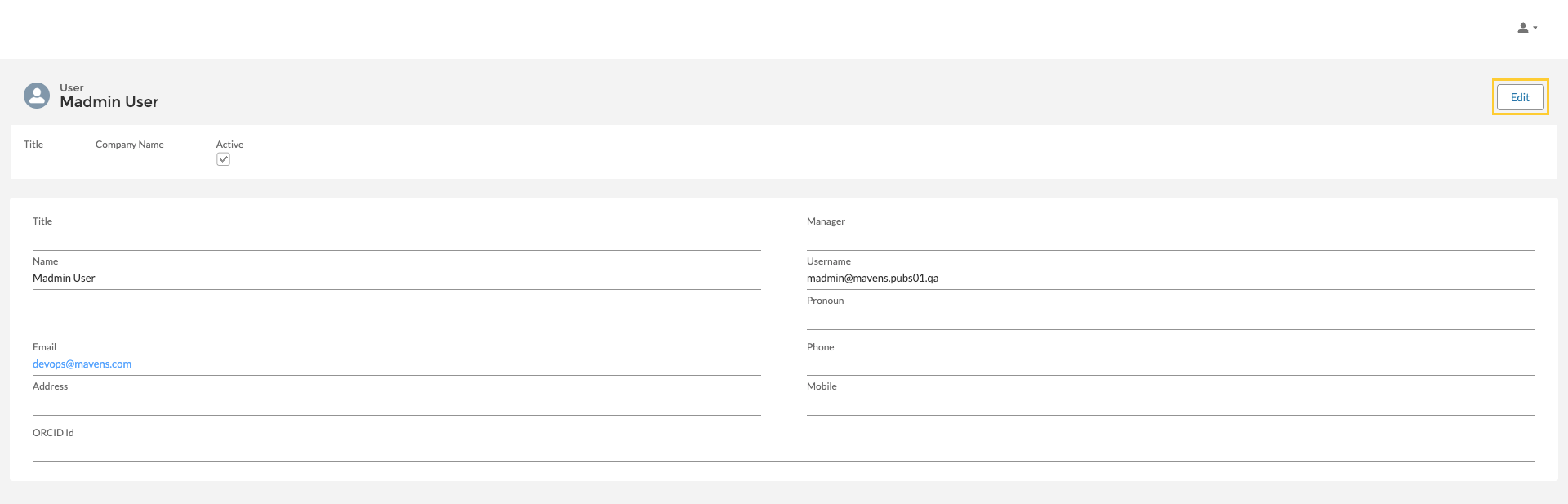
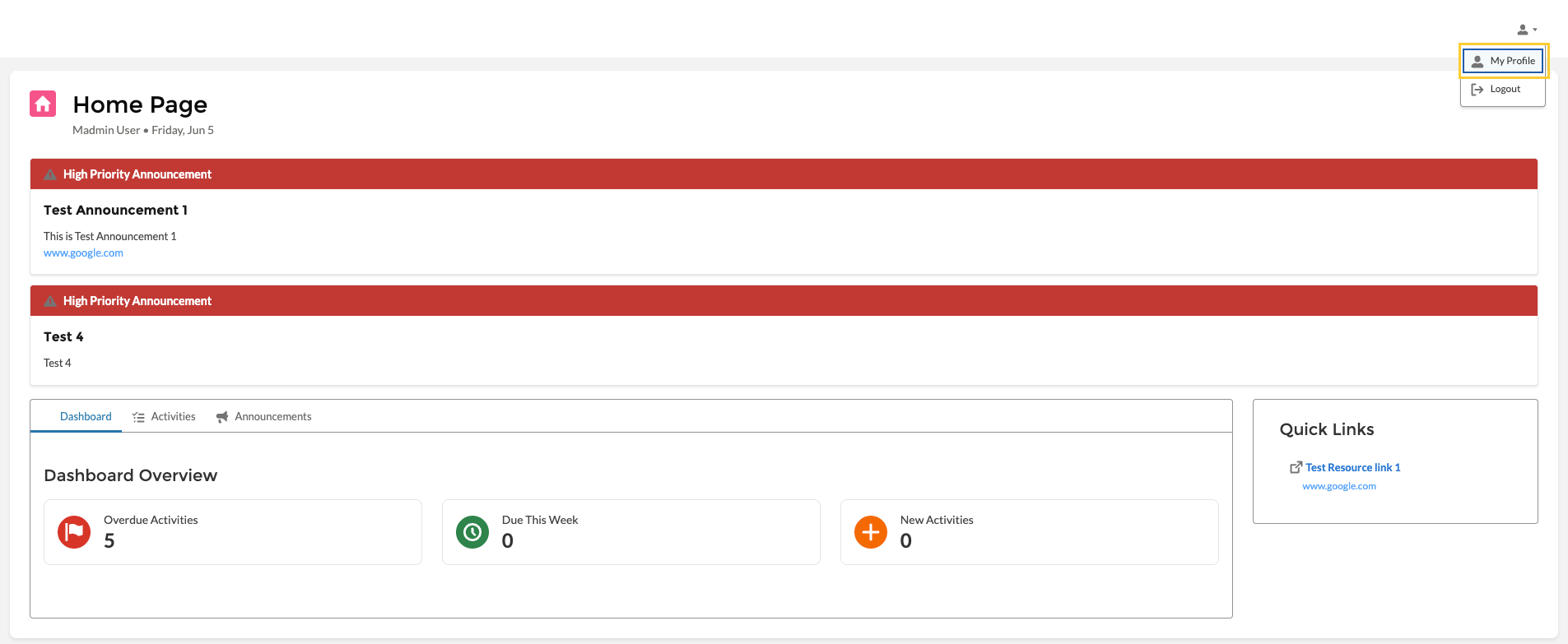
External collaborators have an option to update their contact information using the My Profile menu option. Using this option, collaborators can view and edit their profile so as to keep their information up to date.
-
After you sign in to the Collaborator Portal, navigate to the profile icon and click My Profile.
-
Here, you can view or Edit the profile as per your requirements.