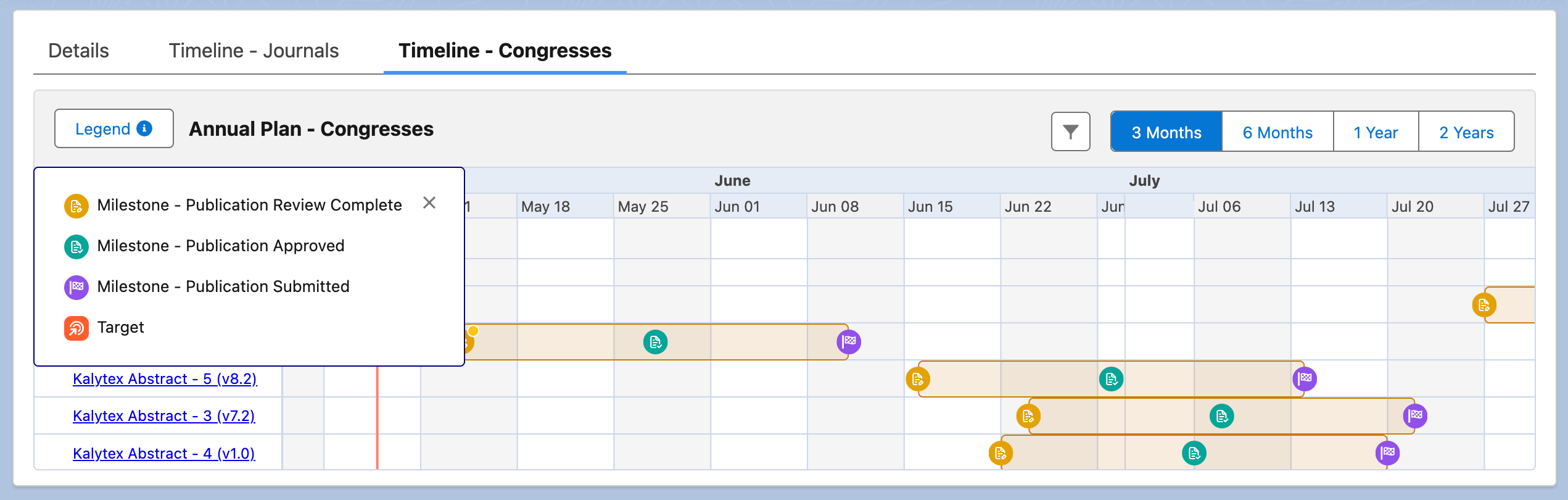
Enhanced timeline visualization
Scientific Publications Cloud offers two Timeline components to visualize milestone dates. The ppTimelineWrapper component is used for the default timeline visualization that is available on the Publication Planning Document Record Page and the Plan Record Page out of the box while the khvTimelineWrapper component is used for the enhanced timeline visualization that can be added to any record page.
The latter is more configurable and interactive and can therefore be used in place of the former.
Comparison of Timeline components
| Default ppTimelineWrapper component | Enhanced khvTimelineWrapper component |
|---|---|
- Can only be used on Document (mvn__CM_Document__c) and Publication Plan (mvn__PP_Plan__c) record pages and is available on the Publication Planning Document Record Page and the Plan Record Page out of the box - Has limited functionality and customizability - Is available in all versions of the Scientific Publications Cloud product | - Can be added to and used on any sObject's record pages - Can be configured for any data structure available in the Salesforce environment - Is customizable and interactive - Is only available in the Scientific Publications Cloud Spring '25 release and above |
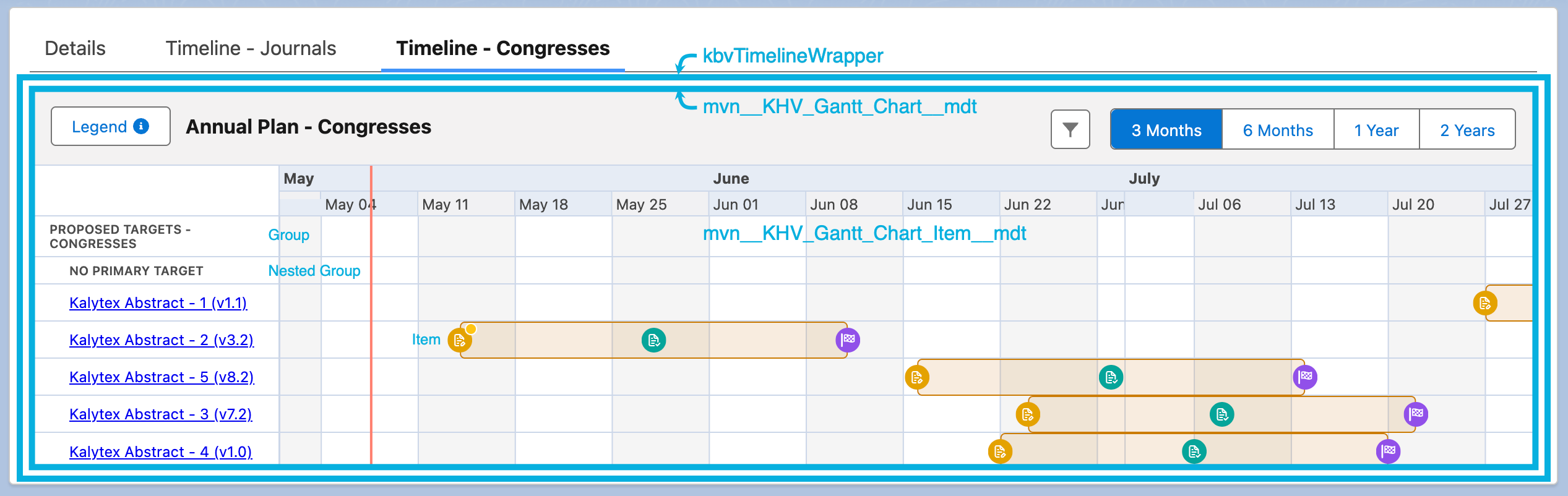
The enhanced timeline visualization that uses the khvTimelineWrapper Aura component builds on vis.js to display a customizable timeline view in the form of a Gantt chart visualization and can be configured with the following custom metadata types:
-
The Gantt Chart (
mvn__KHV_Gantt_Chart__mdt) custom metadata type, which acts as the container and configures the UI/UX of the timeline -
The Gantt Chart Item (
mvn__KHV_Gantt_Chart_Item__mdt) custom metadata type, which configures the data and other individual pieces of information that appear in the timeline
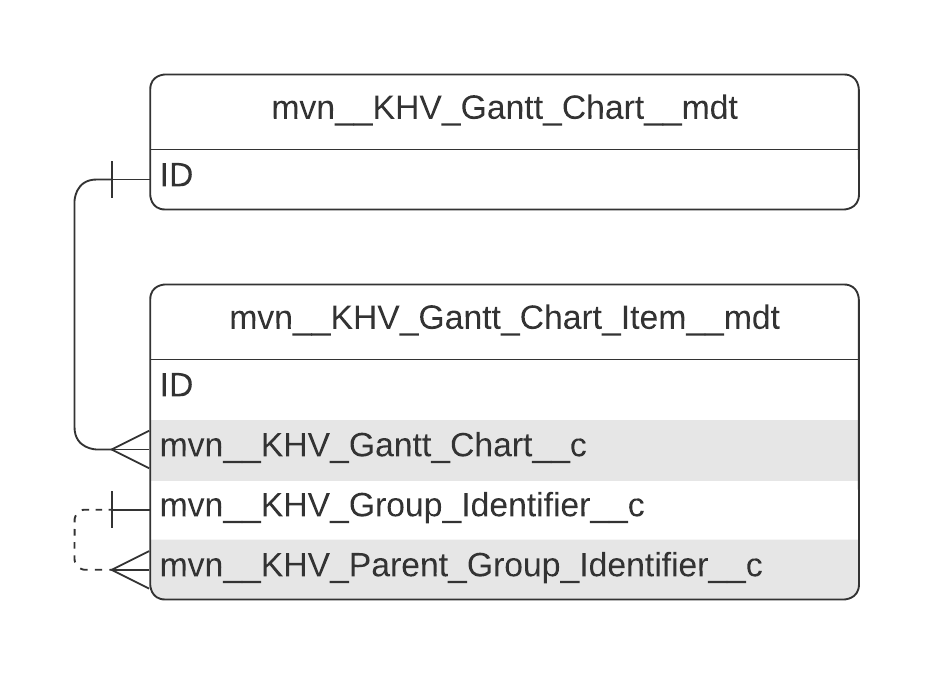
Each Gantt Chart Item metadata record directly relates to a parent Gantt
Chart metadata record and can indirectly relate to another Gantt Chart
Item metadata record. The Item Type (mvn__KHV_Item_Type__c) field, the
Group Identifier (mvn__KHV_Group_Identifier__c) field, and the Parent
Group Identifier (mvn__KHV_Parent_Group_Identifier__c) field on every
Gantt Chart Item metadata record are all used to establish the
relationships between different Gantt chart items; the value on each of
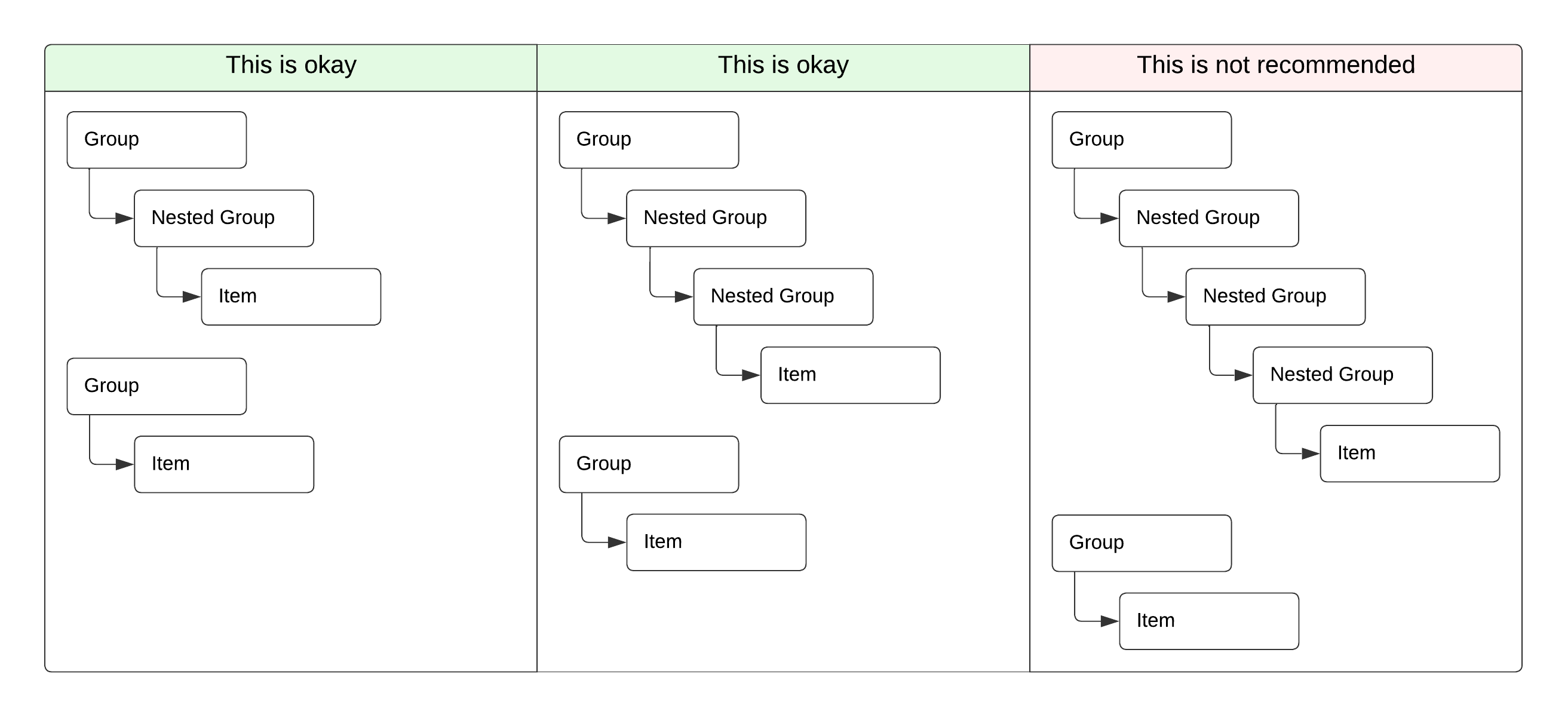
the fields determines whether a Gantt chart item is a group, a nested
group, a subnested group, or an item. An item is always the child of a
group or a nested group while a nested group can be the child of either
a group or another nested group. In the case of the latter, the child
nested group is then referred to as a subnested group. Mavens recommends having
no more than a parent-child relationship between nested groups.
|  |
| 
 |
| :--- | :--- | :--- |
|
| :--- | :--- | :--- |
Setup and configuration
To set up and configure the enhanced timeline visualization:
-
Create one or more Gantt Chart Item metadata records for each Gantt Chart metadata record.
-
Add the Timeline (
kbvTimelineWrapper) component to the desired record page. -
(Optional) Configure the label and link on the Gantt Chart Item popovers.
-
(Optional) Configure the appearance of the Timeline Aura component.
An example configuration of the enhanced timeline visualization can be deployed into your instance of the Scientific Publications Cloud through the Install Service. The example configuration displays the milestone dates of congresses and journals on annual plans and differentiates among deadlines that are overdue, due today, due soon (i.e., within the week), and completed.
1. Plan out the data structure
To set up the visualization, first determine what information should appear in the timeline. This includes identifying the specific objects, records, and fields to be used and the way in which their data should be organized.
Table 139. Sample outline
-
Timeline Group – a group that contains records of a given object, like
<Object_API_Name>-
Timeline Nested Group – a nested group that contains records of a given object that may be filtered in some way, like records of a specific record type
<RecordType_API_Name>- Timeline Item – an item for a date field on each record, like
<CreatedDate>
- Timeline Item – an item for a date field on each record, like
-
2. Create a Gantt Chart metadata record
After the high-level data structure for the timeline has been decided,
create a Gantt
Chart (mvn__KHV_Gantt_Chart__mdt) metadata record
for the visualization. This will act as the container for the individual
data points in the timeline.
| Field label | Sample value |
|---|---|
| Label | Timeline Container |
| Gantt Chart Name | KHV_Timeline_Container |
: Sample container mvn__KHV_Gantt_Chart__mdt metadata record
3. Create Gantt Chart Item metadata records
After the timeline container has been created, create a Gantt Chart
Item (mvn__KHV_Gantt_Chart_Item__mdt) metadata
record for each piece of information to be retrieved and/or displayed in
the visualization. This includes the individual data points (i.e.,
items) to appear in the timeline as well as the text used to describe
the data points (i.e., groups, nested groups, and/or subnested groups)
in the timeline.
3a. Create Gantt chart items of item type Group
| Field label | Sample value |
|---|---|
| Label | Timeline Group |
| Gantt Chart Item Name | KHV_Timeline_Group |
| Gantt Chart | Enter the name of the parent Gantt Chart metadata record, like KHV_Timeline_Container from step 2 |
| Item Type | Group |
| Group Sort Order | Enter an integer for the order in which the Gantt chart item should be processed, like 0 |
| Group Identifier | Enter a string or a merge field to uniquely identify the group, like Timeline Group. This can subsequently be used in the Parent Group Identifier fields in other Gantt Chart Item metadata records to establish a parent-child relationship where this Gantt Chart Item metadata record will become the "parent". |
| Content Value | Enter a string or a merge field to display some static or dynamic text for the group, like Timeline Group |
: Sample group mvn__KHV_Gantt_Chart_Item__mdt metadata record
3b. Create Gantt chart items of item type Nested Group
Sample nested group mvn__KHV_Gantt_Chart_Item__mdt metadata record
| Field label | Sample value |
|---|---|
| Label | Timeline Nested Group |
| Gantt Chart Item Name | KHV_Timeline_Nested_Group |
| Gantt Chart | Enter the name of the parent Gantt Chart metadata record, like KHV_Timeline_Container from step 2 |
| Item Type | Nested Group |
| Parent Group Identifier | Enter the group identifier of the Gantt Chart Item metadata record that will become the parent, like Timeline Group from step 3a |
| Group Sort Order | Enter an integer for the order in which the Gantt chart item should be processed, like 0 |
| Query | Write a query to retrieve data from some object or record, like: SELECT ID FROM <Object_API_Name> WHERE RecordType.Name = '<RecordType_API_Name>' |
| Group Identifier | Enter a string or a merge field to uniquely identify each result returned by the query, like \{Id\}. This can subsequently be used in the Parent Group Identifier fields in other Gantt Chart Item metadata records to establish a parent-child relationship where this Gantt Chart Item metadata record will become the "parent". |
| Group Collection Variable | Create a variable to store the list of group identifiers, like \{NestedGroupIds\}. This can subsequently be used in the Query fields of any child Gantt Chart Item metadata record or any Gantt Chart Item metadata record whose Group Sort Order field has a higher numeric value. |
| Content Value | Enter a string or a merge field to display some static or dynamic text for the nested group, like \{Id\} |
3c. Create Gantt chart items of item type Item
Sample item mvn__KHV_Gantt_Chart_Item__mdt metadata record
| Field label | Sample value |
|---|---|
| Label | Timeline Item |
| Gantt Chart Item Name | KHV_Timeline_Item |
| Gantt Chart | Enter the name of the parent Gantt Chart metadata record, like KHV_Timeline_Container from step 2 |
| Item Type | Item |
| Parent Group Identifier | Enter the group identifier of the Gantt Chart Item metadata record that will become the parent, like Timeline Nested Group from step 3b |
| Group Sort Order | Enter an integer for the order in which the Gantt chart item should be processed, like 0 |
| Query | Write a query to retrieve data from some object or record. You can use the group collection variable from another Gantt Chart Item metadata record if the other Gantt chart item has a lower group sort order numeric value or is the parent, like: SELECT ID, Name, CreatedDate FROM <Object_API_Name> WHERE ID IN {NestedGroupIds} |
| Group Identifier | Enter a string or a merge field to uniquely identify each result returned by the query, like \{Id\} |
| Content Value | Enter a string or a merge field to display some static or dynamic text for the item, like Timeline Item or \{Name\} |
| Start Date Field API Name | Enter a merge field that contains the start date of the record, like \{CreatedDate\} |
| Link Id | Enter a merge field that contains the ID of the record for users to open the item's record page via a Gantt Chart Item popover, like \{Id\} |
4. Add the Timeline (kbvTimelineWrapper) component
After all of the Gantt Chart and Gantt Chart Item metadata records have
been created, add the Timeline (kbvTimelineWrapper) Aura component to
the record page of the parent object.
-
Open the record page in the Lightning App Builder.
-
Drag and drop the Timeline component to the desired location on the record page.
-
On the Configuration Name field, enter the Gantt Chart Name value of the Gantt Chart metadata record created in step 2.
-
Click Save.
5. (Optional) Configure the Gantt Chart Item popover
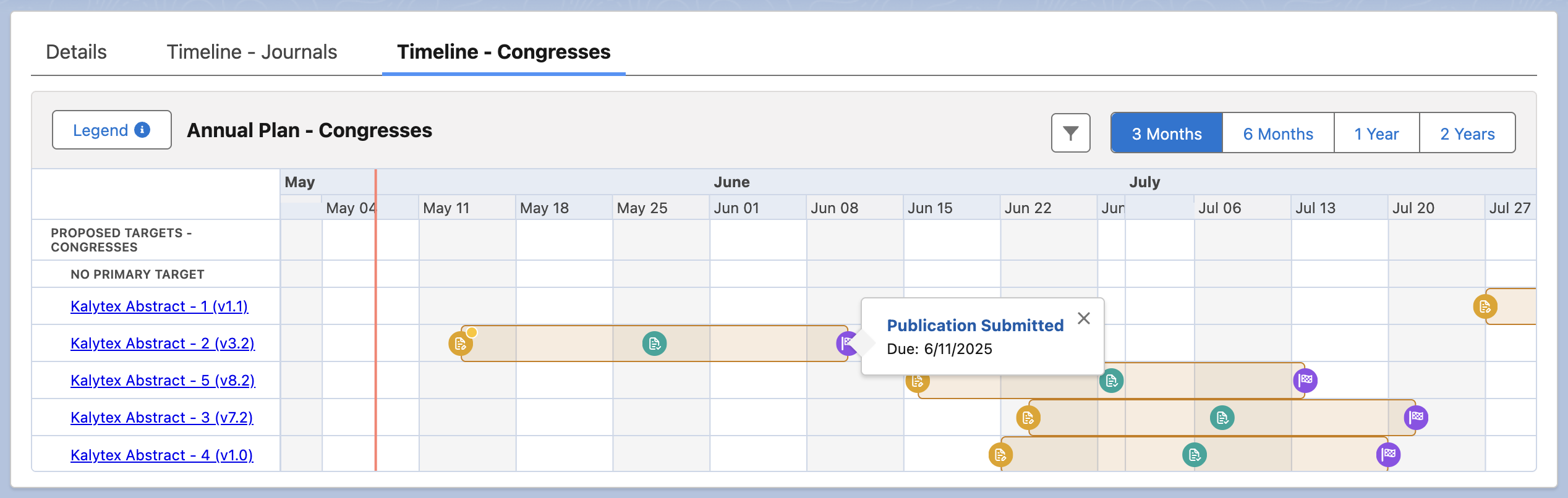
When users hover on an item in the enhanced timeline visualization, a
popover with additional details on the item opens. The label of the
popover is managed by the Popover Label (mvn__KHV_Popover_Label__c)
field while the link on the label is managed by the Link Id
(mvn__KHV_Link_Id__c) field on the Gantt Chart Item metadata record.
6. (Optional) Configure filter options
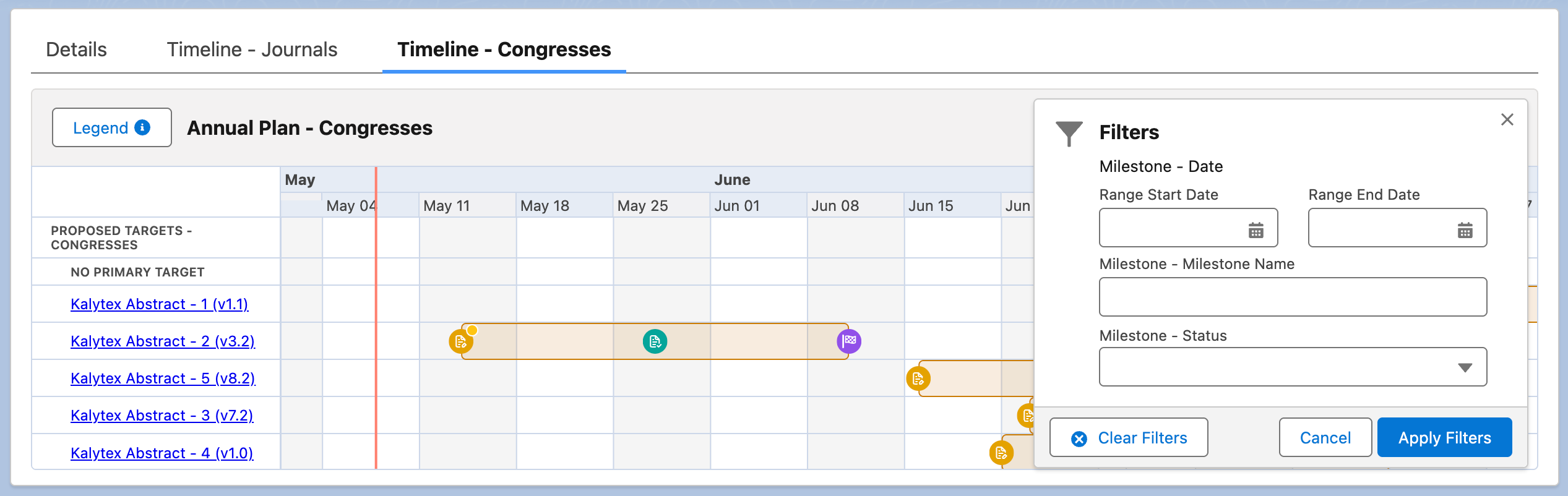
You can set certain object fields to be filter options so that users can
filter the data that appears in the enhanced timeline visualization. To
configure one or more fields as filter options, update the Filter Fields
(mvn__KHV_Filter_Fields__c) field on the appropriate Gantt Chart
metadata record. Each option will appear in the filter popover as
"<Object name> - <Object field label>".
[
    {
        "sObjectLabel": "<Object name>",
        "sObjectType": "<Object API name>",
        "fieldApiName": "<Object field API name>"
    },
    {
        "sObjectLabel": "<Object name>",
        "sObjectType": "<Object API name>",
        "fieldApiName": "<Object field API name>"
    }
]
7. (Optional) Style the Timeline (kbvTimelineWrapper) component
You can use CSS to customize the appearance of the enhanced timeline visualization, such as configuring one or more icons, images, or colors to represent the items retrieved in a single Gantt Chart Item metadata record. To style the enhanced timeline visualization:
- Create a new CSS file and gather any media files as needed.
For each instance of the enhanced timeline visualization, you may
only have one CSS file but can have multiple media files. Every CSS
and media file will be uploaded as a static resource in step
4 below,
and each of their paths should be prefixed with /resource/.
Every time you update an existing static resource, you may need to clear your browser's cache for the changes to appear immediately in the enhanced timeline visualization.
- Identify the CSS class name you wish to modify and style. Each Type
(
mvn__KHV_Type__c) picklist value on the Gantt Chart Item metadata record has a corresponding CSS class. For more information, reference the vis.js timeline examples.
| Type value | CSS class name |
|---|---|
| background | .vis-item.vis-background |
| box | .vis-item.vis-box |
| point | .vis-item.vis-dot |
| range | .vis-item.vis-range |
: Type value and CSS class name
-
Determine how you wish to style the items retrieved from a single Gantt Chart Item metadata record.
- To configure one icon, image, or color to appear for all of the items, set the desired CSS properties for the class identified in step 2 above.
.vis-item.vis-dot
{
    background-color: orange;
    background-image: url('/resource/\<static_resource_zip_name\>/images/\<image_name\>.png');
    /*This assumes that the CSS and media files will be compiled into a zip file and uploaded as a single static resource in step 4.*/
    background-size: cover;
    background-position: center;
    width: 20px !important;
    height: 20px;
}
- To configure different icons, images, or colors to appear for
different items based on a set criteria, input a merge field
into the Class Name (
mvn__KHV_Class_Name__c) field on the Gantt Chart Item metadata record to use as a CSS class and then set the CSS properties for said class.
.vis-item.vis-dot
{
    /* This styles a merge field that has no value or evaluates to null. */
    background-color: orange;
}

.vis-item.vis-dot.\<value1\>
{
    /* This styles a merge field that evaluates to 'value1'. */
    background-color: red;
}

.vis-item.vis-dot.\<value2\>
{
    /* This styles a merge field that evaluates to 'value2'. */
    background-color: green;
}
-
Upload all of the files as static resources, including the CSS file and any media files as needed. You may upload each of the files either separately or together in a zip file.
-
Update the Gantt Chart metadata record created in step 2 and set the CSS Resource (
mvn__KHV_CSS_Resource__c) field to equal the static resource path containing the uploaded CSS file.
| Field label | Sample value |
|---|---|
| CSS Resource | /resource/\<css_file_name\>.css |
: Sample styled mvn__KHV_Gantt_Chart__mdt metadata record
8. (Optional) Add a custom legend
If you customize the appearance of the enhanced timeline visualization, you can also add a legend to explain the custom icons, images, or colors that are used. To create and add a legend:
- Create a Lightning Web Component (LWC) for the legend. The
isExposedFlag must be set to
true. For example:
        <?xml version="1.0" encoding="UTF-8"?\>
        <LightningComponentBundle xmlns="http://soap.sforce.com/2006/04/metadata"\>
            <apiVersion\>62.0\</apiVersion\>
            <isExposed\>True\</isExposed\>
        </LightningComponentBundle\>
- Set the name of the LWC on the Legend Component
(
mvn__KHV_Legend_Component__c) field of the Gantt Chart metadata record. The name of the custom LWC must be prefixed withc/. For example,c/AnnualPlanLegend.