Home page
The Home (PP_Home) flexipage helps users quickly get started with
their day by showing them important announcements as well as:
-
an Activities tab;
-
an Announcements tab; and
The Home Page in the Full App shows all of the above while the Home Page in the Lite App only shows the Activities and Announcements tabs. For more information about the different offerings of the Scientific Publications Cloud product, including how and why you may want to restrict certain users to the Lite App, reference Full App vs. Lite App vs. Mobile App .
Dashboard tab
In the Home Page, the Dashboard tab provides some high-level metrics that are calculated based on the current user's documents and tasks.
At the top, the Dashboard Overview summarizes the following:
- Overdue Activities - Activities that are overdue
- Due This Week - Activities due this week
- New Activities - Newly assigned activities
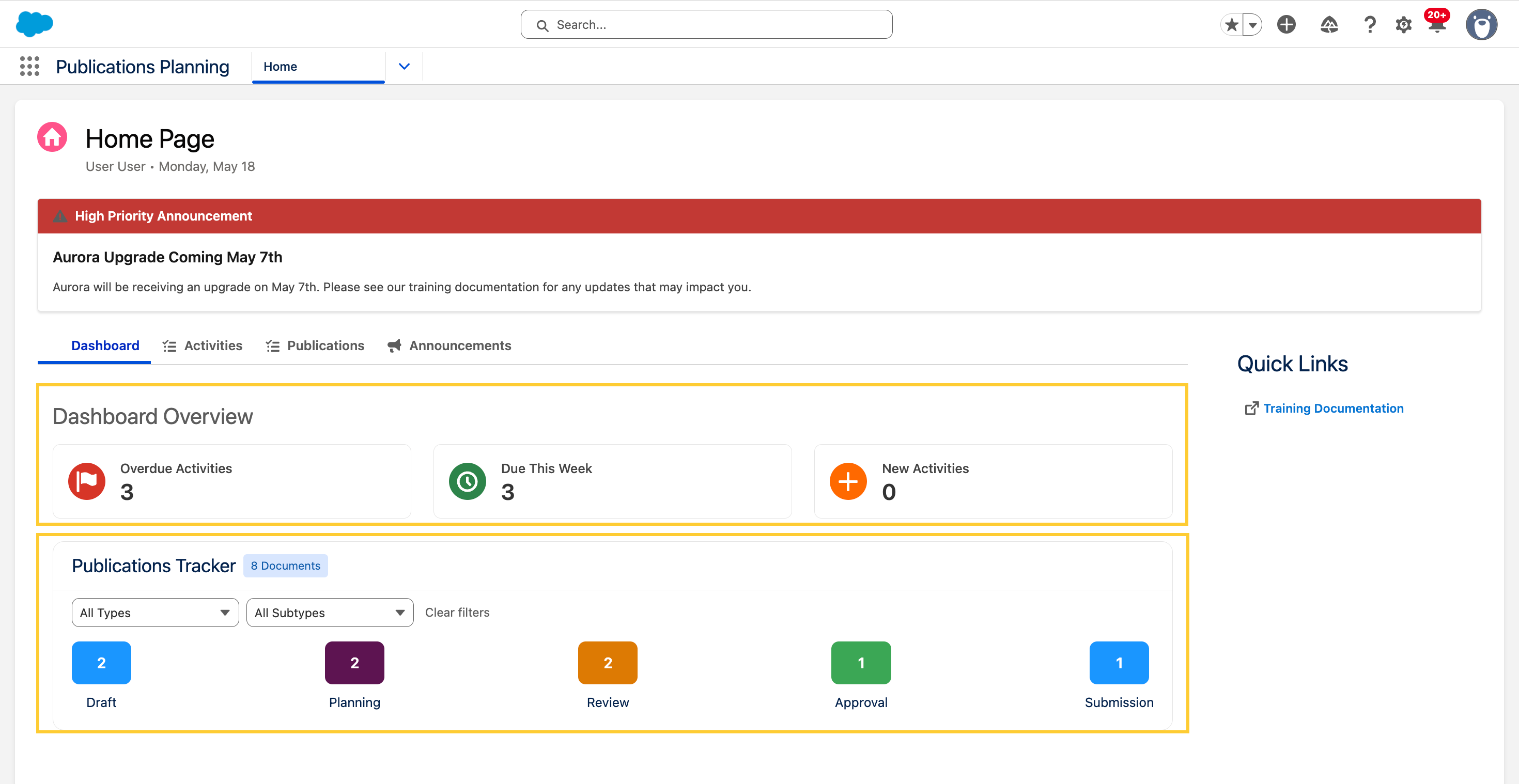
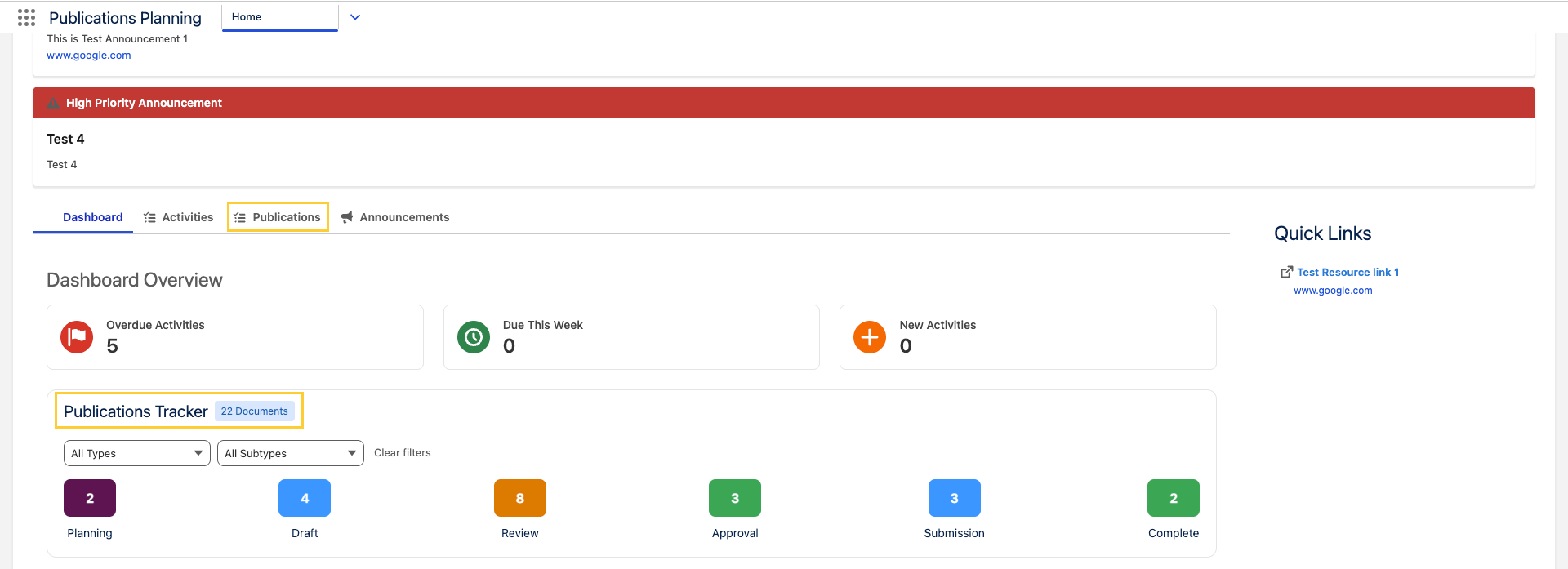
Below it, the Publications Tracker organizes your documents into swim lanes by stage. Documents in different states that share the same Stage Label (Draft, Planning, etc.) are grouped together in a single lane card with a combined count, so you see one clear total instead of several separate tiles.
Lane counts respect Document Type and Document Subtype combobox filters. Use Clear filters to restore the default totals.

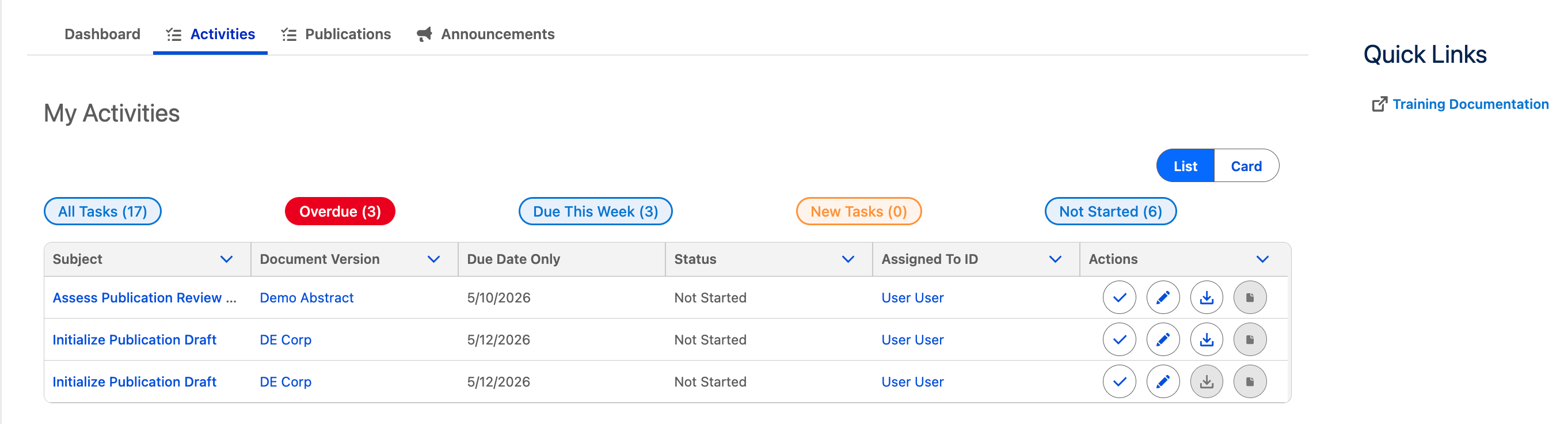
Selecting a Dashboard Overview tile jumps to the Activities tab with its filter.

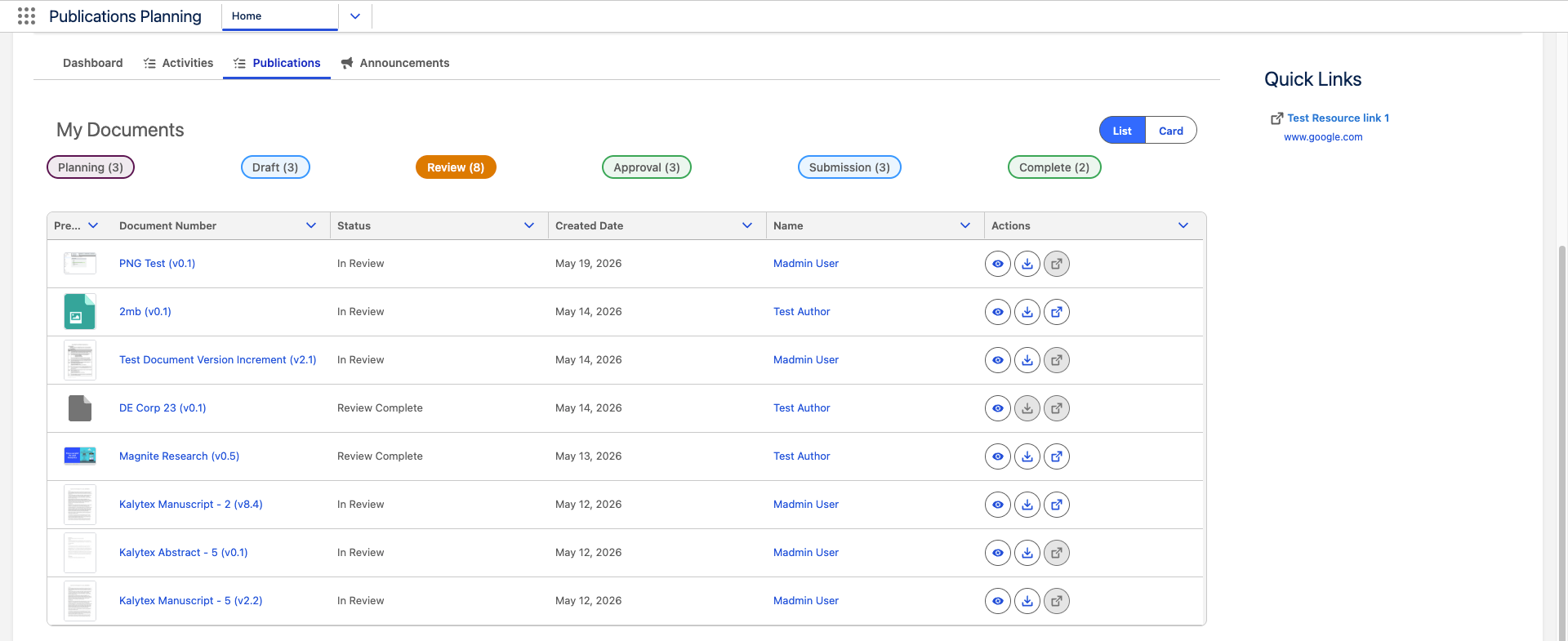
Similarly, selecting a Publications Tracker lane opens the Publications tab with the matching grouped lane filters applied.

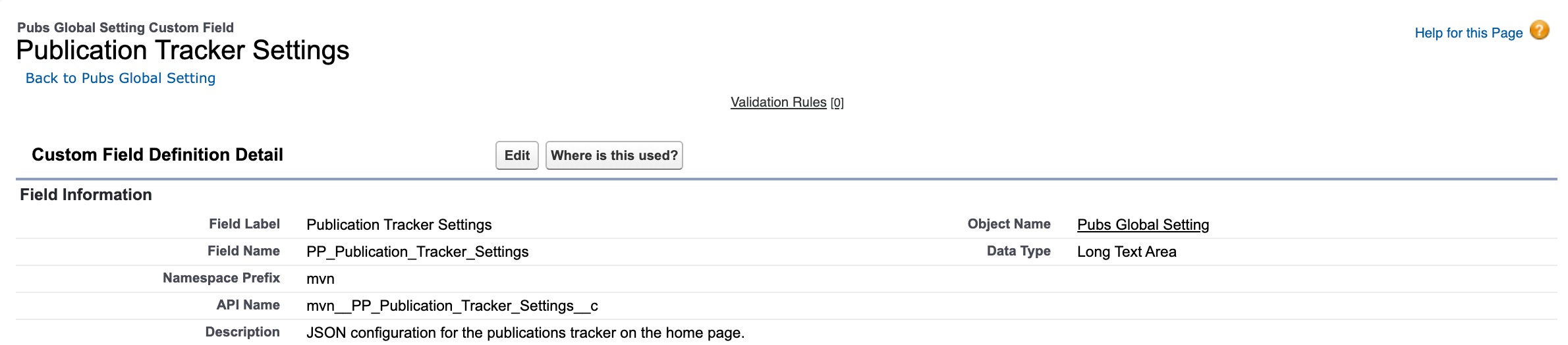
Admins can customize the colors used for lanes and statuses in the
Publications Tracker. Lane and status colors — along with optional
lane color values (groupColor) — are set in the Publication Tracker
Settings (mvn__PP_Publication_Tracker_Settings__c) field on the
Pubs Global Setting
(mvn__PP_Global_Setting__mdt) custom metadata record.
If you want multiple Developer Names to appear under the same lane,
you can map them together using the
mvn__CM_Group_Custom_Label_API_Name__c field on the
Document State (CM_Document_State__mdt) metadata records.
Activities tab
The Activities tab shows the list of open Activity (Activity) (or Task) records that are assigned to the current user. Users can switch between a List (i.e., table) view and a Card view and use the buttons above the records to filter activities that are Overdue, Due This Week, New Tasks, and Not Started. Tasks that have already been approved, rejected, or canceled do not appear in this list. If a user clicked on a metric from the Dashboard tab to open the Activities tab, the corresponding filter will already be selected. To return to the full list after using a focused filter, click All Tasks.
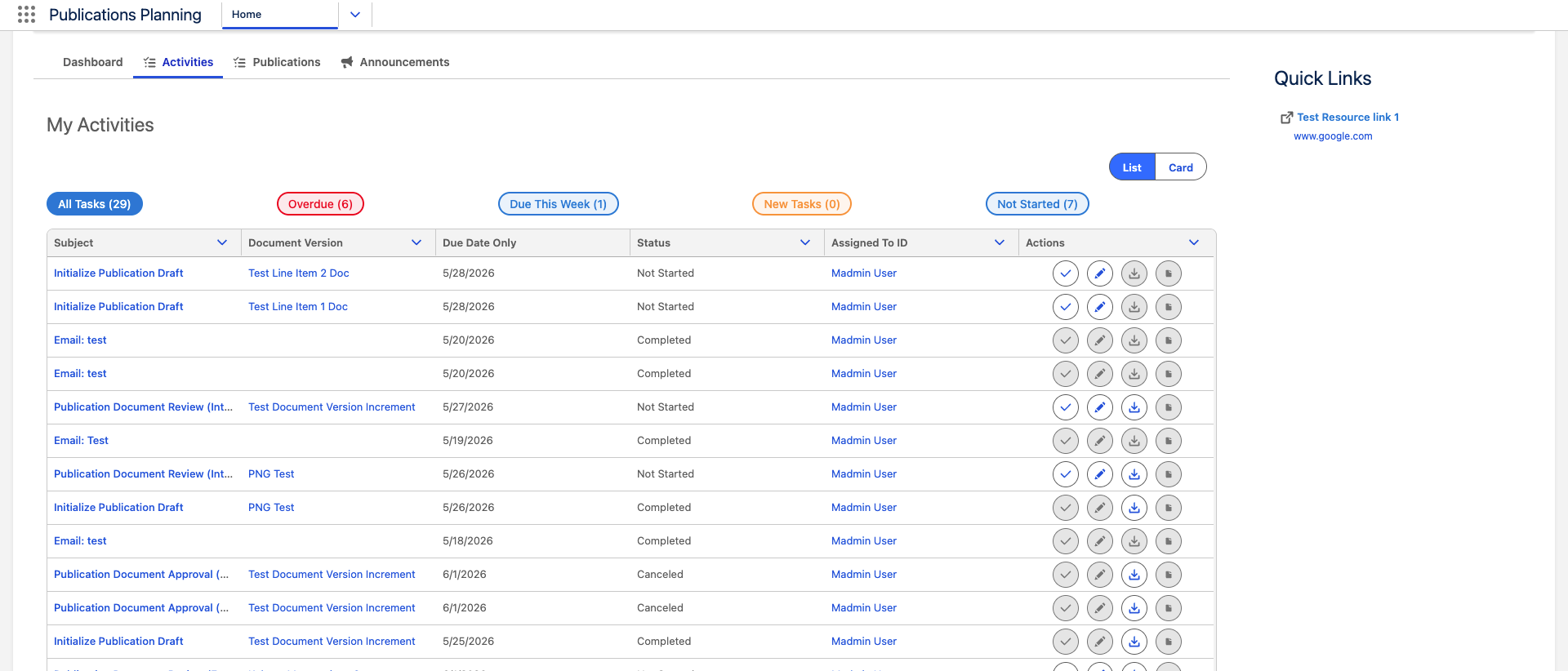
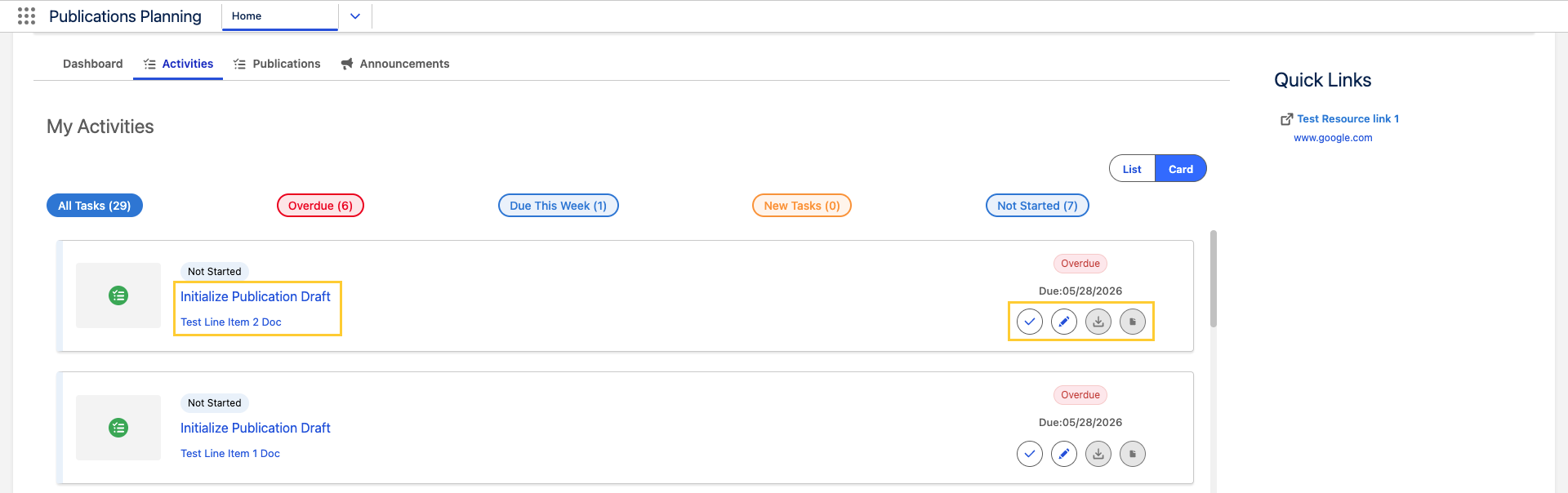
Out of the box, for both the List view and the Card view, each Activity/Task
record shows the Subject, Document Version, Due Date Only, Status, and Assigned To ID (Owner) of the Activity/Task. These fields can be configured via the Home Page Task Fields (mvn__PP_Home_Page_Task_Fields) field set on the Task (Task) object. Users can click the Task Subject to open the Activity record and click the Document Version to open the Document record. Users can also Complete Task, Edit task, Download Task, and if applicable, Open in Microsoft 365 in a new tab directly from the Activity record. Each page of the List view and Card view shows up to 25 activities.
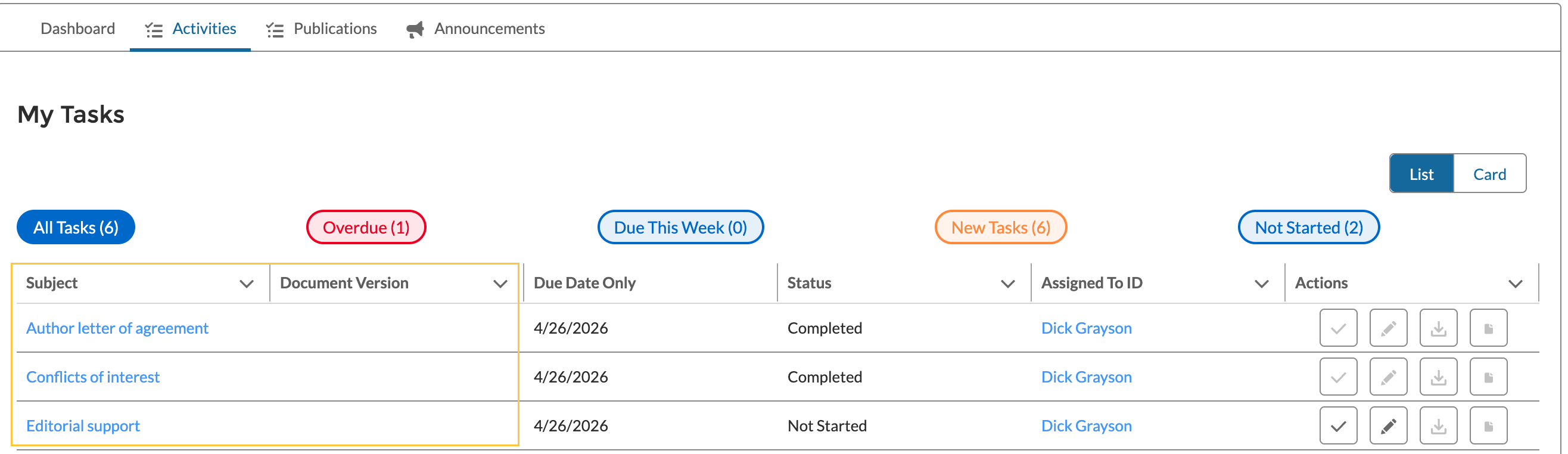
Whenever a Contact Verification task (Author letter of agreement, Conflicts of interest, or Editorial support) is created, the Document Version (mvn__CM_Document_Version__c) field is cleared while keeping the Contact Verification field (mvn__PP_Contact_Verification__c) populated.
Publications tab
The Publications tab shows the list of
Document (mvn__CM_Document__c)
records that the current user is a document collaborator on. Users can switch between a list (i.e., table) view and a card view and use the buttons above the records to filter the documents by document state. If a user clicked on a metric from the Dashboard tab to open the Publications tab, the corresponding filter will already be selected.
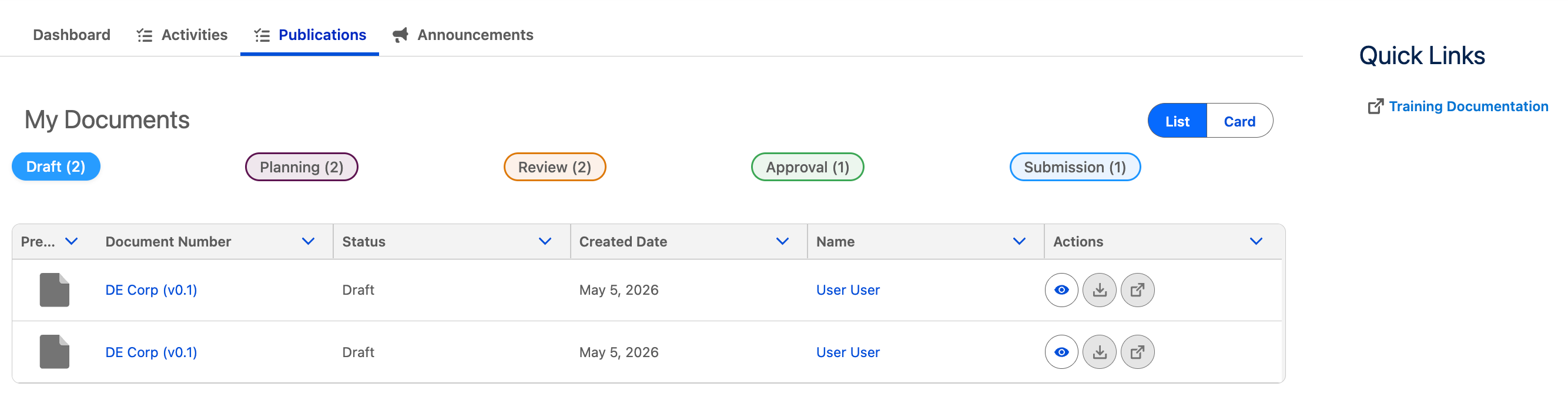
Out of the box, for both the List view and the Card view, each Document
record shows the Document Number, Status, Created Date, and Owner Name of the document. These fields can be configured via the Home Page Documents Fields
(mvn__PP_Home_Page_Documents_Fields) field set on the Document (mvn__CM_Document__c) object. Users can click either the document thumbnail or the eye icon to Preview document, Download document to their local device and, if applicable, Open in Microsoft 365 in a new tab.
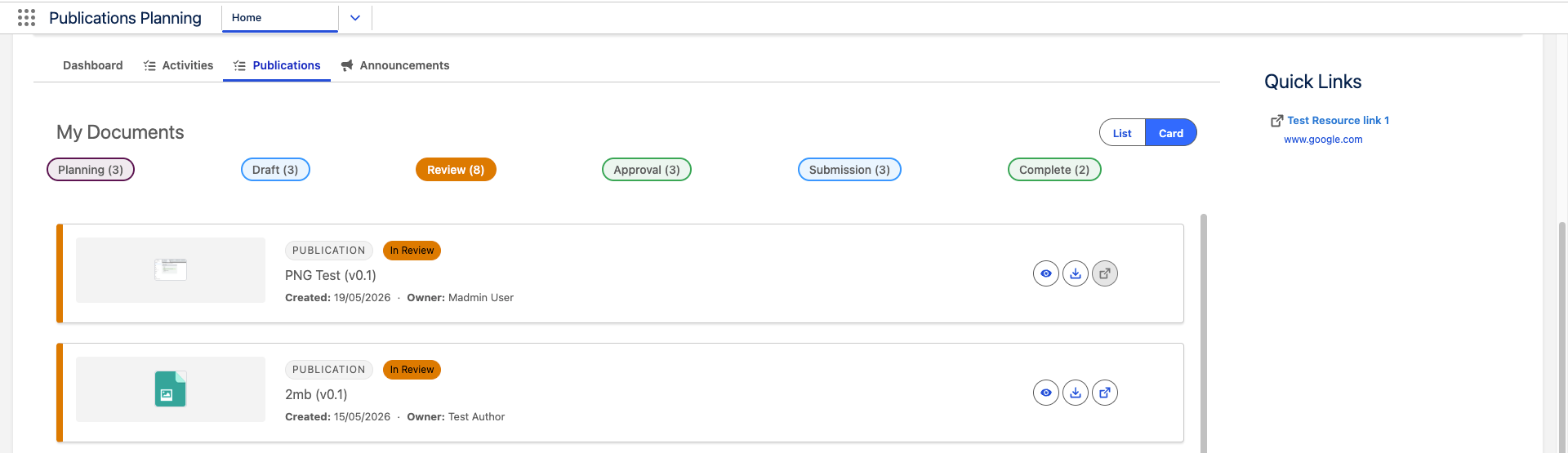
In the List view, users can also click the Document Number to open the Document record. Each page of the List view and Card view shows up to 25 documents.
For external collaborators, the Publications tab and the Publications Tracker on the Dashboard tab are hidden when they open the Home page in the Collaborator Portal (Experience Cloud site).
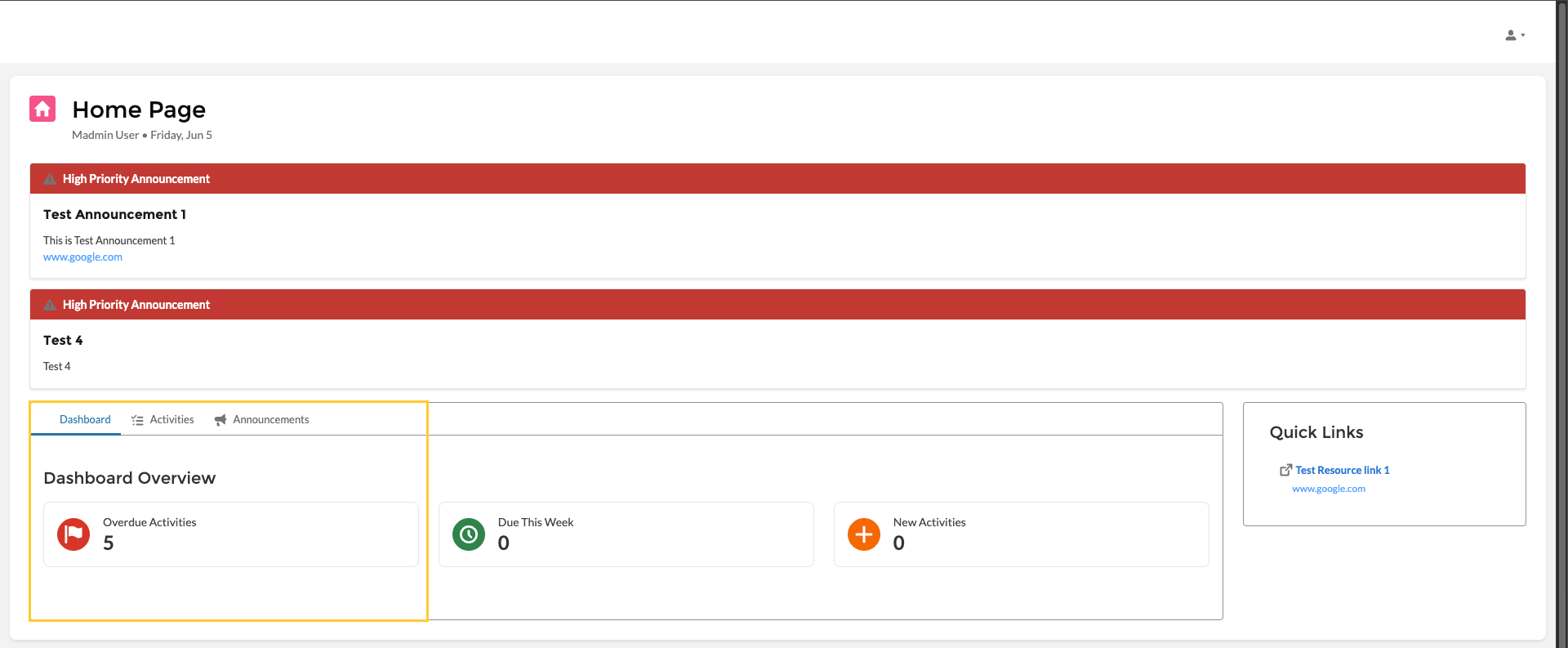
Internal users in the Scientific Publications Cloud app see both the Publications tab and the Publications Tracker on the Dashboard tab.
Announcements tab
The Announcements tab shows the list of all system-wide announcements
stored on the Communication
(mvn__CO_Communication__c) object under the Announcement
(CO_Announcement) record type, including the high-priority
announcements that appear at the top of the Home page. The announcements
are first sorted by priority level such that the high-priority ones
appear above the low-priority ones and are then sorted in reverse
chronological order so that the most recently created Communication
records are closer to the top. All users can view the announcements, but
only admin users can create and manage Announcement records.
Quick Links section
The Quick Links section shows the list of links stored on the
Communication object under the Resource Link (CO_Resource_Link) record
type. These links can be of reference materials, informational content,
or just any resources that users may find helpful or informational. Like
announcements, all users can view the links, but only admin users can
create and manage Resource Link records.