Create a new Named Credential
The Komodo Insights Component Named Credential from the initial installation needs to be updated to include the newly created authentication provider.
-
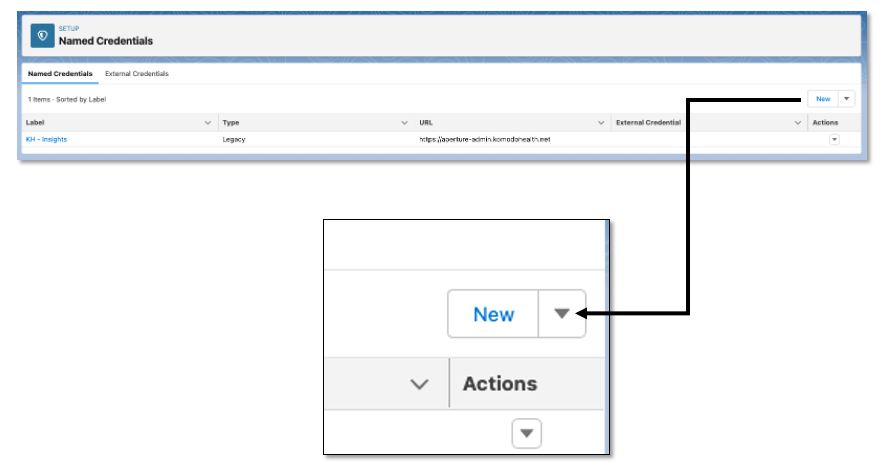
In the Quick Find box in Setup, search for and select Named Credentials.
-
Click the dropdown arrow next to New and select New Legacy.
-
Complete the following fields:
-
Label: Example, KH Insights
-
Name: Auto-populated
-
Certificate: Leave
null -
Identity Type: Per user
-
Authentication Protocol: OAuth 2.0
-
Authentication Provider: Select Auth. Provider created in step 1
-
Scope: aperture-iris:tag:read openid offline_access
-
Start Authentication Flow on Save: Check this to initiate authentication
-
Generate Authorization Header: Checked
-
Allow Merge Fields in HTTP Header: Unchecked
-
Allow Merge Fields in HTTP Body: Unchecked
-
-
Click Save.
This step can only be completed once the Callback URL is provided to your Mavens representative and has been added to our list of allowed Callback URLs. If you continue to see the "Callback URL mismatch" error, please reach out to your Mavens representative for assistance.