Home Page
The Home Page (PP_Home) flexipage helps users quickly get started with
their day by showing them important announcements as well as:
-
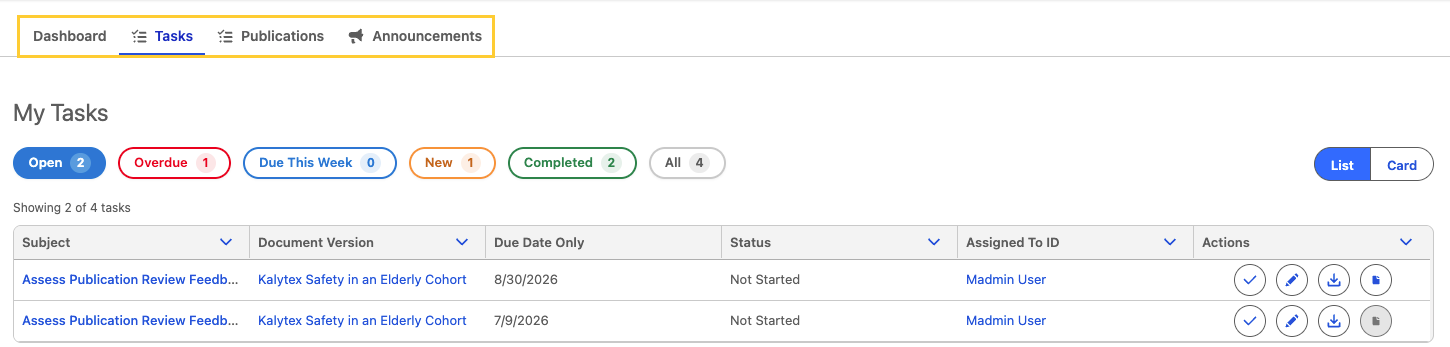
a Tasks tab;
-
an Announcements tab; and
Which tabs a user sees depends on the Custom Permissions granted through their Permission Sets. Out of the box, internal authors and system administrators see all four tabs, while Lite App users and external collaborators see Dashboard, Tasks, and Announcements but not Publications. Administrators can change these defaults for any persona. See Configure Home page tab visibility.
For more information about Full App, Lite App, and Mobile App offerings, reference Full App vs. Lite App vs. Mobile App.
Configure Home Page tab visibility
Administrators can control which Home Page tabs a user sees by enabling or disabling Custom Permissions on the Permission Sets assigned to that user. Enabling a permission shows the matching tab and its Home Page content; disabling it hides them. Tab visibility affects only what appears on the Home Page; it does not change a user's underlying record access.
| Home Page tab | Custom Permission API name | Permission label |
|---|---|---|
| Dashboard | PP_Home_Dashboard_Tab | Home Dashboard tab |
| Tasks | PP_Home_Tasks_Tab | Home Tasks tab |
| Publications | PP_Home_Documents_Tab | Home Publications tab |
| Announcements | PP_Home_Announcements_Tab | Home Announcements tab |
To customize tab visibility for a persona:
-
In Setup → Quick Find, search and select Permission Sets. Here, open the permission set assigned to that persona. For example,
PP_Content_AuthororPP_Lite_App_User.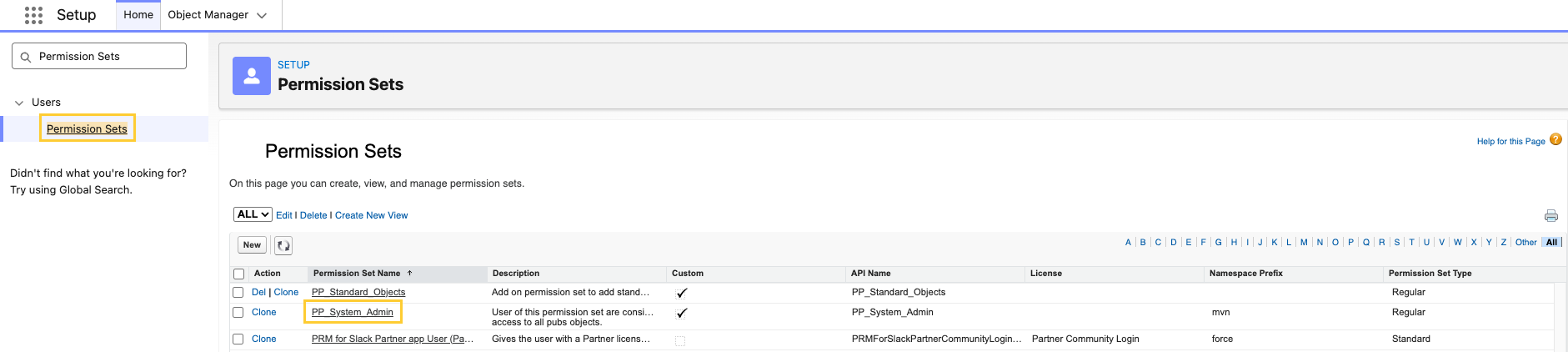
-
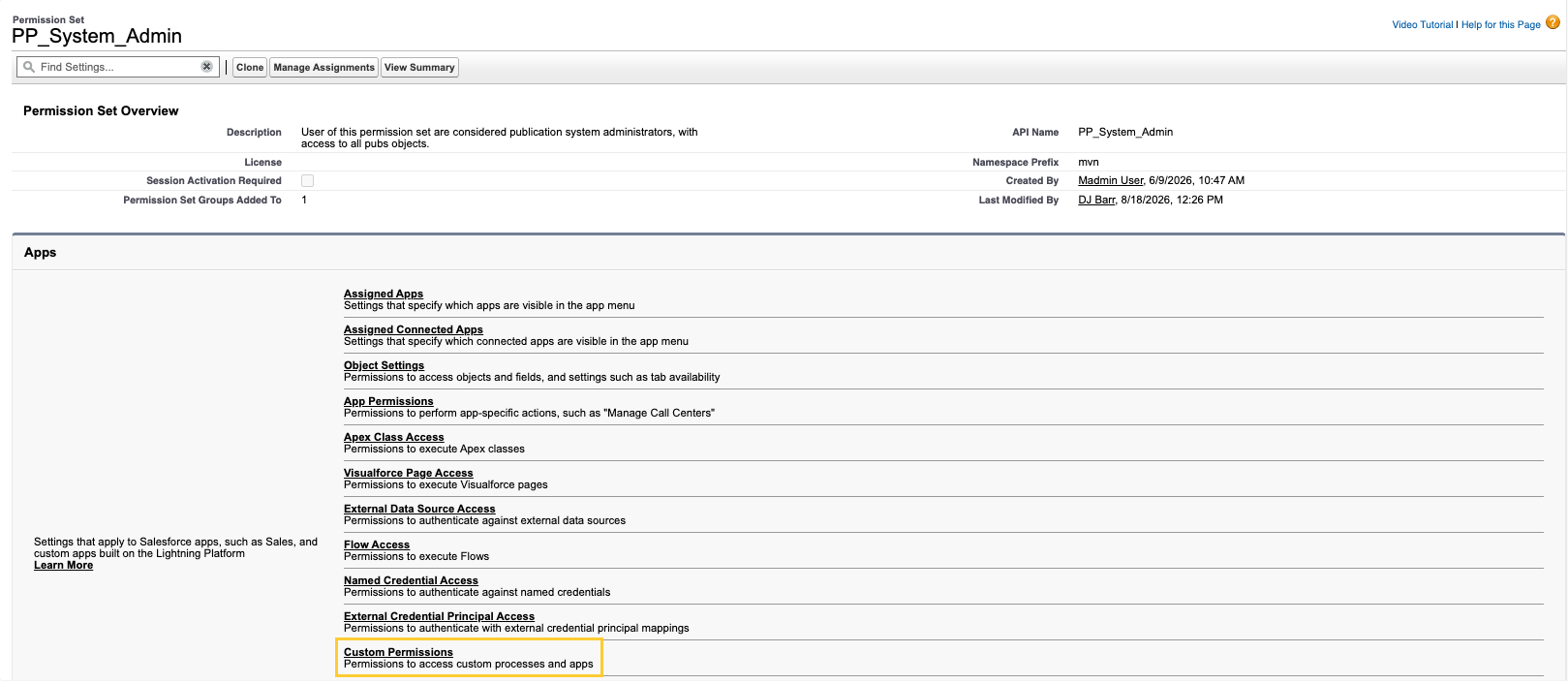
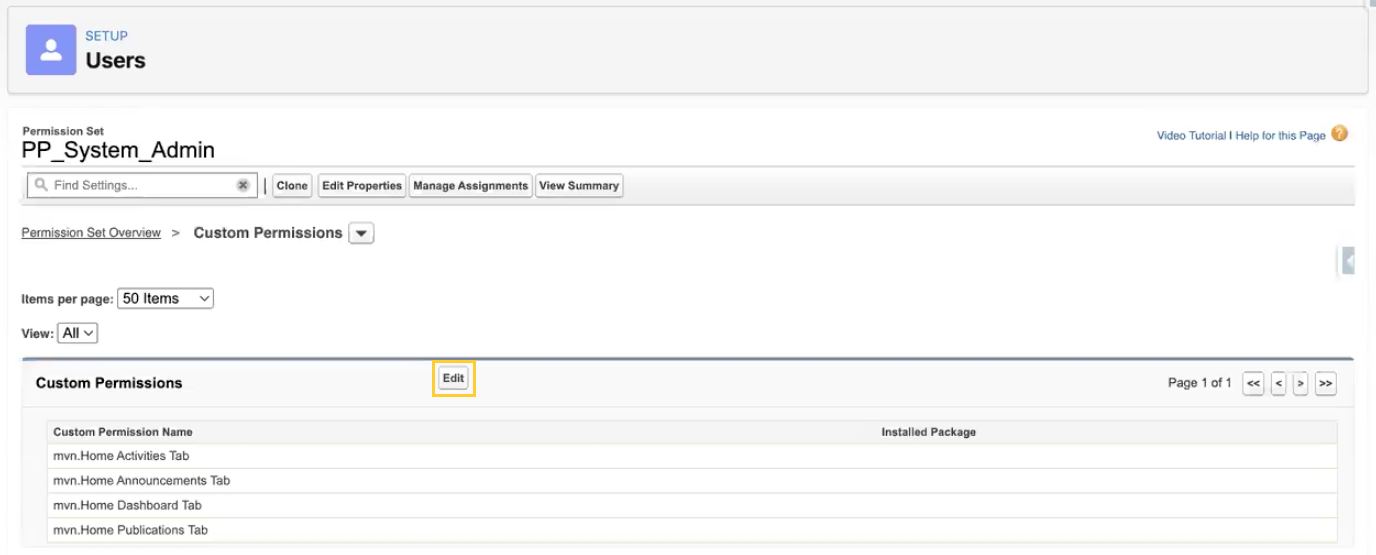
Click Custom Permissions.
-
Enable or disable the Home tab permissions for that persona and Save.
 The Home Page in the Full App shows all of the above while the Home Page
in the Lite App only shows the Tasks and Announcements tabs. For
more information about the different offerings of the Scientific Publications Cloud product, including
how and why you may want to restrict certain users to the Lite App,
reference Full App vs. Lite App vs. Mobile App .
The Home Page in the Full App shows all of the above while the Home Page
in the Lite App only shows the Tasks and Announcements tabs. For
more information about the different offerings of the Scientific Publications Cloud product, including
how and why you may want to restrict certain users to the Lite App,
reference Full App vs. Lite App vs. Mobile App .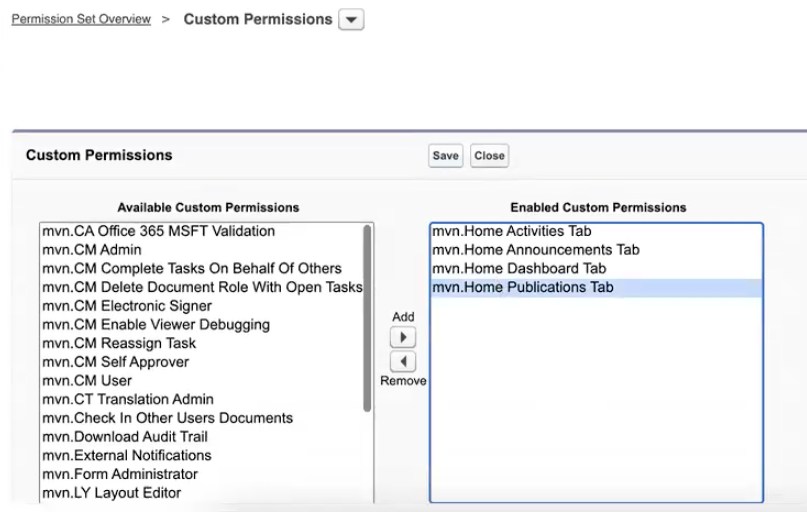
Home tab Custom Permissions are assigned on individual Permission Sets. They are not managed through PP_App_Permissions or PP_App_Permissions_External.
Out-of-the-box defaults
After upgrade, the out-of-the-box permission sets have the following *Home Page tab Custom Permissions enabled:
| Permission set | Dashboard | Tasks | Publications | Announcements |
|---|---|---|---|---|
PP_Content_Author | Yes | Yes | Yes | Yes |
PP_System_Admin | Yes | Yes | Yes | Yes |
PP_Lite_App_User | Yes | Yes | No | Yes |
PP_Content_Author_External | Yes | Yes | No | Yes |
PP_ContentAuthor_External | Yes | Yes | No | Yes |
-
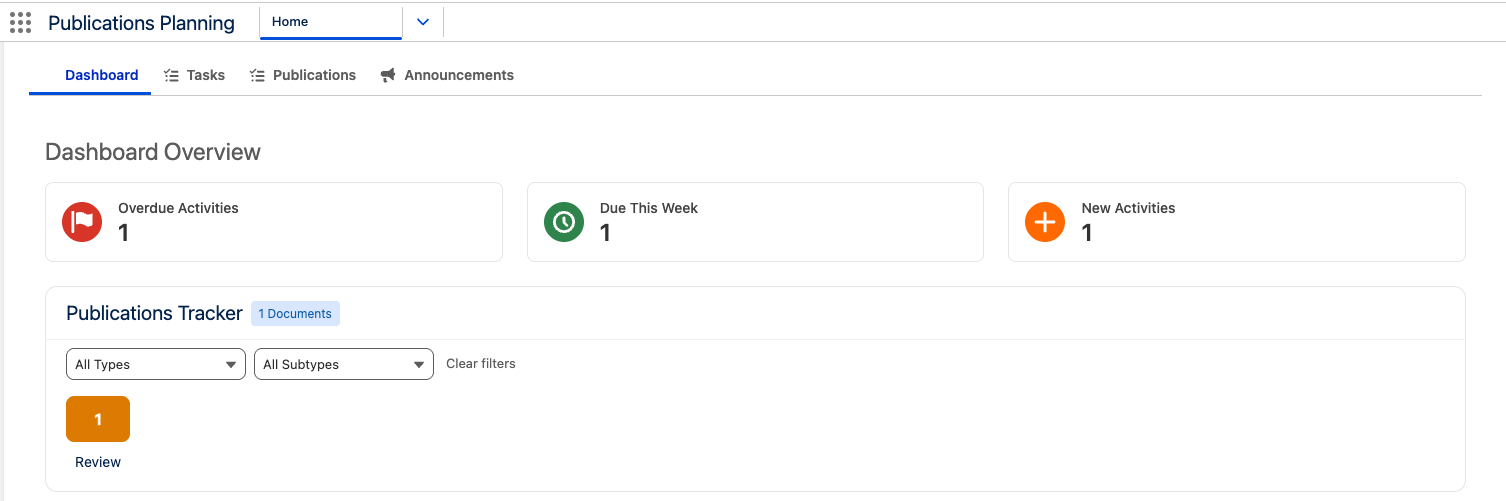
All tabs are shown by default in the following order: Dashboard, Tasks, Publications, Announcements. When a user is not granted any of the four Home tab Custom Permissions, the Home Page still shows the Dashboard tab by default.
-
Revoking Home Announcements Tab (
PP_Home_Announcements_Tab) hides the Announcements tab, its panel, and the high-priority announcements banner at the top of the Home Page. -
The Publications Tracker on the Dashboard tab appears only when the user has Home Publications Tab (
PP_Home_Documents_Tab) Custom Permission.
Dashboard tab
In the Home Page, the Dashboard tab provides some high-level metrics that are calculated based on the current user's documents and tasks.
At the top, the Dashboard Overview summarizes the following:
- Overdue Activities - Activities that are overdue
- Due This Week - Activities due this week
- New Activities - Newly assigned activities
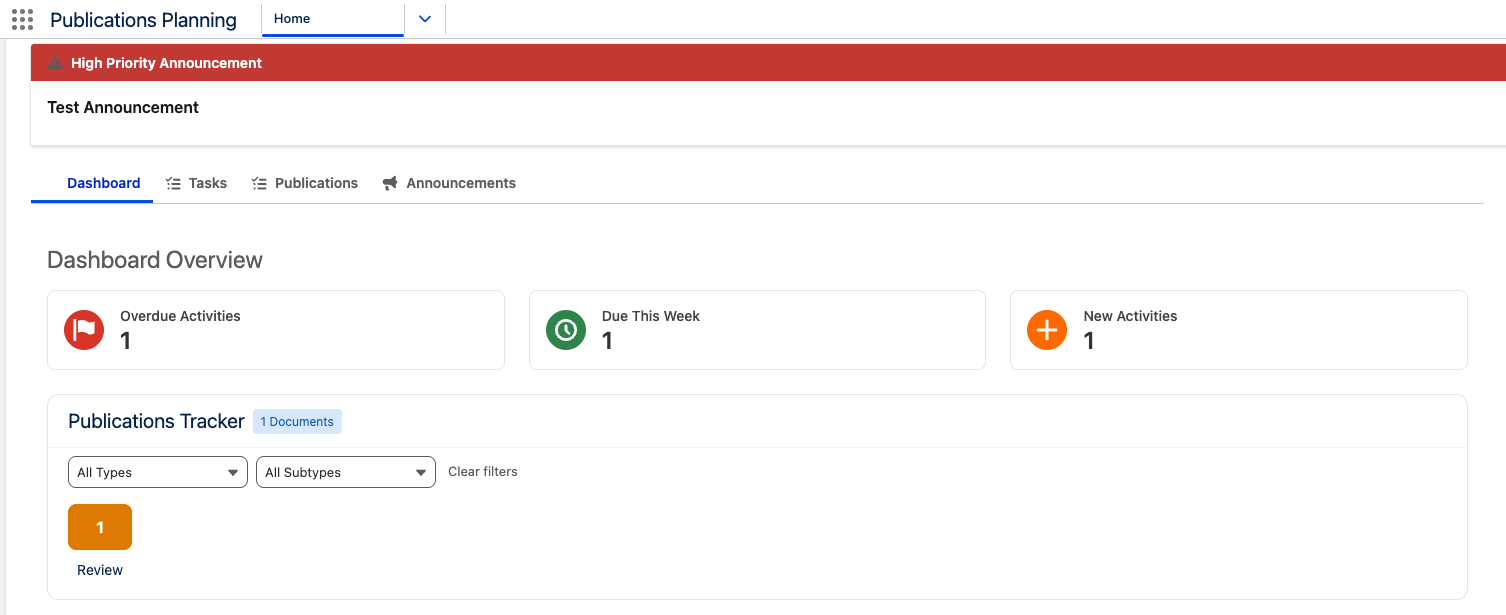
Below it, the Publications Tracker organizes your documents into swim lanes by stage. Documents in different states that share the same Stage Label (Draft, Planning, etc.) are grouped together in a single lane card with a combined count, so you see one clear total instead of several separate tiles.
Lane counts respect Document Type and Document Subtype combobox filters. Use Clear filters to restore the default totals.

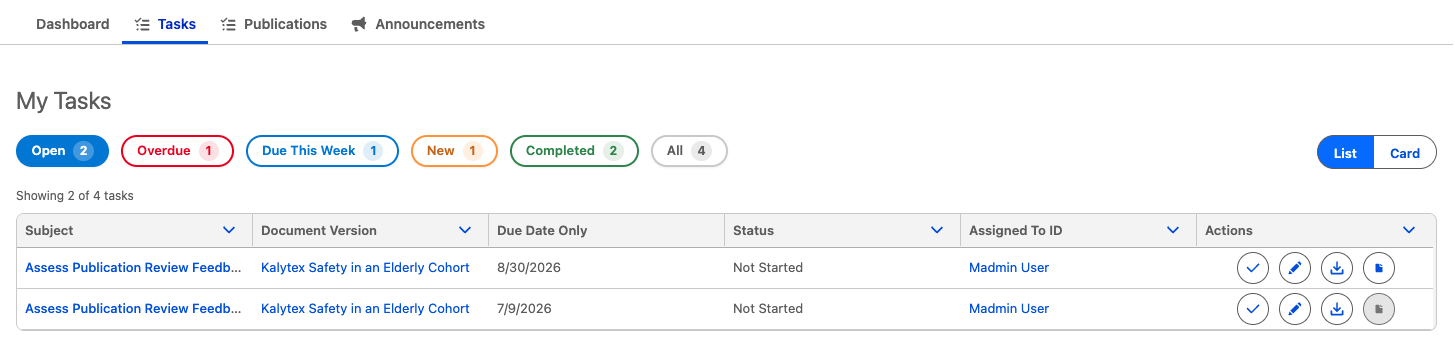
Selecting a Dashboard Overview tile jumps to the Tasks tab with its filter.

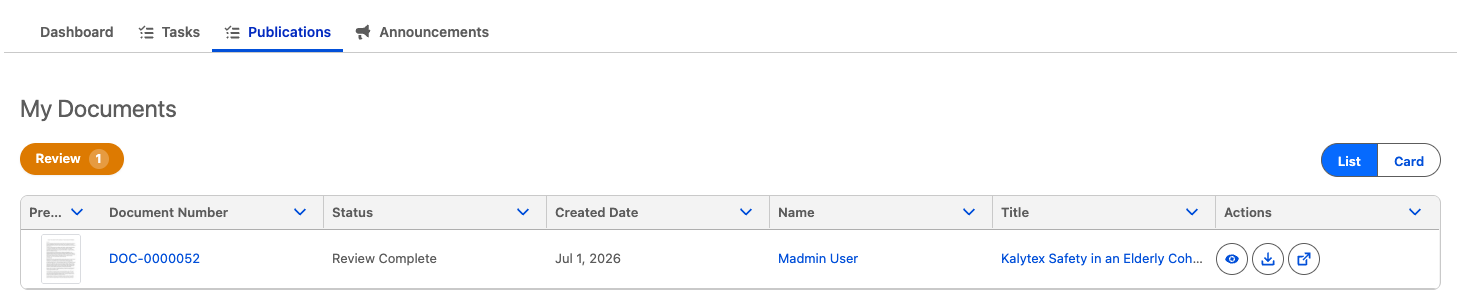
Similarly, selecting a Publications Tracker lane opens the Publications tab with the matching grouped lane filters applied.

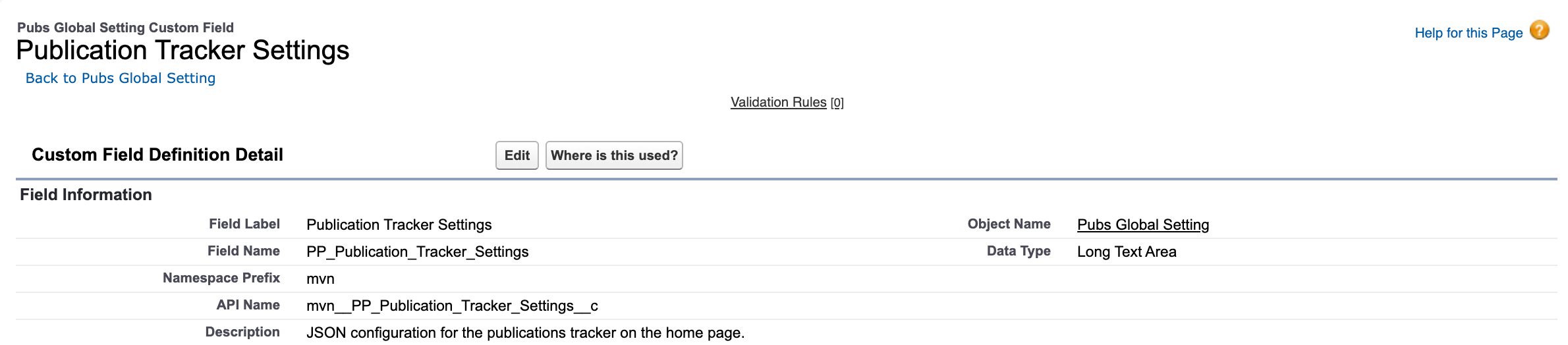
Admins can customize the colors used for lanes and statuses in the
Publications Tracker. Lane and status colors — along with optional
lane color values (groupColor) — are set in the Publication Tracker
Settings (mvn__PP_Publication_Tracker_Settings__c) field on the
Pubs Global Setting
(mvn__PP_Global_Setting__mdt) custom metadata record.
If you want multiple Developer Names to appear under the same lane,
you can map them together using the
mvn__CM_Group_Custom_Label_API_Name__c field on the
Document State (CM_Document_State__mdt) metadata records.
Tasks tab
The Tasks tab shows the list of open Task (Activity) (or Task) records that are assigned to the current user. Users can switch between a List (i.e., table) view and a Card view and use the buttons above the records to filter tasks that are Overdue, Due This Week, New Tasks, and Not Started.
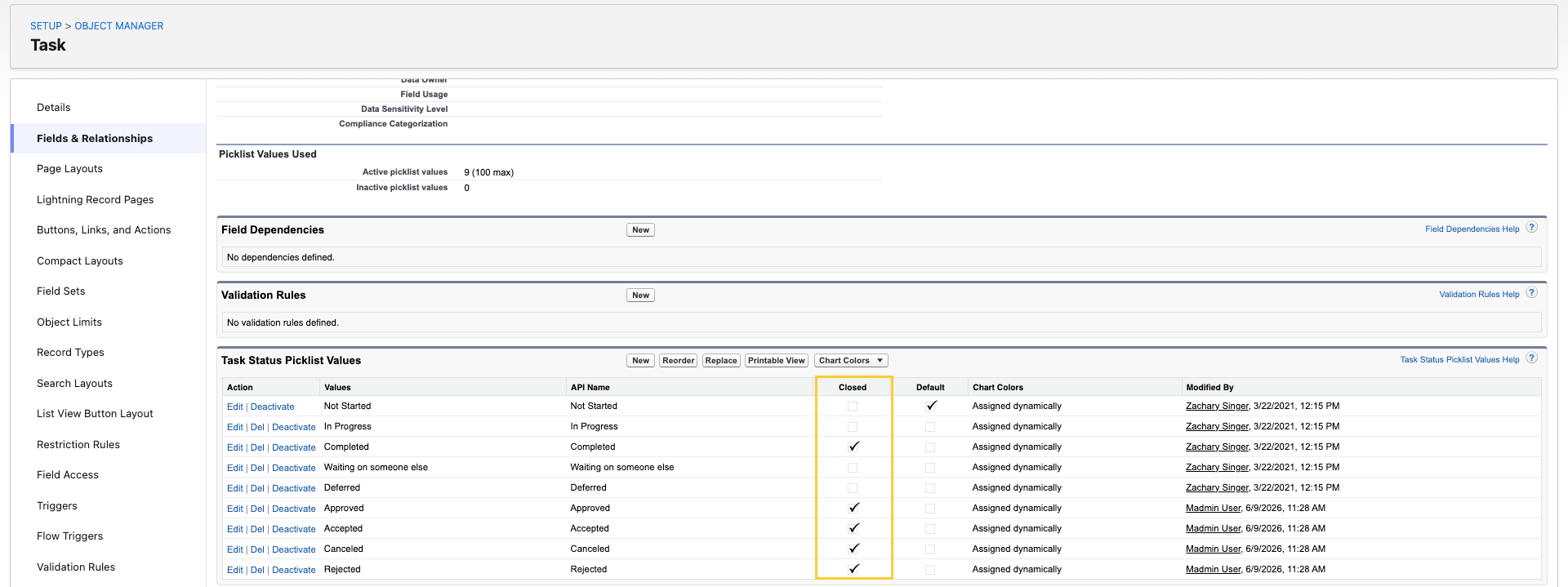
The Open, Overdue, and Due This Week filters exclude every task whose Status is marked as Closed in Setup, including Completed, Approved, Rejected, Canceled, and Accepted. To change which statuses count as open, clear the Closed checkbox on the status picklist value in Setup → Object Manager → Task → Fields & Relationships → Status.
If a user clicked on a metric from the Dashboard tab to open the Tasks tab, the corresponding filter will already be selected. To return to the full list after using a focused filter, click All Tasks.
Filter pills appear in a fixed order so users can move from the most actionable work to broader lists:
- Open — tasks that are not in a completed status (the default selection when you open the tab)
- Overdue
- Due This Week
- New — tasks created in the last seven days
- Completed
- All — every task assigned to you, regardless of status
Each pill shows a count chip. When the total number of assigned tasks is known, a summary line such as Showing {matched} of {total} tasks appears above the list to show how many records match the active filter out of your full assignment.
If you opened the tab from a Dashboard tab metric, the matching filter is already selected. Click All to return to the unfiltered list.
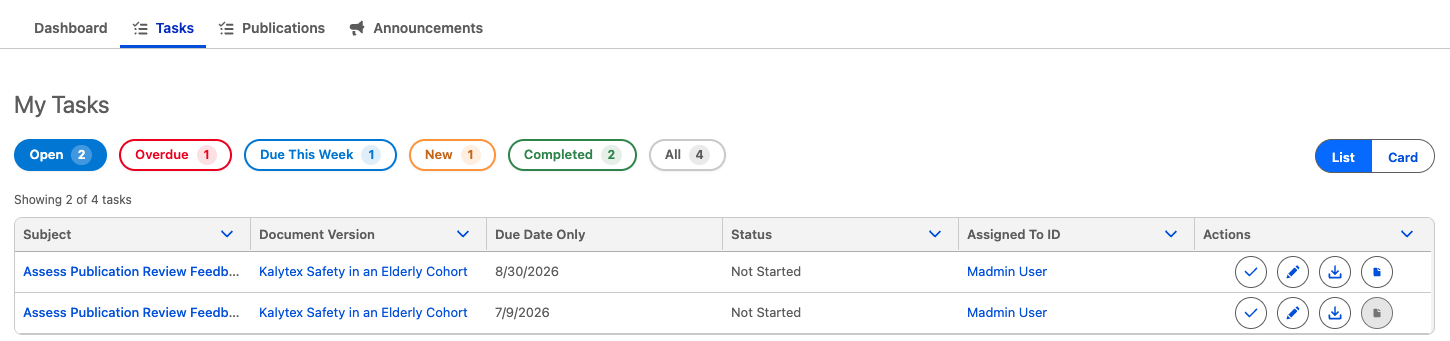
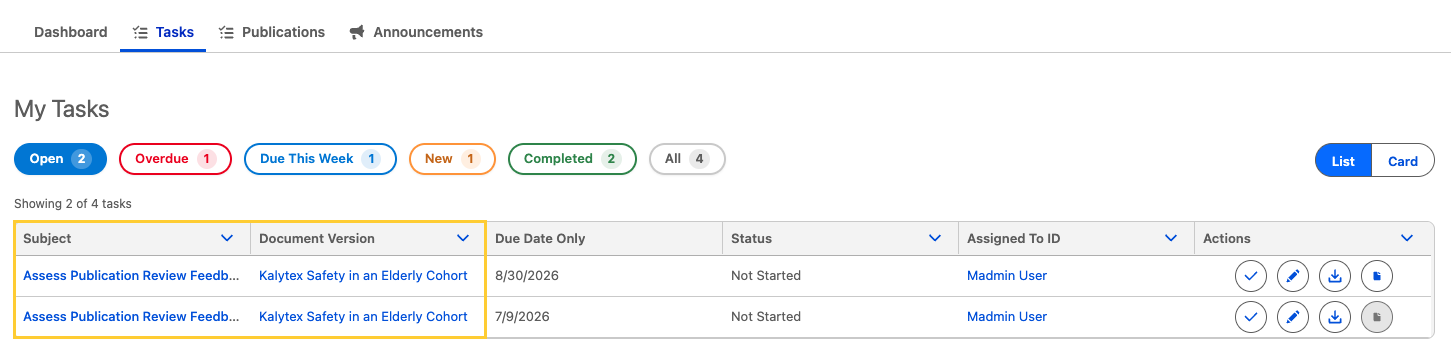
Out of the box, for both the List view and the Card view, each Task
record shows the Subject, Document Version, Due Date Only, Status, and Assigned To ID (Owner) of the Activity/Task. These fields can be configured via the Home Page Task Fields (mvn__PP_Home_Page_Task_Fields) field set on the Task (Task) object. Users can click the Task Subject to open the Activity record and click the Document Version to open the Document record. Users can also Complete Task, Edit task, Download Task, and if applicable, Open in Microsoft 365 in a new tab directly from the Activity record. Each page of the List view and Card view shows up to 25 tasks.
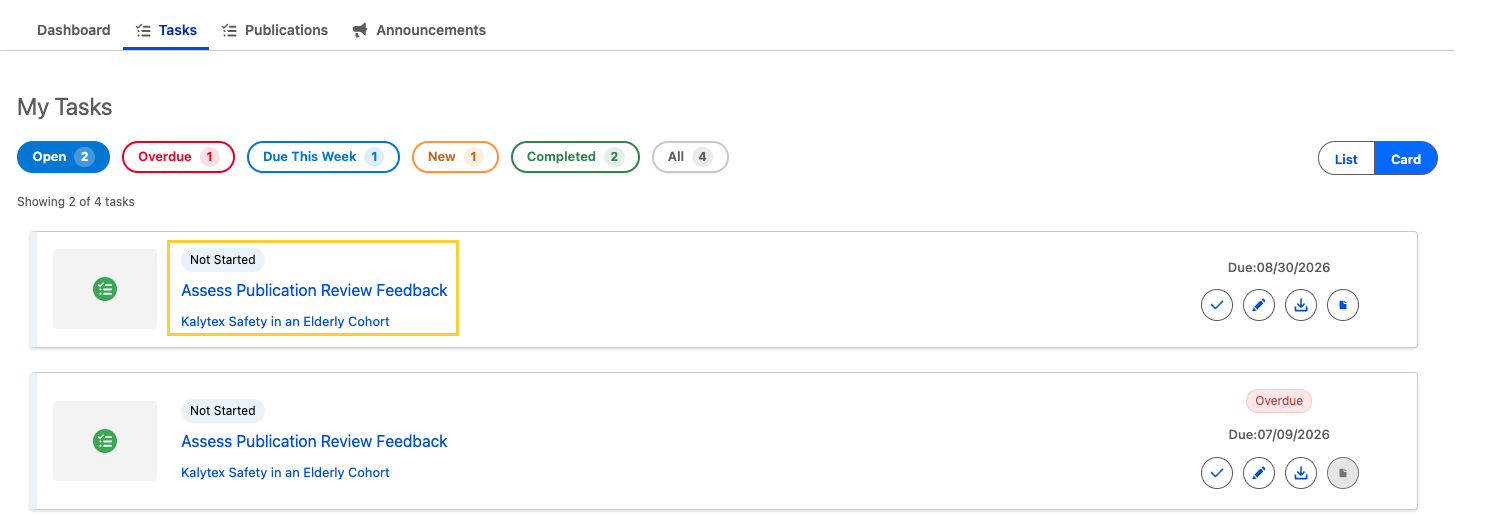
Whenever a Contact Verification task (Author letter of agreement, Conflicts of interest, or Editorial support) is created, the Document Version (mvn__CM_Document_Version__c) field is cleared while keeping the Contact Verification field (mvn__PP_Contact_Verification__c) populated.
Publications tab
The Publications tab shows Document (mvn__CM_Document__c)
records that the current user is a document collaborator on. Users can switch between a List (i.e., table) view and a Card view and use filter pills above the records to filter documents by document state. The filter bar uses the same card-style pill layout as the Tasks tab, including count chips on each pill. If a user clicked on a metric from the Dashboard tab to open the Publications tab, the corresponding filter is already selected.
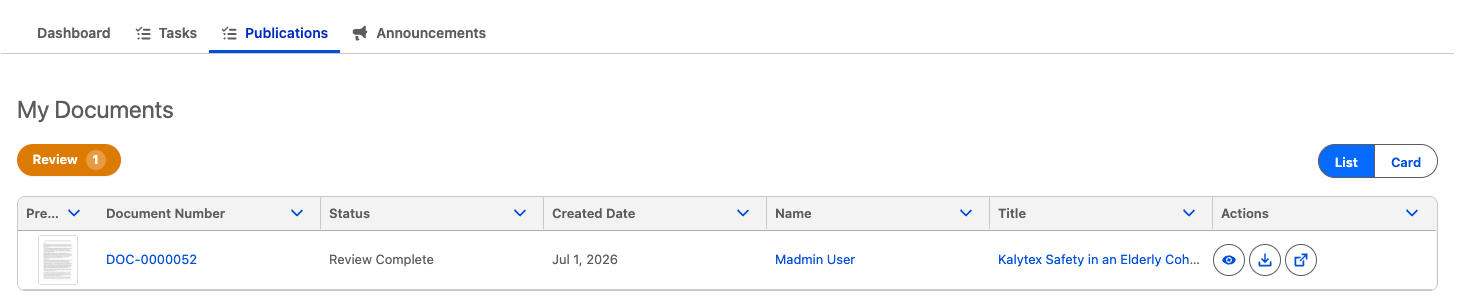
Out of the box, for both the List view and the Card view, each Document
record shows the Document Number, Status, Created Date, Owner Name and Title of the document. These columns come from the Home Page Documents Fields
(mvn__PP_Home_Page_Documents_Fields) field set on the Document (mvn__CM_Document__c) object and are fully configurable; reference Configure the Publications tab columns. Users can click either the document thumbnail or the eye icon to Preview document, Download document to their local device and, if applicable, Open in Microsoft 365 in a new tab.
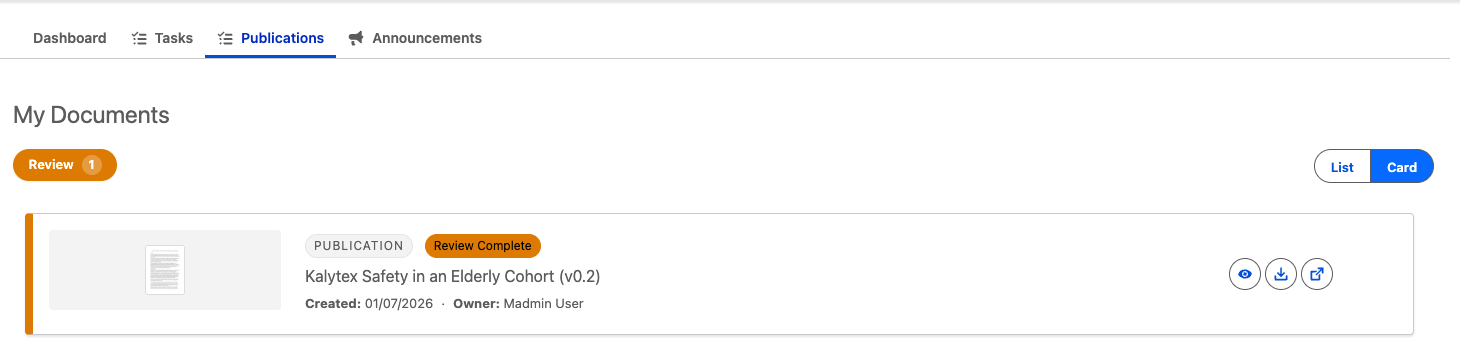
In the List view, users can also click the Document Number to open the Document record. Each page of the List view and Card view shows up to 25 documents.
The Publications tab and the Publications Tracker on the Dashboard tab require the Home Publications Tab (PP_Home_Documents_Tab) custom permission. Out of the box, PP_Lite_App_User, PP_Content_Author_External, and PP_ContentAuthor_External do not grant this permission, so those users do not see Publications content on the Home page in the Full App, Lite App, or Collaborator Portal unless you enable it on their permission sets. Internal users assigned PP_Content_Author or PP_System_Admin see both the Publications tab and the Publications Tracker by default.
To change which tabs appear for a persona, see Configure Home page tab visibility.
Configure the Publications tab columns
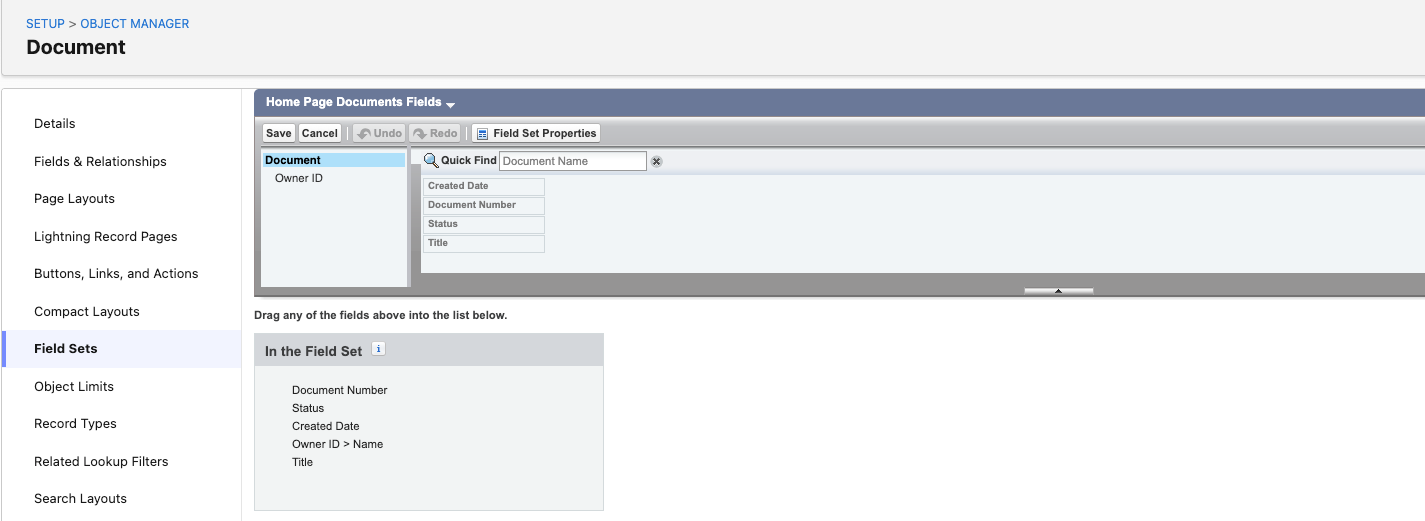
The columns on the Publications tab are driven by a field set on the Document (mvn__CM_Document__c) object. Every field in that field set becomes a column, in field-set order, using the field's own label as the header.
The packaged Home Page Documents Fields (mvn__PP_Home_Page_Documents_Fields) field set contains:
| Order | Column | Field API name |
|---|---|---|
| 1 | Document Number | Name |
| 2 | Status | mvn__CM_Latest_Version_Status__c |
| 3 | Created Date | CreatedDate |
| 4 | Owner | Owner.Name |
| 5 | Title | mvn__CM_Latest_Version_Title__c |
The Preview (thumbnail) column always stays first and the Actions column always stays last, whatever the field set contains.
Edit the packaged field set to configure columns
-
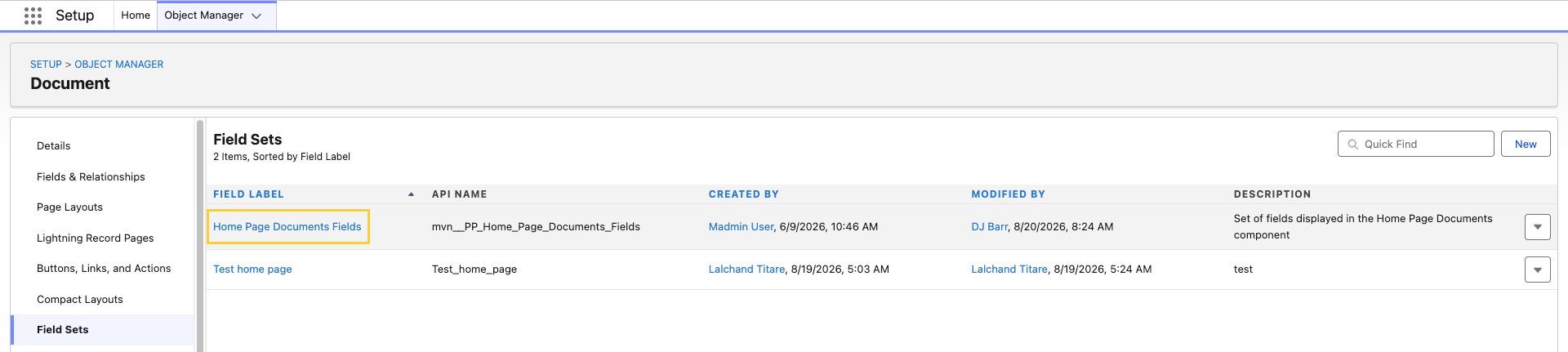
In Setup → Object Manager → Document → Field Sets, select Home Page Documents Fields.
-
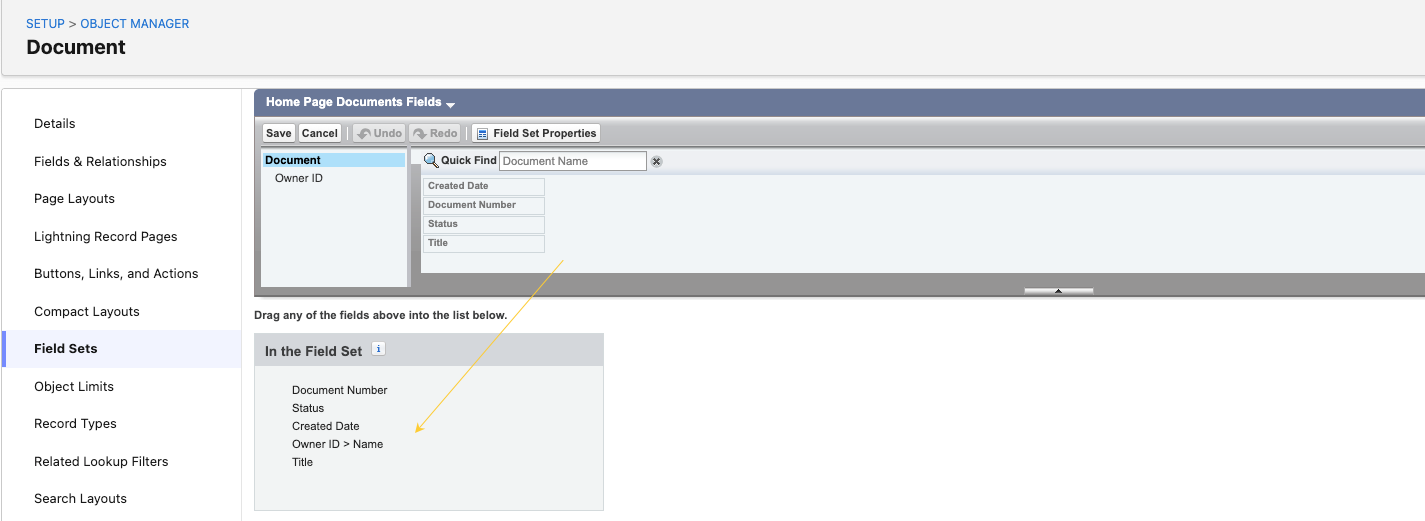
Drag fields into the In the Field Set container, remove fields you do not need, and drag fields to reorder the columns.
-
Save and refresh the Home page.
Use your own field set
Editing the packaged field set means your column choices can be overwritten when a future release changes it. To keep your columns separate, create your own field set and point the product at it:
-
In Setup → Object Manager → Document → Field Sets, click New.
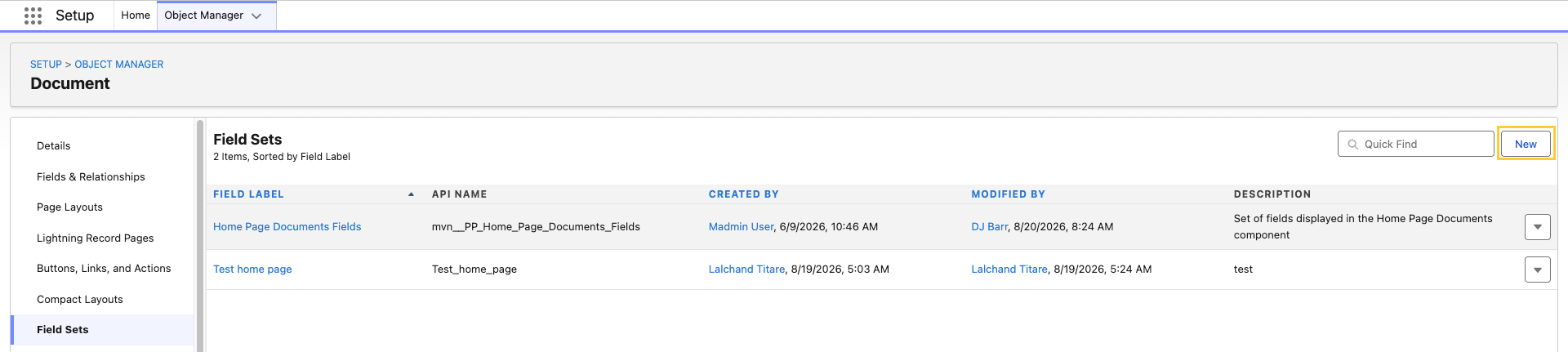
-
Enter a Field Set Label, Field Set Name, and add (and order) your fields in Where is this used?, then Save. Note the Field Set Name.
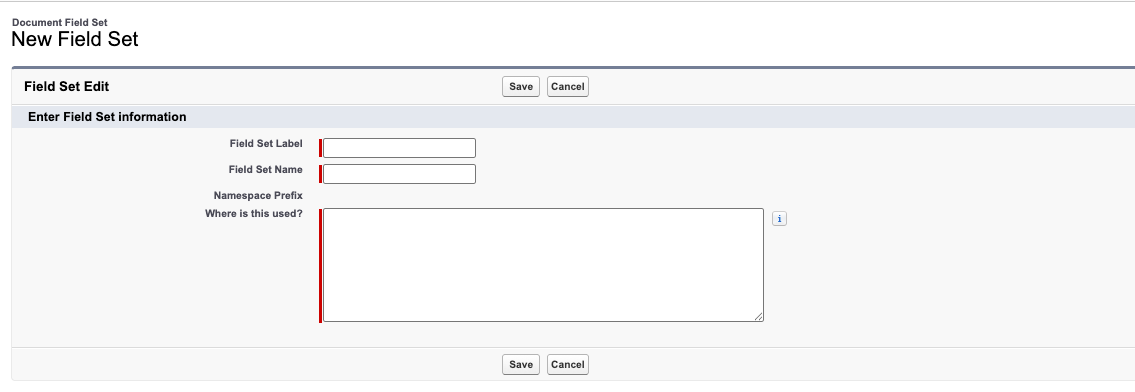
-
Now, in Setup → Custom Metadata Types, click Manage Records next to Feature Activation.

-
Click Edit next to Home Page Documents (
PP_Home_Page_Documents).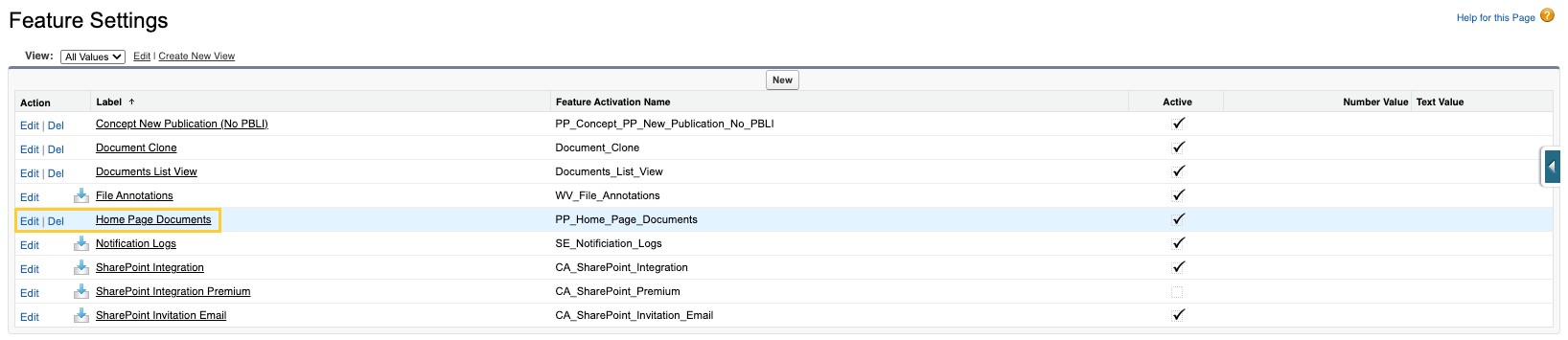
-
Configure the following:
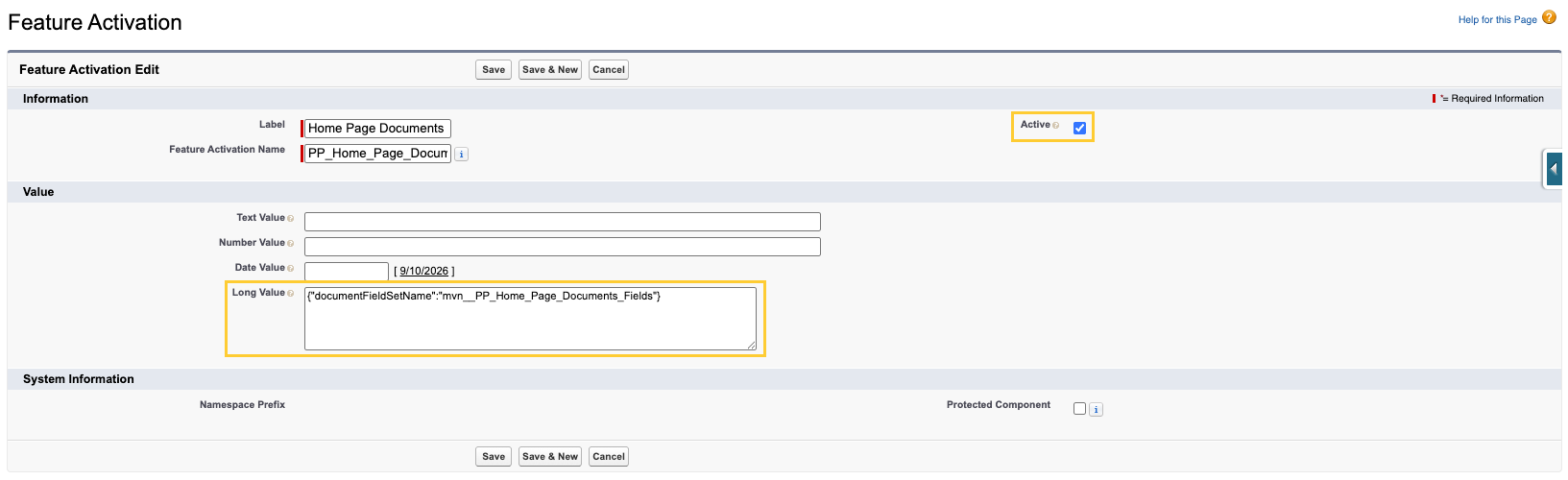
-
Long Value (
mvn__FA_Long_Value__c) to the JSON below, using your own Field Set Name as noted in step 2:{"documentFieldSetName":"Custom_Home_Page_Fields"} -
Confirm Active (
mvn__Active__c) is checked.
-
-
Click Save, then refresh the Home page.
The Home Page Documents (PP_Home_Page_Documents) record ships with Active (mvn__Active__c) checked. If you clear Active, the record is treated as absent and the Publications tab reverts to the packaged Home Page Documents Fields (mvn__PP_Home_Page_Documents_Fields) field set, even when Long Value still names your field set.
Each user only sees the columns they have field-level access to, so a field set may render fewer columns for some users than for an administrator.
Announcements tab
The Announcements tab shows the list of all system-wide announcements
stored on the Communication
(mvn__CO_Communication__c) object under the Announcement
(CO_Announcement) record type, including the high-priority
announcements that appear at the top of the Home Page. The announcements
are first sorted by priority level such that the high-priority ones
appear above the low-priority ones and are then sorted in reverse
chronological order so that the most recently created Communication
records are closer to the top. All users can view the announcements, but
only admin users can create and manage Announcement records.
In Sharing Settings for the Communication object, set Default External Access to Public Read Only.

This way announcements are shown in the portal Home page for external users.
Quick Links section
The Quick Links section shows the list of links stored on the
Communication object under the Resource Link (CO_Resource_Link) record
type. These links can be of reference materials, informational content,
or just any resources that users may find helpful or informational. Like
announcements, all users can view the links, but only admin users can
create and manage Resource Link records.