Users
User access to Regulated Content Cloud is governed by a series of permission sets and custom permissions.
Permission sets
Permission sets bundle permissions and extends users' access to tools and functions. The Permission sets table below lists the Regulated Content Cloud permission sets and details the custom permissions that each permission set contains.
The permission sets listed in the Permission sets table below are considered internal system metadata and should not be altered in any way. If you need to customize a permission set, clone and assign the permission set to users.
Permission sets
| Permission set label | Permission set API name | Description |
|---|---|---|
| CA_Office_365_Admin | CA_Office_365_Admin | Users with this permission set can author Microsoft 365 content, check out any document to Microsoft 365, and reopen in Microsoft 365 any document that is already checked out. They are only able to check in or cancel the checkout of documents that they performed the checkout action upon. |
| CA_Office_365_Author | CA_Office_365_Author | Users with this permission set can author Microsoft 365 content, check out documents of which they are a collaborator, and reopen in Microsoft 365 any document that is already checked out and that they are a collaborator of. They are only able to check in or cancel the check out of documents they performed the checkout action upon. For more information on collaborator permissions, refer to Salesforce's Change File Access in Lightning Experience documentation. |
| CM_ContentAuthor | mvn__CM_ContentAuthor | Standard Regulated Content Cloud user. |
| CM_ContentReadOnly | mvn__CM_ContentReadOnly | Grants read-only access to Regulated Content Cloud. |
| CM_ReassignTasks | CM_ReassignTasks | Grants users the ability to reassign workflow tasks from themselves to others. |
| CM_Self_Approver | mvn__CM_Self_Approver | Grants users the ability to assign workflow activities to themselves. |
| CM_SystemAdmin | mvn__CM_SystemAdmin | Grants users View All/Modify All access to Regulated Content Cloud objects. |
| Download Audit Trail | mvn__AT_Download_Audit_Trail | Allows a user to download an Audit Trail report for a record. |
Custom permissions
Custom permissions give users access to tools and functions. The Custom permissions table below lists the Regulated Content Cloud custom permissions.
The custom permissions listed in the Custom permissions table below are considered internal system metadata and should not be altered in any way by customers.
Custom permissions
| Custom permission label | Custom permission API name | Description |
|---|---|---|
| CM Admin | mvn__CM_Admin | Grants users administrator access to the Regulated Content Cloud. |
| CM Delete Document Role With Open Tasks | CM_Delete_Document_Role_With_Open_Tasks | Grants users the ability to delete document roles even if there are open workflow tasks on the document. |
| CM Electronic Signer | mvn__CM_Electronic_Signer | Users that have this permission are required to configure TOTP in order to electronically sign documents. See Electronic signatures . Note: Even with MCM Global Setting configured with Require Electronic Signatures set to true, if the user does not have the CM_Electronic_Signer custom permission assigned, an electronic signature will not be required for that user. |
| CM Enable Viewer Debugging | CM_Enable_Viewer_Debugging | Enables the error message panel in the CM_ThirdPartyDocumentPreview Visualforce page. |
| CM Reassign Task | CM_Reassign_Task | Grants users the ability to reassign workflow tasks from themselves to others. |
| CM Self Approver | mvn__CM_Self_Approver | Grants users the ability to assign workflow activities to themselves. |
| CM User | mvn__CM_User | Standard Regulated Content Cloud user. |
| Download Audit Trail | mvn__AT_Download_Audit_Trail | Allows users permission to download Audit Trail for a record. |
| LY Layout Editor | LY_Layout_Editor | Grants users access to the layout editor toolbar. |
| Office 365 Admin | mvn__CA_Office_365_Admin | Users with this permission have administrative access to the Office 365 service. |
| Office 365 User | mvn__CA_Office_365_User | Users with this permission may access the Office 365 service. |
Grant access to existing users
To provision access to Regulated Content Cloud for an existing Salesforce user:
-
In the Quick Find box in Setup, search for and select Users.
-
Select the user you would like to grant Regulated Content Cloud access to.
-
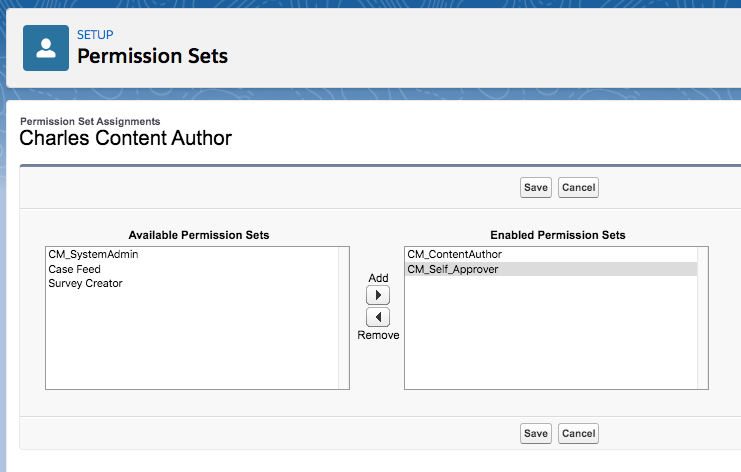
Click Edit Assignments on the Permission Set Assignments related list.
-
Select the appropriate Permission Set(s).
:::
 :::
::: -
Click Save.
Create new user
To provision access to Regulated Content Cloud for a new Salesforce user:
-
Create the Salesforce user as you would normally. Visit Salesforce's View and Manage Users documentation.
-
Click Edit Assignments on the Permission Set Assignments related list.
-
Select the appropriate Permission Set(s).
:::
::: -
Click Save.