Document search
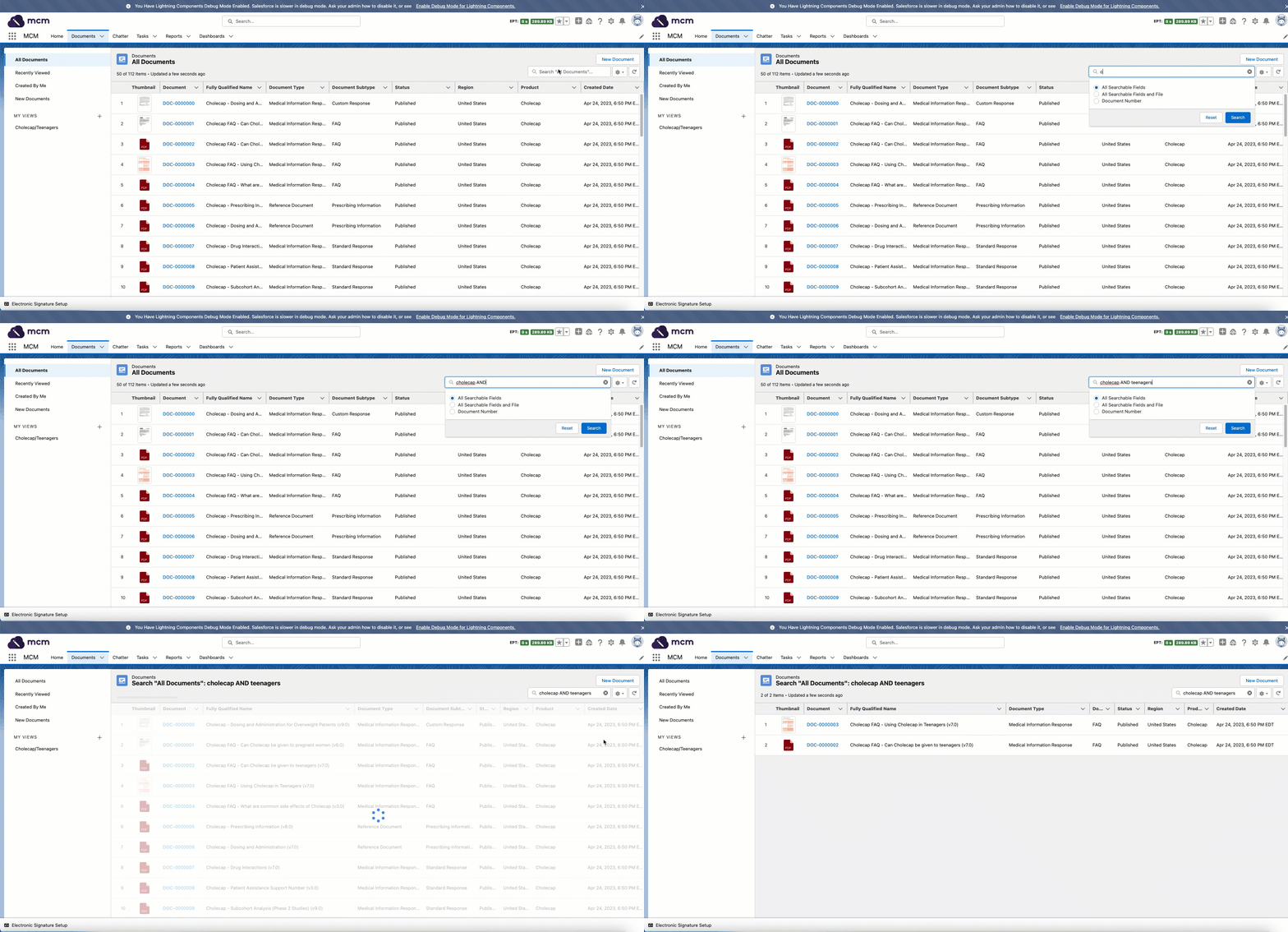
Regulated Content Cloud offers a document search feature that allows you to easily find documentation to meet your business needs. This feature enables you to conduct document searches using several methods such as list views and filtering, as well by keywords.
Keyword searches are case-insensitive. For example, a search for
documents related to medication doses can be executed using Dosing,
dosing, or DOSING, all of which will return the proper results.
Keyword searches may include search
operators to
perform more advanced searches.
Search results are ordered according to frequency, uniqueness, location, proximity, and ownership. For more information on search result order, visit Salesforce's How Are Search Results Ordered documentation.
For information regarding document searches in versions prior to V13, click here.
Best practices
Mavens recommends you begin searching by creating a View. Doing so helps narrow down the number of records and increases the likelihood you will find the desired results. Additionally, Mavens suggests you review all of the sections below, which provide helpful information to assist you in getting the most out of your document searches.
Creating and Managing Views
Creating a View enables you to create a dedicated search using your own specific criteria which can be saved to your profile for future use.
To create a View:
-
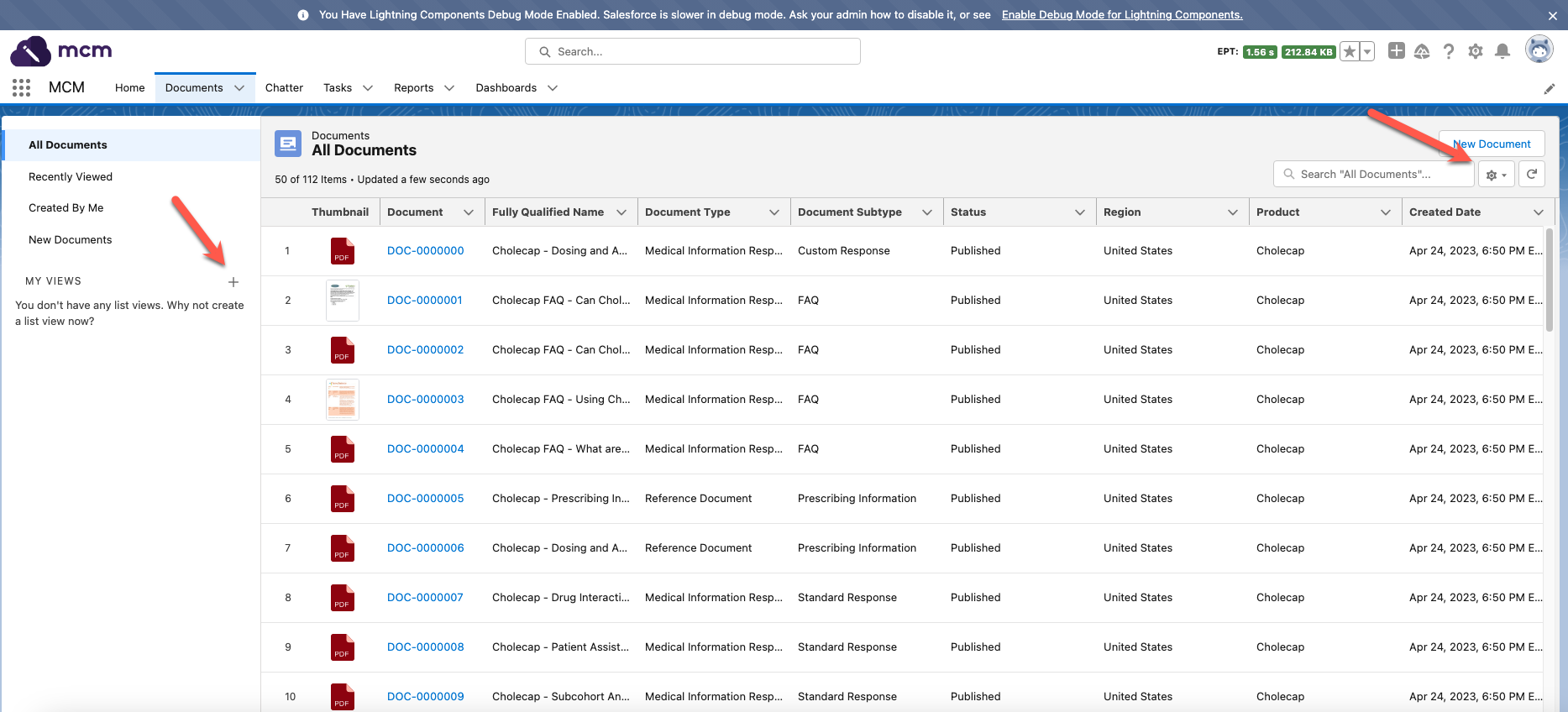
Click the Documents tab. The Documents landing page appears showing all documents (by default).
-
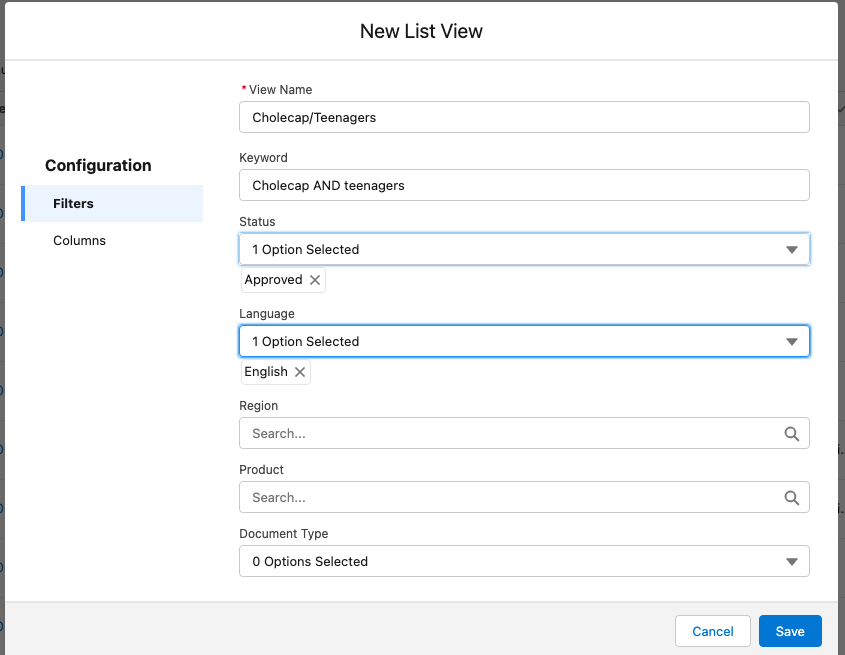
On the left side navigation menu, click the + next to MY VIEWS or click the gear icon in the top right of the Document page. The New List View modal appears.
-
Add values to the filter fields.
The available filter fields may vary depending on your organization's configured set of search criteria.
-
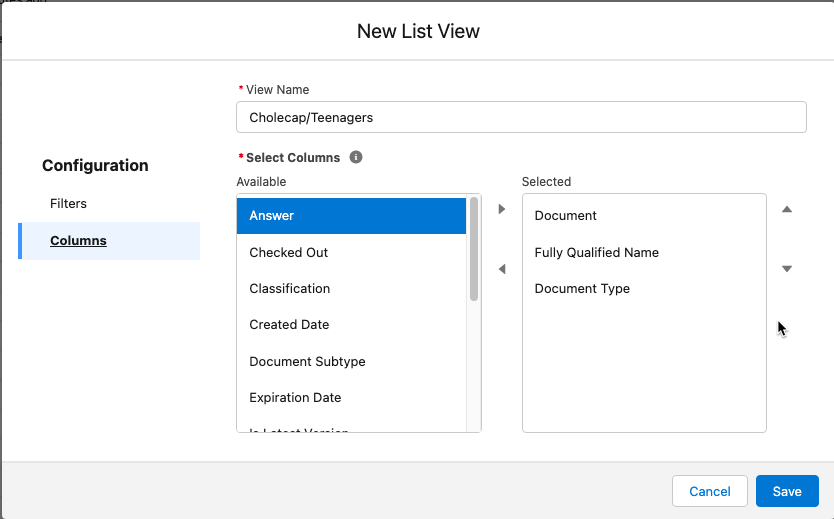
Click the Columns option on the left side of the modal.
-
Click the desired columns under the "Available" column and then click the forward arrow to move the selection to the "Selected column". Optionally, click a column name in the "Selected" column followed by the back arrow to remove the column from your view.
-
Click Save. The new View now appears under MY VIEWS in the left side navigation menu.
To edit an existing View:
-
Click to select the View you want to edit under the MY VIEWS option on the left side navigation menu.
-
Click the gear icon in the top right corner of the view. A dropdown menu will appear.
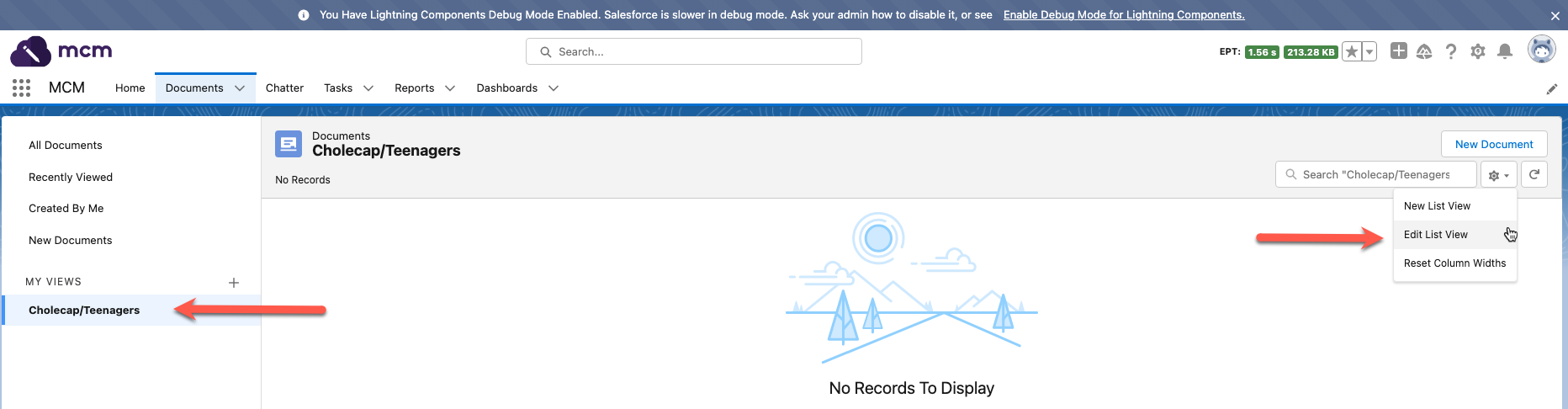
-
Click Edit List View. The Edit List View modal appears.
-
Adjust the desired values.
-
Click Save.
Operators
Operators can be used in conjunction with keyword searches.
The following can be found in Salesforce's Find developer documentation.
Search operators
| Operator | Description |
|---|---|
| * | Asterisks match zero or more characters at the middle or end of your search term. For example, a search for john* finds items that start with john, such as, john, johnson, or johnny. A search for mi* meyers finds items with mike meyers or michael meyers. |
| " " | Use quotation marks around search terms to find matches in the order you entered your search terms. A search for monday meeting finds items that contain monday meeting in that order. To include the words "and," "or," and "and not" in your search results, surround those words in double quotes. Otherwise, they are interpreted as the corresponding operators. |
| AND | Finds items that match all the search terms. For example, john AND smith finds items with both the word john and the word smith. Usually if an operator is not specified, and is the default operator. However, when searching articles, documents, and solutions, and must be specified because OR is the default operator. |
| OR | Finds items with at least one of the search terms. For example, john OR smith finds items with either john or smith, or both words. |
| AND NOT | Finds items that do not contain the search term. For example, john AND NOT smith finds items that have the word john but not the word smith. |
| ( ) | Use parentheses around search terms with logical operators to group search terms. For example, you can search for: - ("Bob" and "Jones") OR ("Sally" and "Smith")---searches for either Bob Jones or Sally Smith. - ("Bob") and ("Jones" OR "Thomas") and "Sally Smith"--- searches for documents that contain Bob Jones and Sally Smith or Bob Thomas and Sally Smith. |
Examples
Search examples
| Keyword | Search Description |
|---|---|
| dosing guide | This search returns all records whose fields contain both words: dosing and guide, in any location of the text. The order of words in the search term does not matter. |
| dosing OR guide | This search uses the OR logical operator. It returns records with fields containing the word dosing or records with fields containing the word guide. |
| dosing AND teenagers | This search uses the AND logical operator. It returns records with fields containing the word dosing and records with fields containing the word teenagers. |
| dosing AND NOT teenagers | This search uses the AND NOT logical operator. It returns records with fields containing the word dosing but not records with fields containing the word teenagers. |
| teen* | This is a wildcard search. This search returns all records that have a field value starting with teen. |
| "dosing guide" | This search returns all records whose fields contain the words dosing guide, in order, in any location of the text. |
Configuration
Document filters can be configured using the CM_Document_Search_Detail
layout. Visit Layout
configuration for instructions. Document search result
columns can be configured using
the CM_Search_Result_Columns_Field_Set__c on
the CM_List_View_Object_Setting__mdt custom metadata type.
Document searches prior to V13
There are two main ways to find a document:
Basic and advanced document search
Document searches are executed using a combination of SOQL and SOSL. First, any search filters (except for product and region) included in the search are used to execute a SOQL query which returns an initial set of matching documents. Then, a SOSL query is executed against the initial matches to further reduce the search result set. The SOSL query performs a keyword search spanning intelligently selected document metadata and the first 5mb of files.
To search for and find documents in your environment, use basic or advanced document search.
Basic search
Use basic search to search for documents in environments with less than 40,000 total documents. Basic searches are executed when at least one of the following criteria are met:
-
A keyword is included in the search
-
A Document Number is included in the search
-
Product filters are not defined
-
Region filters are not defined
-
File contents are not included in the search
If the total number of possible records returned by a basic search is greater than 100 records, an exception is thrown indicating that the maximum number of Document Versions has been reached.
Advanced search
Use advanced search with filtering to narrow the number of Content Document records that are searched in environments with more than 40,000 total documents. Advanced searches are executed when at least one of the following criteria are met:
-
A keyword is not included in the search
-
Product filters are defined
-
Regions filters are defined
-
File contents are included in the search
If no keywords or filters are included in the search form, the advanced search returns the first page of all documents that the running user can view.
If an advanced search is executed but the filter criteria are not sufficient to narrow the set of Document Versions to less than 20,000 records, an exception is thrown indicating that additional filter criteria must be included.