Products
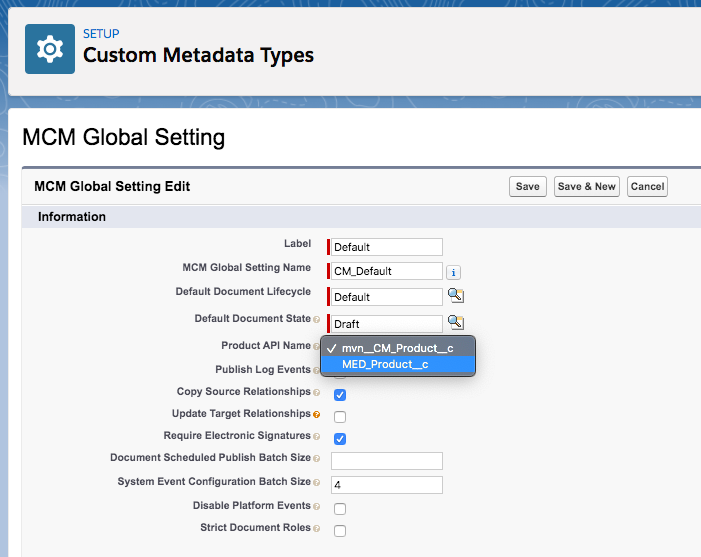
Product catalog configuration is performed by setting the
MED_Product_API_Name__c picklist on the CM_Default MCM Global
Setting custom metadata type record. Always set CM_Product_API_name to
MED_Product__c.
:::
 :::
:::
Configure the product catalog
To configure the product catalog:
Some of the steps below may have been completed during the installation process.
-
In the Quick Find box in Setup, search for and select Custom Metadata Types.
-
In the MCM Global Setting row, click Manage Records.
-
In the CM_Default row, click Edit.
-
For Product API Name, look for and select MED_Product__c.
-
Click Save.
To use MIC products:
Configure the global setting:
-
Navigate to Setup > Custom Metadata Types > MCM Global Settings > Manage MCM Global Settings.
-
Click the
CM_Defaultrecord. -
Click the Edit button.
-
For "Product API Name" select
MED_Product__c. -
Click the Save button.
Create the product lookup on Document Relationships:
-
Navigate to Setup > Object Manager > Document Relationship > Fields & Relationships.
-
Click the New button.
-
Select "Lookup Relationship" for the data type.
-
Select the MIC Product object as the "Related To" object.
-
Set the "Field Name" to
MED_Product__c. -
Populate label, description, help text, etc.
-
Click the Save button.
Update the Document Products field to point to the new product lookup:
-
Navigate to Setup > Custom Metadata Types > Field > Manage Fields.
-
Click the
CM_Document_Productsrecord. -
Click the Edit button.
-
Set "Field API Name" to
MED_Product__c. -
Click the Save button.
Add Product field to a layout
When the Product field is added to a layout, a lookup field displays on the layout and enables you to search for a product by name.
To add the Product field to a layout, create a CM_Layout_Field__mdt
record that associates the Product field to a specific layout. Visit
Layout configuration.
Add additional Fields to Product Lookup Search Results
When you search for a product via a lookup field on a layout, products
that match the search criteria appear. Each result contains the name of
the product and a subtitle. The subtitle is comprised of product
metadata. The Lookup Subtitle Field Set Name field on the
Document Products record on the Field custom metadata set controls
metadata that displays in the subtitle. Visit
Layout configuration.
To update the product subtitle:
-
Navigate to the Field Sets tab on the MCM Product object.
-
From the Object Manager tab in Setup, search for and select MCM Product.
-
Click the Field Sets tab.
-
-
Create a field set called
CM_Lookup_Subtitle.-
Click New.
-
Enter field set information.
-
Click Save.
-
-
Add or remove fields from the field set.
-
To add fields, drag and drop fields from the object palette into the In the Field Set container.
-
To remove fields, drag and drop fields from the In the Field Set container into the object palette.
-
Mavens recommends adding a maximum of 3 fields to the CM_Lookup_Subtitle
field set.
Adding Id or Name to the CM_Lookup_Subtitle field set creates
a runtime exception.
-
Click Save.
-
Navigate to the Document Products record on the Field custom metadata type.
-
In the Quick Find box in Setup, search for and select Custom Metadata Types.
-
In the Field row, click Manage Records.
-
In the Document Products row, click Edit.
-
-
Add a Lookup Subtitle Field Set Name.
-
Enter
CM_Lookup_Subtitlein the Lookup Subtitle Field Set Name field. -
Click Save.
-
Associate products with documents
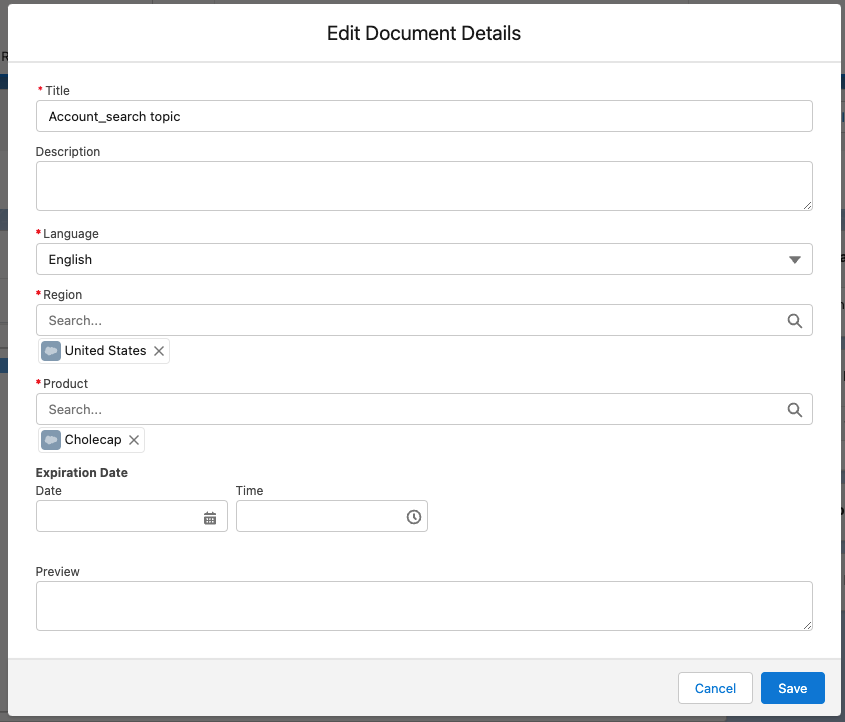
From a document layout, you can associate a document with one or many
products. Document/product relationships are stored on the
CM_Document_Relationship__c custom object with the CM_Category__c
and MED_Product__c fields. Visit
Relationships.
To associate products with documents, the Product field needs to be added to the appropriate document layouts. Visit Add Product field to a layout.
:::
 :::
:::