Primary objects
The primary objects in Inquiry Management are Interaction, Request, Fulfillment, Adverse Event, and Product Quality Complaint. With these objects, you can record and manage medical inquiries. Specifically, when a Requester reaches out to your Contact Center, you can create a new Interaction record to store the Requester's contact information and information about how and when the Requester contacted the Contact Center. From this Interaction record, you can then create child records to capture and address inquiries and record reported Adverse Events and Product Quality Complaints. An Interaction can have more than one child record of the same type.
To make it easier for users to record and manage medical information inquiries, you can expose and arrange Inquiry Management components on the primary objects' record pages.
Interaction
An Interaction record stores information from the communication between an agent at a contact center and the Requester or Referred By person who contacted the contact center.
Interaction is the central object of Inquiry Management. It is the Salesforce Case object relabeled as Interaction. As a result, you will see references to the Case object in code and declarative configuration throughout the Inquiry Management module.
Region lookup on Interaction
The Region (MED_Region__c) lookup field on the Interaction (Case) object points to the Region (Region__c) record whose Country ISO Code (Country_ISO_Code__c) matches the value of the Country (MED_Country__c) picklist on the interaction.
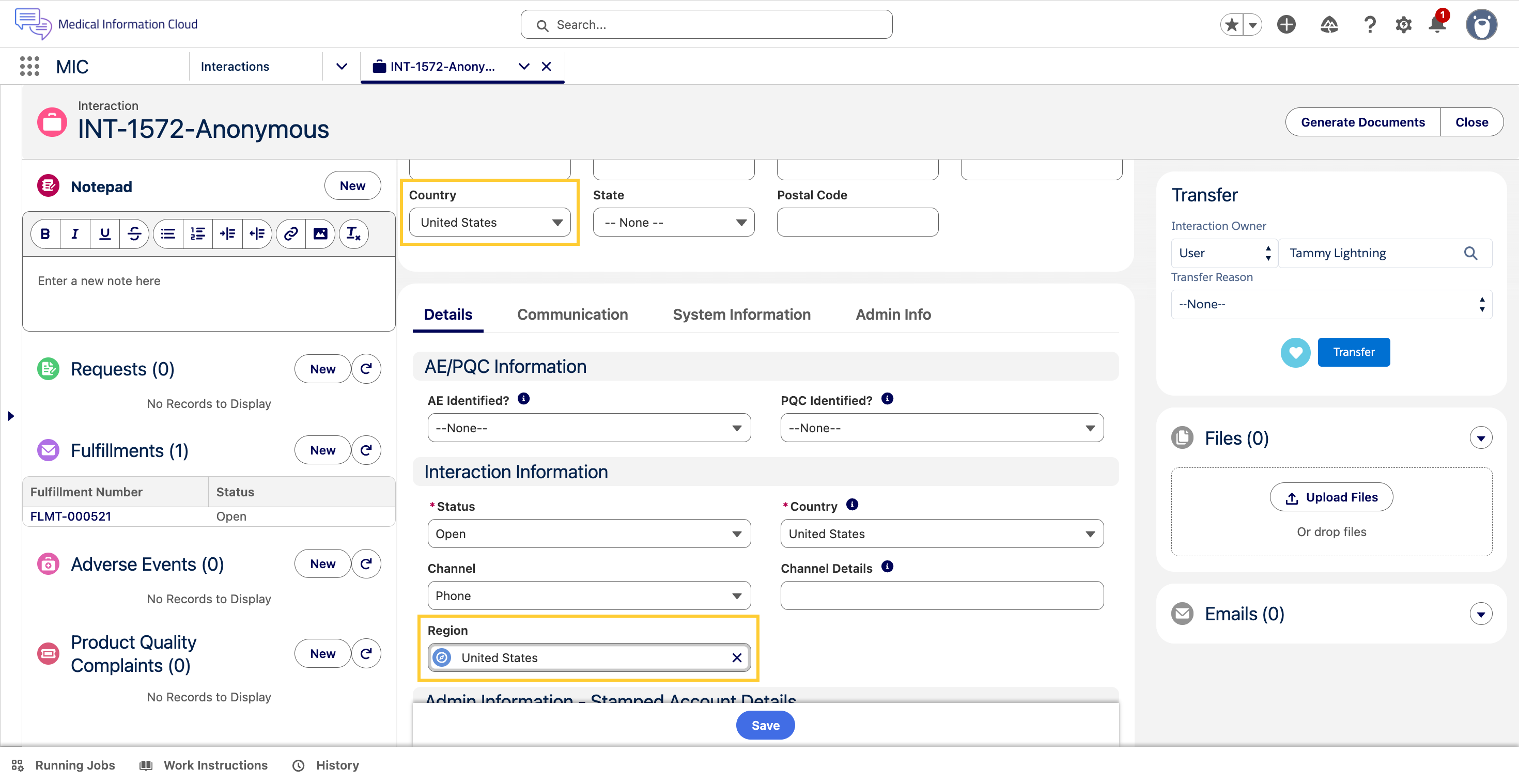
This gives administrators a single, consistent place to drive country-specific configuration such as business-process toggles, validation rules, and FlexiPage activations, without hard-coding Country values across Flows, Validation Rules, and Page Layouts.
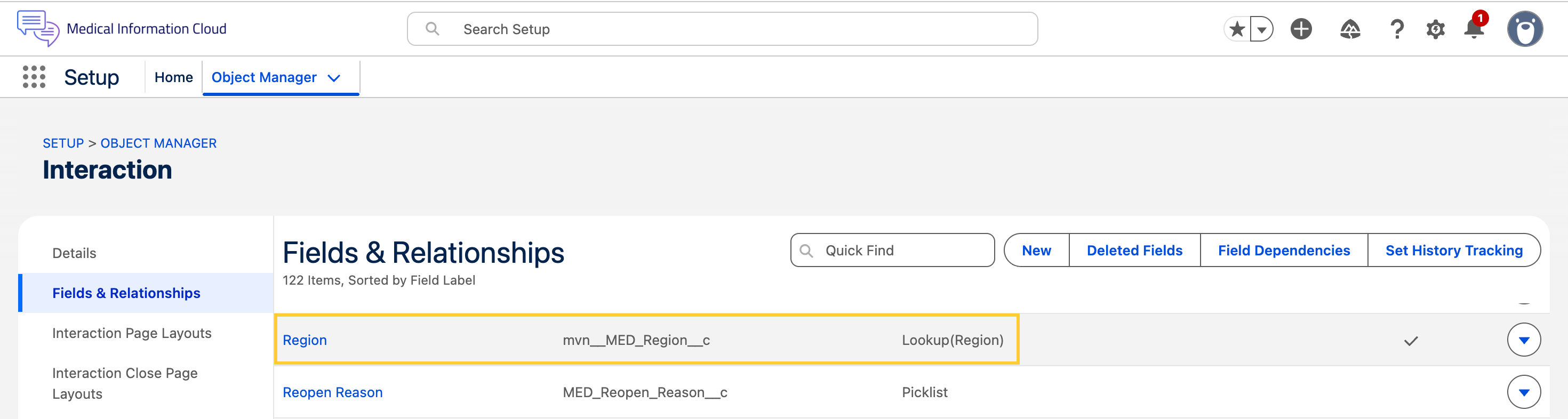
The Interaction (Case) object has a new Region (MED_Region__c) lookup field that points to the Region (Region__c) object.
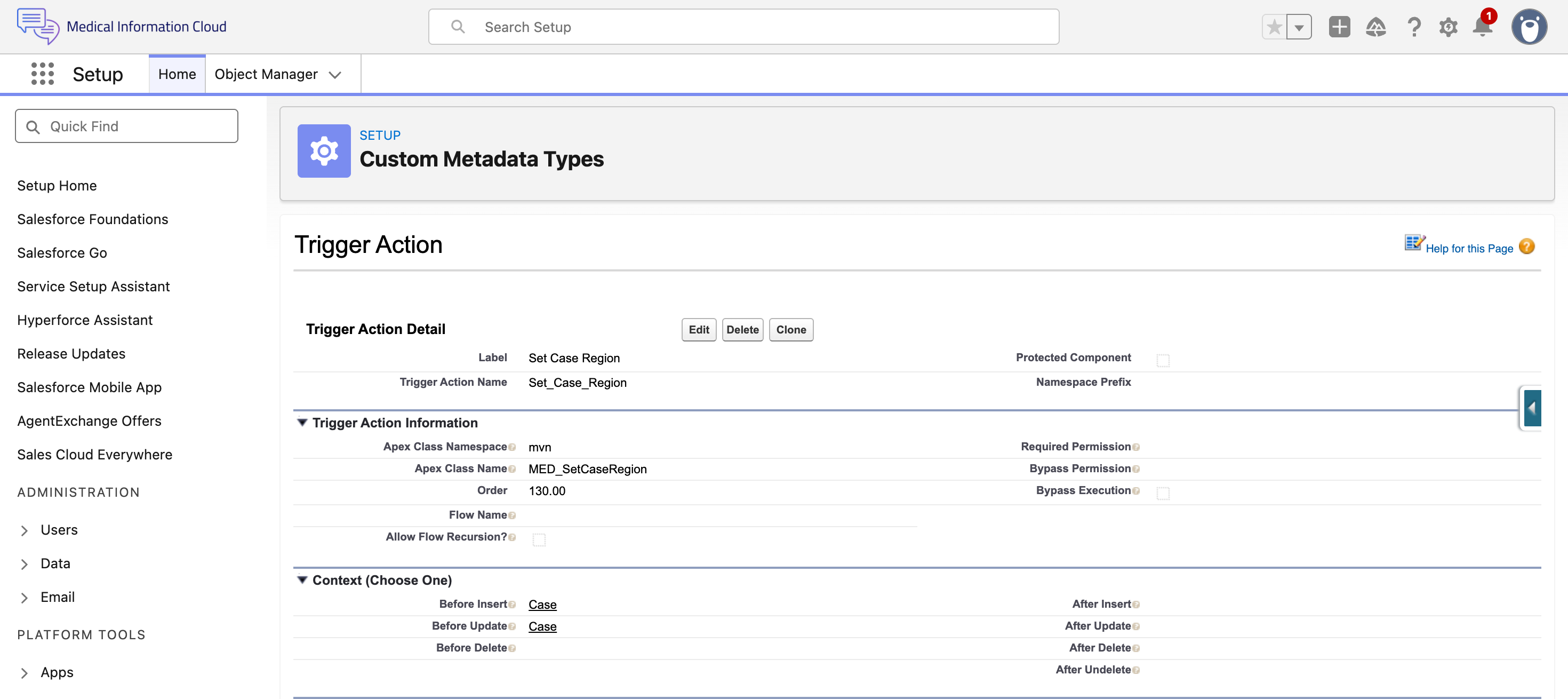
A new trigger action, Set Case Region, runs in the
Before Insert and Before Update contexts on the Interaction (Case) object.
Whenever the Country (MED_Country__c) field is set or
changed, the trigger action finds the Region (Region__c) record whose Country ISO Code (Country_ISO_Code__c) matches the selected Country and stamps that record's ID on the Region (MED_Region__c) lookup. If no matching Region record exists, the lookup is cleared.
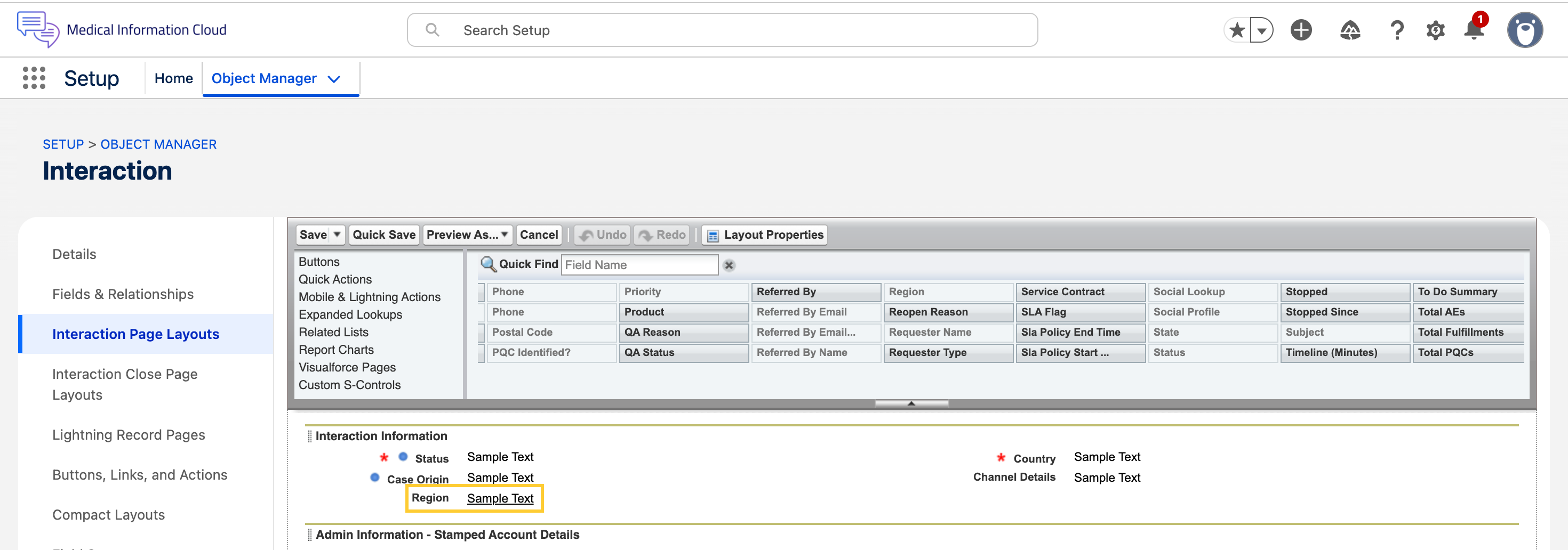
The new Region (MED_Region__c) field is appears on the Case - Lightning Admin layout and stays hidden on the standard Case - Lightning layout. This keeps the field visible to Administrators who need to review it, while front-line agents get a cleaner, distraction-free view.
The Medical Information Cloud Admin (MED_Medical_Information_Cloud_Admin) and Medical Information Cloud User (MED_Medical_Information_Cloud_User) permission sets provide read access to the field. Users on the System Administrator profile get Edit access automatically — no additional permission sets needed.
How to use Region lookup on Interaction
-
Confirm that there is a Region (
Region__c) record for each Country your organization operates in.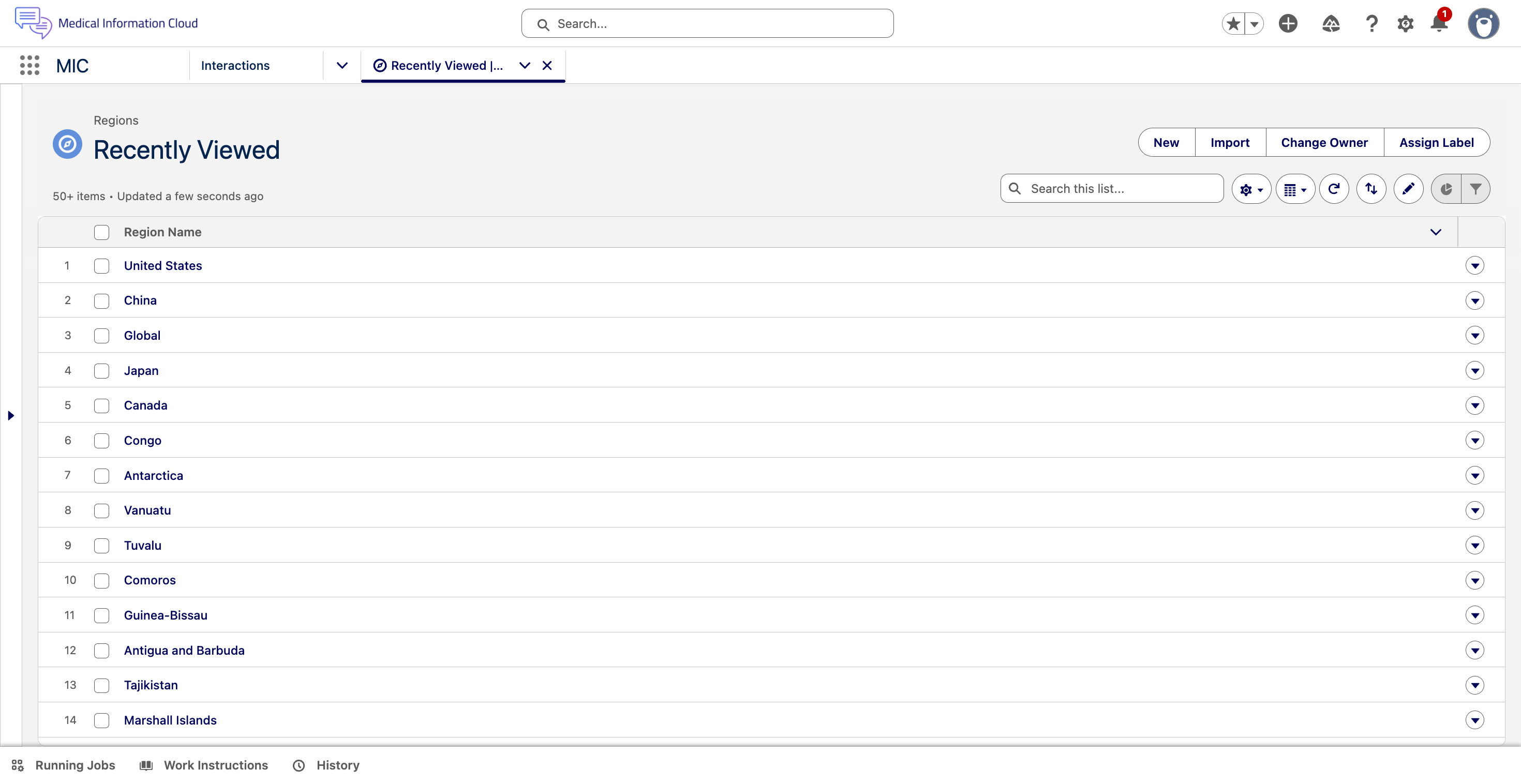
-
Ensure that the Country ISO Code (
Country_ISO_Code__c) field on each region matches the ISO Codes used by the Country (MED_Country__c) picklist on the Interaction.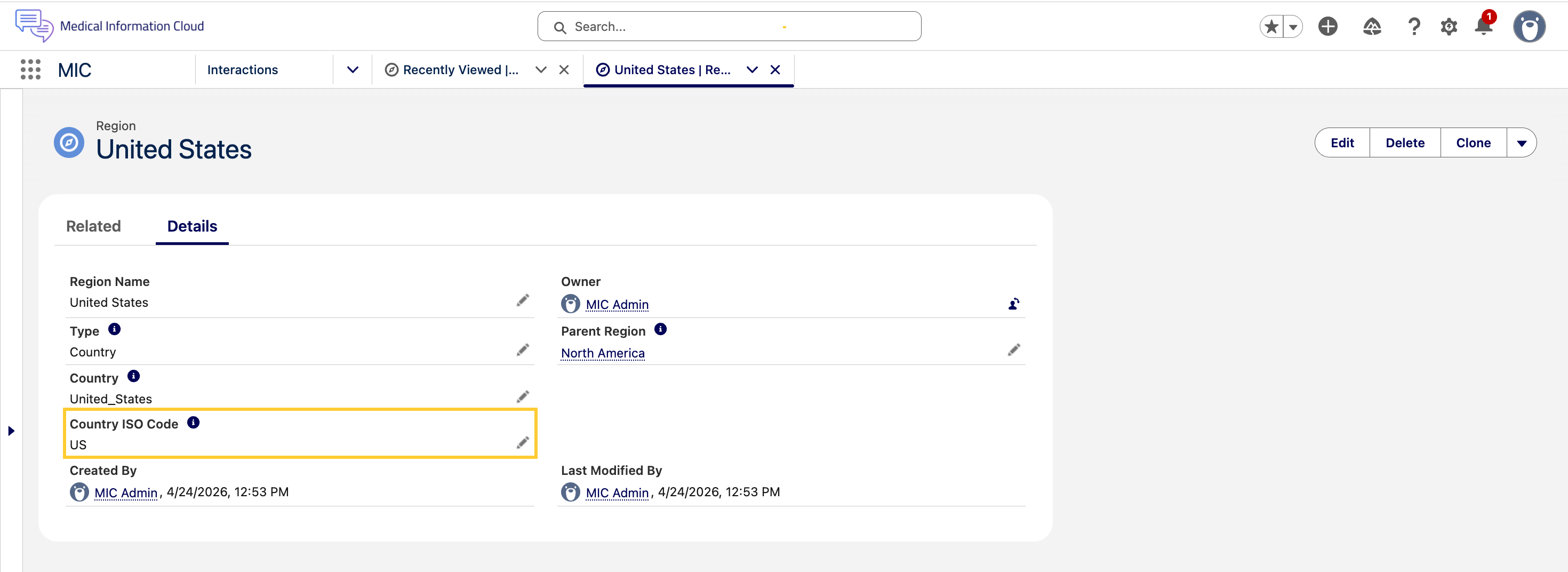
-
Open an Interaction record. Set or change the Country (
MED_Country__c) field. Save the record.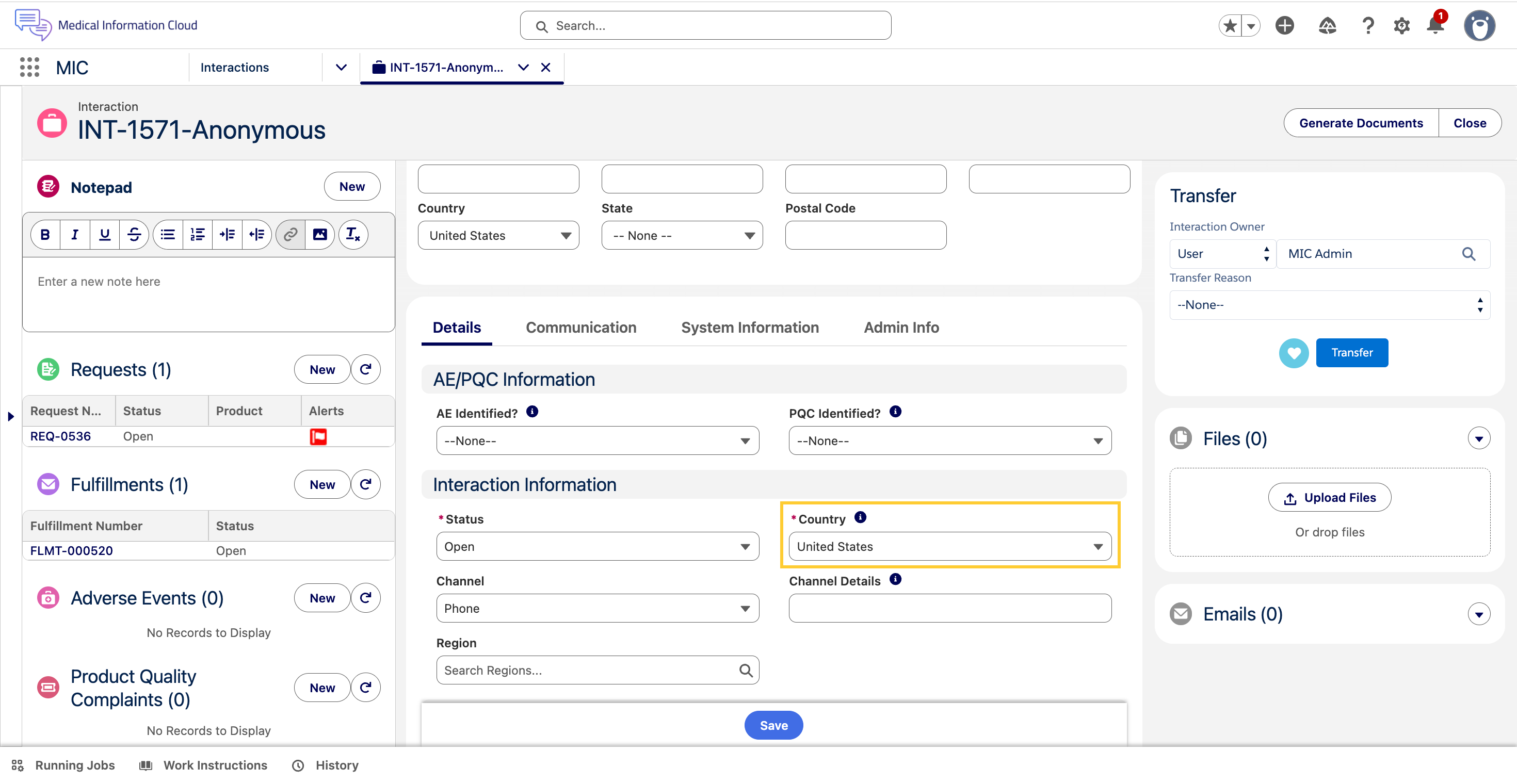
-
The Region (
MED_Region__c) lookup is set to the matching region.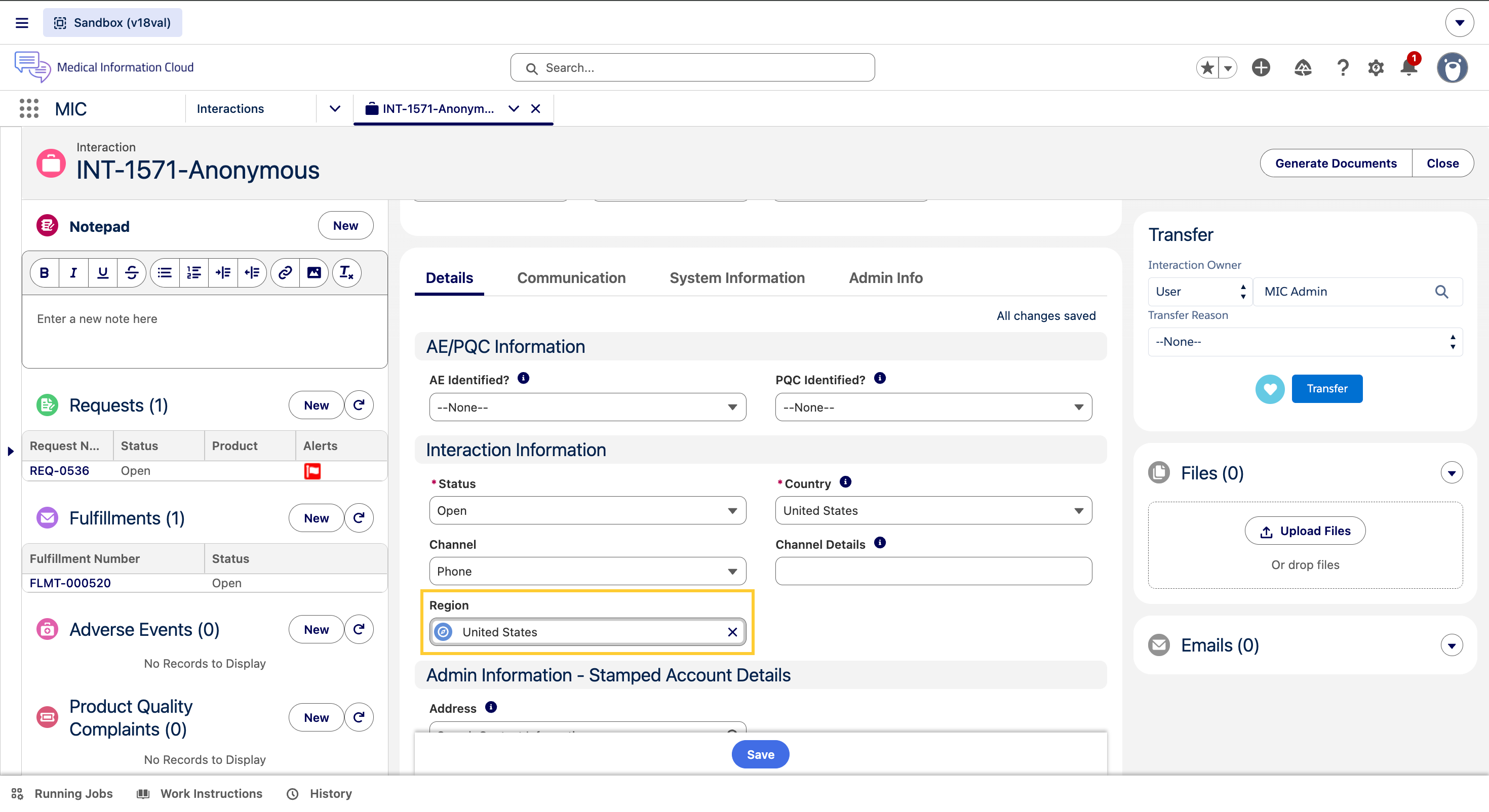
If you change the Country to a value that has no matching region, the lookup is cleared.
Administrators can use the Region (MED_Region__c) lookup as the entry point for country-scoped configuration. For example, you can reference it in FlexiPage component visibility rules, Validation Rule formulas, or Flow entry criteria. This way, your Country and market-specific settings live directly on the Region record — not buried inside code.
The trigger action only updates the Region (MED_Region__c) lookup when the Country (MED_Country__c) value actually changes. Region values that you set manually on records whose Country has not changed are preserved.
Request
A Request is a child record of an Interaction. Each Request stores information about the account's inquiry and any responses that have been provided. There can be multiple Requests in a single Interaction. For example, if a Health Care Provider asks three questions on a call, you will create a single Interaction and three Request records underneath that Interaction.
Fulfillment
A Fulfillment record is a child record of an Interaction. From a Fulfillment record, you can create a package of information to send via email, mail, or fax to the Account that submitted the inquiry. A Fulfillment Package includes:
-
A cover letter, which lists the full content of the Fulfillment Package and any warnings/disclaimers
-
Documents from your Content Management System
-
Non-Standard Response documents that have been uploaded to the Request(s).
Inquiry Management uses Dynamic Document Packages to generate Fulfillment Packages.
When you give an Account a verbal response, you do not create a Fulfillment. Fulfillments are only used for written responses.
Adverse Event
An Adverse Event record is a child record of an Interaction. With an Adverse Event record, you can capture and store information on perceived unintended or unfavorable symptoms of a product. Adverse Events can be packaged as a PDF and emailed out.
Product Quality Complaint
A Product Quality Complaint record is a child record of an Interaction. With a Product Quality Complaint record, you can capture and store information related to a potential product quality issue. Issues may be related to manufacturing, stability and release testing, dose preparation, storage, or distribution. Product Quality Complaints can be packaged as a PDF and emailed out.
Home Page
Medical Information Agents, Supervisors, and QA Users see a country-specific, consolidated, home-page dashboard that:
-
displays all items that might need action or attention.
-
gives users a sense of the overall amount of work that needs to be done within their area.
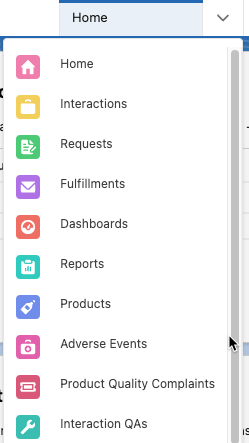
To view the Home Page, select Home from the Navigation Menu.
Home Page components
The Home Page consists of a set of standard Salesforce components, shown below.
-
New Interactions Queue - shows any newly assigned or created interactions for the logged-in user. Users can also create new Interactions from this section by clicking New in the top right corner of the section.

-
My Interactions - Open - shows the logged-in user's open interactions. New Interactions can also be created from this section by clicking New in the top right of the section's highlight panel.

-
My Open Requests - shows a list of the user's open requests with a snapshot of relevant information including:
-
Request number
-
Product name
-
Content of the request (truncated for length)
-
Alerts flag
-
Due date
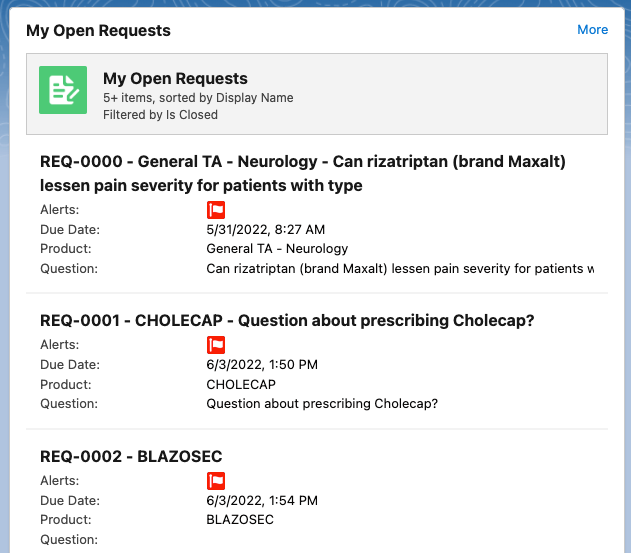
Users can click More in the top right of the section to go to their Requests page.
-
-
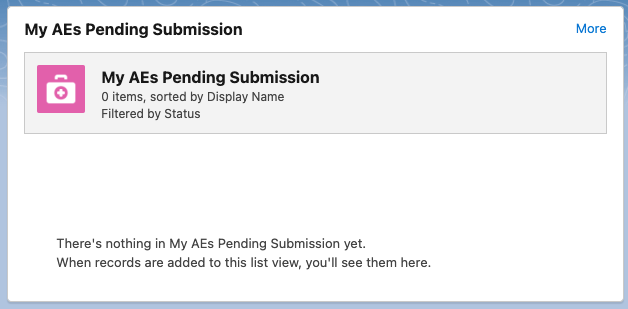
My AEs Pending Submission - shows pending AE submissions. Users can click More in the top right corner to view their Adverse Events page.
-
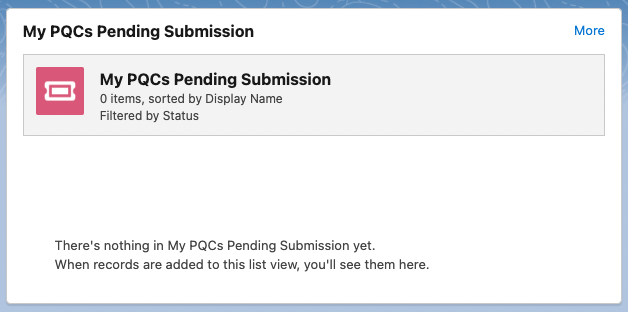
My PQCs Pending Submission - shows pending PQC submissions. Users can click More in the top right corner to view their Product Quality Complaint page.
Interactions
An Interaction is the central object of Inquiry Management and is the starting point for agents. The Interaction is a Salesforce "Case", just relabeled. For that reason, you will see references to the Case object in code and declarative configuration throughout the Inquiry Management module.
Interaction components
Inquiry Management makes heavy use of the Salesforce Service Cloud Console and has been configured to display multiple Lightning components.
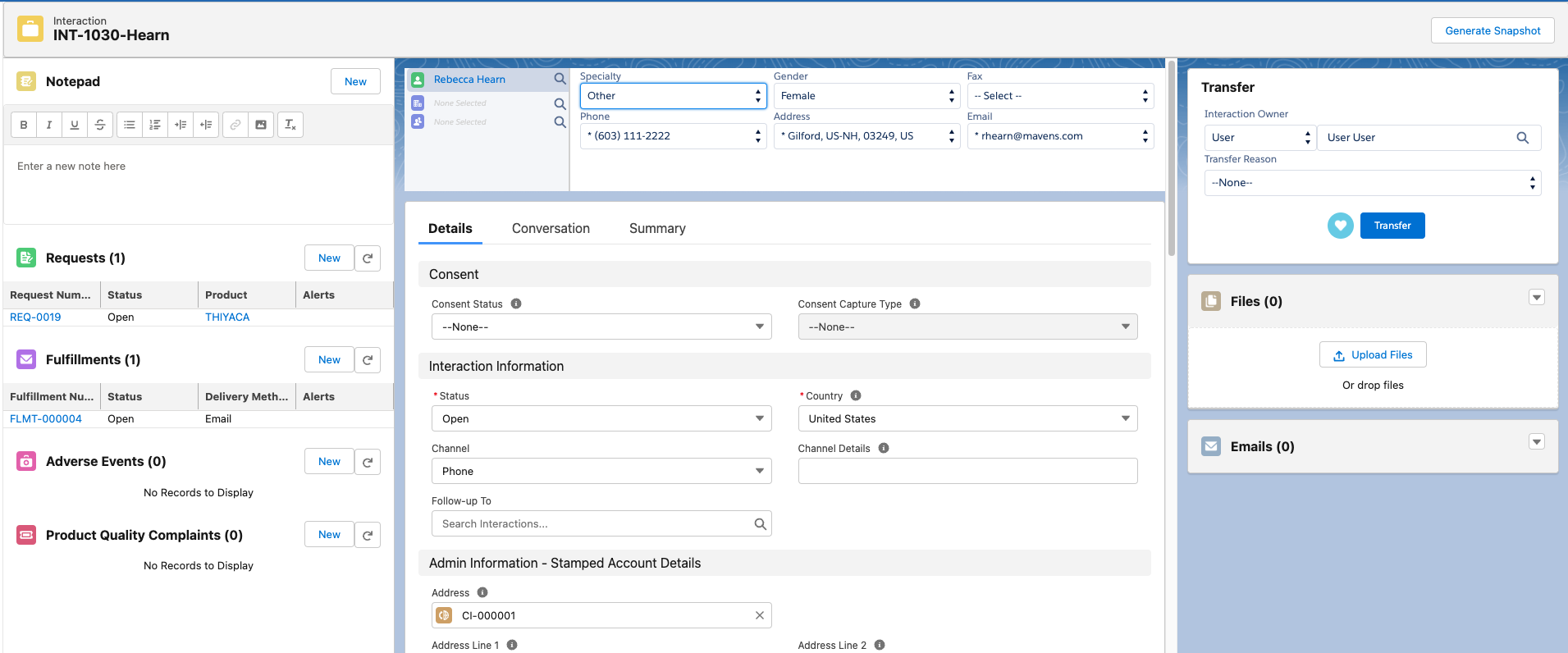
You can expose and arrange components on the Lightning record pages to make it easier for users to record and manage medical information inquiries and meet business requirements. The Lightning record components table below lists the available components in the Inquiry Management system.
Lightning record components
| Component label | Description |
|---|---|
| Field Audit Trail Related List | Field Audit Trail Related List is a Lightning component that displays field-level change tracking information for a record. The displayed information is an aggregate view of audit trail events from three sources: - Salesforce's Shield's Field Audit Trail - Salesforce's normal field history tracking - Inquiry Management Field Audit Trail |
| MIC - Case Accounts | The MIC - Case Accounts component enables users to search for and associate a Requester, Referred by, or Institution account with an Interaction. |
| MIC - Enhanced Record Edit | The MIC - Enhanced Record Edit component always displays fields in an editable format and auto-saves entered field data. |
| MIC - HELPER: Workspace API Helper | Allows the Salesforce console workspace API access for Lightning Web Components. |
| MIC - Notepad | The MIC - Notepad component enables users to immediately enter inline notes from an Interaction and create new notes. All notes are auto-saved. When multiple notes exist for an Interaction, the component displays the most recently modified note. |
| MIC - Related List | The MIC - Related List component displays Request, Fulfillment, Adverse Event, Product Quality Complaint, and Interaction QA records related to a given Interaction and enables users to create new related records. While similar to the standard Salesforce Related List - Single component, the MIC - Related List component requires fewer clicks to create new related records, displays related records in a more compact, table grid-view, and includes more configuration points than the Related List - Single component. |
| MIC - Console Config | The MIC - Console Config component displays the value of a specified formula field as a workspace's tab label. |
| MIC - SObject Record Edit View | The MIC - SObject Record Edit View is a Lightning Web Component that displays fields on Lightning record pages in a simple edit view with a Save button that is always in Edit mode. |
| MIC - SObject Record Read View | The MIC - SObject Record Read View is used to put arbitrary read-only fields into a Lightning record page. |
Requests
A Request is a child record of an Interaction. Each Request stores information about the account's inquiry and any responses that have been provided. There can be multiple Requests in a single Interaction. For example, if an HCP asks multiple questions in a single email or conversation, each question will have its own Request within a single Interaction.
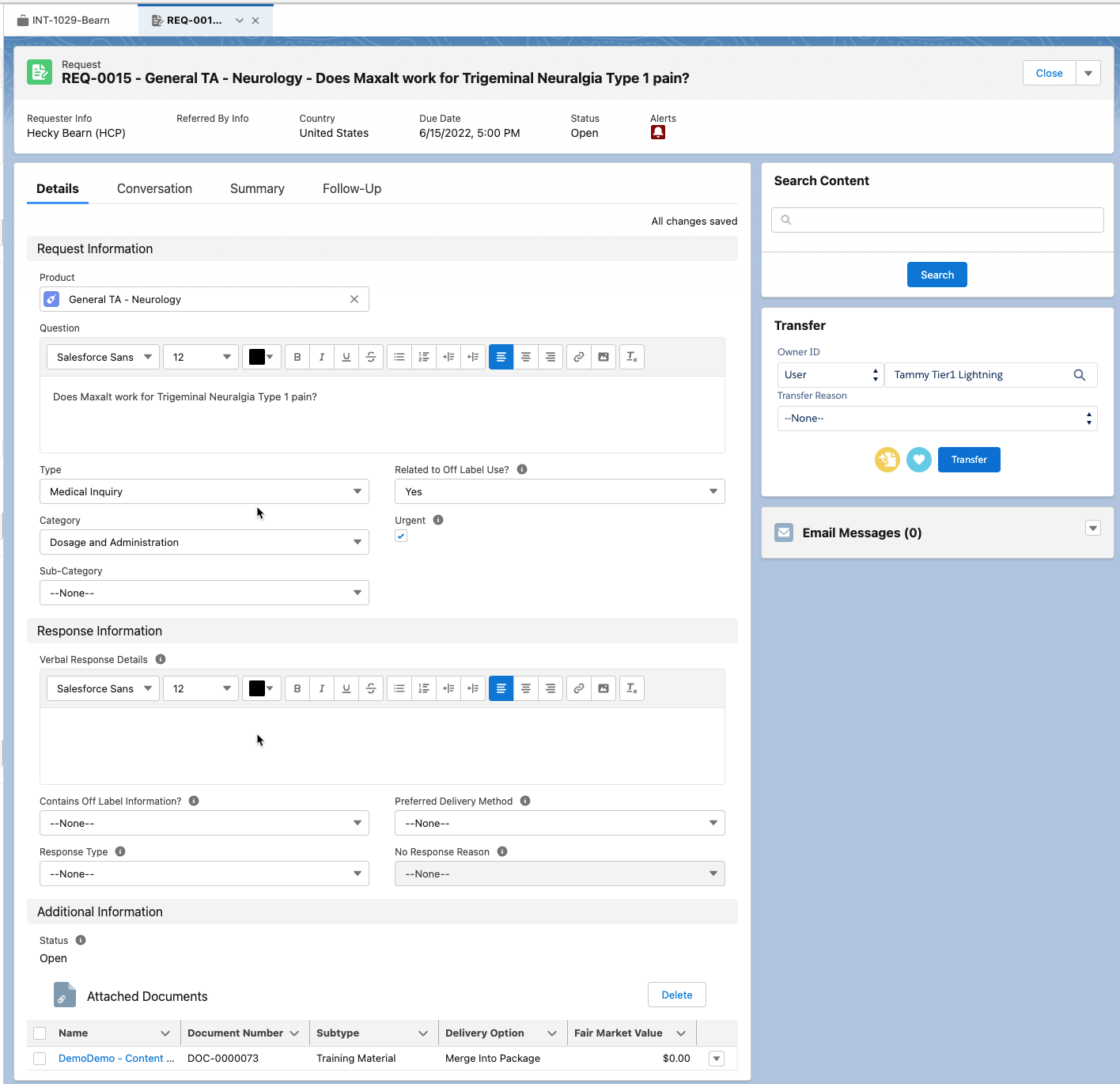
Request view
Besides the standard fields, the Request page layout also has embedded components in it. These components include:
Enhanced Record Edit
Requests can be edited as needed, with any changes automatically saved using the Enhanced Record Edit component. Visit the Enhanced Record Edit topic for more information.
Product Lookup
The Product Lookup Lightning component enables users to search the
product database and select a product value for MED_Product__c.
Each product result contains the name of the product and a subtitle. The subtitle is comprised of product metadata separated by the "•" character.
Visit Product Lookup for more information.
Request Content Search
The MIC - Request Content Search component adds a search bar and button to the default Request Record page. The search bar and button launch a search modal and immediately execute the search. From the modal, you can filter results, refine your search, attach documents to the Request record, and preview a document search result in a modal with the document viewer.
Visit Request Content Search for more information and configuration instructions.
Interaction Follow-ups
You can create a Follow-up Interaction and associated Request to communicate content updates to requesters who have given consent to receive them using one of the methods below.
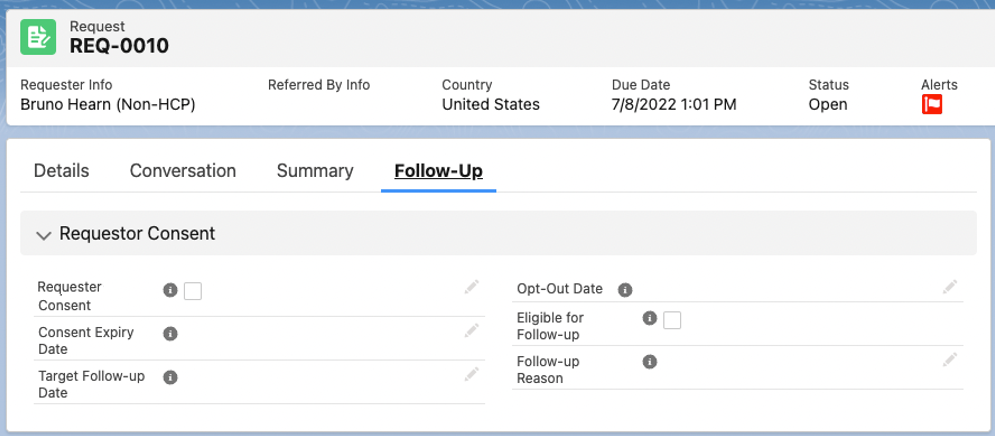
To record a requester's consent using the Edit icon:
-
In an open Request, click the Follow-Up tab.
-
Click the Edit icon in the Requester Consent field.
-
Check the box in the Requester Consent field to indicate their consent.
-
Complete the following fields, if applicable:
-
Consent Expiry Date
-
Target Follow-up Date
-
Opt-Out Date
-
Eligible for Follow-up
-
Follow-up Reason
-
-
Click Save.
To record a requester's consent using the Update Follow-up Consent Details quick action button:
-
In an open Request, click the dropdown arrow in the top right of the Request section.
-
Select Update Follow-up Consent Details.
-
Use the Update Follow-up Consent Details modal to record the relevant requester consent details.
-
Click Save.
You can use the Update Follow-up Consent Details quick action button if the request is open or closed. However, once the request is closed, you can only use the quick action button to update consent information.
To record a requester's consent on fulfillment, visit the Configure follow-up opt in/opt out emails section. You can use the fulfillment email templates that are provided out-of-the-box and configure them so that requesters can either opt in or out of receiving updates.
Adding a Follow-up Interaction to a Request
To add a Follow-up Interaction to a Request:
-
In an open Request, click the dropdown menu in the top right of the Request's highlight panel.
-
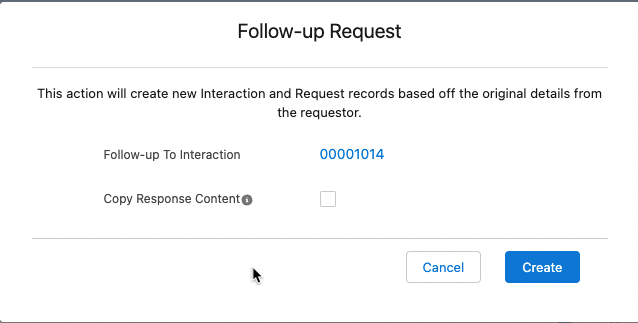
Select Follow-up Request. The Follow-up Request modal appears.
-
To copy content from the content repository, click the Copy Response Content checkbox. Otherwise, leave it unchecked.
-
Click Create. You are automatically brought to the new Request page within the new Interaction.
The new Interaction is created with the following values pre-populated:
-
Channel = Follow-up
-
Follow-up To = Original Interaction from which the Interaction was created
-
Status = Open
The new Request is created with the following values pre-populated:
-
Interaction number
-
Owner
The new Request has the following values removed:
-
Date Opened
-
Date Closed
-
Due Date
A request created by a Follow-up cannot be created from a request that is also a Follow-up. For requests that were made from a Follow-up, the contents of the Follow-up tab will not appear since the consent was recorded in the original request.
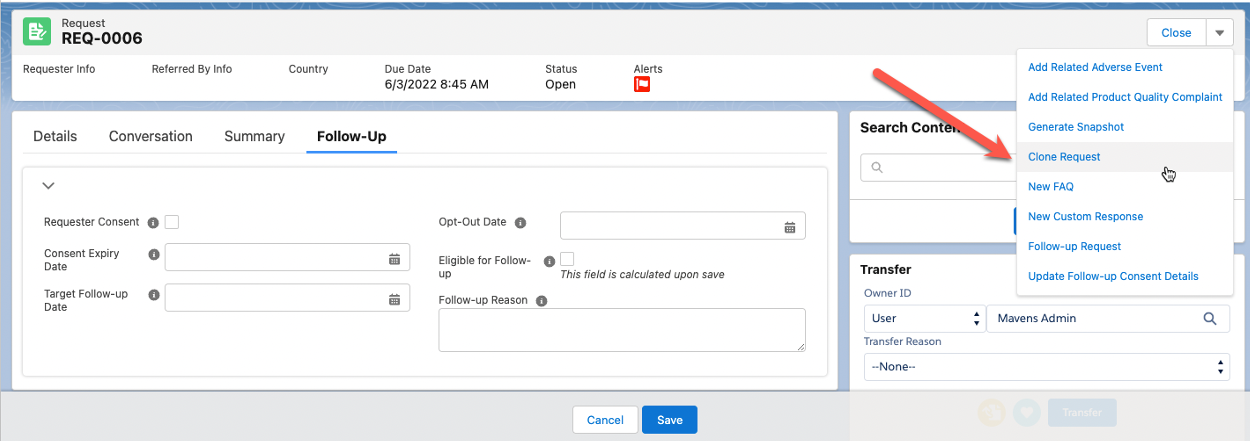
Cloning a Request
Previously created Requests can be cloned and associated with new Interactions. This helps facilitate an easier workflow by reusing commonly used question and answer content.
To clone a Request:
-
From a Request, click the dropdown caret in the top right and select Clone Request.
-
On the Clone Request modal, either keep the pre-populated Interaction in the Parent Interaction field or search for and select a different one.
-
Check the checkbox next to Copy Response Content to copy the content into the cloned request.
-
Click Clone.
Once cloned, the system will automatically:
-
Put the cloned request in "Open" status.
-
Clear any related Inbound Form lookups (if applicable).
-
Automatically update the Cloned From field with the record from which the new record was cloned.
Configuring the Follow up tab on a Request record
You can enable your users to capture consent details as part of a broader workflow. Using the steps below, you can allow them to capture consent from a requester to follow up with more information at a later date.
To configure the Follow-up tab on a Request record:
-
From Setup, click the Object Manager tab.
-
Search for and select the Interaction (
Case) object. -
Click Fields & Relationships.
-
Select the Channel field and add 'Follow-up' as a picklist value.
-
From Setup, click the Object Manager tab.
-
Search for and select the Request (
MED__Request__c) custom object. -
Click Lightning Record Pages on the left side navigation panel.
-
Click Request.
-
Click Edit. The Lightning App Builder appears for the Request page.
-
Select the Follow-up tab.
-
Click the Fields tab on the navigation panel on the left side of the page.
-
Under the Fields Component section, click and drag Field Section, and drop it onto the Follow-up section.
-
Under the Fields section on the navigation panel on the left side of the page, click, drag, and drop the following fields:
-
Requester Consent
-
Consent Expiry Date
-
Target Follow-up Date
-
Opt-Out Date
-
Eligible for Follow-up
-
Follow-up Reason
-
-
Click the Requester Consent section you just created. On the right side of the page, enter "Requester Consent" in the Label field.
-
Click Save.
Configuring the Follow-up Action on a Request
You can enable your users to create a Follow-up Interaction and associated Request as part of a broader workflow. This workflow would allow them to capture consent from a Requester to follow-up with more information at a later date, or simply associate a new Request with a previously relevant interaction using the methods below.
To configure the follow-up action on a request:
-
From the Request page in the Lightning App Builder, click the highlights panel.
-
On the right side of the page, under Actions, click Add Action. A search modal appears.
-
Search for and select Follow-up Request and click Done. It now appears under the list of actions.
-
Click the new Follow-up Request action and drag it to the appropriate position.
-
Click Save.
Custom Objects
Request - The Request object stores information about medical inquiries and the provided responses.
Create custom responses and FAQs from requests
You can create custom responses and FAQs via quick actions by clicking on New Custom Response or New FAQ in a given Request record. Doing so opens up a document creation wizard modal that is pre-populated with data from the Request record or its parent Interaction object to reduce manual data entry. The modal also lets you complete and confirm any required or additional information.
You can also create custom responses by clicking on New Custom
Response in the search modal that opens via the Request Content Search
component. Once a new custom response is reviewed and has a status of
Approved, it will appear in search results going forward. For more
information about Custom Responses, refer to
Custom Responses.
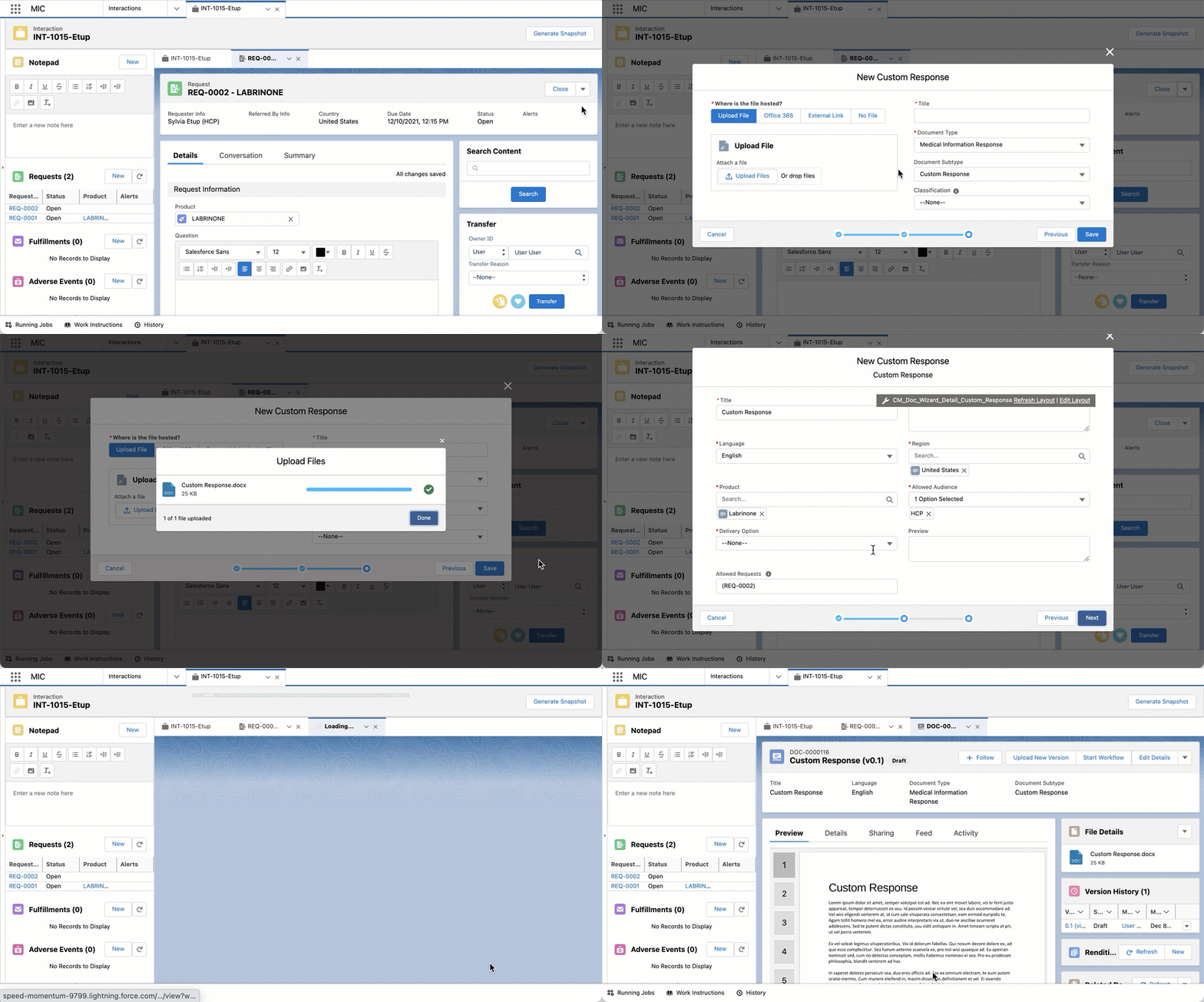
Only users assigned to the CM_ContentAuthor Permission Set can use this feature.
Enable functionality
To enable this functionality for users:
-
Open the relevant Request record page in the Lightning App Builder.
-
Drag and drop the MIC -- Document Wizard Modal (
medDocumentWizard) hidden helper component onto the page. -
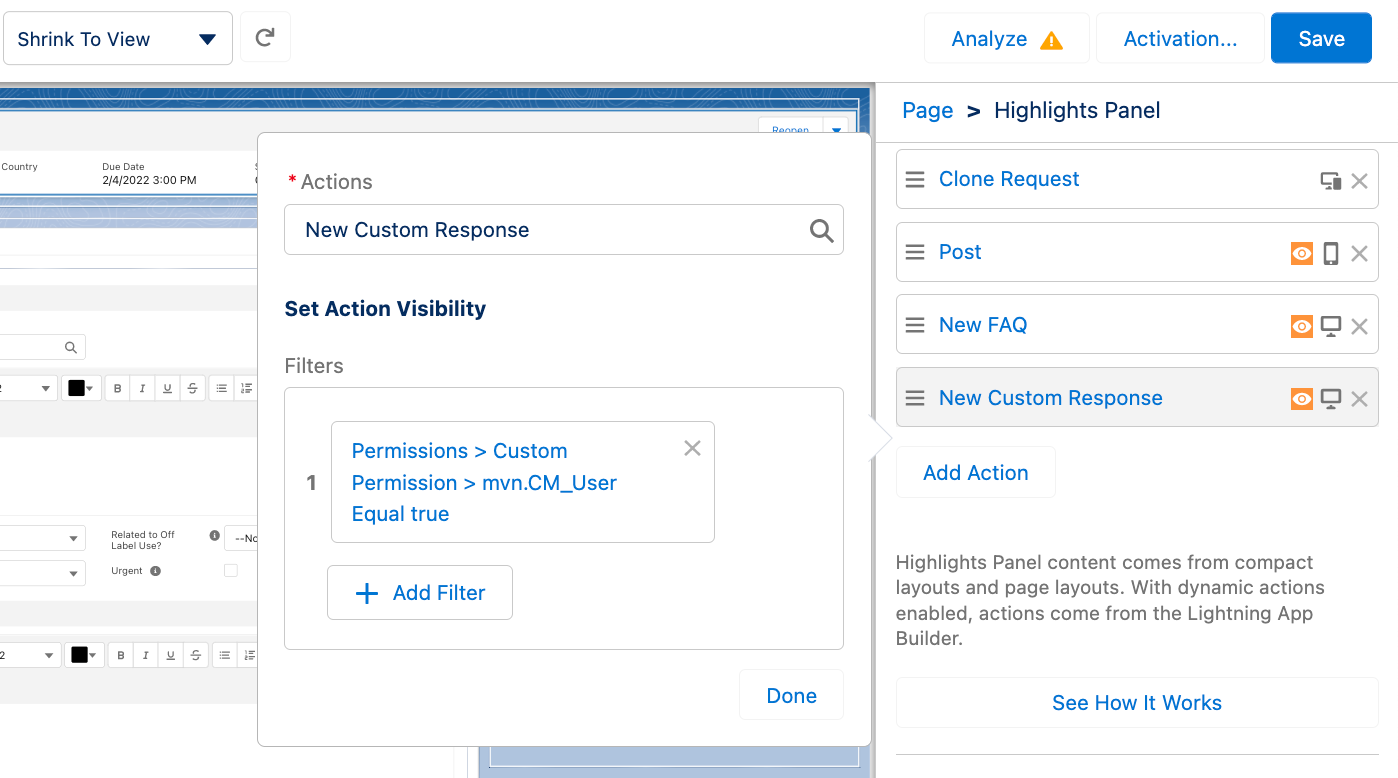
Click on the Highlights Panel component, and add the New Custom Response and New FAQ actions.
For each action, you can add a filter to ensure that only users with the correct permissions can view and use the feature. To add a filter:
-
Click Add Filter.
-
Click Advanced.
-
Set the Field to Permissions > Custom Permissions > CM_User.
-
Set the Operator to Equal.
-
Set the Value to True.
-
Click Done.
:::
 :::
::: -
To add actions to the Highlights Panel component via the Lightning App Builder, Dynamic Actions must be enabled.
-
Click on the Request Content Search component, and check the Allow Document Creation checkbox. This lets users create custom responses from the Search Content component as well.
-
Click Save.
Configure modal
To modify the pre-populated Document Type and Document Subtype fields in
the modal, modify the Document Type (mvn__MED_Document_Type__c) and
Document Subtype (mvn__MED_Document_Subtype__c) fields for these
existing Document Wizard Settings (mvn__MED_Document_Wizard_Settings__mdt) records:
Document Wizard Settings records
| Label | API name |
|---|---|
| Request - Custom Response | MED_Request_Custom_Response |
| Request - FAQ | MED_Request_FAQ |
Do not modify the API names of the Document Wizard Settings records listed in the Document Wizard Settings records table.
To configure the layout of the document creation wizard modal and output, refer to Layout locations.
Adverse Events
An Adverse Event (AE) record stores information on perceived unintended
or unfavorable symptoms of a product. An AE record can be added to an
Interaction to track pertinent information. The AE page is configured
using the Adverse Event
Layout (MED_Adverse_Event_Layout__mdt) custom
metadata type and uses the following custom objects:
Adverse Event primary sources
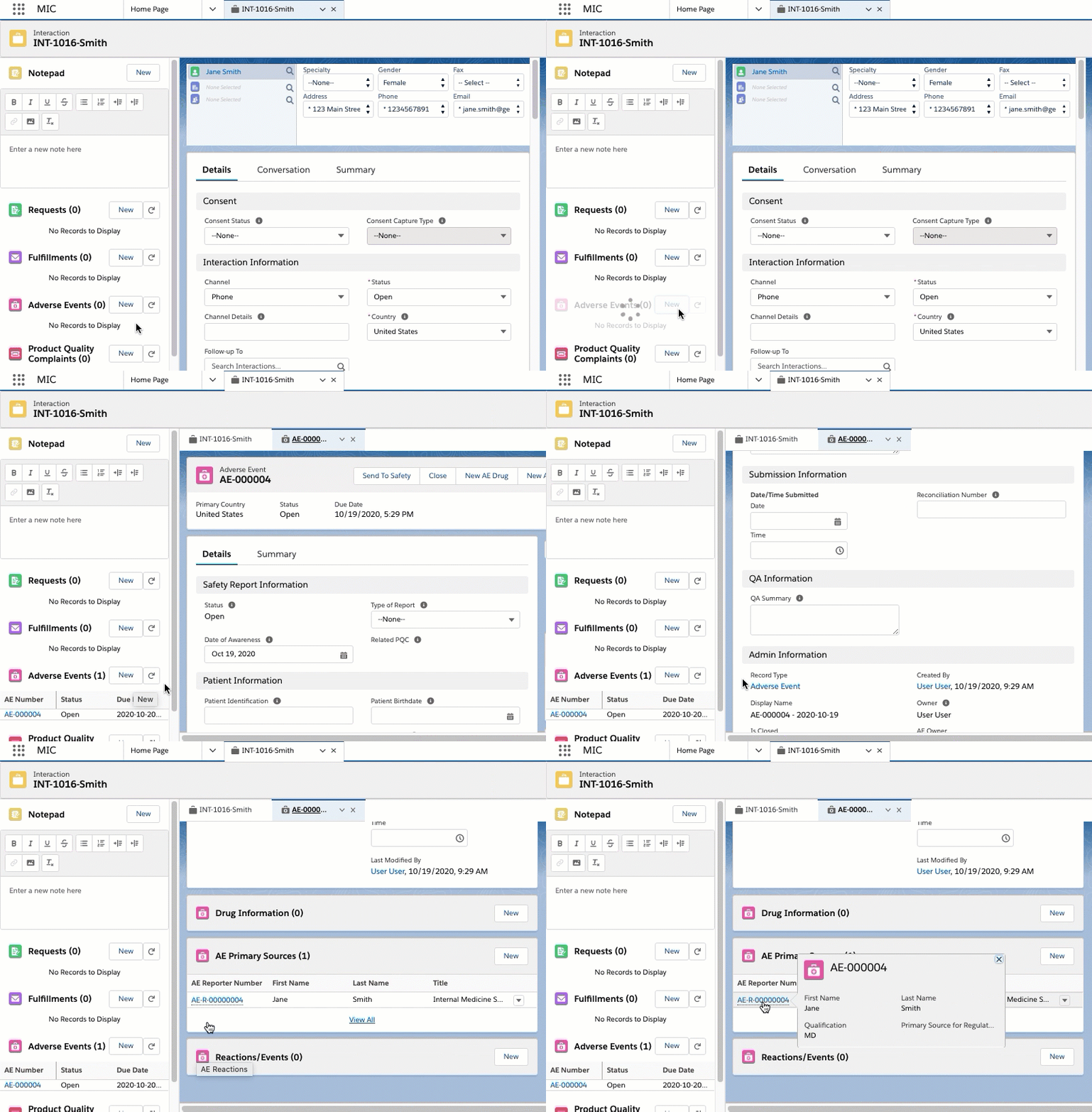
When the Auto Stamp Primary Source Global Setting is enabled and an Adverse Event record is created, Inquiry Management automatically creates and displays primary source records in the AE Primary Source Related List on the Adverse Event record. The primary source records automatically populate with information from the Requester and Referred By accounts listed on the Interaction. More specifically, information about the Requester listed on Interaction maps to an automatically generated primary source record associated with the Adverse Event. Likewise, Referred By fields on the Interaction map to a second primary source record. For more information about the Global Setting custom metadata, see Custom metadata settings.
Field mappings
The Requester to primary source field mapping and Referred By to primary source field mapping tables list the primary source field mappings.
Requester to primary source field mapping
| AE Primary Source | Case |
|---|---|
| MED_First_Name__c | Account.FirstName |
| MED_Last_Name__c | Account.LastName |
| MED_Middle_Name__c | Account.MiddleName |
| MED_Title__c | Account.PersonTitle |
| MED_Qualification__c | Account.MED_Credentials__c |
| MED_Organization__c | MED_Institution_Name__c |
| MED_City__c | MED_City__c |
| MED_Postal_Code__c | MED_Postal_Code__c |
| MED_Phone__c | MED_Phone__c |
| MED_State__c | MED_State__c |
| MED_Country__c | MED_Country__c |
| MED_Address_Street__c | MED_Address_Line_1__c + MED_Address_Line_2__c Note: If the Case street address value exceeds 100 characters, the value is truncated when mapped to MED_Address_Street__c. |
In the Referred By to primary source field mapping table, sometimes the Case fields lead with <primary address> or <primary phone>. <primary address> and <primary phone> indicate that the data is copied from the Contact Information records related to the Referred By Account.
Account type MED_Employee is blacklisted from creating a primary
source from Referred By.
Referred By to primary source field mapping
| AE Primary Source | Case |
|---|---|
| MED_First_Name__c | MED_Referred_By__r.FirstName |
| MED_Last_Name__c | MED_Referred_By__r.LastName |
| MED_Middle_Name__c | MED_Referred_By__r.MiddleName |
| MED_Title__c | MED_Referred_By__r.PersonTitle |
| MED_Qualification__c | MED_Referred_By__r.MED_Credentials__c |
| MED_City__c | <primary address>.MED_City__c |
| MED_Postal_Code__c | <primary address>.MED_Postal_Code__c |
| MED_Phone__c | <primary phone>.MED_Phone__c |
| MED_State__c | <primary address>.MED_State__c |
| MED_Country__c | <primary address>.MED_Country__c |
| MED_Address_Street__c | <primary address>.MED_Address_Line_1__c + MED_Address_Line_2__c Note: If the Case street address value exceeds 100 characters, the value is truncated when mapped to MED_Address_Street__c. |
E2B(R3) generation
E2B(R3) XML files can be generated from and attached to an Adverse Event
(MED_Adverse_Event__c) record. They are attached as Files or as
Attachments depending on the "Use Files" Global Setting value configured
within the instance.
Each generated E2B file is saved with a filename that combines the timestamp at which the file was generated and the Adverse Event Name:
ICSR_<yyyyMMddHHmmss>_<Adverse Event Name>.xml
For example, an E2B file generated on June 1, 2026 at 10:15:30 for the
Adverse Event named AE-00042 is saved as
ICSR_20260601101530_AE-00042.xml. Including the Adverse Event Name
ensures that the filename is unique even when E2B files for different
Adverse Events are generated within the same second.
The following file formats are supported:
-
Portable network graphics (.png)
-
Bitmap image format (.bmp)
-
Graphics interchange format (.gif)
-
Word processing document format (.wpd)
For additional details regarding the E2B(R3) support, see E2B(R3) support.
Enablement
To enable the ability for users to generate E2B files, add add the Generate E2B quick action to the Adverse Event page layout.
Configuration
Inquiry Management ships with a default mapping of Adverse Event (and child object) fields to nodes in the E2B(R3) XML specification. These mappings can be modified using the E2B Field Mapping and E2B Setting custom metadata types. The field mapping maps the Data Element Identifiers (e.g., C.1.2) to fields in the Inquiry Management data model. Currently, only data elements with a default mapping are supported in the output E2B file.
If Inquiry Management is configured to use Salesforce Files instead of attachments, additional documents attached to the Adverse Event are also included in the E2B file.
Custom labels
This component makes use of the following labels that can be configured within the Salesforce translation workbench to change display text values.
| # | Label Name |
|---|---|
| 1 | MED_E2B_Download_Button |
| 2 | MED_E2B_Error |
| 3 | MED_E2B_Error_Header |
| 4 | MED_E2B_Field_Required |
| 5 | MED_E2B_Generate_Button |
| 6 | MED_E2B_Generator_Header |
| 7 | MED_E2B_Generator_Instruction_Text |
| 8 | MED_E2B_Invalid_Document_Format |
| 9 | MED_E2B_Locked_Message |
| 10 | MED_E2B_Success |
Customization
Customers can override how E2B XML documents are generated through the use of the E2B customization framework. This framework is intended to be utilized by a Salesforce.com developer to alter how E2B XML files are generated. This can be useful should an XML element attribute require a localized value that differs from the standard XML schema that is supported.
The high-level process of customizing an XML node generation is as follows:
-
Review the documentation within the
MED_E2B_MCCI_IN200100UV01_Batchapex class within the Inquiry Management source code. -
Create a new Apex Class that extends the
MED_E2B_MCCI_IN200100UV01_Batchapex class, and implement the desired implementations of the relevant virtual methods from theMED_E2B_MCCI_IN200100UV01_Batchclass. As a best practice appropriate test code should also be written to offer unit test coverage for the customization. -
Deploy the new Apex Class to the appropriate environments.
-
Create an E2B Custom Generator Custom Metadata Type to register the new Apex Class with the E2B generation process.
-
Test the custom functionality by generating test E2B documents.
For developers seeking to customize how an XML element within the E2B file is generated, visit How to Contact Customer Support to contact Mavens Customer Support for sample code and additional developer details.
Telecom tags
By default, \<telecom\> tags in E2B files automatically add the
appropriate telecommunication prefix for every reporter's phone number,
sender's phone number, sender's fax number, and sender's email
address, if a prefix does not already exist. The \<telecom\> tag
prefixes are as follows:
| Element number | Element name | \<telecom\> tag prefix |
|---|---|---|
| C.2.r.2.7 | Reporter's Telephone | tel: |
| C.3.4.6 | Sender's Telephone | tel: |
| C.3.4.7 | Sender's Fax | fax: |
| C.3.4.8 | Sender's Email | mailto: |
NullFlavors
As a general rule, Medical Information Cloud omits the node instead of using a nullFlavor. For
example, if a field does not have a value, it is not included and
nullFlavor is not used. When D.1, specifically, is left blank, they will
be sent as a nullFlavor of UNK.
To set a nullFlavor, map a value with nullFlavor_\<null flavor value\>.
The specified \<null flavor value\> (without the nullFlavor_ prefix)
will be set as a special nullFlavor attribute.
Integration
Customers that intend to integrate generated E2B files with 3rd party systems are recommended to explore facilitation via an integration service provider. The Salesforce.com platform is optimized to support multi-tenancy, which includes limits placed on the amount of computing resources any one tenant can consume from shared platform resources. Specifically, there exist several limits on the size and duration of outbound HTTP/S requests that can be made natively on the Salesforce.com platform.
Given the nature of E2B files and the potentially large number and large size of related source materials, it is recommended that Customers use an external integration solution, such as a middleware provider, to ensure E2B files are transmitted in a reliable and scalable fashion.
For more information on the relevant platform governor limits, see Salesforce's documentation.
E2B(R3) support
Inquiry Management can now generate E2B files that comply with the R3 specification, available here: https://www.fda.gov/downloads/Drugs/GuidanceComplianceRegulatoryInformation/Guidances/UCM275638.pdf
It should be noted that not all elements supported within the comprehensive E2B(R3) specification are supported currently. While efforts have been made to cover the portions of the specification most relevant to medical information, there may exist certain scenarios that are not presently covered. For this reason, it is highly recommended that sufficient time be allocated to properly define the requirements specific to a particular implementation of E2B within Inquiry Management and rationalize them against the supported field set to ensure no gaps exist. Fields that are not explicitly listed below should be considered unsupported.
Supported E2B(R3) elements
The current set of E2B(R3) elements supported within Inquiry Management is defined in the tables below.
Case safety report elements
| Element number | Element name |
|---|---|
| C.1.3 | Type of Report |
| C.1.4 | Date Report Was First Received from Source |
| C.1.6.1 | Are Additional Documents Available |
| C.1.6.1.r.1 | Documents Held by Sender |
| C.1.7 | Does This Case Fulfill the Local Criteria for an Expedited Report? |
| C.2.r.1.1 | Reporter's Title |
| C.2.r.1.2 | Reporter's Given Name |
| C.2.r.1.3 | Reporter's Middle Name |
| C.2.r.1.4 | Reporter's Family Name |
| C.2.r.2.1 | Reporter's Organization |
| C.2.r.2.2 | Reporter's Department |
| C.2.r.2.3 | Reporter's Street |
| C.2.r.2.4 | Reporter's City |
| C.2.r.2.5 | Reporter's State or Province |
| C.2.r.2.6 | Reporter's Postcode |
| C.2.r.2.7 | Reporter's Telephone |
| C.2.r.3 | Reporter's Country Code |
| C.2.r.4 | Qualification |
| C.2.r.5 | Primary Source for Regulatory Purposes |
| C.4.r.1 | Literature Reference(s) |
| C.5.3 | Sponsor Study Number |
| C.5.4 | Study Type Where Reaction(s) / Event(s) Were Observed |
Patient elements
| Element number | Element name |
|---|---|
| D.1 | Patient (name or initials) |
| D.2.1 | Date of Birth |
| D.2.2.1a | Gestation Period When Reaction / Event Was Observed in the Foetus (value) |
| D.2.2.1b | Gestation Period When Reaction / Event Was Observed in the Foetus (unit) |
| D.2.3 | Patient Age Group (as per reporter) |
| D.3 | Body Weight (kg) |
| D.4 | Height (cm) |
| D.5 | Sex |
| D.6 | Las Menstrual Period Date |
| D.7.1.r.1a | MedDRA Version for Medical History |
| D.7.1.r.1b | Medical history (disease / surgical procedure / etc.) (MedDRA code) |
| D.7.1.r.2 | Start Date |
| D.7.1.r.3 | Continuing |
| D.7.1.r.4 | End Date |
| D.7.1.r.5 | Comments |
| D.7.1.r.6 | Family History |
| D.7.2 | Text for Relevant Medical History and Concurrent Conditions (not including reaction / event) |
| D.7.3 | Concomitant Therapies |
| D.8.r.1 | Name of Drug as Reported |
| D.8.r.4 | Start Date |
| D.8.r.5 | End Date |
| D.8.r.6a | MedDRA Version for Indication |
| D.8.r.6b | Indication (MedDRA code) |
| D.8.r.7a | MedDRA Version for Reaction |
| D.8.r.7b | Reaction (MedDRA code) |
| D.9.1 | Date of Death |
| D.9.2.r.1a | MedDRA Version for Reported Cause(s) of Death |
| D.9.2.r.1b | Reported Cause(s) of Death (MedDRA code) |
| D.9.2.r.2 | Reported Cause(s) of Death (free text) |
| D.9.3 | Was Autopsy Done? |
| D.9.4.r.1a | MedDRA Version for Autopsy-determined Cause(s) of Death |
| D.9.4.r.2 | Autopsy-determined Cause(s) of Death (free text) |
| D.10.1 | Patient Identification |
| D.10.2.1 | Date of Birth of Parent |
| D.10.2.2a | Age of Parent (number) |
| D.10.3 | Last Menstrual Period Date of Parent |
| D.10.4 | Body Weight (kg) of Parent |
| D.10.5 | Height (cm) of Parent |
| D.10.6 | Sex of Parent |
| D.10.7.1.r.1a | MedDRA Version for Medical History |
| D.10.7.1.r.1b | Medical History (disease / surgical procedure/ etc.) (MedDRA code) |
| D.10.7.1.r.2 | Start Date |
| D.10.7.1.r.3 | Continuing |
| D.10.7.1.r.4 | End Date |
| D.10.7.1.r.5 | Comments |
| D.10.7.2 | Text for Relevant Medical History and Concurrent Conditions of Parent |
| D.10.8.r.1 | Name of Drug as Reported |
| D.10.8.r.4 | Start Date |
| D.10.8.r.5 | End Date |
| D.10.8.r.6a | MedDRA Version for Indication |
| D.10.8.r.6b | Indication (MedDRA code) |
| D.10.8.r.7a | MedDRA Version for Reaction |
| D.10.8.r.7b | Reactions (MedDRA code) |
Reaction / Event elements
| Element number | Element name |
|---|---|
| E.i.1.1a | Reaction / Event as Reported by the Primary Source in Native Language |
| E.i.1.1b | Reaction / Event as Reported by the Primary Source Language |
| E.i.1.2 | Reaction / Event as Reported by the Primary Source for Translation |
| E.i.2.1a | MedDRA Version for Reaction / Event |
| E.i.2.1b | Reaction / Event (MedDRA code) |
| E.i.3.1 | Term Highlighted by the Reporter |
| E.i.3.2a | Results in Death |
| E.i.3.2b | Life Threatening |
| E.i.3.2c | Caused / Prolonged Hospitalisation |
| E.i.3.2d | Disabling / Incapacitating |
| E.i.3.2e | Congenital Anomaly / Birth Defect |
| E.i.3.2f | Other Medically Important Condition |
| E.i.4 | Date of Start of Reaction / Event |
| E.i.5 | Date of End of Reaction / Event |
| E.i.6a | Duration of Reaction / Event (number) |
| E.i.6b | Duration of Reaction / Event (unit) |
| E.i.7 | Outcome of Reaction / Event at the Time of Last Observation |
| E.i.8 | Medical Confirmation by Healthcare Professional |
| E.i.9 | Identification of the Country Where the Reaction / Event Occurred |
Test result elements
| Element number | Element name |
|---|---|
| F.r.1 | Test Date |
| F.r.2.1 | Test Name (Free text) |
| F.r.2.2a | MedDRA Version for Test Name |
| F.r.2.2b | Test Name (MedDRA code) |
| F.r.3.1 | Test Result (code) |
| F.r.3.2 | Test Result (value / qualifier) |
| F.r.3.3 | Test Result (unit) |
| F.r.3.4 | Result Unstructured Data (free text) |
| F.r.4 | Normal Low Value Note: Enter numeric values for the units described in MED_Unit__c. Numeric values improve reporting per the E2B(R3) specification. |
| F.r.5 | Normal High Value Note: Enter numeric values for the units described in MED_Unit__c. Numeric values improve reporting per the E2B(R3) specification. |
| F.r.6 | Comments (free text) |
| F.r.7 | More Information Available |
Drug elements
| Element number | Element name |
|---|---|
| G.k.1 | Characterization of Drug Role |
| G.k.2.2 | Medicinal Product Name as Reported by the Primary Source |
| G.k.2.4 | Identification of the Country Where the Drug Was Obtained |
| G.k.3.1 | Authorization / Application Number |
| G.k.3.2 | Country of Authorization / Application |
| G.k.3.3 | Name of Holder / Applicant |
| G.k.4.r.1a | Dose(number) |
| G.k.4.r.1b | Dose (unit) |
| G.k.4.r.2 | Number of Units in the Interval |
| G.k.4.r.3 | Definition of the Time Interval Unit |
| G.k.4.r.4 | Date and Time of Start of Drug |
| G.k.4.r.5 | Date and Time of Last Administration |
| G.k.4.r.6a | Duration of Drug Administration (number) |
| G.k.4.r.6b | Duration of Drug Administration (unit) |
| G.k.4.r.7 | Batch / Lot Number |
| G.k.4.r.8 | Dosage Text |
| G.k.4.r.9.1 | Pharmaceutical Dose Form (free text) |
| G.k.4.r.10.1 | Route of Administration (free text) |
| G.k.4.r.10.2a | Route of Administration TermID Version Date / Number |
| G.k.4.r.10.2b | Route of Administration TermID |
| G.k.4.r.11.1 | Parent Route of Administration (free text) |
| G.k.4.r.11.2a | Parent Route of Administration TermID Version Date / Number |
| G.k.4.r.11.2b | Parent Route of Administration TermID |
| G.k.5a | Cumulative Dose to First Reaction (number) |
| G.k.5b | Cumulative Dose to First Reaction (unit) |
| G.k.6a | Gestation Period at Time of Exposure (number) |
| G.k.6b | Gestation Period at Time of Exposure (unit) |
| G.k.7.r.1 | Indication as Reported by the Primary Source |
| G.k.7.r.2a | MedDRA Version for Indication |
| G.k.8 | Action(s) Taken with Drug |
| G.k.9.i.3.1a | Time Interval between Beginning of Drug Administration and Start of Reaction / Event (number) |
| G.k.9.i.3.1b | Time Interval between Beginning of Drug Administration and Start of Reaction / Event (unit) |
| G.k.9.i.3.2a | Time Interval between Last Dose of Drug and Start of Reaction / Event (number) |
| G.k.9.i.3.2b | Time Interval between Last Dose of Drug and Start of Reaction / Event (unit) |
| G.k.9.i.4 | Did Reaction Recur on Re-administration? |
| G.k.11 | Additional Information on Drug (free text) |
Case summary elements
| Element number | Element name |
|---|---|
| H.1 | Case Narrative Including Clinical Course, Therapeutic Measures, Outcome and Additional Relevant Information |
| H.2 | Reporter's Comments |
Transmission identification elements
| Element number | Element name |
|---|---|
| N.1.3 | Batch Sender Identifier |
| N.1.4 | Batch Receiver Identifier |
| N.2.r.2 | Message Sender Identifier |
| N.2.r.3 | Message Receiver Identifier |
Document attachments
Optionally, you can configure whether or not you want documents compressed and included in the E2B file. This can be enabled for any attachments that are included in-line within the E2B file. Medical Information Cloud supports the deflate compression algorithm. For additional details on this configuration, see E2B(R3) support.
To enable file compression:
-
If you are including files, ensure the Use Compression (
MED_Use_Compression__c) field on the E2B Setting (MED_E2B_Setting__mdt) custom metadata type is checked. -
If the files attached to the E2B should be included in the E2B XML file, ensure the Include Files (
MED_Include_Files__c) field on the E2B Setting (MED_E2B_Setting__mdt) is checked.
As of Medical Information Cloud V15, the new E2B package, the E2B XML is now always stored as a
Salesforce file and never as an attachment as the
MED_Global_Settings__.MED_Use_Files__c metadata is no longer
supported. As such, you still need to configure these settings for the
new E2B package. Reference the Required actions section below.
Required actions
If using the new E2B package, you must complete the following required actions:
-
Assign the new MED_E2B_User permission set to users who need to generate E2B files. If using permission set groups, as recommended, add this new permission set to the existing group that is assigned to your users.
-
Make sure
MED_E2B_Setting__mdt.MED_Include_Files__cis checked unlessMED_Global_Settings__.MED_Use_Files__cwas unchecked (rare). The former controls whether files are included in the XML output.
E2B testing
Mavens uses the following procedures when validating E2B functionalities.
E2B development and bug fixing
When developing or fixing the E2B generation, developers should reference this information and use the following testing strategies.
-
Manually check the XML file for the values entered into the AE (Adverse Event)
-
Compare the XML structure to the reference instance
-
Perform E2B Schema validation with xmllint
-
Perform FDA validation with FDA online validator
-
XPath validation
Validation testing
Validation test cases require manually filling out a specific set of fields, generating the file, and verifying the values are present. While not every field is tested individually, all supported fields are included in the overall testing. Additionally, some tests involve populating a large number of fields then validating the file using the FDA validator.
Each bug identified also has a dedicated test case to replicate the exact scenario of the bug and manually confirm that the XML meets the expected format. Moving forward, Mavens will also be adding XPath validation to all new bug fix validation tests.
-
For Ad-hoc testing when developers make a change, the following processes are followed:
-
Use a tool to randomly populate a complete Adverse Event, generate the E2B then check it against the XML Schema using xmllint
-
Perform FDA validation steps
-
Compare the test case to the reference instance
-
-
For Existing test plans:
-
Most test cases manually check for the values
-
There is a generic case that uses xmllint to validate the entire file
-
-
For New bugs have a dedicated test plan that includes the following:
-
Conducting FDA validation
-
Performing XPath validation
- The XPath and version used will be published
-
Presubmit Validation for Adverse Events
Administrators can enforce client-specific data completeness on an Adverse Event (MED_Adverse_Event__c) record and its child records immediately before the Adverse Event is submitted to safety. Submission happens through Send To Safety (MED_Send_To_Safety) or Generate E2B (MED_Generate_E2B_Action) quick actions.
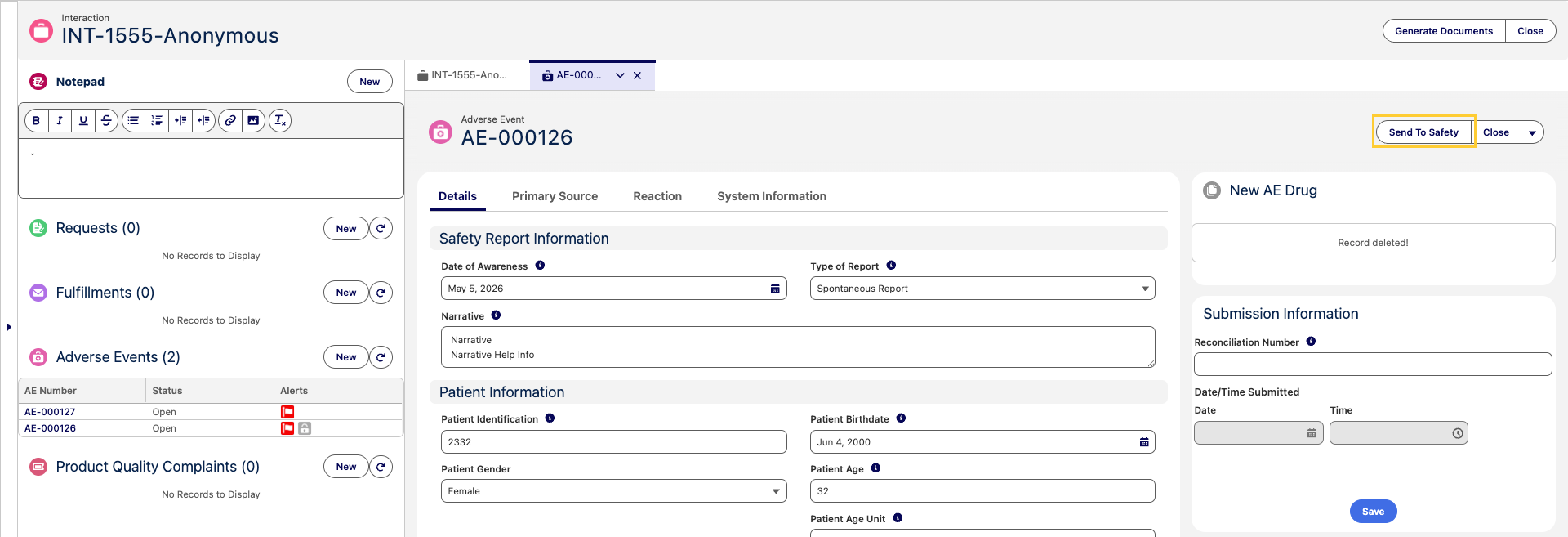
As specialists may need several days to collect Adverse Event data, applying these completeness checks on every save is not ideal. The Presubmit Validation mechanism lets administrators apply these checks only at submission time.
The Run Presubmit Validation (MED_Run_Presubmit_Validation__c) checkbox field is available on the Adverse Event (MED_Adverse_Event__c) object and on the following Adverse Event child objects:
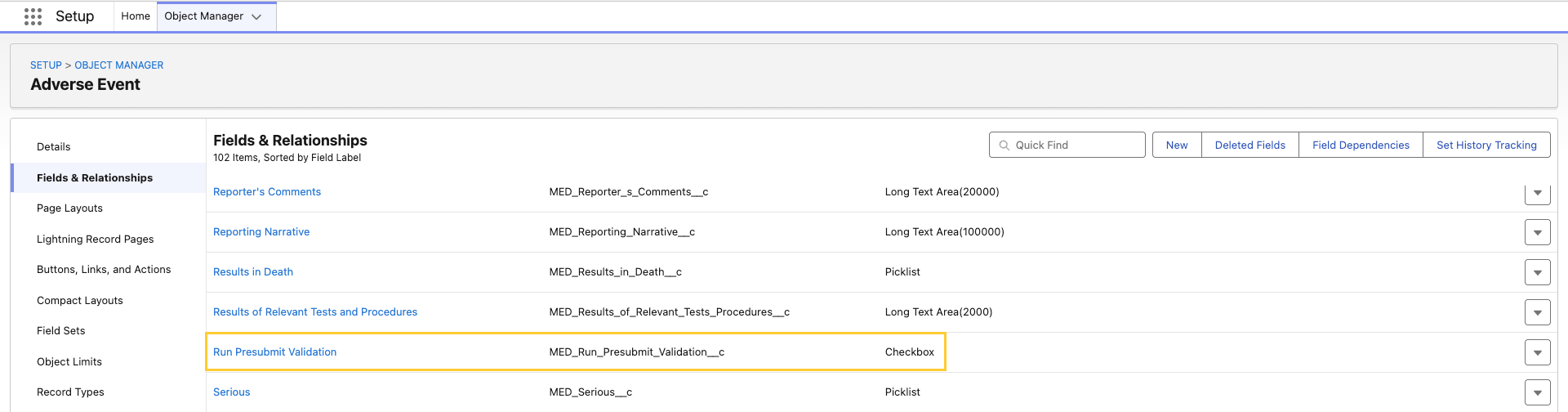
Adverse Event Child Objects
- Adverse Event Drug Information (
MED_AE_Drug_Information__c) - Adverse Event Drug History (
MED_AE_Drug_History__c) - Adverse Event Medical History (
MED_AE_Medical_History__c) - Adverse Event Primary Source (
MED_AE_Primary_Source__c) - Adverse Event Reaction (
MED_AE_Reaction__c) - Adverse Event Results (
MED_AE_Results__c)
The Run Presubmit Validation (MED_Run_Presubmit_Validation__c) field defaults to false on every record so validation rules using it are inactive during routine record edits and only enforce completeness at the moment of submission. When a user clicks Send To Safety or Generate E2B, the system sets Run Presubmit Validation to true on the parent Adverse Event record and propagates the value to every related child record. At this point, Salesforce evaluates every validation rule on the Adverse Event (MED_Adverse_Event__c) object and its child objects whose formula references the Run Presubmit Validation (MED_Run_Presubmit_Validation__c) field. If a validation rule blocks the update, the
submission is canceled and the user sees the validation error.
Use Presubmit Validation
To use Presubmit Validation:
-
Grant users access to the new Run Presubmit Validation (
MED_Run_Presubmit_Validation__c) field on the Adverse Event object and each Adverse Event child object listed above.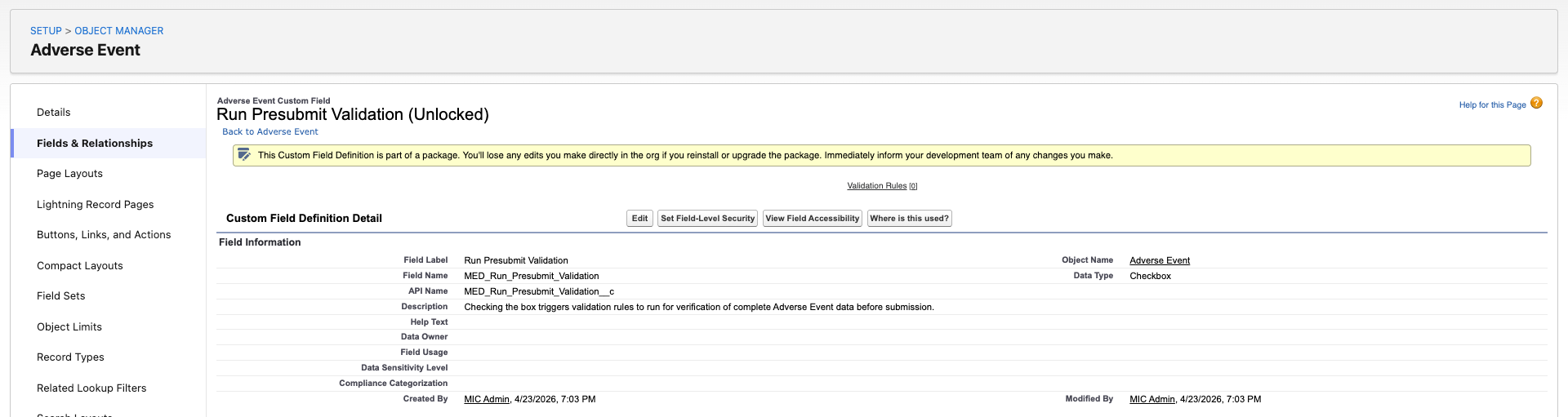
-
In the Object Manager, open the Adverse Event (
MED_Adverse_Event__c) object or an Adverse Event child object.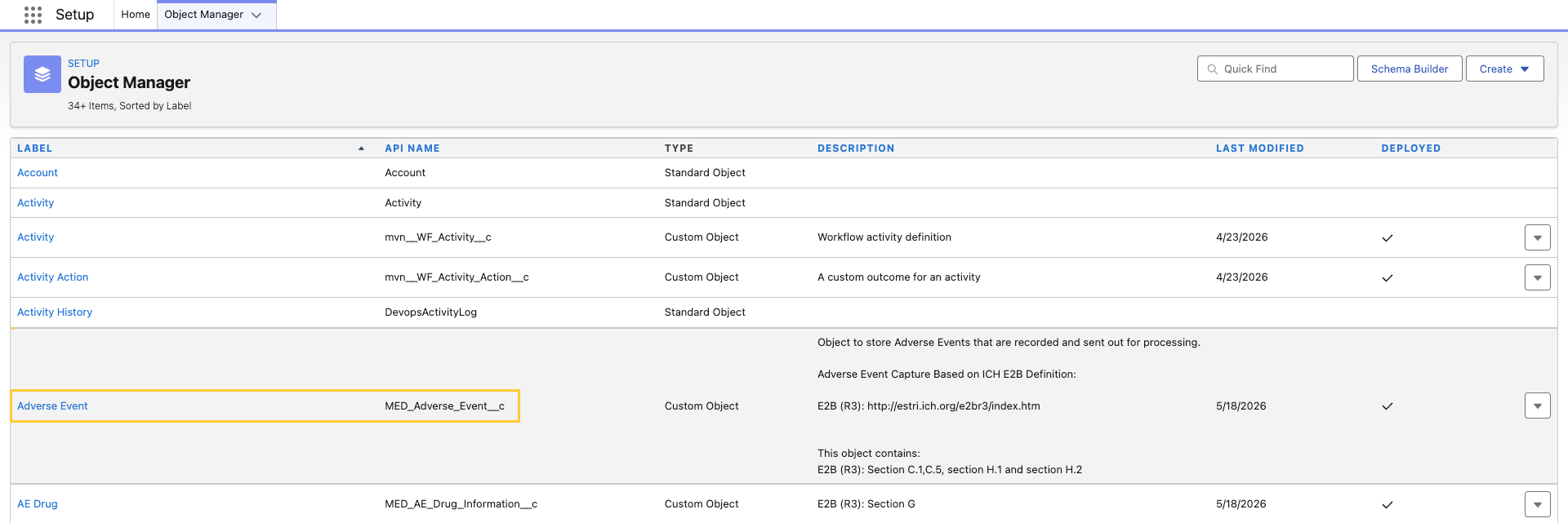
-
Create a new Validation Rule.
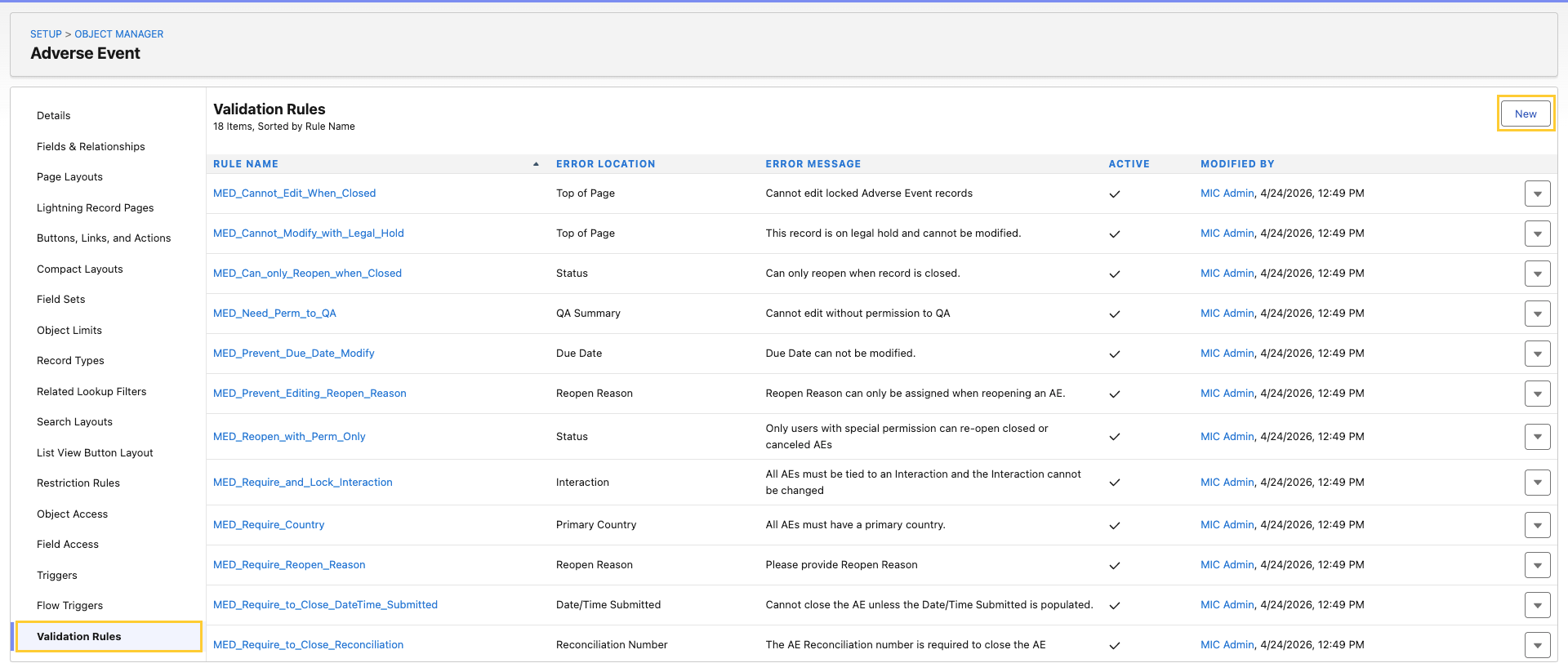
-
Configure the following:
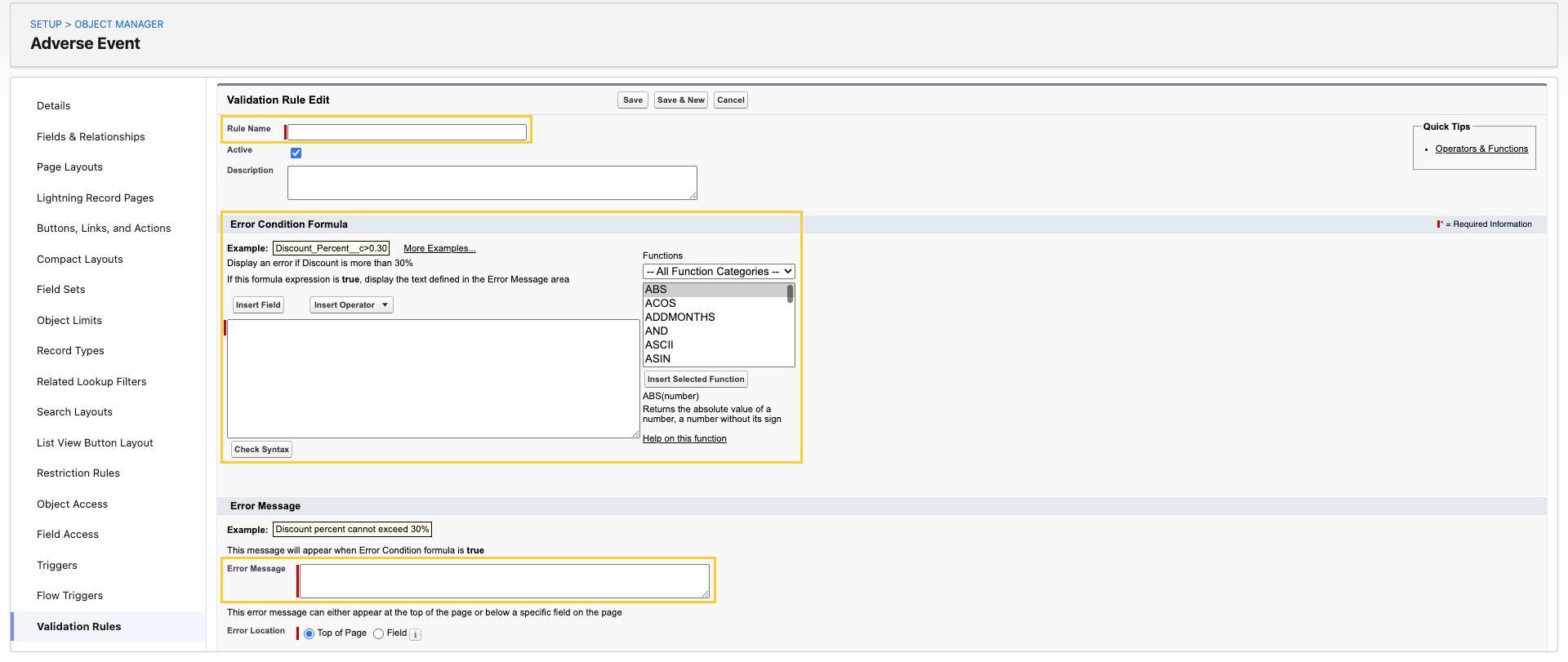
-
Rule Name - Enter a name.
-
Error Condition Formula - Here, reference the Run Presubmit Validation (
MED_Run_Presubmit_Validation__c) field and the data-completeness condition you want to enforce. For example:AND(MED_Run_Presubmit_Validation__c,ISBLANK(MED_Some_Required_Field__c)) -
Error Message - Provide an error message that tells the user which field must be populated and where it lives.
tipAdministrators can also add the Run Presubmit Validation (
MED_Run_Presubmit_Validation__c) field to the Adverse Event (MED_Adverse_Event__c) Page Layout to allow users to toggle Presubmit Validation manually before clicking a submission button (Send To Safety (MED_Send_To_Safety) or Generate E2B (MED_Generate_E2B_Action)).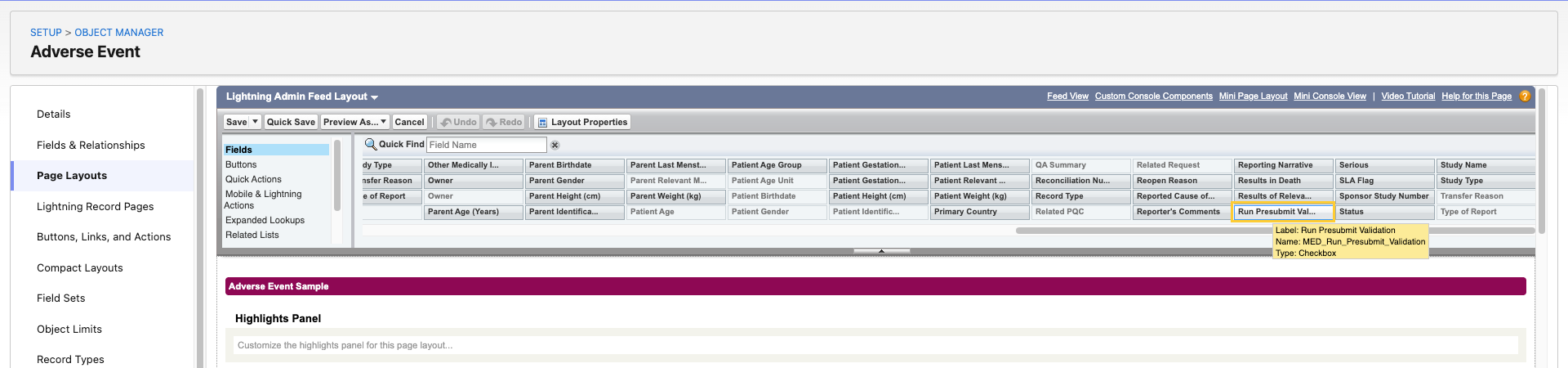
-
Fulfillment
A record that stores the written response you send via email, fax, or mail to an Account. With a Fulfillment record, you can create a package of information to send via email, mail, or fax to the account that submitted the inquiry. The Fulfillment Package includes a cover letter and all the documents used to answer the account's questions.
When you give an Account a verbal response, you do not create a Fulfillment. Fulfillments are only used for written responses.
A Fulfillment record can be configured using the
Fulfillment (MED_Fulfillment__c) custom
object.
Fulfillment package generation
A fulfillment is a document or a collection of documents that is sent to
a requester via channels like email, mail, chat, fax, and in-person
delivery to address some question or concern and resolve the medical
information request captured in the Medical Information Cloud system. To generate and send
fulfillment packages, Medical Information Cloud first uses Nintex's DocGen service to assemble
all of the selected or configured content elements as a Dynamic Document
Package (DDP) onto a Fulfillment (MED_Fulfillment__c) record and then
lets users choose how to deliver the package to fulfill the request. For
email deliveries, the system has two methods: an Email Fulfillment
option and a Digital Fulfillment option. The former takes users directly
to the email message with the fulfillment package attached, where the
email message uses predefined Classic Email Templates as configured on
the DocGen Package's Email Delivery Option. The latter, on the other
hand, allows users to construct a dynamic email template from content
elements that exist within the Regulated Content Cloud module. For more information on how to
generate and send fulfillment packages, reference the Generate packages
and Enable the package generation functionality sections below.
To generate and send fulfillment packages, users must be assigned the
DocGen User (DDP_User_All) permission set, which is included in the
Medical Information Cloud User (MED_Medical_Information_Cloud_User) permission set group. To
customize the cover letter component and email body message, users must
also be assigned the Customize Response on Fulfillment
(MED_Customize_Response_on_Fulfillment) custom permission.
Generate packages
The fulfillment package generation process involves creating a cover
letter, which merges all of the related cover letter component documents
with the relevant request and case documents, generating the merged
fulfillment package document, and then attaching the fulfillment package
as a file on a Fulfillment record, along with any request documents
whose delivery option equals Attach Separate, PDF or
Attach Separate, Original Format. The package generation functionality
must be enabled according to the Enable the package generation functionality section while the
components to be included inside the cover letter and the documents to
be merged into the package can be configured according to the
Configure cover letter component behavior and Configure which cover letter components to merge sections.
After the package generation functionality is properly enabled and configured, users can initiate the fulfillment package generation process by clicking the Generate Package button on a Fulfillment record page. This will open the Configure Fulfillment Package modal for users to modify and confirm both the contents to be included in the different sections of the cover letter as well as any documents to be merged based on their individual delivery options. If there are multiple pieces of information within a section in the cover letter, users can drag and drop the information to reorder how they appear in the cover letter.
The Configure Fulfillment Package modal also lets users choose between two delivery methods. If a user selects Finalize, the package generation job will create a single, compliant PDF file that is automatically attached to the Fulfillment record. On the other hand, if a user selects Customize, the package generation job will instead create a DOCX file for the user to further refine before finalizing as a PDF file.
To actually run the package generation job, users must click Run in the Configure Fulfillment Package modal. Afterwards, users can track the progress of the job with the Running Jobs utility bar at the bottom of the page, which can be minimized or kept open throughout the process.
When the fulfillment package finishes generating or if the package generation process runs into an error, users are notified in the Running Jobs utility bar and via the bell notification at the top of the page. If the fulfillment package is generated successfully, a link to the Fulfillment record will be available and users can subsequently choose how to deliver the fulfillment package to the requester. For email deliveries, there are two ways to send the fulfillment package, as described in the Send fulfillment packages via email section below. If the fulfillment package does not generate successfully, however, please reference the Troubleshoot Nintex errors section below. Once the Fulfillment record is closed or canceled, the package job will no longer appear in the Running Jobs utility bar.
Configure Fulfillment Package modal options ::: {wrapper="1" role="img-thumbnail"} 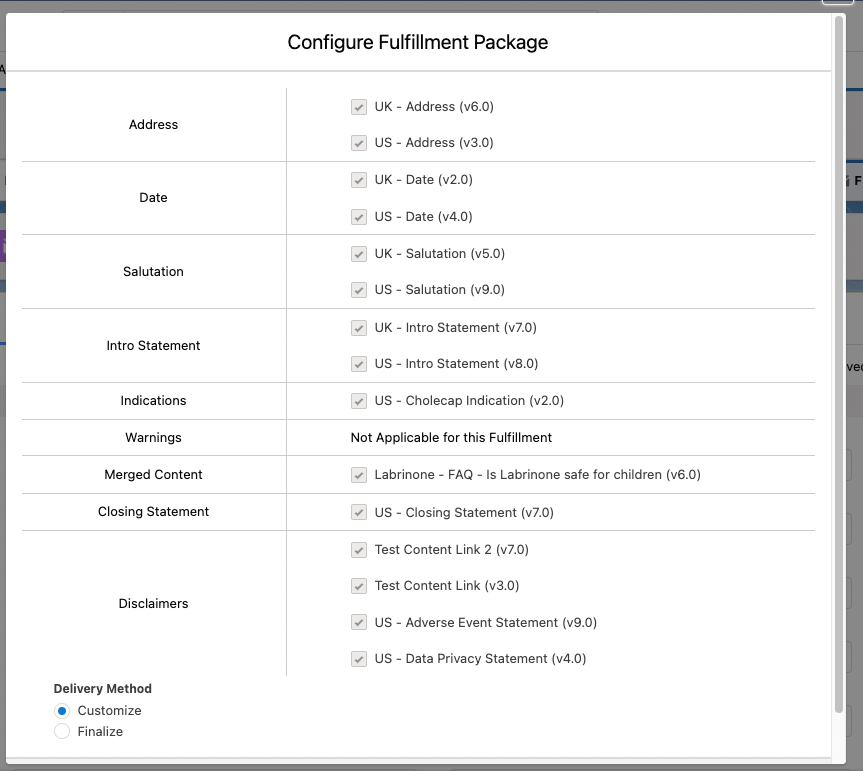 ::: ::: | Running Jobs utility bar ::: {wrapper="1" role="img-thumbnail"} 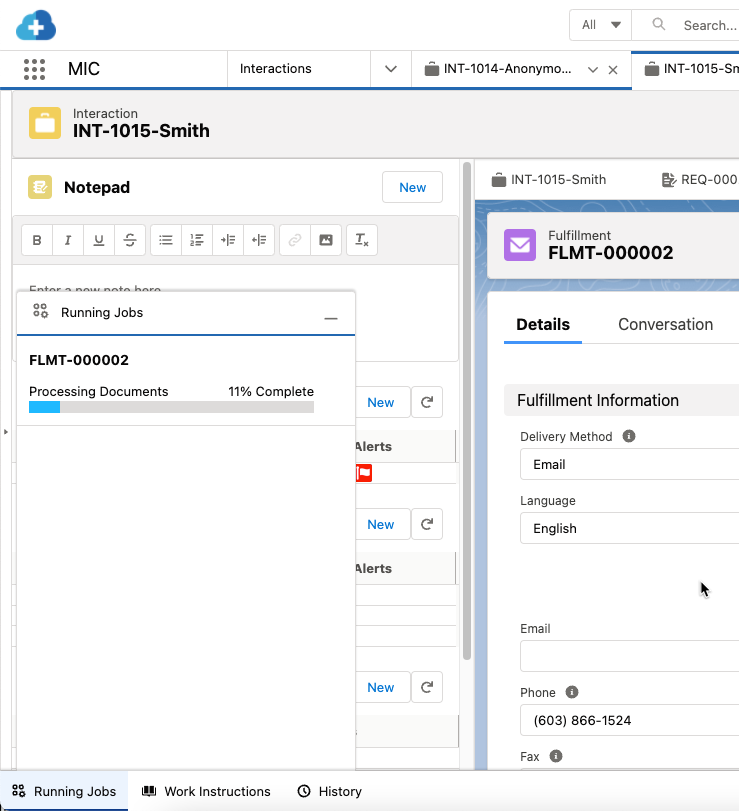 ::: ::: |
|---|
Enable the package generation functionality
To enable the fulfillment package generation functionality:
-
Add the Generate Package (
MED_Generate_Fulfillment_Package) button to the appropriate Fulfillment page layout. For information on how to add buttons to page layouts, visit Salesforce's documentation on how to Define Custom Buttons and Links. -
Add the MIC - Nintex Queue (
MED_NintexQueue) utility bar component to the Medical Information Cloud app and set the component to run automatically. For more information about the utility bar in Medical Information Cloud, visit Utility bar.
The fulfillment package generation process will not run unless the component is visible in the active app.
-
In Setup, search for and select App Manager.
-
To the right of the MIC (
Medical_Information_Cloud) app, click the dropdown arrow and then Edit. -
Click Utility Items (Desktop Only).
-
Ensure that the MIC - Nintex Queue (
MED_NintexQueue) component is in the utility bar. If it is not, click Add Utility Items and then MIC - Nintex Queue.- (Optional) Rename the label of the component from "MIC - Nintex Queue" to "Running Jobs".
-
Ensure that the MIC - Nintex Queue component is set to start automatically. If it is not, check Start automatically.
-
Click Save.
Load default DDPs
Dynamic DocGen Packages (DDPs) are used to generate fulfillment packages
as well as to create snapshots of Medical Information Cloud records, enabling the Generate
Package, Generate Snapshot, and Send To Safety buttons on
Fulfillment (MED_Fulfillment__c), Request (MED_Request__c), and
Adverse Event (MED_Adverse_Event__c) record pages, respectively. You
can choose to either use Medical Information Cloud's default DDPs, modify them, or create your
own. The Package Job
(mvn__MED_Package_Job__c) object facilitates the processing of DDPs.
To load the default Inquiry Management DDPs into your Salesforce environments with the Install Service, install the Medical Information Cloud - Setup configuration and run the optional "Load default DDPs and enable files" step.
The standard Generate Package, Generate Snapshot, and Send to
Safety buttons in Medical Information Cloud are object links with URL parameters that contain
specific DDP tags. For instance, the filter parameter is the specific
tag that the Medical Information Cloud system needs in order to know which DDP to use.
If you are modifying or creating your own DDPs, you can include record
data using merge field notation. This will enable you to configure
dynamic delivery options under different criteria. For example, if you
set the filter parameter in the URL so that it equals
REQSnapshotDDP_ plus the 2-digit ISO country code, then the filter for
requests in the United States would look like REQSnapshotDDP_US.
However, keep in mind that if you update the parameters in the URL to
use a dynamic value and there is no DDP with a matching filter value,
then the system will fail to generate the DDP.
For more information about object links and merge fields, reference Salesforce's documentation on how to Provide Actions, Buttons, and Links and Merge Fields, respectively.
Configure cover letter component behavior
To identify which content elements can be included in the cover letter
of a fulfillment package, such that they can be selected and organized
in the Configure Fulfillment Package modal, use the
Dynamic Fulfillment Setting
(MED_Dynamic_Fulfillment_Setting__mdt) custom metadata type. Each
Dynamic Fulfillment Setting metadata record represents a collection of
settings that define how the cover letter components should be merged
into the cover letter. First, the Subtype (MED_Document_Subtype__c)
field determines which Document
(mvn__CM_Document__c) record(s) the information should be retrieved
from. Then, the other Dynamic Fulfillment Setting metadata fields
specify which cover letter components are optional or required, what
default values should be set for certain components, what order or what
section each piece of information should appear in the cover letter and
modal, how the selected components should be combined, and more.
Configure which cover letter components to merge
To configure the optional, conditional criteria that determine which
cover letter components should be merged into a fulfillment package, use
the Dynamic Fulfillment Filter
(MED_Dynamic_Fulfillment_Filter__mdt) custom metadata type. Each
Dynamic Fulfillment Filter metadata record represents some criteria for
filtering cover letter components by matching the configured Fulfillment
Field (MED_Fulfillment_Field__c) value to the corresponding Document
Field (MED_Document_Field__c) value. For example, if a typical
fulfillment package needs a specific indication statement to apply for a
healthcare professional versus a consumer, you may wish to create a
Dynamic Fulfillment Filter metadata record related to a Dynamic
Fulfillment Setting metadata record for indication cover letter
components. On the Dynamic Fulfillment Filter metadata record, the
Fulfillment Field value on the former can be set to equal a custom
formula field called Account_Type__c that retrieves the Account record
type (MED_Account__r.MED_Record_Type_Name__c) value while the Document
Field value would relate to the MED Allowed Audience
(MED_Allowed_Audience__c) CMS Field Mapping
(MED_Document_Field_Mapping__mdt) metadata record. After the filtered
components are retrieved, they are displayed in the Generate Fulfillment
Package modal and are available to be merged into the fulfillment
package in place of all of the cover letter components of that subtype.
Configure documents to merge
To configure how a document in the Regulated Content Cloud module behaves during the fulfillment
package generation process, modify the document's metadata.
Specifically, the Delivery Option (mvn__CM_Delivery_Option__c) field
on the Document Version
(mvn__CM_Document_Version__c) object, which is a required field when
creating new content in the Regulated Content Cloud module, directs how the document should be
handled when it is associated with an
Interaction (Case) and
Request (MED_Request__c) record.
For example, a document containing a standard response to a question may
have a Delivery Option value of Merge Into Package, which indicates
that the document will be inserted into the fulfillment package when the
fulfillment package generation process completes. Meanwhile, a document
containing a journal article may have a Delivery Option value of
Attach Separate, Original Format, which indicates that the document
will be added as an unmodified article to the Fulfillment record as a
file during the fulfillment package generation process and will be
included as an attachment when a requester is emailed the fulfillment
response.
The table below lists all of the possible document behaviors.
Document delivery options
| Delivery option | Description |
|---|---|
| Attach Separate, Original Format | The document will be included in the fulfillment package as a separate file or attachment in the format that it was originally uploaded in. |
| Attach Separate, PDF | The document will be included in the fulfillment package as a separate PDF file. |
| Merge into Package | The document will be combined with other documents related to the Interaction record that also have the Merge into Package delivery option, and all of the documents will be included in the fulfillment package as a single PDF file. |
| Send as Link | The document will be delivered to the requester as a link. |
| HTML Only | The document will be included in an email body message. This should only be used if the fulfillment package is to be sent via the email method, and only the information on the Content (rich text) (mvn__CM_Content_Rich_Text__c) field on the Document Version record will be used. |
Troubleshoot Nintex errors
If you experience an error during the fulfillment package generation process, Mavens recommends performing the following troubleshooting steps:
-
Make sure the documents actually have files and placeholders.
-
Review the Special considerations section below and check every document in the package for compliance.
If you still experience any issues, please open a Nintex case with the error ID.
Special considerations
Please keep the following special considerations in mind when creating and preparing any documents to be included in fulfillment packages and when running the fulfillment package generation process:
-
Users must be assigned the Medical Information Cloud User (
MED_Medical_Information_Cloud_User) permission set group, which includes the DocGen User (DDP_User_All) permission set. -
The file types that can be converted to PDFs for generating fulfillment packages include:
-
Microsoft Word (.doc, .docx)
-
Microsoft Excel (.xla, .xlsx, .xlsm)
-
Microsoft PowerPoint (.ppt, .pptx)
-
PDF
-
Plain Text (.txt)
-
CSV (comma-separated values)
-
Any non-Microsoft documents will be attached separately, producing multiple files instead of one consolidated PDF.
Do not mix .doc and .docx files within the same package.
-
Only native Word fonts are supported. If a generated PDF has font issues, embed the fonts in the Microsoft document(s) and regenerate the package.
-
The following DDP features are supported:
-
Insert-update
-
Data sources
-
Merge fields
-
-
The following DDP features are not supported:
-
Pause to edit
-
DocGen package forms
-
Documents (list on DDP is dynamically created and any in the DDP template are ignored)
-
-
Do not password protect files.
-
Do not upload a file and use the Context (rich text) (
mvn__CM_Content_Rich_Text__c) field on a document. This is because the Generate Package button for generating the fulfillment packages merges documents without rich text while the Digital Fulfillment button for creating the email body message for the Digital Fulfillment feature only merges documents with rich text. -
If you are using the Digital Fulfillment feature, merge fields that reference a nonexistent field and/or return a
nullor empty value will simply appear blank in the email and will not throw an error. However, merge fields that include HTML code (e.g.,\<span\>elements) will throw an error. -
If you are using Email-to-Case, make sure you include at least one cover letter component that references the Case Thread Token (
MED_Case_Thread_Token__c) field on the Fulfillment record.
Send fulfillment packages via email
After a fulfillment package is generated, users can send the fulfillment
package to the requester via channels like email, mail, chat, fax, and
in-person delivery. For email deliveries, users can use either the
Email Fulfillment (MED_Email_Fulfillment) button or the Digital
Fulfillment (MED_Generate_Fulfillment_Letter) button on the
Fulfillment record page. The two buttons use different email components
and processes to send the fulfillment package, and Mavens recommends using the
latter for emailing as it is a newer feature in Medical Information Cloud that is more flexible
for digital deliveries. You will need to add the Digital Fulfillment
quick action to the appropriate page layout to enable it for users.
Email Fulfillment
If a user clicks the Email Fulfillment button on the Fulfillment record page, an email component will open in a new subtab and attach the fulfillment package to the email. The email body can be configured with an email template. For more information, reference Salesforce's documentation on Email Templates in Lightning Experience.
Digital Fulfillment
Digital Fulfillment is the Medical Information Cloud workflow for delivering a Fulfillment as an email with merged or attached PDF content. It uses the Lightning email composer (the Enhanced Email Composer) for the email body and a two-step Prepare/Finalize flow for the merged document package.
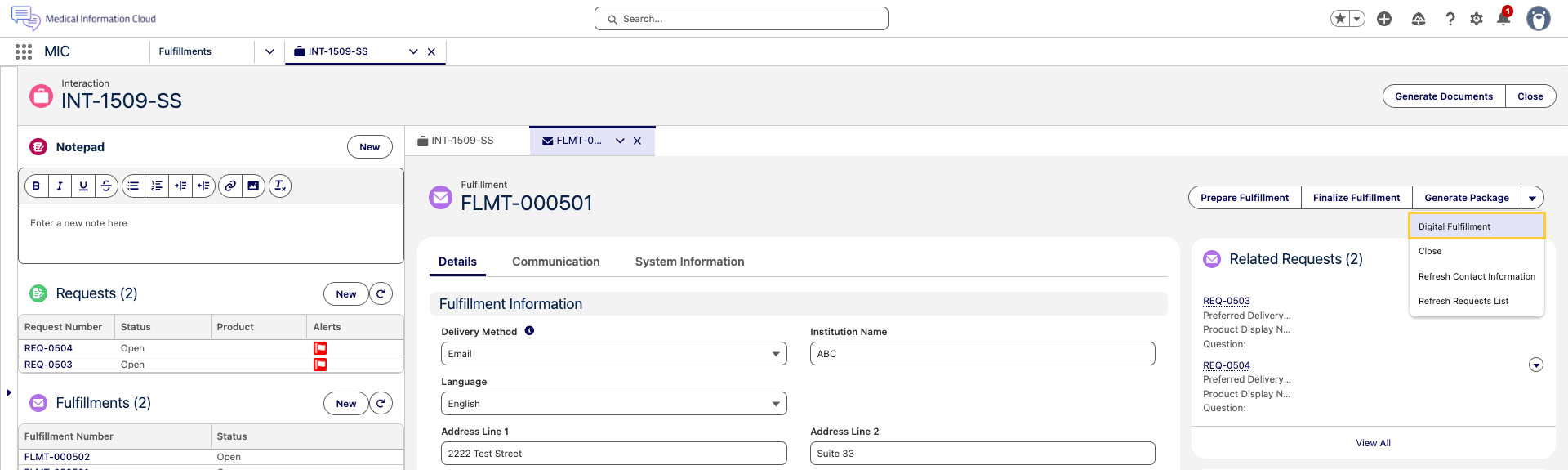
Run a Digital Fulfillment
Follow the steps below to run a Digital Fulfillment:
-
Open a Fulfillment record and click Refresh Requests List.
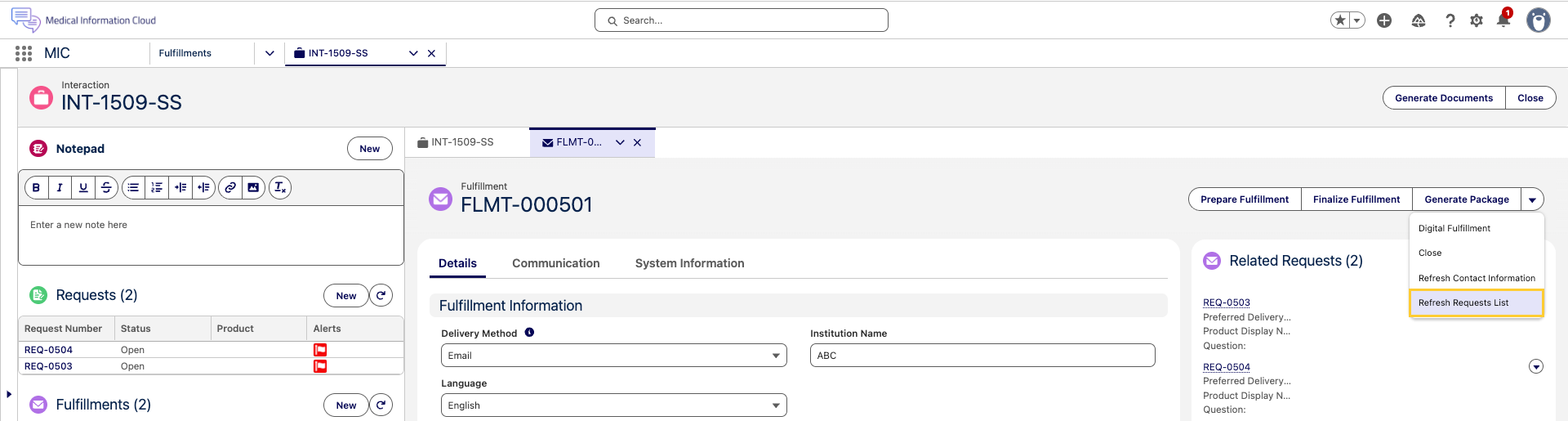
-
The Questions (
MED_Questions__c) and Attachments (MED_Attachments__c) rich text fields are populated from the Fulfillment's Request Fulfillments and linked files. Optionally, edit either field if you need to override the default summary.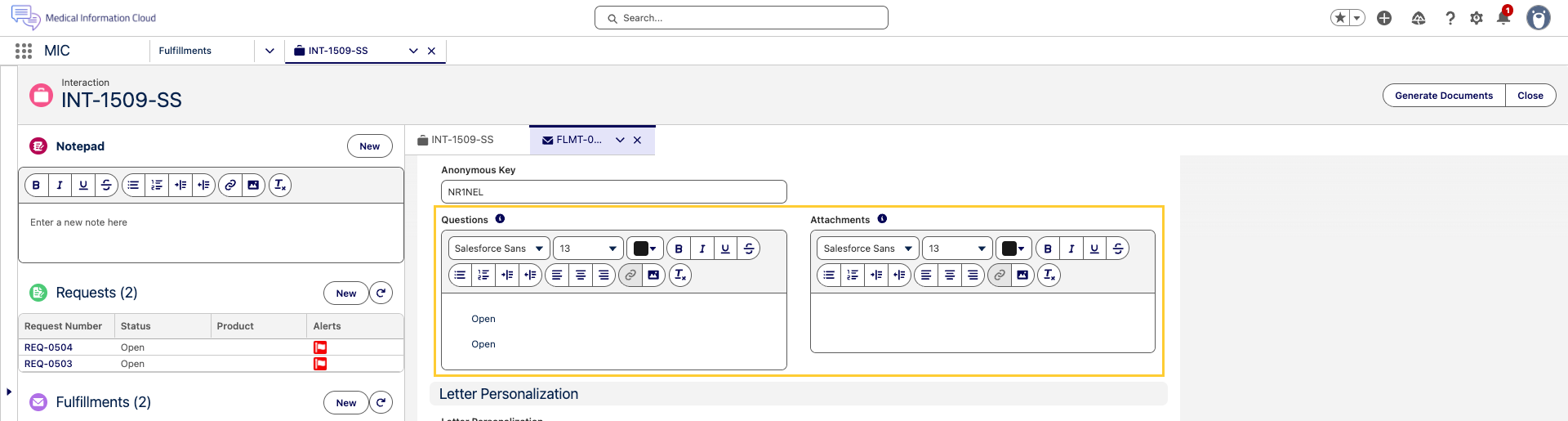
-
To send the fulfillment as an email, click Digital Fulfillment.
-
The Enhanced Email Composer modal opens with the email body preview. Click Email when ready.
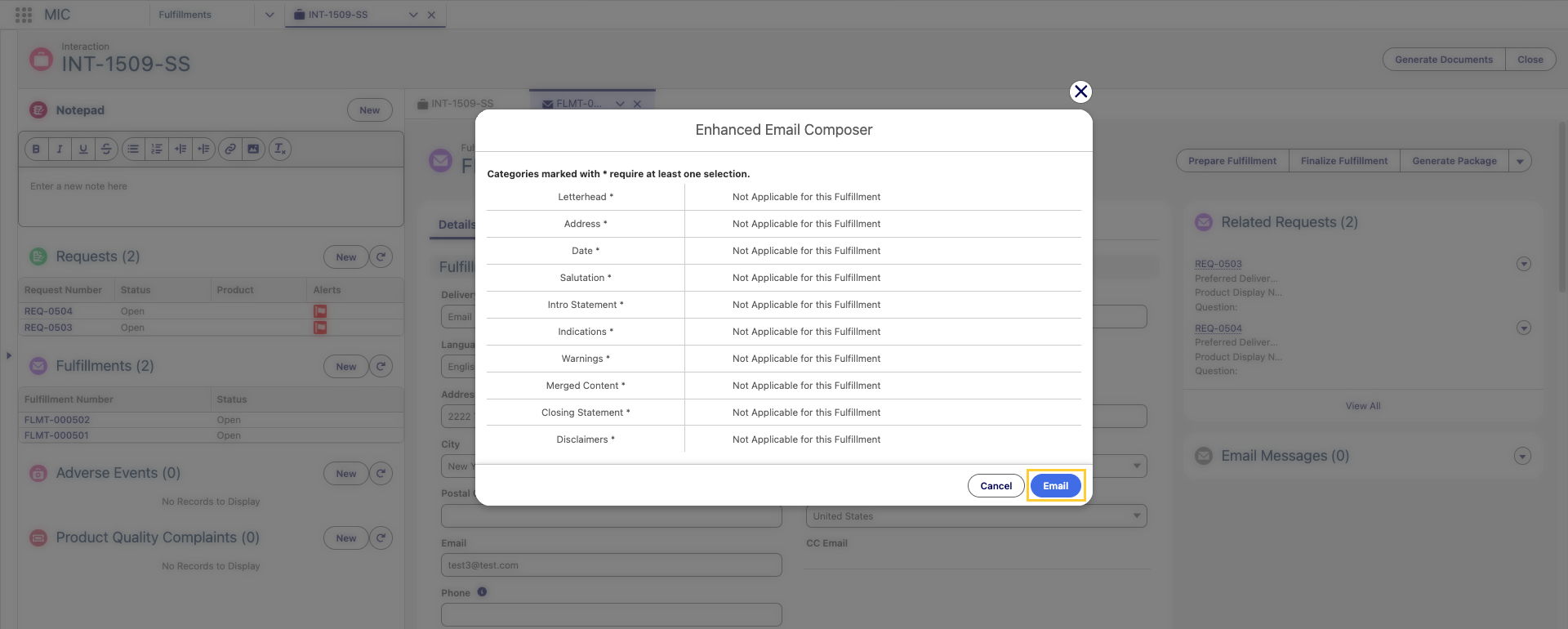
-
To deliver the fulfillment as a single merged PDF, click Prepare Fulfillment.
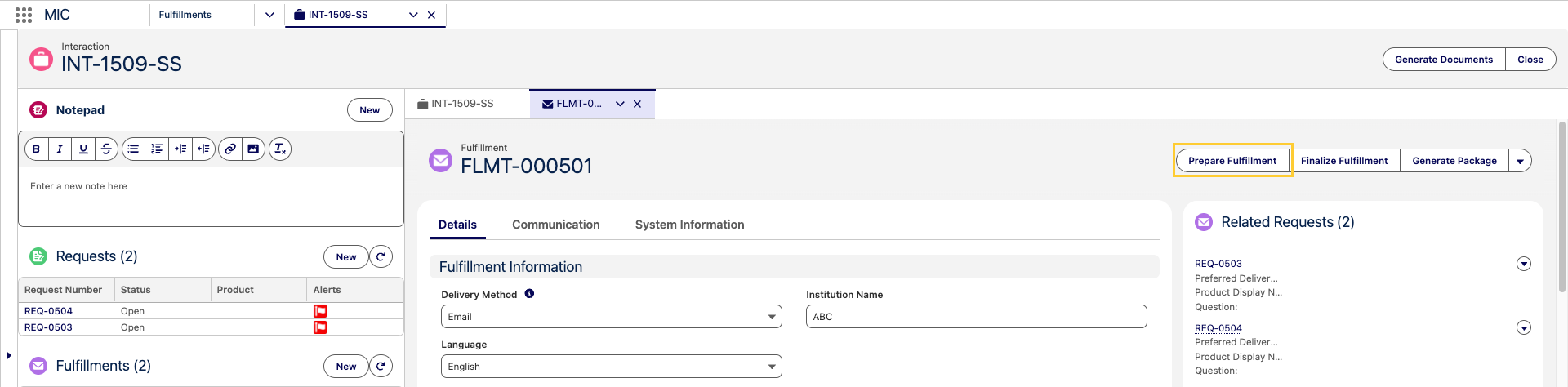
-
Review and reorder the files, choose Delivery Method for each section, and click Merge.
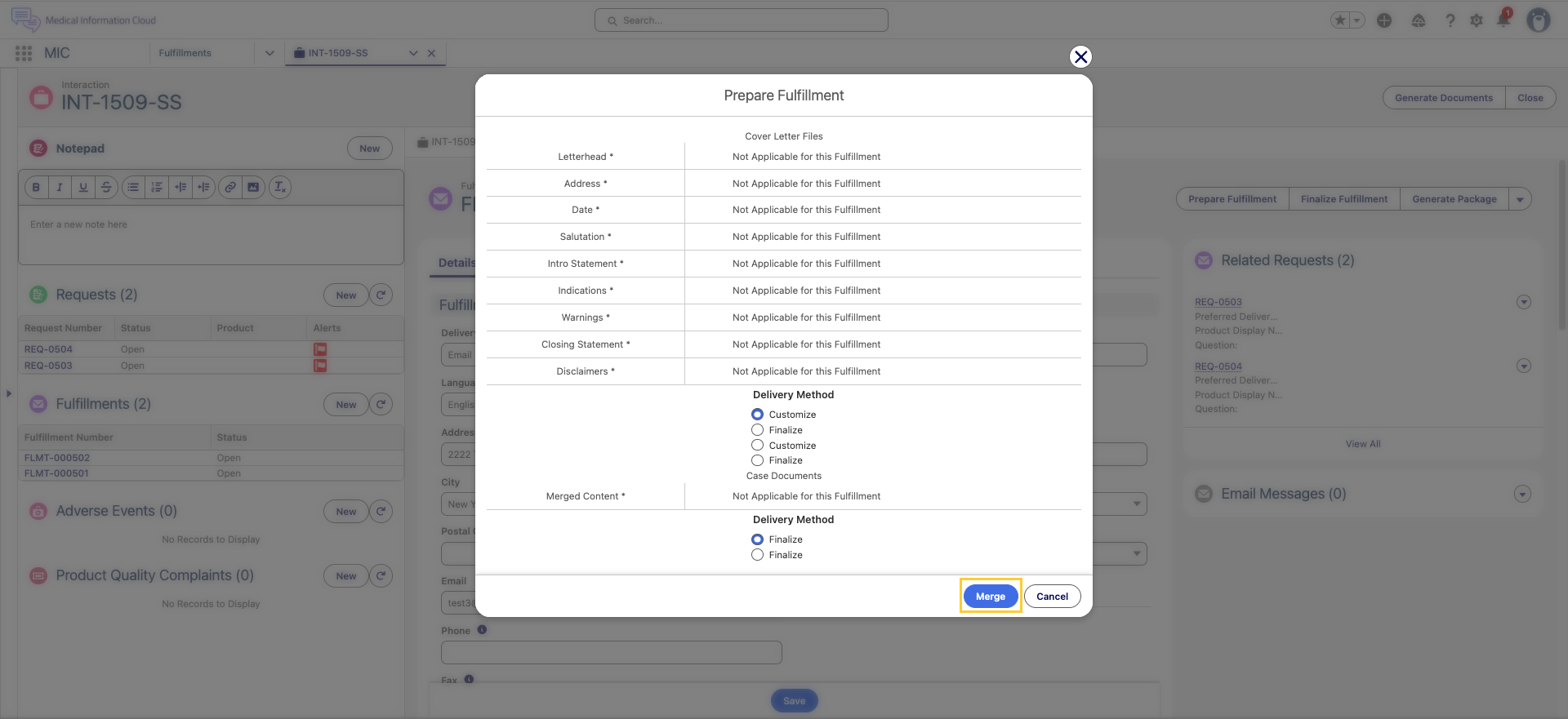
-
Wait for the two Running Jobs to complete in the package queue.
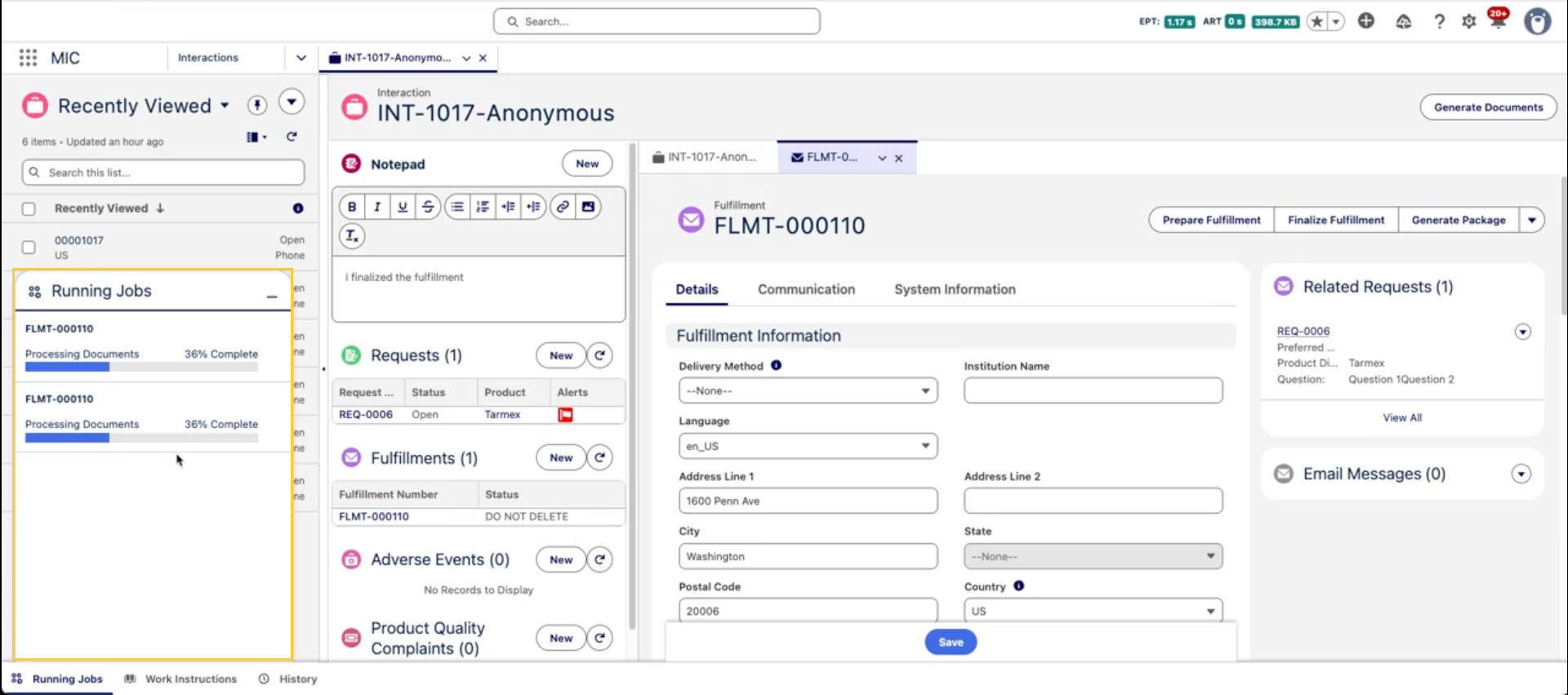
-
Click Finalize Fulfillment.
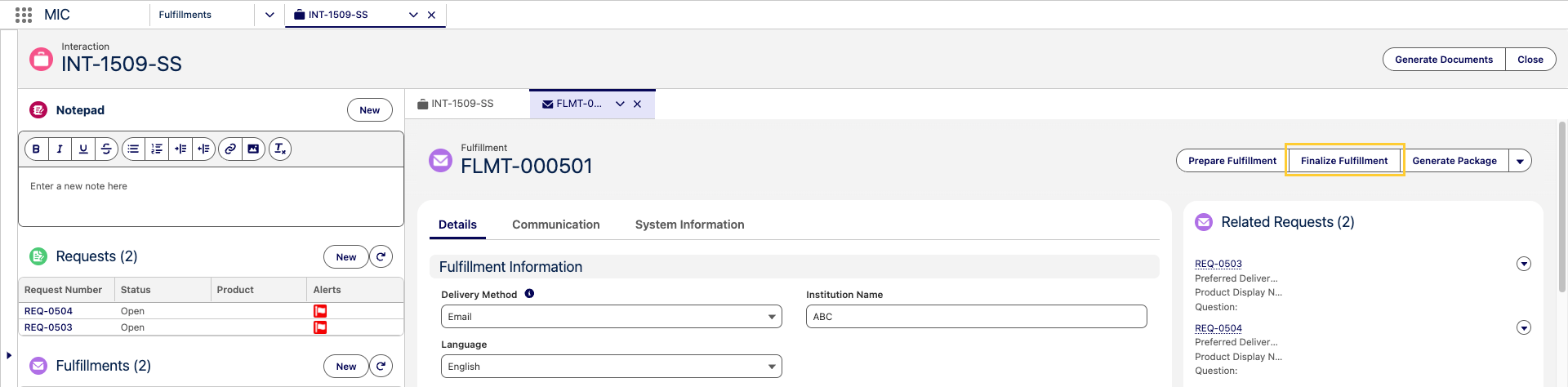
-
Confirm the order of files in the final package and click Merge.
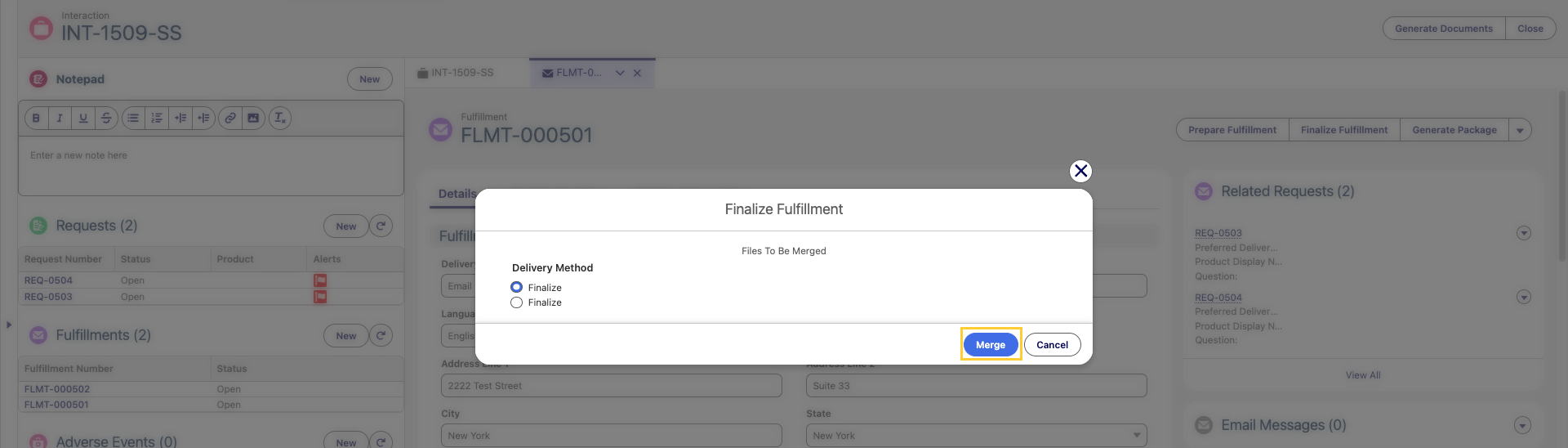
-
The final fulfillment PDF is produced and the intermediate files generated by Prepare Fulfillment are deleted.
Running Finalize Fulfillment before the two Prepare Fulfillment jobs have completed produces an incomplete final PDF. Wait for the package queue to report that the Prepare jobs are done before clicking Finalize Fulfillment.
If a user clicks the Digital Fulfillment button on the Fulfillment record page, an Enhanced Email Composer modal will open where the user can modify and confirm the content to be included in the email. Each piece of information is pulled from the Content (rich text) (mvn__CM_Content_Rich_Text__c) field on a Document Version record, and if a section contains multiple pieces of information, users can drag and drop the content to reorder how they appear in the email body.
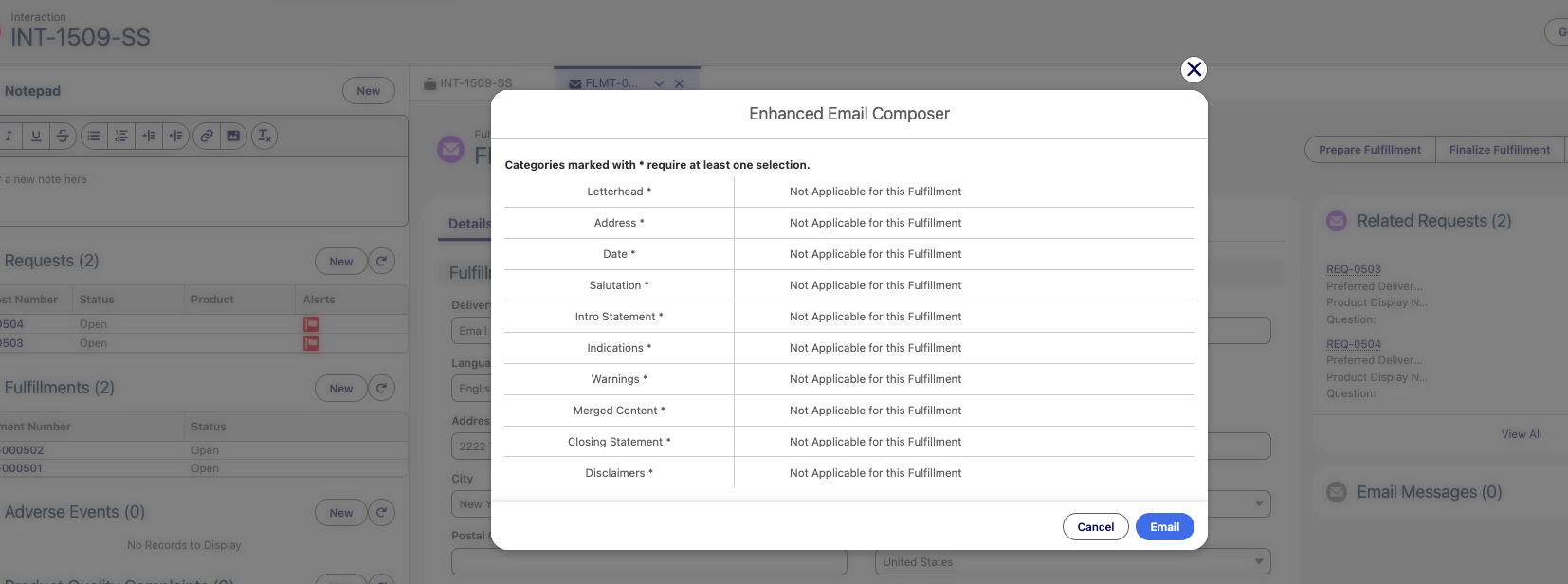
When the user clicks Email at the bottom of the Enhanced Email Composer modal, an Email Fulfillment component will open in a new subtab. The email body will be populated according to the information from the Enhanced Email Composer modal and the email attachments will include the generated fulfillment package. Users without the Customize Response on Fulfillment permission set can change the To and From values but cannot modify the Subject field, the Body message, or the attachments.
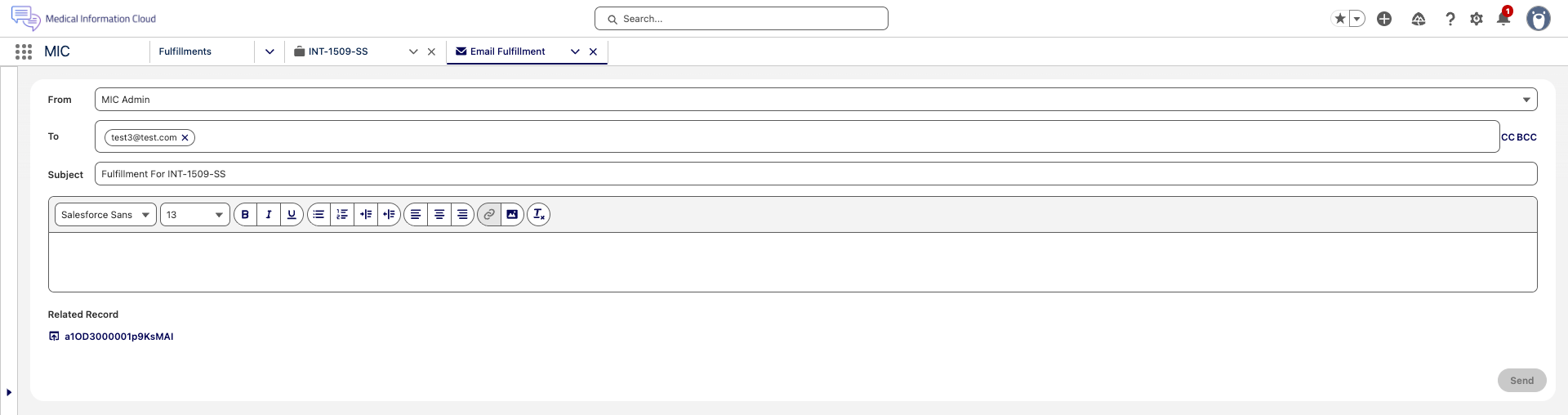
For more information about the fields in the Digital Component email, reference the Digital Fulfillment email component fields table below.
The Configure Fulfillment Package modal for the fulfillment package generation process and the Enhanced Email Composer for the Digital Fulfillment feature are separate and different. The former is used to generate the cover letter components and merge related documents into the fulfillment package while the latter is used to generate the body message and attach files to the email. However, the format and content of the cover letter and the email body are both controlled by the Dynamic Fulfillment Setting custom metadata type and may be identical. As a result, for information on how to configure the Enhanced Email Composer modal for Digital Fulfillment, reference the Configure cover letter component behavior section above.
Digital Fulfillment email component fields
| Field | Default value | Additional notes |
|---|---|---|
| From | Defaults to the Fulfillment Outbound Email (MED_Fulfillment_Outbound_Email__c) value on the selected country or segment's Local Setting (MED_Local_Setting__mdt) custom metadata record. The email on the Fulfillment Outbound Email field must be an organization-wide email address. | The From field will default to the Fulfillment Outbound Email value but will include all available organization-wide email addresses as well as the current user's email address for the user to select from. |
| To | Defaults to the Email (MED_Email__c) value on the Fulfillment record. | |
| CC | Defaults to the CC Email (MED_CC_Email__c) value on the Fulfillment record. | |
| BCC | N/A | |
| Subject | Defaults to the Fulfillment Email Subject Label (MED_Fulfillment_Email_Subject_Label__c) value on the selected country or segment's Local Setting (MED_Local_Setting__mdt) custom metadata record. The value on the Fulfillment Email Subject Label field must be a reference to a custom label. For new installs of Medical Information Cloud on Fall '25 (or above), the Default (Default) Local Setting metadata record uses the MED_Fulfillment_Email_Subject custom label. | The custom label can include merge fields. |
| Body | Includes the Content (rich text) (mvn__CM_Content_Rich_Text__c) value on the Document Version (mvn__CM_Document_Version__c) record of every document to be included in the fulfillment package. In other words, this is the merged result of the content inside the Enhanced Email Composer modal after clicking the Digital Fulfillment action. Merge fields in the cover letter component's rich text are automatically replaced with the corresponding Fulfillment record values. | The Body field can have a maximum of 384,000 characters, according to Salesforce's Email Body Character Limits. Users can add images to the Body field but should only embed publicly available images that are either hosted in a Salesforce org and shared with a link or hosted on an external website to the Body field. Note: Users should not use the image option in the rich text toolbar to attach local images. To best ensure that images are properly included in the fulfillment emails, users should either insert the URL of the image or copy the image from the public location (e.g., right click on the image and select Copy) and then paste the image into the rich text field (e.g., right click in the field and select Paste). |
| Related Record | Shows the ID of the related Fulfillment record. | |
| Attachments | Includes all of the files on the Fulfillment record. | Users can click the X icon on an attachment to remove it from the email as well as drag and drop the attachments to reorder them. |
The Digital Fulfillment workflow has two complementary parts:
-
Cover letter authoring - The email body and any inline content pulled from related records (Questions answered, Attachments, and other configured summaries). This part is driven by the Questions (
MED_Questions__c) and Attachments (MED_Attachments__c) rich text fields on the Fulfillment (MED_Fulfillment__c) object and by the Fulfillment Child Summary (MED_Fulfillment_Child_Summary__mdt) custom metadata type, which controls how related records are summarized into those fields. -
Package assembly - The production of the final fulfillment PDF and separate attached PDFs, when applicable. This part is driven by the Prepare Fulfillment and Finalize Fulfillment quick actions on the Fulfillment record (by the
Global Cover Letter Template,Global Case Documents Template, andGlobal Final TemplateDDP records), and by the Template Case DDP Name (MED_Template_Case_DDP_Name__c) and Template Final DDP Name (MED_Template_Final_DDP_Name__c) fields on the Local Setting (MED_Local_Setting__mdt) custom metadata type.
Cover letter authoring
Questions and Attachments fields
The Fulfillment (MED_Fulfillment__c) object has two rich text fields that hold the lists shown to end users in the cover letter email body:
| Field | Purpose | How it is populated |
|---|---|---|
Questions (MED_Questions__c) | List of questions answered by the fulfillment. | Populated when the Digital Fulfillment quick action is used; refreshed by the Refresh Requests List quick action or whenever Request Fulfillment children are recreated. |
Attachments (MED_Attachments__c) | List of files that will accompany the email fulfillment. | Refreshed whenever files are attached to or removed from the Fulfillment record. |
Both fields are editable by users with the Medical Information Cloud Admin (MED_Medical_Information_Cloud_Admin) and Medical Information Cloud User (MED_Medical_Information_Cloud_User) permission sets.
End users can edit either value to override the default summary in the email body. The Medical Information Cloud automation only replaces a value when the upstream data changes. Manual values
entered on a Fulfillment whose Requests and Files have not changed are preserved.
To use these fields in a cover letter component, reference Questions (MED_Questions__c) or Attachments (MED_Attachments__c) like any other Fulfillment field. The values are stored as HTML so that the email body retains the bulleted or tabular layout produced by the framework.
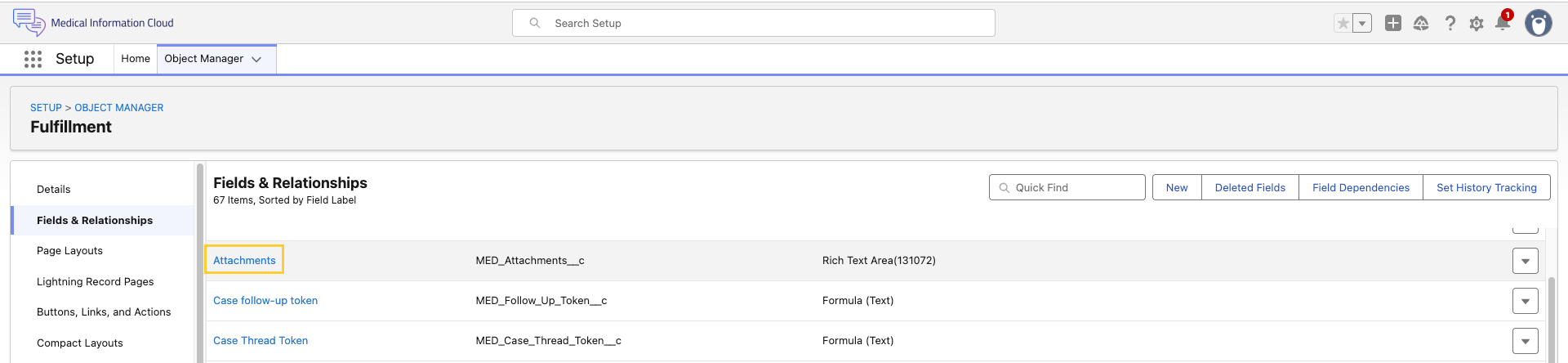
Fulfillment Child Summary
The Fulfillment Child Summary
(MED_Fulfillment_Child_Summary__mdt) custom metadata type drives which child records on a Fulfillment are summarized, how they are formatted, and where the formatted HTML lands. Each record on the custom metadata type configures one summary.
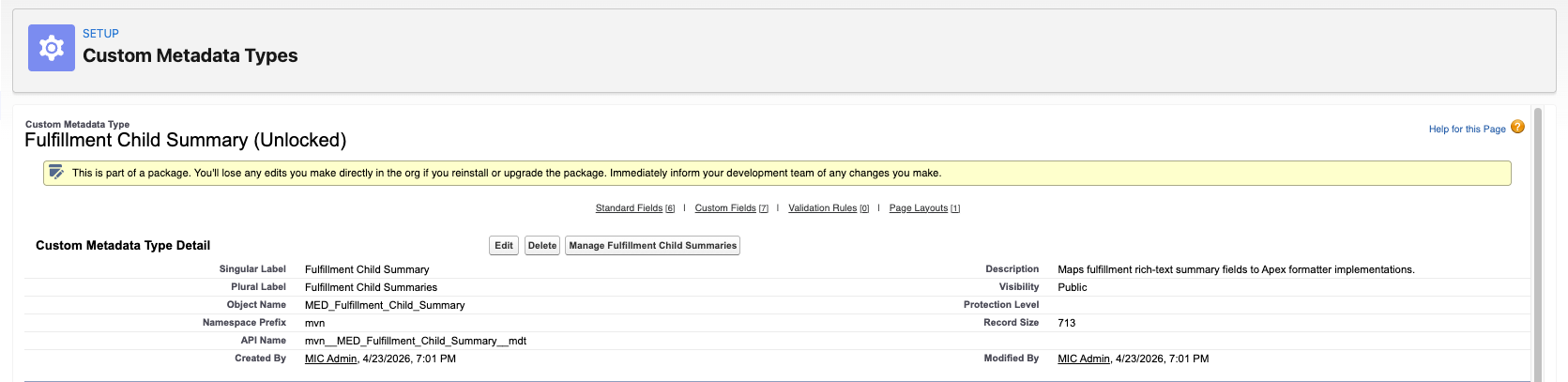
Fulfillment Child Summary fields
| Field | Description |
|---|---|
Active (MED_Active__c) | When checked, the Fulfillment Child Summary orchestrator includes this row. Clear to turn off the mapping without deleting the record. |
Child Query Where Clause (MED_Child_Query_Where_Clause__c) | Optional SOQL WHERE fragment applied to the child query. Use it to filter, for example, to only Open Request Fulfillments. |
Child Relationship Name (MED_Child_Relationship_Name__c) | The API name of the child relationship on (Fulfillment) MED_Fulfillment__c. The relationship name resolves to the child SObject that will be summarized. Required for list and table formatters. |
Field Set (MED_Field_Set__c) | The field set on the child object that defines the columns or list field. The first field in the field set is used as the list item value when the formatter renders a bulleted list. |
Formatter Class (MED_Formatter_Class__c) | The Apex class used to render the summary HTML when Handler Type is custom. The class must implement MED_IFulfillmentChildHtmlBuilder. |
Handler Type (MED_Handler_Type__c) | When set to custom, the orchestrator uses the Apex class named in Formatter Class. When set to the API name of an Apex class that implements MED_IFulfillmentChildHtmlBuilder (for example, MED_FulfillmentReqDocsListHtmlBldr), that class is used directly. |
Target Field (MED_Target_Field__c) | The API name of the rich text field on MED_Fulfillment__c that receives the rendered HTML. |
Adding a new summary
To surface another related list on the Fulfillment record:
-
In Setup → Custom Metadata Type, open Fulfillment Child Summary.

-
Click Manage Fulfillment Child Summaries.

-
Click New.

-
Configure the following:
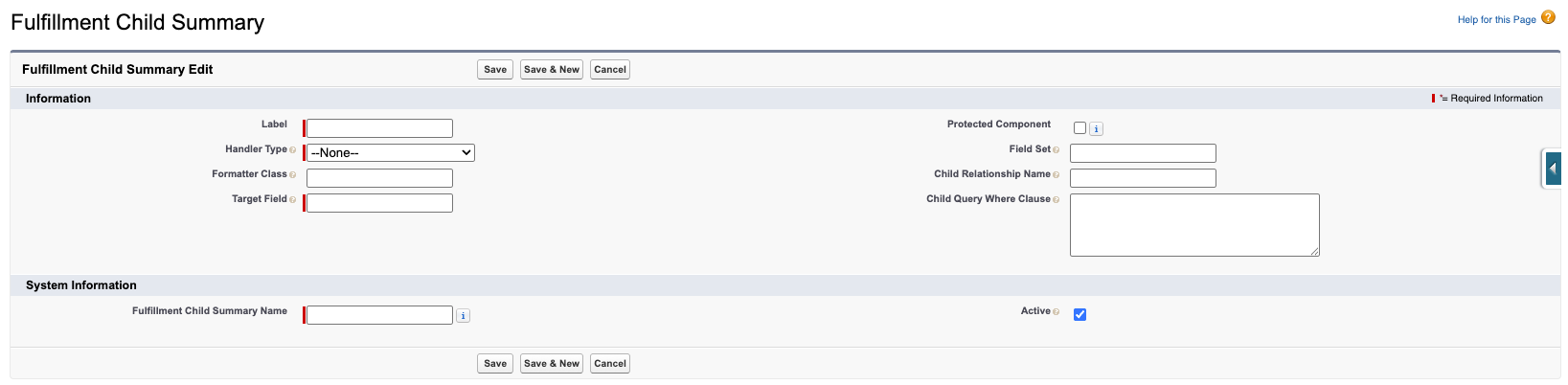
- Label and Fulfillment Child Summary Name - Enter a name.
- Handler Type - Choose a Handler Type from the following:
- Custom Formatter Class: To use, add a custom class that implements
MED_IFulfillmentChildHtmlBuilderin Formatter Class. - Fulfillment Child - List: To use this formatter that uses the
Child_Relationship_Name__clookup, set Formatter Class toMED_FulfillmentChildListHtmlBuilder. - Fulfillment Child - Table: To use this formatter that uses the
Child_Relationship_Name__clookup, set Formatter Class toMED_FulfillmentChildTableHtmlBuilder. - Request Documents - List: To use this formatter, enter the
Apex class API name directly in Handler Type
(
MED_FulfillmentReqDocsListHtmlBldrorMED_FulfillmentFilesListHtmlBuilder) and leave Formatter Class empty.
- Custom Formatter Class: To use, add a custom class that implements
- Target Field - API name of the rich text (HTML) field on
MED_Fulfillment__cthat will receive the rendered HTML (generated summary). - Field Set - Enter the Field Set API name. Create the field set on the child object first if it does not exist yet.
- Child Relationship Name - For a list or table of records that hang directly off Fulfillment, enter the Child Relationship Name (for example,
MED_Request_Fulfillments__r). - Child Query Where Clause - Optionally, enter a Child Query Where Clause to filter the summarized records.
- Active - Set to (✓) to enable it.
- Save.
The new summary is picked up on the next Fulfillment trigger that runs the orchestrator (record creation or Refresh Requests List).
Inserting a new summary that targets a field that does not exist on Fulfillment (MED_Fulfillment__c) produces no output. Create the rich text field
first, grant Read and Edit access to the relevant permission sets, and
then point the summary at it.
Refresh behavior
The Medical Information Cloud trigger pipeline runs the orchestrator in two situations:
-
When new Request Fulfillment (
MED_Request_Fulfillment__c) records are created for a Fulfillment, including when Refresh Requests List is clicked.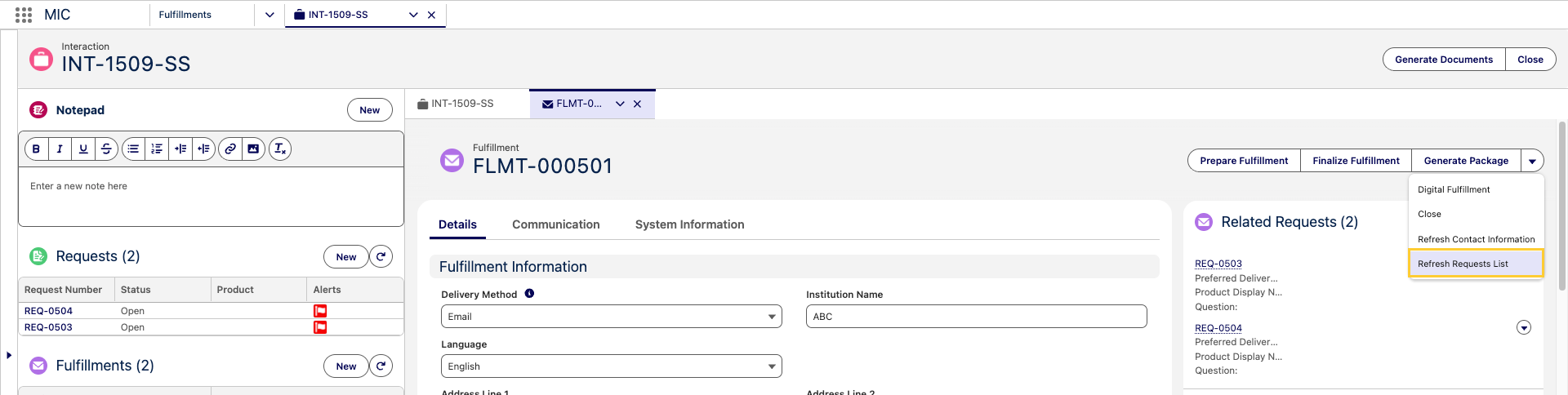
-
When files are attached to or removed from a Fulfillment record, via the Fulfillment Content Doc Link and Fulfillment Content Document trigger actions on Content Document Link (
ContentDocumentLink) and Content Document (ContentDocument) Trigger sObject Settings.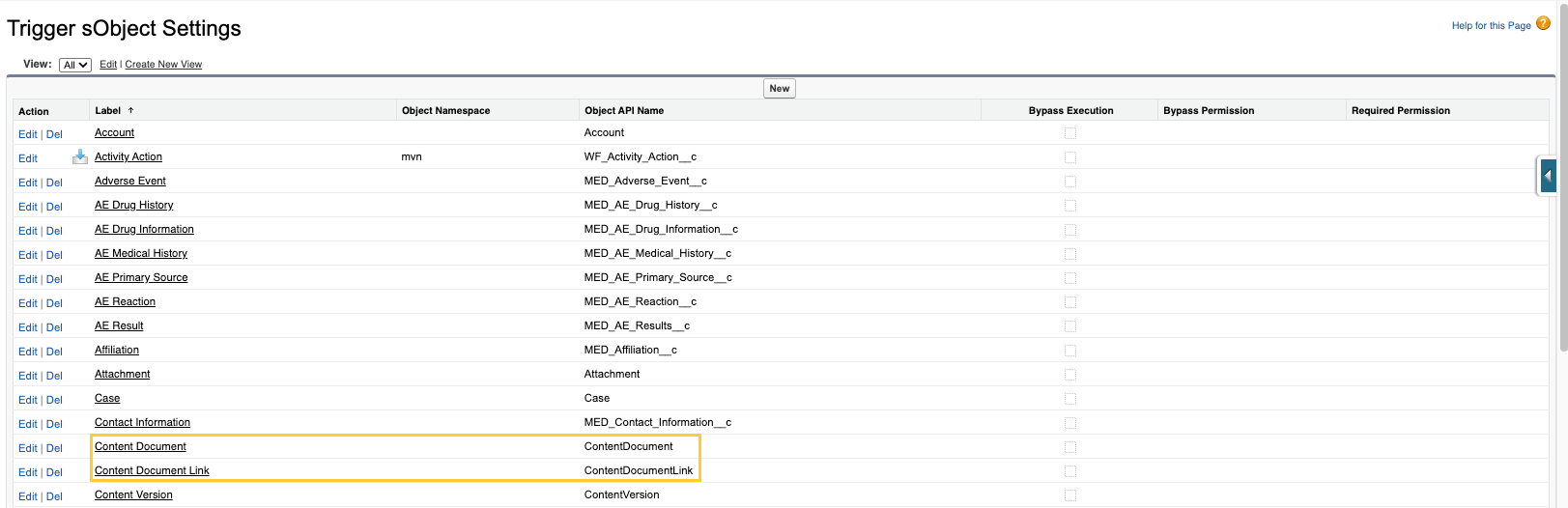
For each active Fulfillment Child Summary (MED_Fulfillment_Child_Summary__mdt) record, the
orchestrator queries the configured child records, formats the HTML, and stamps the result onto the configured target field on the Fulfillment in the same transaction.
Package assembly
"Prepare Fulfillment" and "Finalize Fulfillment" quick actions
The new fulfillment package flow uses two record-page quick actions on
the Fulfillment (MED_Fulfillment__c) object:
| Quick action | API name | Behavior |
|---|---|---|
| Prepare Fulfillment | MED_Merge_Cover_Letter | Opens the Prepare Fulfillment modal. Lists the cover letter and case document files, lets the user reorder them and pick a Delivery Method for each section, and then enqueues two package jobs: one that merges the cover letter components into a single PDF and the other that merges the case documents into a single PDF. 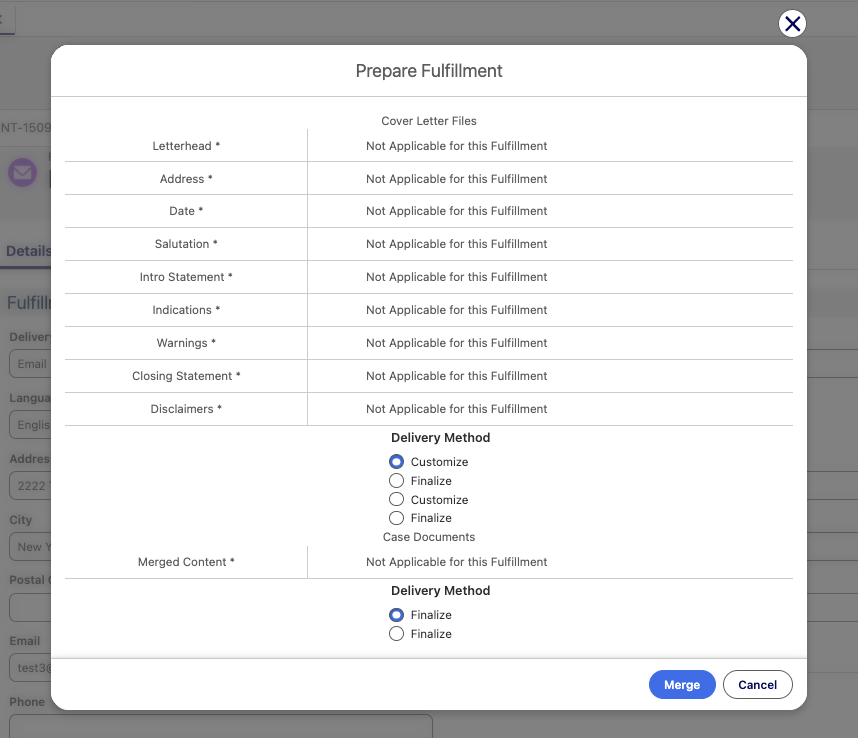 |
| Finalize Fulfillment | MED_Finalize_Merge_Letter | Opens the Finalize Fulfillment modal. Lists the PDFs produced by Prepare Fulfillment, lets the user confirm the order, and enqueues a final package job that combines them into a single fulfillment PDF. The intermediate files generated by Prepare Fulfillment are deleted after the final merge job is enqueued. 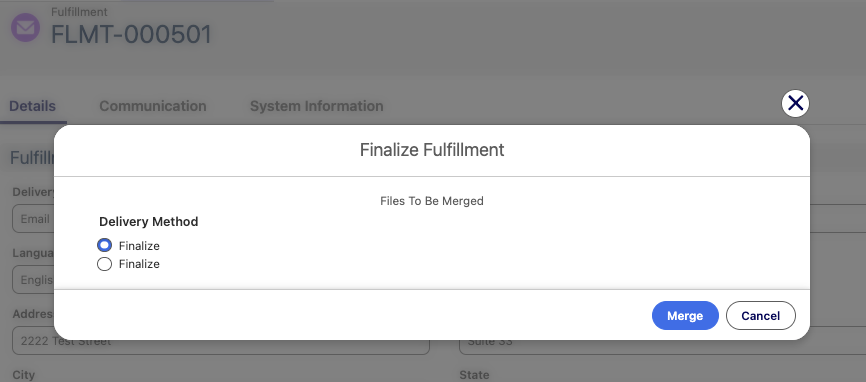 |
The split between Prepare Fulfillment and Finalize Fulfillment keeps the formatting of each source document intact. Each component is converted to PDF before being concatenated, which prevents cover letter margins, fonts, and heading styles from being applied to standard response documents during the final merge.
To use this functionality, an administrator must add the
Prepare Fulfillment (MED_Merge_Cover_Letter) and
Finalize Fulfillment (MED_Finalize_Merge_Letter) quick actions to the Fulfillment (MED_Fulfillment__c) page layout(s) in the org. The actions are not deployed to any specific page layout on upgrade.
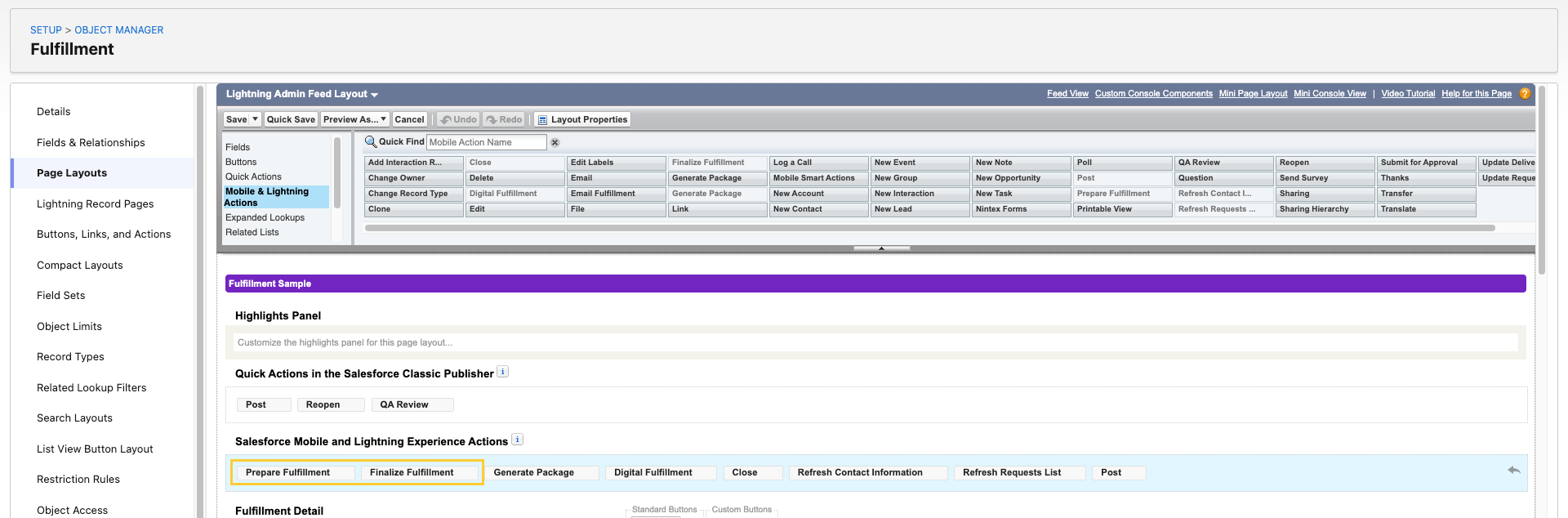
The legacy Generate Package (MED_Generate_Fulfillment_Package) and Email Fulfillment (MED_Email_Fulfillment) actions remain available on the Fulfillment record so that customers who have not yet adopted the new flow can continue to use the existing process.

DDP templates and Local Settings
The new flow uses three DDP templates that are seeded by the Medical Information Cloud - Setup plan in the Install Service:
| DDP template | Purpose |
|---|---|
Global Cover Letter Template | Cover letter components only. Used by Prepare Fulfillment to assemble the cover letter PDF. |
Global Case Documents Template | Case documents only. Used by Prepare Fulfillment to assemble the case documents PDF. |
Global Final Template | Combined output. Used by Finalize Fulfillment to assemble the final fulfillment PDF. |
Two new fields on the Local Setting (mvn__MED_Local_Setting__mdt)
custom metadata type point at the new templates per country:
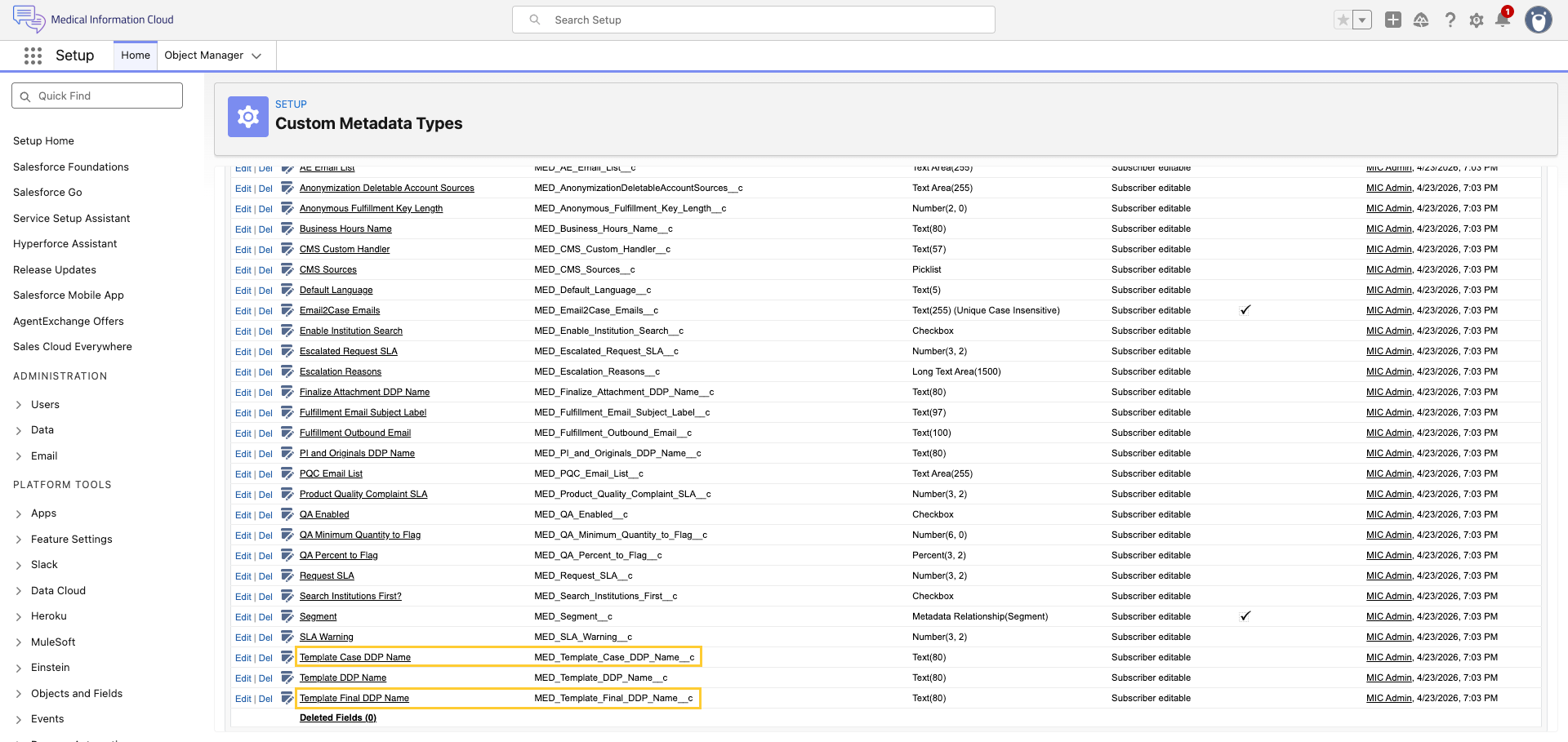
| Field | Purpose |
|---|---|
Template Case DDP Name (MED_Template_Case_DDP_Name__c) | The base name of the DDP template used to generate the case documents PDF. |
Template Final DDP Name (MED_Template_Final_DDP_Name__c) | The base name of the DDP template used to generate the final merged fulfillment package. |
The out-of-the-box Default (Default) Local Settings (MED_Local_Setting__mdt) record points these fields at the new Global Case Documents Template and Global Final Template DDP records. Customers who maintain custom Local Settings (MED_Local_Setting__mdt) records per country must update those records to point at the new templates before end users can run Prepare Fulfillment and Finalize Fulfillment in that country.
Configure follow-up opt in/opt out emails
Requesters can opt in or opt out of receiving email updates from Request Follow-Ups. To configure this feature, first create new public sites for both opting in and opting out and then update the out-of-the-box Fulfillment email templates to include these two options.
Create a public site
To create an opt-in site:
-
In the Quick Find box in Setup, search for and select Sites.
-
Click New.
-
Add a Site Label (this will be the name of the site as seen in the user interface).
-
The Site Name field automatically populates with an API name based on the value in the Label field.
-
Set the site's default web address, e.g., "subscribe".
-
Set the Active Site Home Page to
MED_RequestFollowUpSubscribe. -
Leave the remaining fields with their default values.
-
Click Save.
To create an opt-out site:
-
In the Quick Find box in Setup, search for and select Sites.
-
Click New.
-
Add a Site Label (this will be the name of the site as seen in the user interface).
-
The Site Name field automatically populates with an API name based on the value in the Label field.
-
Set the site's default web address, e.g., "unsubscribe".
-
Set the Active Site Home Page to
MED_RequestFollowUpUnsubscribe. -
Leave the remaining fields with their default values.
-
Click Save.
Updating out-of-the-box fulfillment email templates
To update the Fulfillment Template for opting in:
-
In the Quick Find box in Setup, search for and select Classic Email Templates.
-
Click Fulfillment Template.
-
Click Edit HTML Version.
-
In the Subscribe Public Site field replace with the URL of the opt-in site you created.
-
Click Save.
To update the Follow-up Fulfillment Template for opting out:
-
In the Quick Find box in Setup, search for and select Classic Email Templates.
-
Click Follow-up Fulfillment Template.
-
Click Edit HTML Version.
-
In the Unsubscribe Public Site field, replace it with the URL of the opt-out site you created.
-
Click Save.
Updating custom fulfillment email templates for opting in
To update the custom Fulfillment template for opting in:
-
In the Quick Find box in Setup, search for and select Classic Email Templates.
-
Click or create the desired template.
-
Click Edit HTML version.
-
In the Email Body field, build your embeddable link by combining the Opt In Site link with the URL formula provided and replacing the Subscribe Public Site with the URL of the opt-in site you created.
:::: ::: title Email Body Example :::
Opt In Site link: https://micsit-medinfo.cs122.force.com/subscribe
URL formula: (Subscribe Public Site)?token=
Result: https://micsit-medinfo.cs122.force.com/subscribe?token= ::::
-
Embed the result into the desired text (example: Click Here) within the Email Template.
-
Click Save.
Updating the custom follow-up fulfillment template for opting out
To update the custom follow-up fulfillment template for opting out:
-
In the Quick Find box in Setup, search for and select Classic Email Templates.
-
Click or create the desired template.
-
Click Edit HTML Version.
-
Build your embeddable link by combining the Opt Out Site link with the URL formula provided and replacing the Subscribe Public Site with the URL of the opt-out site you created.
:::: ::: title Email Body Example :::
Opt out site link: Build your embeddable link by combining the Opt Out Site link with the URL formula provided by replacing (Subscribe Public Site) with the URL of the opt-out site you created.
URL Formula: (Unsubscribe Public Site)?token=
Result: https://micsit-medinfo.cs122.force.com/unsubscribe?token= ::::
-
Embed the result into the desired text (example: Click Here) within the Email Template.
-
Click Save.
Consent field updates
When a user clicks either the subscribe or unsubscribe link in one of the templates used above, the follow-up consent fields on the associated request automatically update in the following manner:
-
Opting In: Sets the Requester Consent checkbox to checked.
-
Opting Out: Sets the Requester Consent checkbox to unchecked and populates the opt-out date field.
Account
An Account is a record that stores information about a person or business, including name, title, and historical interactions. Examples of Accounts include:
-
Health Care Professionals (HCPs), e.g., doctors and pharmacists
-
Non-HCPs, e.g., consumers and payers
-
Employees, e.g., sales representatives and medical science liaisons (MSLs)
-
Institutions, e.g., hospitals and pharmacies
An Account record can be configured using the following custom metadata types:
-
Account Field Contact Info Mapping (
MED_Account_Field_Info_Mapping__mdt) -
Account Type Document Filter (
MED_Account_Type_Document_Filter__mdt)
Account records are also dependent upon the Account object.
Account Contact Information synchronization
Inquiry Management provides a utility to synchronize Account data with Contact Information records. For example, the Account Phone field might be used by non-agents as the work number for an HCP. To make that information available to the agents in the Inquiry Management module, the Account Contact Info Sync can be configured to create/update a related Contact Information record. The synchronization is a one-way sync. The Contact Info Records are configured to be locked.
Configuring Account fields to sync to Contact Information records
For the Account Contact Information synchronization to work, the Enable
Contact Info Mappings (MED_Enable_Contact_Info_Mappings__c) field must
be enabled in the Global Setting (MED_Global_Setting__mdt) custom
metadata type.
The fields that trigger the creation or update of an associated Contact Info record can be configured by creating an Account Field Contact Info Mapping record. Provide the following information:
-
Account Field API name of the field that should trigger the update.
-
Record Type Developer name of the Contact Info record that should be created/updated.
-
The field on the Contact Info Record to map the value to. This should be the same type as the source field.
-
Optionally provide the Type that should be set on the contact info record.
Once configured, any updates to the account trigger the synchronization of the account field to the proper contact info record.
Locking synced records
The records which are created using the functionality have a source of 'Parent Account', so by default, they will be locked by the Locked Record Handler unless it has been reconfigured.
Changing this formula to allow the records to be edited may result in data being out of sync and/or being overwritten when the account information changes.
Initializing Data
If the Medical Information Cloud product is being installed in a Salesforce instance that already has account data, then the synchronization must be initialized through a batch job. To kick off the batch job, perform these steps:
-
Open an Execute Anonymous Window. See Salesforce's documentation.
-
Enter the following code:
MED_AccountContactInfoSync batchJob = new MED_AccountContactInfoSync();``Database.executeBatch(batchJob); -
Click Execute.

A status of "Success" should be displayed in the log panel.

You should also see jobs being executed under Setup > Jobs> Apex Jobs. You can abort the job from this screen if necessary.
Data change requests
Data change requests (DCRs) represent a requested change to a managed Account or Contact Information record within Medical Information Cloud. While typically used in conjunction with a Master Data Management solution, Medical Information Cloud supports the generation of DCR records absent of a third-party Master Data Management solution.
You can use either Medical Information Cloud's native DCR handler or a custom DCR handler to process requested changes. Both native and custom DCR handlers can be called in the following scenarios:
-
The Account record is created via the New Account modal, which users can access when searching for Accounts.
-
The Account record is updated.
-
The Contact Information record is created.
-
The Contact Information record is updated.
Native DCR process
This section only applies to Medical Information Cloud's native DCR functionality, not custom
DCR handlers. Your instance uses Medical Information Cloud's native functionality if the value
of MED_Global_Setting__mdt.MED_DCR_Create_Handler_Class__c is
MED_DCRCreateHdlr.
The Data Change Request object stores information about requested changes to managed Account and Contact Information records and is on the master side of a master-detail relationship with the Data Change Request Line object, which captures the old and new values for change requests.
Every time a data change is submitted and invokes the native DCR handler, the DCR handler creates a Data Change Request record that has a record type of Account and that looks up to the relevant Account record. The DCR handler also creates any additional Data Change Request records and Data Change Request Line records that are needed to process the requested change or group of changes that were submitted together. See Native DCR data model.
A single Data Change Request record cannot capture more than one change
request. This means that each Data Change Request record should only
ever have one of these lookup fields populated at a time:
MED_Account__c, MED_Contact_Information__c, or
MED_Parent_Account__c. When multiple Data Change Request records are
created in a single step, the Account Data Change Request record is
always the parent, and the other Data Change Request records that were
created in the same step are linked to the parent record via the
MED_Parent_Data_Change_Request__c field.
Data Change Request records that have a Status of Pending are sent to Veeva Network, the Master Data Management source for a data steward to process. Once sent, the Status is set to
Submitted, and after a data steward processes the change request, the
Status is changed to Processed, the appropriate Data Change Request
and Data Change Request fields are updated, and any necessary merge work
occurs.
Account merge work prevents duplicate Account records from being
created. When the Data Change Request's Type field is set to New and
the Status field is set to Processed, Medical Information Cloud verifies that an Account with an
External ID matches the value of
MED_Data_Change_Request__c.MED_Account_External_ID__c does not already
exist in the product. If an existing Account record has an External ID
that matches, the existing record and new record are merged using
Salesforce's native merge
feature.
Metadata from the existing record is kept if the existing and new
records have conflicting data.
Medical Information Cloud also verifies that a new Contact Information record is not a duplicate
by looking at the External ID field on existing Contact Information
records to see if the value matches the value of
MED_Data_Change_Request__c.MED_Address_External_ID__c . If an existing
Contact Information record has an External ID that matches, Medical Information Cloud repoints
MED_Data_Change_Request__c.MED_Contact_Information__c from the new
Contact Information record to the existing Contact Information record
and then deletes the new Contact Information record.
Upon completion of any necessary merge work or if no merge work is required, a Medical Information Cloud trigger updates the External ID field on the related Account or Contact Information record.
Enable native and custom DCRs
To enable DCR generation:
-
Navigate to the appropriate Global Setting custom metadata record, and click Edit.
-
Set the DCR Globally Active field to
true. -
Enter a value into the DCR Create Handler Class field.
-
To use native DCR functionality, enter
MED_DCRCreateHdlr. -
To override default functionality and use a custom DCR handler, enter the Apex class name that implements
MED_DCRCreateIntf. When a change event occurs, this handler class is sent the full record and, if applicable, the old record and contact information to create DCR records as you would like.
-
-
Click Save.
Configure native DCR functionality
This section only applies to Medical Information Cloud's native DCR functionality. Your instance
uses Medical Information Cloud's native functionality if the value of
MED_Global_Setting__mdt.MED_DCR_Create_Handler_Class__c is
MED_DCRCreateHdlr.
After DCRs are enabled, you can configure native DCR functionality to specify when to generate DCRs and which users should not trigger DCRs. You can also integrate Veeva Network with your Medical Information Cloud instance and use it as your Master Data Management source.
Configure DCR change events
To configure the DCR creation behavior, leverage the
Account Field Setting custom metadata type to ensure the correct
fields are monitored for the appropriate change events and included
within the corresponding DCR records. To include a field within the DCR
scope, populate the Include in DCR field with the appropriate change
event for a given object (e.g. Account and Contact Information), field,
country, and record type (e.g. HCP).
Opt-out users
You can configure the DCR feature to exclude updates from specific individuals. This can be helpful in cases where you want to bypass the DCR generation for a particular user, such as an integration user, data steward, or administrator. To exclude a user from DCR consideration:
-
Locate the MIC Feature Flag custom setting within the Salesforce administrative user interface.
-
Create a MIC Feature Flag custom setting record for each profile and/or user that should be excluded from the DCR process. Be sure to check the
Bypass DCRfield when creating the records.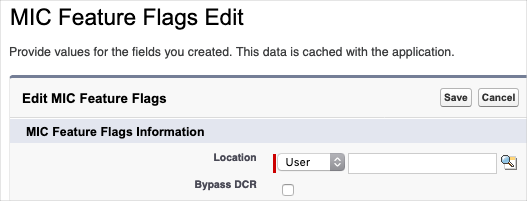
Configuration considerations
Important points to consider when leveraging DCRs are as follows:
-
Only new Accounts (inserts) that are created via the New Account modal, which users can access when searching for Accounts, are considered for a DCR.
-
Only updated Accounts that are sourced from an Account Master are considered for a DCR. If an account has a value present within the
MED_External_Id__cfield, it is deemed to have been sourced from an Account Master. -
DCRs are generated based on the underlying configuration which may include fields from both Accounts as well as related Contact Information.
-
DCR configuration supports separate configurations for Inserts and Updates.
-
When merging Accounts, there may be a delay from the time the DCR status is processed to when the Account is fully merged because the DCR status update and Account merge processes are asynchronous.
-
When merging Accounts, triggers, and workflows will not fire on child objects that are re-parented to the new Account.
Native DCR data model
This section only applies to Medical Information Cloud's native DCR functionality. Your instance
uses Medical Information Cloud's native functionality if the value of
MED_Global_Setting__mdt.MED_DCR_Create_Handler_Class__c is
MED_DCRCreateHdlr.
The DCR entity relationship diagram depicts the change request data model and field requirements for native DCR functionality. Data Change Request and Data Change Request Line fields listed on the entity relationship diagram are required.
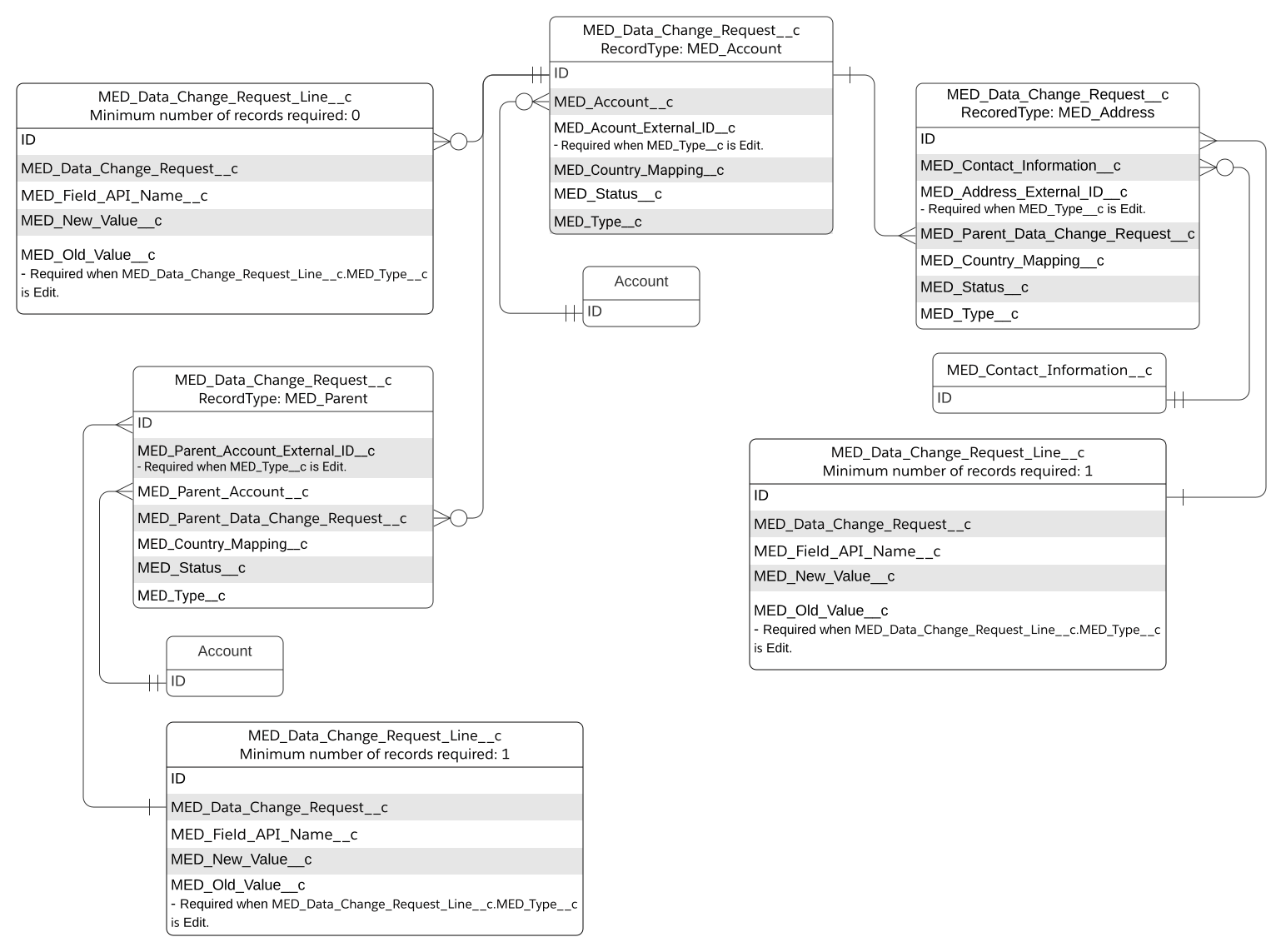
The native DCR data model relies on Data Change Request record types. Data Change Request object record types include:
-
Account - utilized when the associated Account record is either (1) new or modified or (2) the parent Account of other modified records.
A Data Change Request record with the Account record type must exist for every change request. This record is at the top of the DCR data model and must look up to the Account record that is new or modified or that is related to the Institution or Contact Information record that is new or modified. Depending on the change request, the Data Change Request record may not have any Data Change Request Line records associated.
-
Address - utilized when the associated Contact Information record is new or has been modified.
The Data Change Request record for the Address record type must look up to the Contact Information record that is new or modified, must look up to the Data Change Request record for the Account record type, and must have at least one Data Change Request Line record associated.
-
Parent - utilized when the associated Institution Account record is new or has been modified.
The Data Change Request record for the Parent record type must look up to the relevant Account record for the Institution that was created or modified, must look up to the Data Change Request record for the Account record type, and must have at least one Data Change Request Line record associated.
DCR objects
The Data Change Request object stores information about requested changes to managed Account and Contact Information records and is on the master side of a master-detail relationship with the Data Change Request Line object, which captures the old and new values for change requests.