Automations
Inquiry Management manages data relationships via automated processes. These automations trigger specific actions when certain user activities occur.
Flows
A flow is a structured process that collects information from your organization's system and uses it to automate business processes. Flows are different from workflow rules in that they can guide users through the selected process rather than operate behind the scenes as workflow rules do. Unlike workflows, flows can be connected to multiple objects, thereby increasing their usability and scope. For more information on Flows, visit Salesforce's Flows documentation.
Medical Information Cloud uses three primary flow types:
-
Screen Flow: Used when you want to automate a business process using data collected from people. For example, a screen flow would be used in a "wizard" whereby user-entered information drives the process throughout the flow.
-
Auto launched Flow: Used if you want a specific process to occur when a user clicks a button or if a record changes. For example, you could create an auto launched flow that is triggered each time a record is transferred to another user.
-
Prompt Flow: Used for the Artificial Intelligence in Medical Information feature. These are not listed in the Available flows below.
Flow type details
| Flow type | Method(s) of distribution | Description |
|---|---|---|
| Screen Flow | - Flow actions - Lightning pages - Experience Builder pages - Custom Aura components - Custom Lightning web components - Custom buttons or custom links - Web tabs - Direct flow URLs - Visualforce pages - Lightning Out - Embedded Service deployments | User interaction is required for this flow type, as it includes screens, actions, choices, steps, and/or dynamic steps. Note: Screen Flows do not support Pause elements. |
| Autolaunched Flow with a Record Trigger | - Runs when a record is created or updated | This flow type makes before and after save updates to the new or saved record that launched the flow. Note: Only the following elements are supported: Assignment, Decision, Get Records, and Loop. |
Available flows
The available autolaunched and screen flows are listed in the table below. Prompt flows are listed in the Artificial Intelligence in Medical Information page.
| Flow label | Flow API name | Process type | Trigger | Triggering Object | Description |
|---|---|---|---|---|---|
| Adverse Event: Owner Change | MED_Adverse_Event_Owner_Change | Autolaunched Flow | Record -- Run After Save | Adverse Event | Clears the Transfer Reason field when the owner changes. |
| Adverse Event: Status Changes | MED_Adverse_Event_Status_Changes | Autolaunched Flow | Record -- Run Before Save | Adverse Event | When an AE is closed, the flow: - Adds the date and time when the AE was closed. - Clears the Reopen Reason field value. - Changes the Record Type field value to closed. When an AE is reopened, the flow: - Clears the date and time when the AE was originally closed. - Sets the Record Type field value to open. |
| AE Drug: Lock & Unlock Record Types | MED_AE_Drug_Lock_Unlock_Record_Types | Autolaunched Flow | Record -- Run Before Save | AE Drug | Sets the correct record type when an AE is marked or unmarked as closed. |
| AE Drug History: Lock & Unlock RecordTypes | MED_AE_Drug_History_Lock_Unlock_RecordTypes | Autolaunched Flow | Record -- Run Before Save | AE Drug History | Sets the correct record type when AE is marked or unmarked as closed. |
| AE Medical History: Lock & Unlock Record Type | MED_AE_Medical_History_Lock_Unlock_Record_Types | Autolaunched Flow | Record -- Run Before Save | AE Medical History | Sets the correct record type when an AE is marked or unmarked as closed. |
| AE Primary Source: Anonymize | MED_AE_Primary_Source_Anonymize | Autolaunched Flow | Record -- Run Before Save | AE Primary Source | Anonymizes the name, address, and phone number when the Anonymize flag is set to true, as long as there is no legal hold on the AE. |
| AE Primary Source: Lock & Unlock Record Type | MED_AE_Primary_Source_Lock_Unlock_Record_Types | Autolaunched Flow | Record -- Run Before Save | AE Primary Source | Sets the correct record type when AE is marked or unmarked as closed. |
| AE Reaction: Lock & Unlock Record Types | MED_AE_Reaction_Lock_Unlock_Record_Types | Autolaunched Flow | Record -- Run Before Save | AE Reaction | Sets the correct record type when an AE is closed or open. |
| AE Test Result: Lock & Unlock Record Types | MED_AE_Test_Result_Lock_Unlock_Record_Types | Autolaunched Flow | Record -- Run Before Save | AE Test Result | Sets the correct record type when an AE is closed or open. |
| Fulfillment: Anonymize | MED_Fulfillment_Anonymize | Autolaunched Flow | Record-- Run After Save | Fulfillment | Anonymizes the account, name, address, email, fax, phone number, first name, last name, middle name, suffix, and title when the Anonymize flag is set to true, as long as there is no legal hold. |
| Fulfillment: Expire Anonymous | MED_Fulfillment_Expire_Anonymous | Autolaunched Flow | Record-- Run After Save | Fulfillment | A timed flow that clears the Anonymous Key 30 days after the Fulfillment was closed or canceled. |
| Fulfillment: Owner Change | MED_Fulfillment_Owner_Change | Autolaunched Flow | Record-- Run After Save | Fulfillment | Clears the Transfer Reason field value when the owner is changed. |
| Fulfillment: Reset Override Lock | MED_Fulfillment_Reset_Override_Lock | Autolaunched Flow | Record-- Run After Save | Fulfillment | Resets the Override Lock MED_Override_Lock__c field on a fulfillment record after update. |
| Fulfillment: Status Changes | MED_Fulfillment_Status_Changes | Autolaunched Flow | Record -- Run Before Save | Fulfillment | When the Fulfillment is closed, the flow: - Adds the closed date and time. - Clears the Reopen Reason field value. - Sets the Record Type field value to closed. When the Fulfillment is opened, the flow: - Clears the date and time when it was originally closed. - Sets the Record Type field value to open. |
| Inbound Form: Anonymize | MED_Inbound_Form_Anonymize | Autolaunched Flow | Record -- Run Before Save | Inbound Form | Clears the PII fields when the Anonymize flag is set to true. |
| Inbound Form: Audit Test | MED_Inbound_Form_Audit_Test | Autolaunched Flow | Record--Run After Save | Inbound Form | Sets the Inquiry Text to null and is only used for testing Audit Trail Field updates. |
| Inbound Form: Set Interaction Notes | MED_Inbound_Form_Set_Interaction_Notes | Autolaunched Flow | Record -- Run Before Save | Inbound Form | Sets the Interaction's notes for a new inbound form. |
| Interaction: Anonymize | MED_Case_Anonymize | Autolaunched Flow | Record-- Run After Save | Interaction | Anonymizes the name, address, email, fax, phone number, and notes when the Anonymize flag is set to true, as long as there is no legal hold. |
| Interaction: Owner Change | MED_Case_Owner_Change | Autolaunched Flow | Record-- Run After Save | Interaction | Clears the Transfer Reason field value when the owner is changed. |
| Interaction: QA Completed | MED_Case_QA_Completed | Autolaunched Flow | Record--Run Before Save | Interaction QA | Updates the QA Completed field value when the Interaction QA's status changes to Review Completed. |
| Interaction: Reply Notification | MED_Interaction_Reply_Notification | Autolaunched Flow | Record---Run After Save | EmailMessage | Sends an email notification to the owner of an Interaction (Case) record when a new email message related to the interaction is created. |
| Interaction: Set Record Type | MED_Case_Set_Record_Type | Autolaunched Flow | Record -- Run Before Save | Interaction | Sets the record type based on the status and sets the status to open if the record type is null. |
| Interaction: Status Changes | MED_Case_Status_Changes | Autolaunched Flow | Record -- Run Before Save | Interaction | When the Interaction is closed, the flow: - Clears the Reopen Reason field value. - Sets the Record Type field value to closed. When the Interaction is reopened, the flow: - Clears the Transfer Reason field value. - Sets the Record Type field value to open. |
| PQC: Anonymize | MED_PQC_Anonymize | Autolaunched Flow | Record -- Run Before Save | Product Quality Complaint | Anonymizes the name, address, email, fax, and phone number when the Anonymize flag is set to true as long as there is no legal hold. |
| PQC: Owner Change | MED_PQC_Owner_Change | Autolaunched Flow | Record-- Run After Save | Product Quality Complaint | Clears the Transfer Reason field value when the owner is changed. |
| PQC: Set Defaults | MED_PQC_Set_Defaults | Autolaunched Flow | Record -- Run Before Save | Product Quality Complaint | Sets the default values for Complainant Name and Pharmacy field values, if blank. |
| PQC: Status Changes | MED_PQC_Status Changes | Autolaunched Flow | Record -- Run Before Save | Product Quality Complaint | When the PQC is closed, the flow: - Adds the closed date and time. - Clears the Reopen Reason field value. - Changes the Record Type to closed. When the PQC is reopened, the flow: - Clears the date and time it was originally closed. - Sets the Record Type to open. |
| Request: Owner Change | MED_Request_Owner_Change | Autolaunched Flow | Record-- Run After Save | Request | Clears the Transfer Reason field value when the owner is changed. |
| Request: Reset Override Lock | MED_Reset_Request_Override_Lock | Autolaunched Flow | Record-- Run After Save | Request | Resets the MED_Override_Lock__c field on requests after an update. |
| Request: Status Changes | MED_Request_Status_Changes | Autolaunched Flow | Record -- Run Before Save | Request | When a Request is closed, the flow: - Adds the date and time when the Request was closed. - Clears the Reopen Reason field value. - Changes the Record Type field value to closed. When a request is opened, the flow: - Clears the date and time when the Request was originally closed - Sets the Record Type field value to open |
| Request: Truncate Question | MED_Request_Truncate_Question | Autolaunched Flow | Record-- Run After Save | Request | Applies a truncated version of the Rich Question field value to the Short Question field. |
| Request Document: FAQ Mapping | MED_Request_Document_FAQ_Mapping | Autolaunched Flow | Record-- Run After Save | Request Document | Maps the Question and Answer fields of the newly-created Request document to its related Request. |
| Request: Update Consent | MED_Update_Follow_up_Consent | Screen Flow | Updates the Request's follow-up consent-related fields and allows updates on closed requests. | ||
| Update Pending DDPs | MED_Update_Pending_DDPs | Autolaunched Flow | Record-- Run After Save | Package Job | Updates any DDPs that have had a pending status for at least 24 hours. |
Special considerations
New product installs will automatically come with the new flows. If you are an existing customer, you will have the new flows when you upgrade to V12 but they will be turned off by default. Your existing workflows will continue to be used. You will have to turn off your current workflows and move them to the new flows. If you had customized a workflow, you will need to clone one of the provided flows as a flow override and apply your modifications.
To deactivate a workflow rule:
-
In the Quick Find box in Setup, search for and select Workflow Rules.
-
Click Deactivate next to the workflow rule you want to turn off.
To clone a flow:
-
In the Quick Find box in Setup, search for and select Flows.
-
Click the name of the flow you want to clone. The Flow Builder appears.
-
Click Save As on the top right navigation menu.
-
On the Save As modal, click A New Flow.
-
Enter a value in the Flow Label field. The Flow API Name will automatically populate based on that value.
-
Update the description of the flow.
-
Click Advanced to reveal additional options.
-
Enter your modifications.
-
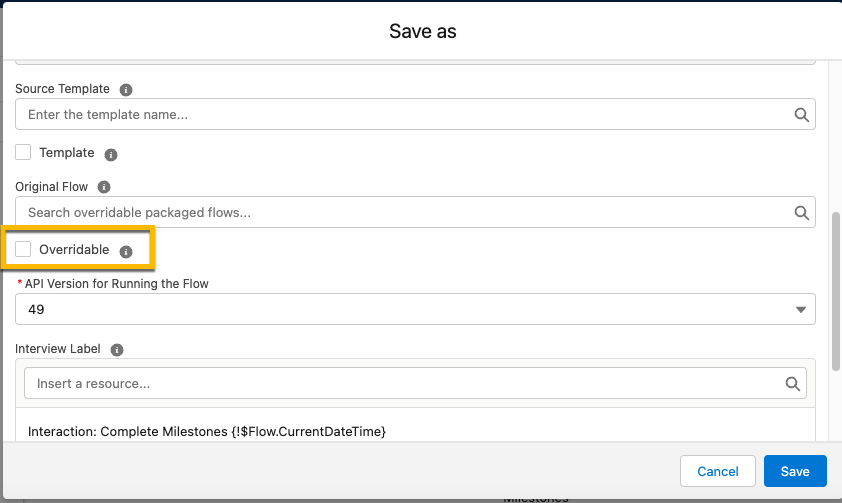
Click to uncheck the Overridable checkbox.
-
Enter the flow you are copying from in the Original Flow field.
-
Click Save.