Technical requirements
This page lists the technical requirements of Medical Information Cloud. These requirements should be met to ensure an optimal experience with the product.
About Komodo Products
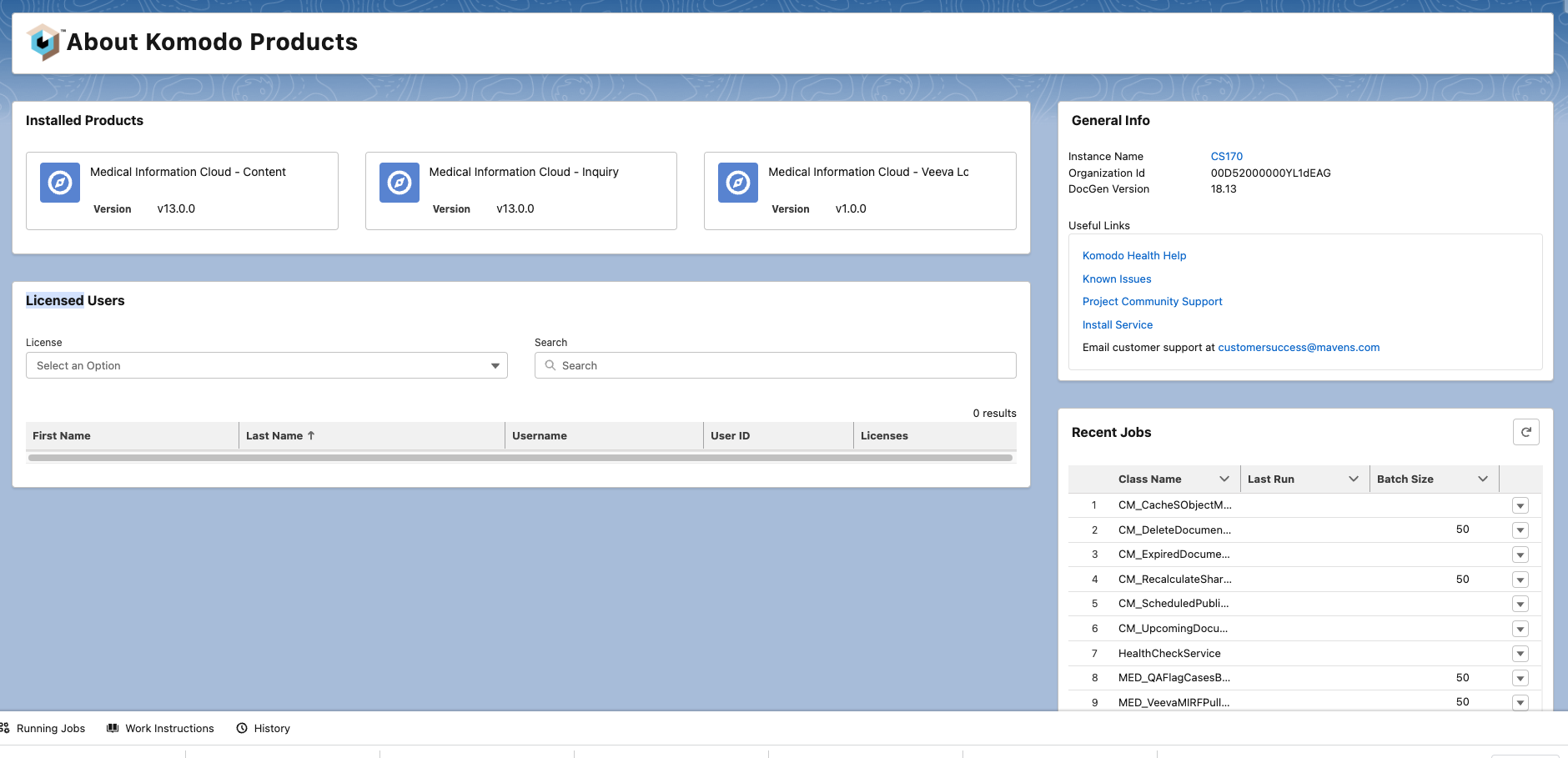
The About Komodo Products page contains key information about your Medical Information Cloud instance and can be accessed via the App Launcher.
The page includes:
-
Installed Products - shows each installed module with its version number.
-
Licensed Users - a searchable component to locate users to view their usernames, user IDs, and licenses.
-
General Info - contains the Instance Name, Organization Id, and DocGen Version number, as well as a Useful Links list.
-
Recent Jobs - a numbered list of recent jobs by Class Name, with Last Run and Batch Size. Listed jobs can be run from this section by clicking the dropdown arrow on the corresponding line and selecting Run Job.
User licensing
Medical Information Cloud requires that users be provisioned to possess these licenses:
-
Inquiry Management user license - grants users access to the Inquiry Management module.
-
Regulated Content Cloud user license - grants users access to the Regulated Content Cloud module.
-
Nintex DocGen license - enables users to generate dynamic documents, such as record snapshots and fulfillment packages.
-
Salesforce license - grants users access to Salesforce.
Clear identification of licensed users helps ensure the right users receive the right access and enables a better experience when engaging with Mavens Customer Support. For more information, visit How to Contact Customer Support.
Inquiry Management user licenses
There are two types of Inquiry Management user licenses:
-
Medical Information Cloud User - grants users access to the Inquiry Management module.
-
Medical Information Cloud User - Read-Only - provides users with read-only access to the Inquiry Management module. Users with this license cannot add, update, or delete data.
Administrators must assign Inquiry Management users either the
Medical Information Cloud User license or the
Medical Information Cloud User - Read Only license. If a user is not
assigned one of these license types, custom user interface components
may display a license error instead of the regular user interface.
To acquire Inquiry Management user licenses, contact your Mavens sales representative or visit How to Contact Customer Support.
The table below lists the required permission set group or permission set that administrators need to assign users for each user license type. For instructions on how to assign permission set groups and permission sets, visit Salesforce's Assign Permission Set Groups and Assign Permission Sets documentation.
Assign user licenses
| User License type | Required Permission Set Group | Required Permission Set | Description |
|---|---|---|---|
| Medical Information Cloud User | Medical Information Cloud User Permissions | The permission set group contains the default permission sets for Inquiry Management users. The default permission sets include: - Medical Information Cloud User - includes base permissions for Inquiry Management users. - DocGen User - enables Inquiry Management users to generate dynamic documents, such as record snapshots and fulfillment packages. Assigning users the DocGen User permission set via this permission set group is the first step in granting users a Nintex DocGen license. Visit Nintex DocGen license. You can modify the Medical Information Cloud User Permissions permission set group. If there are permissions in the permission set group that you do not want users to have, you can mute or block the permissions at the permission set group level without editing the permission sets. For instructions on how to mute permissions, visit Salesforce's documentation. | |
| Medical Information Cloud User - Read Only | Medical Information Cloud User (Read Only) | The permission set provides view-only access to the Inquiry Management module. |
Regulated Content Cloud user license
The Regulated Content Cloud user license grants users access to the Regulated Content Cloud module. To provision users
with this license, assign them the CM_User custom permission.
To acquire Regulated Content Cloud user licenses, contact your Mavens sales representative or visit How to Contact Customer Support.
Administrators can assign users additional custom permissions and permission sets to expand access within the Regulated Content Cloud module. For more information, visit Users.
Nintex DocGen license
Nintex DocGen licenses allow Inquiry Management users the ability to generate dynamic documents, such as record snapshots and fulfillment packages, within Inquiry Management.
Granting Nintex DocGen licenses to users is a two-step process:
-
Assign users the Medical Information Cloud User Permissions permission set group, which includes the DocGen User permission set. For instructions on how to assign permission set groups, visit Salesforce's documentation.
-
Assign the application-managed package license to users by navigating to Setup > Installed Packages > Nintex DocGen > Manage Licenses.

Determine the number of provisioned licenses
To determine the total number of Inquiry Management or Regulated Content Cloud user licenses that are provisioned in your environment, use one of these methods:
-
Use the Licensed Users List (
hcLicensedUsers) component on the About page. The component lists users that have an active product license, and you can filter the list by license type. -
Use the Health Check API to retrieve key information on the current instance of the product, such as licensing details.
-
Execute code in an Execute Anonymous Window:
-
In the Developer Console, click Debug and then Open Execute Anonymous Window. The Enter Apex Code window opens.
-
Copy and paste the code below into the Enter Apex Code window and replace
\<permission\>with the API name of the permission that you need an assignment count for.
-
          String customPermissionName = '\<permission\>';
          Set\<Id\> permissionSetIds = new Set\<Id\>();
          for (SetupEntityAccess access : [
              SELECT ParentId, SetupEntityId
              FROM SetupEntityAccess
              WHERE SetupEntityId IN (SELECT Id FROM CustomPermission WHERE DeveloperName = :customPermissionName)
      ]) {
          permissionSetIds.add(access.ParentId);
      }
      List<User> assignedUsers = [SELECT Id,Username,FirstName,LastName FROM User WHERE ID IN (SELECT AssigneeId FROM PermissionSetAssignment WHERE PermissionSetId IN :permissionSetIds)];
      System.debug(LoggingLevel.ERROR,assignedUsers.size() + ' users with ' + customPermissionName);
      for(User u : assignedUsers){
          System.debug(LoggingLevel.ERROR,u);
      }
All users who are assigned either the
MED_Medical_Information_Cloud_User or the
MED_Medical_Information_Cloud_User_Read_Only custom permission
have an Inquiry Management user license.
All users who are assigned the CM_User custom permission have a
Regulated Content Cloud user license.
-
Mark the Open Log checkbox and then click Execute. The log opens in the Log Inspector.
-
Mark the Debug Only checkbox at the bottom of the Log Inspector to filter the log. The
USER_DEBUGevent rows list the total number of users that are assigned the permission and the specific users that are assigned the permission.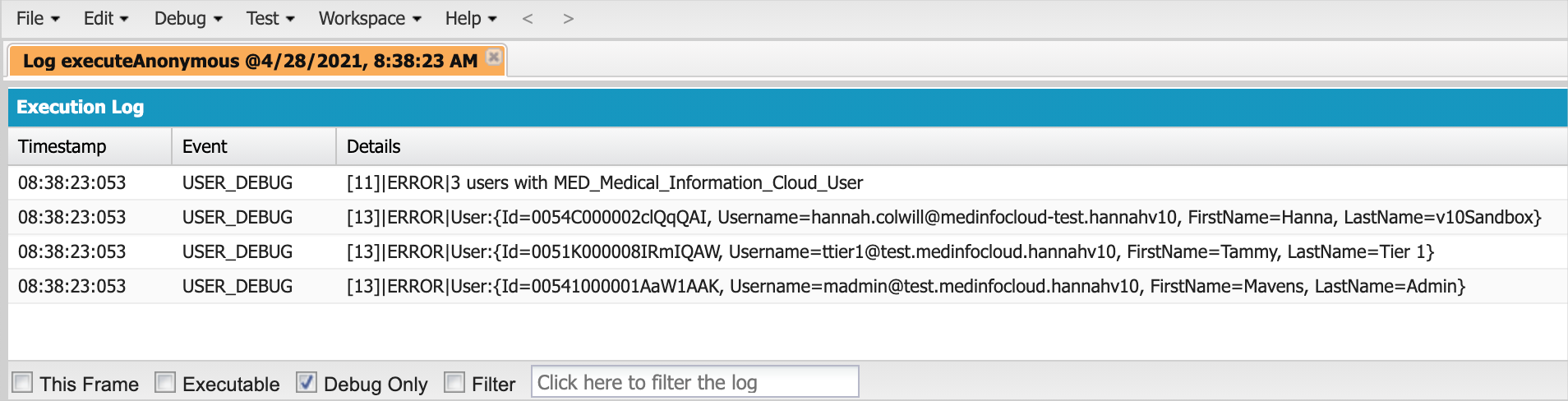
Failed logins
The MedInfo Cloud Operational Insights folder includes the
Failed Login Attempts report. This report lists failed attempts to log
into Medical Information Cloud within a date range that can be set by the running user and can be
used to identify potential unauthorized access to the system.
Browser support matrix
You need an internet connection to view and access Medical Information Cloud.
Komodo Health recommends using Google Chrome.
Since Medical Information Cloud is delivered through the Salesforce platform, Medical Information Cloud is constrained to the browser support afforded by Salesforce. Salesforce's browser support matrix details the level of support for various browsers.
Browser support matrix
| Microsoft® Edge | Google Chrome™ | Mozilla® Firefox® | Apple® Safari® |
|---|---|---|---|
| Latest version | Latest version | Latest version | Latest version |
Latest version is defined by browser vendors. Use the support for your
browser(s) to understand what Latest version means.
For additional information on internet browser support, visit the most recent Salesforce release notes.
Special considerations
If the browser you are using to access Medical Information Cloud has an available, uninstalled update, you may experience the errors shown below:
-
Record Modified by Another User
-
ERROR: Invalid or missing tabId 'null'
-
Microsoft 365 documents not fully loading
To prevent or correct this issue, install any available browser updates and restart the browser.
Screen resolution
Medical Information Cloud is designed, developed, and tested against a screen resolution of 1920 x 1080 or larger. The product normally functions at lower resolutions; however, the user experience has not been optimized out-of-the-box for these resolutions. In the case of Medical Information Cloud Lightning, is it also recommended that users leverage the Comfy display density available within the user setup.
Hardware and network
All customers and users are advised to ensure their workstations meet the documented minimum technical requirements as provided by Salesforce. For more information, visit Salesforce's Lightning Console Technical Requirements documentation.
Dynamic Fulfillments
One of the key features within Inquiry Management is the ability to generate dynamic fulfillments, assembling select content aimed at responding to inbound requests and initiating the assembly of one or more documents that aggregate the distinct pieces of content.
To guarantee compatibility with the service, source PDF documents must comply with the following:
-
Compliance with the portable document format v1.4 specification or greater
-
Be free of any locked portions of content
-
Be free of any file corruption
Files that are not compliant may still work; however, results may be inconsistent and are not guaranteed to function properly.
The ability to open files possessing these characteristics in other applications, such as an internet browser or PDF viewer, does not guarantee compatibility with the service.
Salesforce requirements
Medical Information Cloud users must be provisioned with a Salesforce license, and several Salesforce features must be enabled for Medical Information Cloud to be installed and function as expected.
Supported platforms and editions
-
Life Sciences Cloud, Service Cloud, or Health Cloud
-
Unlimited edition or Enterprise edition
Recommended features
-
Full copy sandbox (included with Unlimited edition; additional license needed for Enterprise edition)
-
Shield Field Audit Trail
Required features
-
Lightning Experience
-
My Domain
-
Person Accounts
-
Cascade Delete
-
Chatter
-
Enhanced Notes
-
Translation Workbench with English enabled
-
Service Console
noteMedical Information Cloud is a console-based application and, as such, requires access to the service console feature set in your target Salesforce experience.
While it may be possible to leverage portions of the Inquiry Management module outside of the console, this approach is not subject to the typical quality assurance and validation processes the core application benefits from and, as a result, is not guaranteed to function in the same manner as when utilized within a console.
The Regulated Content Cloud module can be accessed outside of the console.
-
Files
noteSalesforce attachments are not supported and will not be shown or used by Medical Information Cloud features.
-
Middle Name and Name Suffixes for Person Names
-
Enhanced Email
-
Email-to-case
-
Lighting Web Security (LWS)
For more information, visit installation.
Nintex DocGen
Each version of Inquiry Management is built and tested against the latest Nintex DocGen version available at the time of testing. The tested version will be included as part of the installation.
Veeva Systems
Inquiry Management offers several native integration capabilities with Veeva Systems platforms and has been built and tested against specific API versions. Supported API versions are typically uplifted to the most recent 3rd party version with each subsequent Inquiry Management release.
The table below details the API version for relevant applications.
| Veeva Systems Application / Platform | Supported API Version |
|---|---|
| Veeva CRM | version 47.0 |
| Veeva Vault | version 19.2 |
| Veeva Network | version 16.0 |