Layout configuration
Layouts define the metadata fields that render when displaying forms and other user interface elements. Through layouts, Medical Information Cloud captures and displays both complex and simple metadata types in a user-friendly way. You can configure Medical Information Cloud layouts for supported objects using one of these methods:
-
Standard field sets method - uses standard field sets to control the fields that display on layouts.
-
Layout Field records method - uses
LY_Layout_Field__mdtrecords to control the fields that appear on layouts.
Both configuration methods use LY_Layout_Type__mdt records to
associate layouts to static locations in the product and to set criteria
that determine when the layouts display. The LY_Layout__mdt custom
metadata object manages the set of static locations in the product where
Medical Information Cloud layouts can appear.
Configuration considerations
Keep these considerations in mind when configuring Medical Information Cloud layouts:
-
Do not use standard Salesforce layouts to configure Medical Information Cloud layouts. Instead, use one of the methods outlined on this page to configure them.
-
Use only one method per
LY_Layout_Type__mdtrecord. When deciding which method to use, consider:-
It is easier to manage the fields that appear on a layout when you use the standard field sets method.
-
The standard field sets method does not support lookup or master-detail relationship fields. Only direct fields are supported.
-
Additional field configuration options are available when you use the Layout Field records method.
-
-
Medical Information Cloud supports these objects for layout configuration:
-
Document Version (
mvn__CM_Document_Version__c) -
Task (
Task)
-
Configuration using standard field sets
The standard field sets method uses SObject field sets to control the fields that appear on layouts. To use this method to configure a layout:
- Create a SObject field set that contains all of the fields that should be part of the layout.
Field sets that include fields through a lookup or master-detail relationship are not supported. Only direct fields are supported.
Picklist values are filtered based on the record type of the SObject being displayed.
-
Create a LY_Layout_Type_mdt record. Key fields include:
-
LY_Field_Set_Name__c - enter the API name of the field set you created in the previous step.
-
LY_Criteria__c - enter the JSON criteria used to determine when this
LY_Layout_Type__mdtrecord should be used. The criteria can include Congress, Document Version, Journal, Task, and Record Type fields.:::: example ::: title CM_Document_Version__r criteria :::
-
      {
        "path": "task.mvn__CM_Document_Version__r.mvn__CM_Document_Subtype__c",
        "operator": "equals",
        "value": "CM_FAQ"
      }
  ::::
:::: example ::: title RecordType criteria :::
      {
        "path": "task.RecordType.DeveloperName",
        "operator": "equals",
        "value": "CM_Approval"
      }
  ::::
- LY_Layout__c - lookup and associate a
LY_Layout__mdtrecord to thisLY_Layout_Type__mdtrecord. EachLY_Layout__mdtrecord specifies a static location in the product where the layout will display when theLY_Criteria__cis met. For a list of product locations, visit Layout locations and Task layout locations.
Visit Layout Type.
Configuration using Layout Field records
The Layout Field records method uses LY_Layout_Field__mdt records to
control the fields that display on layouts. To use this method to
configure a layout:
-
Create a LY_Layout_Type_mdt record. Key fields include:
-
LY_Criteria__c - enter the JSON criteria used to determine when this
LY_Layout_Type__mdtrecord should be used. The criteria can include Congress, Document Version, Journal, Task, and Record Type fields.:::: example ::: title CM_Document_Version__r criteria :::
-
      {
        "path": "task.mvn__CM_Document_Version__r.mvn__CM_Document_Subtype__c",
        "operator": "equals",
        "value": "CM_FAQ"
      }
  ::::
:::: example ::: title RecordType criteria :::
      {
        "path": "task.RecordType.DeveloperName",
        "operator": "equals",
        "value": "CM_Approval"
      }
  ::::
-
LY_Layout__c - lookup and associate a
LY_Layout__mdtrecord to thisLY_Layout_Type__mdtrecord. EachLY_Layout__mdtrecord specifies a static location in the product where the layout will display when theLY_Criteria__cis met. For a list of product locations, visit Document layout locations and Task layout locations. -
LY_Field_Set_Name__c - leave null.
Visit Layout Type.
-
Ensure all SObject fields that you want to include on the layout have a corresponding
LY_Field__mdtrecord. If a field does not have a correspondingLY_Field__mdtrecord, create aLY_Field__mdtrecord that points to that field. Key fields include:-
LY_SObject__c - enter the API name of the SObject that contains the field that you want to display on the layout.
-
LY_Field_API_Name__c - enter the API name of the SObject field that you want to display on the layout.
-
Geolocation fields are not supported.
Layouts respect the field length configuration of the corresponding Salesforce field.
Visit Field.
-
(Optional) Create a
LY_Layout_Section__mdtrecord for every section that you want on the layout. Key fields include:-
LY_Custom_Label_API_Name__c - enter header text for the section.
-
LY_Order__c - enter the order in which the section should appear on the layout.
-
LY_Layout_Type__c - look up and associate the
LY_Layout_Type__mdtrecord that you created in step 1 to thisLY_Layout_Type__mdtrecord.
Visit Layout Section.
-
-
Create a
LY_Layout_Field__mdtrecord for each field that should display on the layout. Key fields include:-
mvn__LY_Layout_Type__c - lookup and associate the
LY_Layout_Type__mdtrecord that you created in step 1 with thisLY_Layout_Type__mdtrecord. -
mvn__LY_Field__c - lookup and associate the appropriate
LY_Field__mdtrecord with thisLY_Layout_Type__mdtrecord. -
(Optional) LY_Layout_Section__c - enter the
DeveloperNameof theLY_Layout_Section__mdtthat you want the field to be in. Layout Fields not associated with a section are automatically placed in a section at the bottom of the layout.
Visit Layout Field.
-
Layout editor toolbar
For each layout, the layout editor toolbar identifies the layout type in use and provides a way for you to refresh the layout and open the relevant layout type custom metadata record in a new browser tab. The layout editor toolbar displays when you hover over the top right corner of a layout.
The LY_Layout_Editor custom permission grants access to the layout
editor toolbar.
Metadata
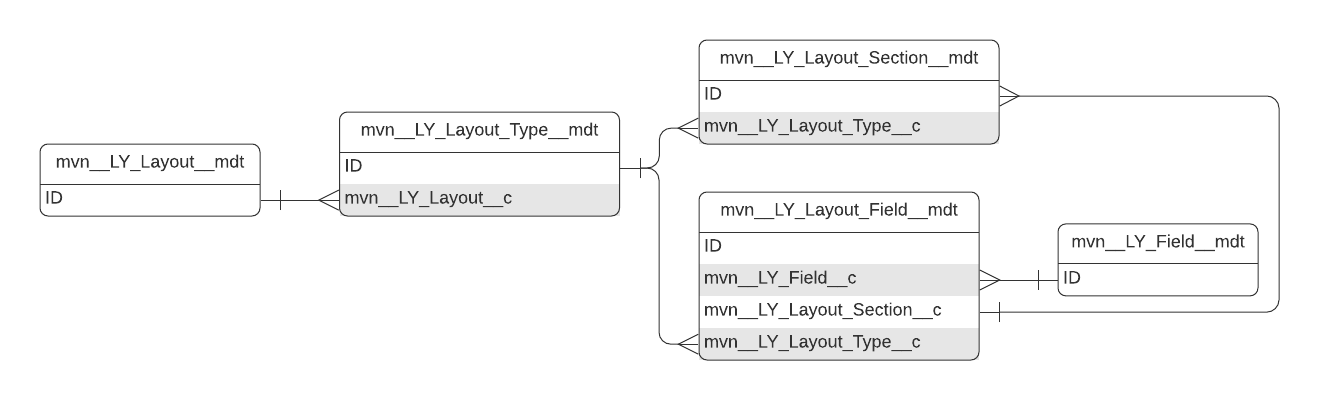
The primary metadata used to manage document layouts include:
-
Field (
mvn__LY_Field__mdt) - manages fields. Every record is a pointer to a custom field defined onLY_Document_Version__cand can be displayed in a Layout. -
Layout (
mvn__LY_Layout__mdt) - manages layouts. Each Layout record refers to a specific location in the application. -
Layout Fact (
mvn__LY_Layout_Fact__mdt) - articulates how the rules engine should process layout criteria (mvn__LY_Layout_Type__mdt.mvn__LY_Criteria__c) for custom and standard objects. -
Layout Field (
mvn__LY_Layout_Field__mdt) - connects the Layout Type and Field custom metadata types. Layout Field records control which fields appear on a layout. -
Layout Section (
mvn__LY_Layout_Section__mdt) - groups fields on a layout into sections. Layout Section records are associated to Layout Type (LY_Layout_Type__mdt) and Layout Field (LY_Layout_Field__mdt) records. Associated Layout Type records determine when a section should be used and connect the section to a Layout (mvn__LY_Layout__mdt), and associated Layout Field records define the fields that are part of a section. Layout Field records not associated with a section are automatically placed in a section at the bottom of the layout. -
Layout Type (
mvn__LY_Layout_Type__mdt) - displays and captures data specific to the type of document or task being managed. For example, since FAQs and Corporate documents have different metadata requirements, you can configure theLY_Document_Edit_Metadatalayout to render theFAQ_Edit_Metadatalayout type for FAQ document types and theCorporate_Edit_Metadatalayout type for Corporate document types. In other words,LY_Layout_Type__mdtrecords determine when layout types should be used.